
 100% FREE ACCESS
12th Standard Syllabus & Materials
12th Standard
TN 12th Computer Applications மின்னணு தரவு பரிமாற்றம் Sample Question Papers Study Material - QB365 Set A
NEW12th Standard
TN 12th Computer Applications மின் - வணிக பாதுகாப்பு அமைப்புகள் Sample Question Papers Study Material - QB365 Set A
NEW12th Standard
TN 12th Computer Applications மின்னணு செலுத்தல் முறைகள் Sample Question Papers Study Material - QB365 Set A
NEW12th Standard
TN 12th Computer Applications மின் - வணிகம் Sample Question Papers Study Material - QB365 Set A
NEW12th Standard
TN 12th Computer Applications திறந்த மூல கருத்துருக்கள் Sample Question Papers Study Material - QB365 Set A
NEW12th Standard
TN 12th Computer Applications வலையமைப்பு வடமிடல் Sample Question Papers Study Material - QB365 Set A

Published on: 21/11/2019
An Introduction to Adobe PageMaker
Download Tamil Nadu 12th Standard Computer Technology question papers, model tests, one-mark questions, important questions, and public exam papers in PDF format. Free study materials and answer keys for TN State Board students.
Questions + Answers key
Take MCQ Computer Technology Test
1.
Shortcut to print a document in Pagemaker is ___________
Ctrl + A
Ctrl + P
Ctrl + C
Ctrl + V
2.
Which tool lets you edit text?
Text tool
Type tool
Crop tool
Hand tool
3.
Character formatting consists of which of the following text properties?
Bold
Italic
Underline
All of these
4.
____________ is a DTP software.
Lotus 1-2-3
PageMaker
Maya
Flash
5.
DTP stands for ______________
Desktop Publishing
Desktop Publication
Doctor To Patient
Desktop Printer
6.
How do you insert a page in PageMaker?
7.
What is threading text?
8.
What is threading text blocks?
9.
What is text editing?
10.
Differentiate Ellipse tool from Ellipse frame tool.
11.
How to you insert page numbers in Master pages?
12.
What is the use of Master Page?
13.
How do you link frames containing text?
14.
How do you rejoin split blocks?
15.
Mention three tools in PageMaker and write their keyboard shortcuts.
16.
Write the steps to draw a star using polygon tool?
17.
How can you convert text in a text block to a frame?
18.
19.
Explain the tools in PageMaker toolbox.
1.
(b)
Ctrl + P
2.
(b)
Type tool
3.
(d)
All of these
4.
(b)
PageMaker
5.
(a)
Desktop Publishing
6.
Inserting a page
1. Click on Layout in the menu bar. The Layout menu will appear.
2. Click on Insert page. The Insert Page dialog box will appear.
3. Type the number of pages you want to add to the Insert Page dialog box.
4. Click on Before or After to specify where you want to add the page relative to the active page.
5. In multi-page documents, type a new page number in the Existing Page Box to change the relative page.
6. Click on OK button. The page will be inserted in your document.
7.
The process of connecting text among Text blocks is called threading text. Text that flows through one or more threaded blocks is called a story.
8.
(i) All text in PageMaker resides inside containers called text blocks.
(ii) A Text block can be connected to other text block so that the text in one text block can flow into another text block.
9.
i) Editing means making changes to the text.
ii) When you edit a document, you revise its text.
iii) Editing encompasses many tasks, such as inserting and deleting words and phrases, correcting errors, and moving and copying text to different places in the document.
10.
| Ellipse tool | Ellipse frame tool |
Used to draw circles and ellipses. The icon is |
Used to create elliptical placeholders for text and graphics. The icon is |
11.
To make page numbers appear on every page
(i) Click on Master Pages icon.
(ii) Then click on Text Tool. Now the cursor changes to I - beam.
(iii) Then click on the left Master page where you want to put the page number.
(iv) Press Ctrl +Alt + P.
(v) The page number displays as 'LM' on the left Master Page.
(vi) Similarly click on the right Master page where you want to put the page number.
(vii) Press Ctrl +Alt + P.
(viii) Tile page number displays as 'RM' on the right Master Page, but will appear correctly on the actual pages.
12.
⇢ Master Pages commonly contain repeating logos, page numbers, headers, and footers.
⇢ They also contain non printing layout guides, such as column guides, ruler guides, and margin guides.
13.
➝ Draw a second frame with the Frame tool of your choice.
➝ Click the first frame to select it.
➝ Click on the red triangle to load the text icon.
➝ Click the second frame. PageMaker flows the text into the second frame.(i)
14.
Rejoining split blocks To rejoin the two text blocks
1. Place the cursor on the bottom handle of the second text block, click and drag the bottom handle up to the top.
2. Then place the cursor on the bottom handle of the first text block, and click and drag the bottom handle down if necessary.
15.
| S. No. | Tools | Keyboard Shortcut |
| 1 | Pointer Tool | F9 |
| 2 | Rotating Tool | Shift + F2 |
| 3 | Line Tool | Shift + F3 |
| 4 | Rectangle Tool | Shift + F4 |
| 5 | Ellipse Tool | Shift + F5 |
| 6 | Polygon Tool | Shift + F6 |
16.
Drawing a Star using Polygon tool To draw a Star
1. Click on the Polygon tool from the toolbox. The cursor changes to a crosshair.
2. Click and drag anywhere on the screen. As you drag, a Polygon appears.
3. Release the mouse button when the Polygon is of the desired size.
4. Choose Element > Polygon Settings in the menu bar.
17.
Converting text in a Text block to a Frame
After created text in a text block, if you want to convert it to a frame. You can do this by using these steps.
1. Draw the frame of your choice using one of the Pagemaker's Frame tool.
2. Select the text block you want to insert in the frame.
3. Click the frame while pressing the Shift key. Now both elements will be selected.
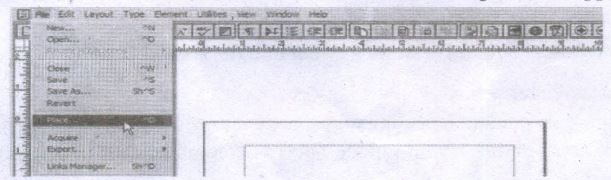
4. Choose Element > Frame > Attach Content on the Menu bar.
5. Now the text appears in the frame.
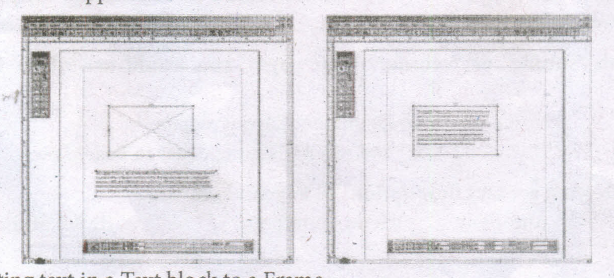
Converting text in a Text block to a Frame
18.
19.
Tool Toolbox Cursor Use
| Pointer Tool | Used to select, move, and resize text objects and graphics |
| Text tool | Used to type, select, and edit text. |
| Rotating tool | Used to select and rotate objects |
| Cropping tool | Used to trim imported graphics. |
| Line tool | Used to draw straight lines in any direction. |
| Constrained line tool | Used to draw vertical or horizontal lines. |
| Rectangle frame tool | Used to create rectangular placeholders for text and graphics. |
| Ellipse tool | Used to draw circles and ellipses. |
| Ellipse frame tool | Used to create elliptical placeholders for text and graphics. |
| Polygon tool | Used to draw polygons. |
| Polygon frame tool | Used to create polygonal placeholders for text and graphics. |
| Hand tool | Used to scroll the page (an alternative to the scroll bar) |
| Zoom tool | Used to magnify or reduce an area of the page |

12th Standard Syllabus & Materials
12th Standard
TN 12th Computer Applications களப்பெயர் முறைமை (DNS) Sample Question Papers Study Material - QB365 Set A
NEW12th Standard
TN 12th Computer Applications வலையமைப்பு எடுத்துக்காட்டுகள் மற்றும் நெறிமுறைகள் Sample Question Papers Study Material - QB365 Set A
NEW12th Standard
TN 12th Computer Applications கணினி வலையமைப்பு ஓர் அறிமுகம் Sample Question Papers Study Material - QB365 Set A
NEW12th Standard
TN 12th Computer Applications PHP-உடன் MySQL-ஐ இணைத்தல் Sample Question Papers Study Material - QB365 Set A



Tamilnadu Stateboard 12th Standard Subjects

Maths

Chemistry

Physics

Biology

Computer Science

Business Maths and Statistics

Economics

Commerce

Accountancy

History
Computer Applications
Biology
Computer Technology
Computer Applications
Computer Science
Business Maths and Statistics
Commerce
Economics
Maths
Chemistry
Physics
Computer Technology
History
Accountancy

Tamil

English

French
Tamilnadu Stateboard Standards

