
 100% FREE ACCESS
12th Standard Syllabus & Materials
12th Standard
TN 12th Computer Applications மின்னணு தரவு பரிமாற்றம் Sample Question Papers Study Material - QB365 Set A
NEW12th Standard
TN 12th Computer Applications மின் - வணிக பாதுகாப்பு அமைப்புகள் Sample Question Papers Study Material - QB365 Set A
NEW12th Standard
TN 12th Computer Applications மின்னணு செலுத்தல் முறைகள் Sample Question Papers Study Material - QB365 Set A
NEW12th Standard
TN 12th Computer Applications மின் - வணிகம் Sample Question Papers Study Material - QB365 Set A
NEW12th Standard
TN 12th Computer Applications திறந்த மூல கருத்துருக்கள் Sample Question Papers Study Material - QB365 Set A
NEW12th Standard
TN 12th Computer Applications வலையமைப்பு வடமிடல் Sample Question Papers Study Material - QB365 Set A

Published on: 06/01/2020
AutoCAD 2016
Download Tamil Nadu 12th Standard Computer Technology question papers, model tests, one-mark questions, important questions, and public exam papers in PDF format. Free study materials and answer keys for TN State Board students.
Questions + Answers key
Take MCQ Computer Technology Test
1.
The _________ function key can be used to turn the grid display on or off
F1
F2
F3
F7
2.
UCS is short for
User Coordinate System
User Currency System
User Control System
User Computer System
3.
The _________bar displays at the top of the Application menu.
Menu
Search
Toolbar
Title
4.
The _________menu appears when you click the red “A” Button.
Application
Edit
Layout
Window
5.
AutoCAD 2016 is developed and marketed by _________
Microsoft Corporation
Adobe Inc.
Autodesk, Inc
Sun Microsystems, Inc
6.
How do you exit AutoCAD?
7.
After you enter the ERASE command, what does AutoCAD ask you to do?
8.
In which Ribbon control panel are the Arc and Circle buttons found?
9.
What is a fast method of closing a polygon when you are using the LINE command?
10.
Briefly describe the following methods of producing circles.
a. centre and radius
b. centre and diameter
11.
Explain the use of the LINE Undo option.
12.
How can you enter commands such as LINE, CIRCLE, and ERASE quickly at the keyboard?
13.
List the three Create Objects commands.
14.
Write about the rectangle object and the steps to draw a rectangle in AutoCAD.
15.
Write briefly about Command window.
16.
Write about AutoCAD Interface.
1.
(d)
F7
2.
(a)
User Coordinate System
3.
(b)
Search
4.
(a)
Application
5.
(c)
Autodesk, Inc
6.
You can close the current drawing file without actually quitting AutoCAD by choosing Close > Current Drawing from the Application Menu or by entering CLOSE at the Command prompt. To close the current opened file or all opened files,
(i) Click on the Application button. Now Application menu appears.
(ii) Move the mouse to the Close button, then select either Current Drawing to dose the current file, or All Drawings to close all the opened files in single command.
7.
To erase an object,
(i) Start the ERASE command by choosing
(ii) Home tab > Modify panel > Erase tool. (or) Type ERASE (or) E in the Command line. Now the cursor changes from the crosshairs to a little square.
(iii) This is called the pick box.
(iv) Its appearance indicates that AutoCAD is ready for you to select objects on the screen. Also note the command line; it's prompting you to select objects.
8.
Ribbon control panel are the Arc and Circle buttons found in ARC toul.
9.
(i) The Close option is used to join the current point to the start point of the first line when two or more continuous lines are drawn.
(ii) If you specify the end point by using the mouse, then click at the start point of the first line or enter C at the Command prompt, as given in the Command prompt below.
Command: LINE
Specify first point: Pick the first point.
Specify next point or [Undo]: Pick the second point.
Specify next point or [Undo]: Pick the third point.
Specify next point or [Close/Undo]: C (The fourth point joins with the first point).
10.
a. centre and radius:
Ribbon: Home > Draw > Circle drop-down > Center, Radius
Toolbar: Draw > Circle
Menu Bar: Draw > Circle
Command: CIRCLE or C
b. centre and diameter:
Drawing a Circle by Specifying Center and Diameter
1. Click Home > Draw > Circle > Center, Diameter on the ribbon. (or) Type CIRCLE or C in the Command line.
2. The following message appears in the command line.
Specify center point for circle or [3P/2P/Ttr (tan radius)]: Left-click with the mouse anywhere on the screen. (or) Type a Value.
Specify radius of circle or [Diameter]: Enter D for Diameter option.
Specify diameter of circle: Enter the value of Diameter.
11.
The following prompts are displayed.
Specify first point
(i) Sets the starting point for the line.
(ii) Click a point location.
(iii) With object snaps or grid snap turned on, the points will be placed precisely.
(iv) You can also enter coordinates.
(v) If instead, you press Enter at the prompt, a new line starts from the endpoint of the most recently created line, polyline, or arc.
(vi) If the most recently created object is an arc, its endpoint defines the starting point of the line.
(viii) The line is tangent to the arc.
Specify next point
(i) Specifies the endpoint of the line segment.
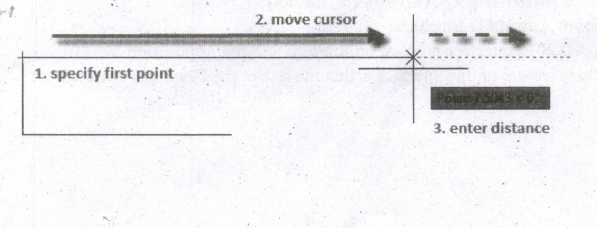
(ii) You can also use polar and object snap tracking together with direct distance entry.
Close
Connects the first and last segments.
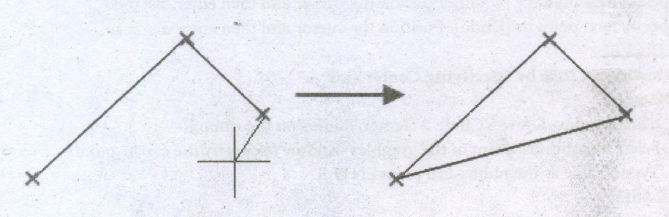
Undo
Removes the most recent segment of a line sequence.
12.
LINE:
LINE Specify first point: Start point.
Specify next point or [Undo]: Position the cursor and then enter distance.
Specify next point or [Undo]: Position the cursor and then enter distance.
CIRCLE:
Drawing a Circle by Specifying Center and
Diameter
1. Click Home > Draw > Circle > Center, Radius on the ribbon.
2. Select an arbitrary point in the graphics window to specify the center point:
3. Type a value as the radius and press ENTER.
ERASE:
Method 1
Select the Erase command first and then select the objects to be erased.
Press Enter Key and the objects selected will disappear.
Method 2
Select the object to be erased.
Press the Delete Key.
13.
(i) Click View tab Palettes panel Command Line.
(ii) Find. Press Ctrl + 9.
(iii) At the Command prompt, enter COMMANDLINE or COMMANDLINEHIDE.
(iv) L. It can be used for making simple lines in the drawing.
(v) C. It is the command used for making a circle in AutoCAD.
(vi) PL. This command can be used to make a Polyline in your drawing.
(vii) REC. This command will make a rectangle in AutoCAD.
14.
(i) One of the most basic shapes used by drafters and designers is the rectangle. You can create a rectangle using the LINE command, but doing so has some disadvantages.
(ii) For example, you would have to take the time to make sure that the corner angles are exactly 90°. Also, each line segment would be a separate object.
(iii) Therefore, AutoCAD 2016 provides the RECTANG command, which allows you to create a rectangle with perfect corners and as a single object.
(iv) Clicking anywhere on a rectangle created with the RECTANG command selects the entire rectangle.
To draw a Rectangle using the cursor to select the corners:
1. Command: RECTANGLE (or) REC (Press Enter Key)
2. The following will appear on the command line:
RECTANGLE
Specify first corner point or [Chamfer/Elevation/Fillet/Thickness/Width]:
Specify the location of the first corner by moving the cursor to a location (P1) and then press the left mouse button.
3. The following will appear on the command line:
Specify other corner point or [Area/Dimensions/Rotation]:
Specify the location of the diagonal corner (P2) by moving the cursor diagonally away from the first corner (P1) and pressing the left mouse button. Now a rectangle will appear.
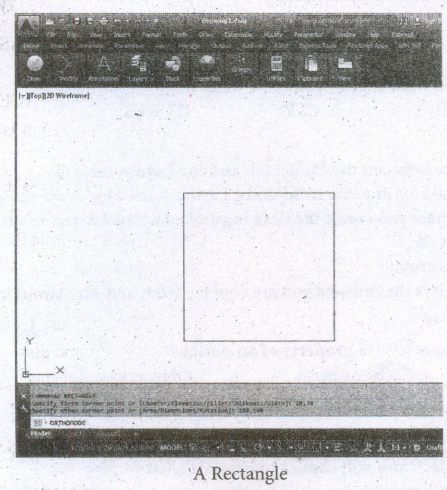
Draw a rectangle defined by diagonal points (20,30) and (150,160).
Command: RECTANGLE ⤶
Specify first corner point or [Chamfer/Elevation/Fillet/Thickness/Width]: 20,30 ⤶
Specify other corner point or [Area/Dimensions/Rotation]: 150,160 ⤶
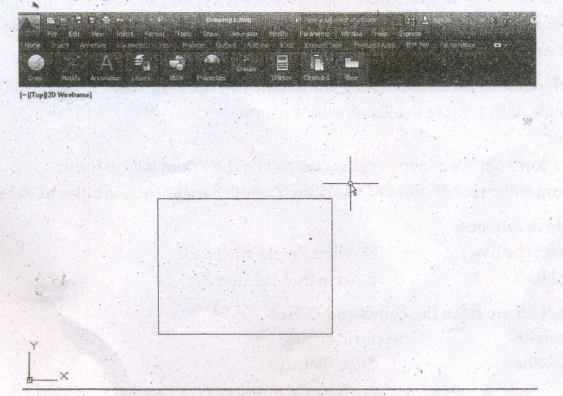
A Rectangle define by diagonal points (20.30) and (150,160)
15.
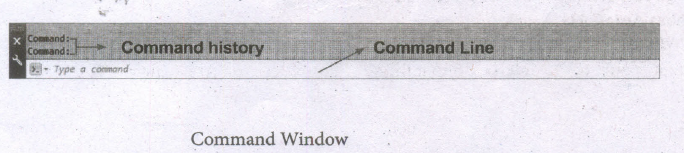
Command Window
(i) The command window is normally located at the bottom of the application window, just above the statusbar.
(ii) This window normally contains three lines of text and the first two lines list the immediate command history,
(iii) The bottom line is the command line. If you do not see the command window, press Ctrl + 9 to make it appear.
(iv) You can enter a command manually at the command line.
(v) You can type at the cursor position on the command line, that is, the Command: prompt.
(vi) If you just type the first letter of a command, it will list all the commands starting with that letter.
(vii) Note: Always press ENTER after you type values on the command line.
(viii) You can drag this window to a different place on the screen and resize it.
(ix) When you enter a command, AutoCAD doesn't care if you use UPPERCASE or lowercase characters, or a combination of either.
(x) If you make a mistake typing on the command line, press the BACKSPACE key to correct.
(xi) You can press ESC at any time. If you press ESC while an operation is in progress, it terminates the command.
(xii) To repeat the command you previously entered in AutoCAD, press ENTER (or the spacebar) at the 'Command:' prompt.
(xiii) As an alternative, right-click to display the cursor menu, and then select the Repeat option.
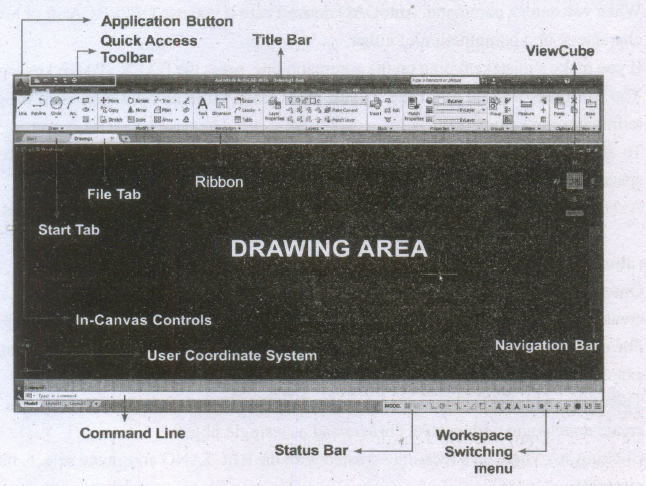
16.
The AutoCAD 2016 interface is based on Ribbons and the Application Menu,
The important feature of this interface is that the size of the Graphical Area will be bigger.

12th Standard Syllabus & Materials
12th Standard
TN 12th Computer Applications களப்பெயர் முறைமை (DNS) Sample Question Papers Study Material - QB365 Set A
NEW12th Standard
TN 12th Computer Applications வலையமைப்பு எடுத்துக்காட்டுகள் மற்றும் நெறிமுறைகள் Sample Question Papers Study Material - QB365 Set A
NEW12th Standard
TN 12th Computer Applications கணினி வலையமைப்பு ஓர் அறிமுகம் Sample Question Papers Study Material - QB365 Set A
NEW12th Standard
TN 12th Computer Applications PHP-உடன் MySQL-ஐ இணைத்தல் Sample Question Papers Study Material - QB365 Set A



Tamilnadu Stateboard 12th Standard Subjects

Maths

Chemistry

Physics

Biology

Computer Science

Business Maths and Statistics

Economics

Commerce

Accountancy

History
Computer Applications
Biology
Computer Technology
Computer Applications
Computer Science
Business Maths and Statistics
Commerce
Economics
Maths
Chemistry
Physics
Computer Technology
History
Accountancy

Tamil

English

French
Tamilnadu Stateboard Standards
