
 100% FREE ACCESS
12th Standard Syllabus & Materials
12th Standard
TN 12th Computer Applications மின்னணு தரவு பரிமாற்றம் Sample Question Papers Study Material - QB365 Set A
NEW12th Standard
TN 12th Computer Applications மின் - வணிக பாதுகாப்பு அமைப்புகள் Sample Question Papers Study Material - QB365 Set A
NEW12th Standard
TN 12th Computer Applications மின்னணு செலுத்தல் முறைகள் Sample Question Papers Study Material - QB365 Set A
NEW12th Standard
TN 12th Computer Applications மின் - வணிகம் Sample Question Papers Study Material - QB365 Set A
NEW12th Standard
TN 12th Computer Applications திறந்த மூல கருத்துருக்கள் Sample Question Papers Study Material - QB365 Set A
NEW12th Standard
TN 12th Computer Applications வலையமைப்பு வடமிடல் Sample Question Papers Study Material - QB365 Set A

Published on: 21/09/2019
Download Tamil Nadu 12th Standard Computer Technology question papers, model tests, one-mark questions, important questions, and public exam papers in PDF format. Free study materials and answer keys for TN State Board students.
Questions + Answers key
Take MCQ Computer Technology Test
1.
UCS is short for
User Coordinate System
User Currency System
User Control System
User Computer System
2.
You can create attractive looking advertising banners with
Access
Word
Flash
Excel
3.
you need hardware, software and __________ to make multimedia
network
compact disk drive
good idea
programming knowledge
4.
Vector graphics are made of __________.
Lines and curves
only lines
pixels
None of these
5.
A color you apply to the inside of an object is called
Fill
Stroke
Paint
In-Color
6.
Continuous text that occupies one or more frames is called a
Story
Paragraph
Object
Palette
7.
DTP stands for ______________
Desktop Publishing
Desktop Publication
Doctor To Patient
Desktop Printer
8.
Fit Spread in Window
9.
Actual Size
10.
Zoom Out
11.
Undo
12.
Copy
13.
How do you exit AutoCAD?
14.
What is Flash?
15.
Define Animation and their features.
16.
How many types of orientation are available by default? What are they?
text frame
shape
clipboard
None of the above
17.
What is desktop publishing?
18.
File created in Flash automatically gets the __________ extension.
19.
_________ tool is used to create straight line on the stage.
20.
The Insert pages option is available on clicking the _________ menu.
21.
Adobe PageMaker is a ___________ software
22.
Bold, Italic, Portrait, Underline
23.
Adobe PageMaker, QuarkXPress, Adobe InDesign, Audacity
24.
Explain the use of the LINE Undo option.
25.
Differentiate between Zoom Tool and Hand Tool.
26.
What do you do to convert a line into an arrow?
27.
Write about any 3 tools found in the tools panel.
Gradient
Color Mix
Color Palette
none
28.
What is PageMaker? Explain its uses.
29.
Write about AutoCAD Interface.
30.
Write the steps to draw a grid.
31.
Write the steps to place text into a document.
1.
(a)
User Coordinate System
2.
(c)
Flash
3.
(d)
programming knowledge
4.
(a)
Lines and curves
5.
(a)
Fill
6.
(a)
Story
7.
(a)
Desktop Publishing
8.
for displaying the targeted spread in the window
9.
for the document to be displayed at 100%
10.
for magnifying to the next preset percentage
11.
Ctrl + Z
12.
Ctrl + C
13.
You can close the current drawing file without actually quitting AutoCAD by choosing Close > Current Drawing from the Application Menu or by entering CLOSE at the Command prompt. To close the current opened file or all opened files,
(i) Click on the Application button. Now Application menu appears.
(ii) Move the mouse to the Close button, then select either Current Drawing to dose the current file, or All Drawings to close all the opened files in single command.
14.
Adobe Flash Professional CS6 is a software used to create animations.
i) It contains tools that can be used to draw basic objects and to create scenes.
ii) It is developed by Adobe systems.
15.
(i) Animation is the process displaying still images so quickly so that they give the impression of continuous movement.
(ii) In animation the screen object is a vector image in animation.
(iii) Animations may be in two or three dimensional.
16.
Orientation:
(i) Specify a page orientation for the document.
(ii) Landscape or Portrait.
17.
Desktop publishing (abbreviated DTP) is the creation of page layouts for documents using DTP software.
18.
()
.fla
19.
()
Line
20.
()
Layout
21.
()
page layout
22.
Portrait
23.
Audacity
24.
The following prompts are displayed.
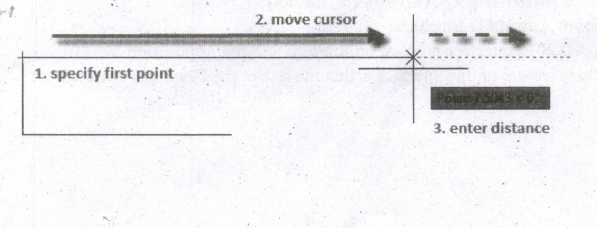
Specify first point
(i) Sets the starting point for the line.
(ii) Click a point location.
(iii) With object snaps or grid snap turned on, the points will be placed precisely.
(iv) You can also enter coordinates.
(v) If instead, you press Enter at the prompt, a new line starts from the endpoint of the most recently created line, polyline, or arc.
(vi) If the most recently created object is an arc, its endpoint defines the starting point of the line.
(viii) The line is tangent to the arc.
Specify next point
(i) Specifies the endpoint of the line segment.
(ii) You can also use polar and object snap tracking together with direct distance entry.
Close
Connects the first and last segments.
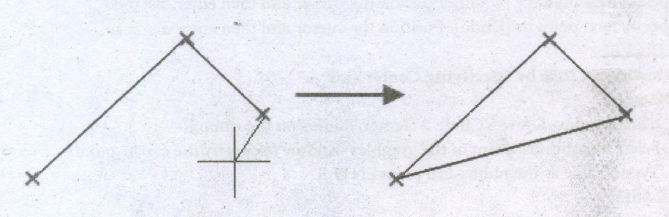
Undo
Removes the most recent segment of a line sequence.
25.
| Hand Tool (H) | Zoom Tool (Z) |
| It is used to move the Stage around the Pasteboard by dragging the Stage. | It is used to change the magnification of an area of the Stage. Clicking an area of the Stage zooms in and holding down Alt Key and clicking zooms out. |
26.
To add arrowhead to a line
(i) Using the Freehand tool draw a line.
(ii) Select the line.
(iii) Click the drop-down button on the End Arrowhead Selector on the Property tool bar.
(iv) Then click the desired arrow tip.
Now the line appears with an arrow.
You can set the line style, width, and the colour of the line using the Properties bar.
27.
Type Tool ()
(i) The Type tool is used to enter and edit text.
(ii) To create a text frame, select the Type tool and drag the tool in the document window.
(iii) To select the Type tool, press T.
Path Type Tool ( )
(i) The Path Type tool is used to enter and edit text on a path (Adobe calls this the "Type on a Path" tool).
(ii) To add text on a path, select the Path Type tool and click the tool on a path. A flashing text insertion point (or text cursor) appears on the path.
(iii) At this point, text you enter will flow along the path.
(iv) To select the Path Type tool, press Shift +T.
Add Anchor Point tool ( )
When you click the Add Anchor Point tool on a selected path, InDesign adds a point at that location on the path.
28.
(i) Adobe PageMaker is a page layout software.
(ii) It is used to design and produce documents that can be printed.
(iii) You can create anything from a simple business card to a large book.
(iv) Page layout software includes tools that allow you to easily position text and graphics on document pages.
(v) For example, using PageMaker, you could create a newsletter that intended articles and pictures on each page.
29.
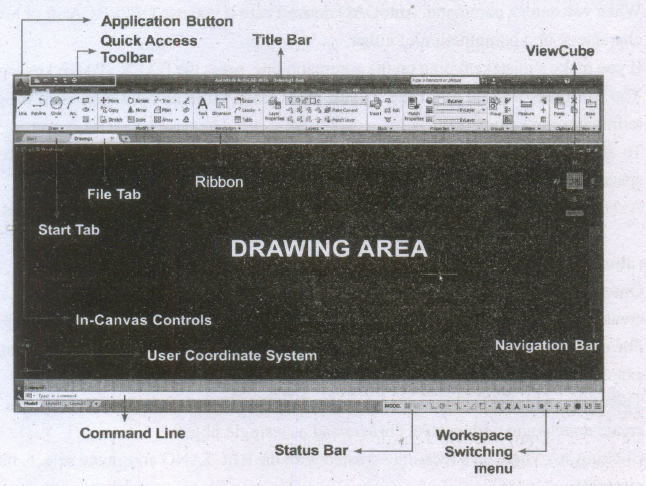
The AutoCAD 2016 interface is based on Ribbons and the Application Menu,
The important feature of this interface is that the size of the Graphical Area will be bigger.
30.
Drawing Grids
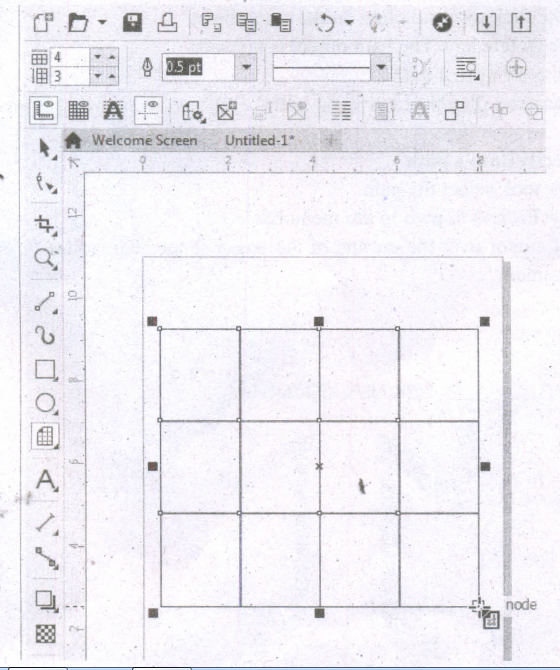
Using Graph Paper tool, you can draw a grid and set the number of rows and columns. A grid is a grouped set of rectangles that you can break apart.
To draw a grid,
1. Click and hold the Polygon tool. A flyout menu will appear.
2. Select the Graph Paper tool from the flyout menu.
3. Now type values in the top and bottom portions of the Columns and rows box on the property bar. The value you type in the top portion of the Columns and rows box specifies the number of columns; the value you type in the bottom portion specifies the number of rows.
4. Click on anywhere in the drawing area where you want the grid to appear.
5. Drag diagonally to draw the required grid.
If you want to draw the grid from its center point outward, hold down Shift key as you drag; if you want to draw a grid with square cells, hold down Ctrl key as you drag.
31.
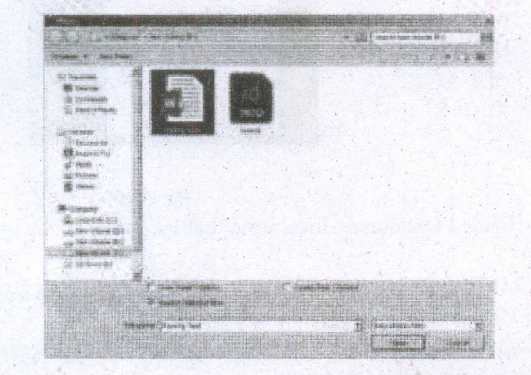
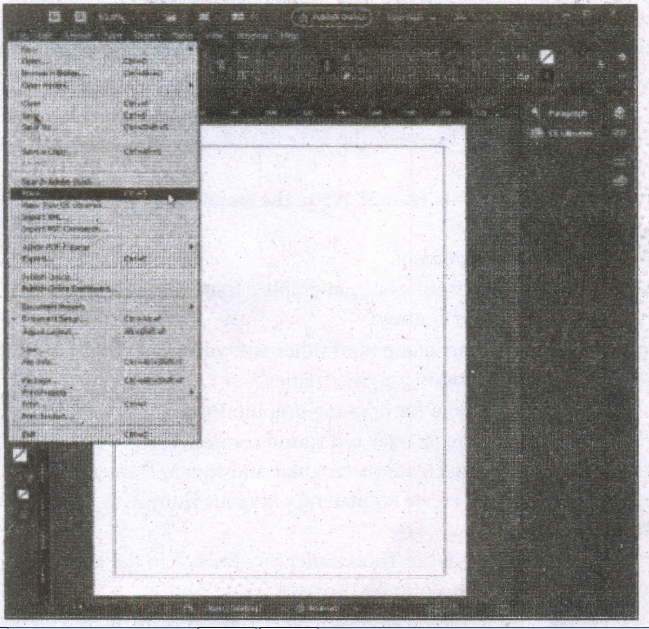
Follow these steps to place text into a document:
1. Choose File> Place in the menu bar, Place dialog box appears.
2. Locate the text file you want to place, select it and click the Open button on the right side of the Place dialog box.
Place option in the File Menu
Place dialog box
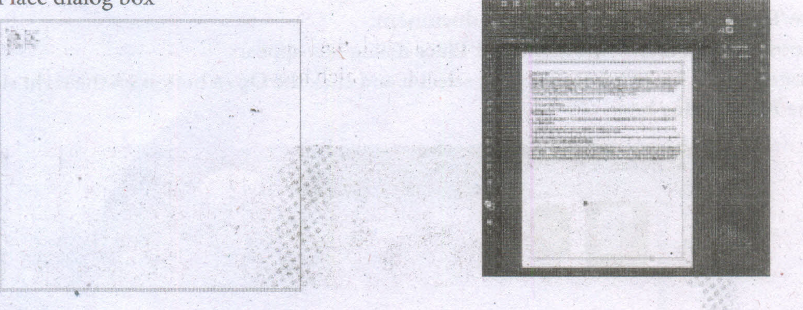
The loaded text cursor
Text Frame
3. Your cursor changes to the loaded text cursor, indicating that the text is ready to be placed into your document.
4. Either click to place the text (filling the current column from the point at which you clicked to the end of the page) or click and drag to create a new text frame.
5. If a text frame cannot contain all the text placed within it, a red plussign overflow symbol appears on the lower-right border of the text frame.
(i) Clicking this overflow symbol loads the remaining text into your cursor for placement in an additional text frame.
(ii) To place this text, just click or click and drag to create a new text frame with the additional text.
(iii) This new text frame is linked to the previous text frame.
(iv) When linked, text flows freely between the two frames if you change the size of the frames or the formatting of the text. .

12th Standard Syllabus & Materials
12th Standard
TN 12th Computer Applications களப்பெயர் முறைமை (DNS) Sample Question Papers Study Material - QB365 Set A
NEW12th Standard
TN 12th Computer Applications வலையமைப்பு எடுத்துக்காட்டுகள் மற்றும் நெறிமுறைகள் Sample Question Papers Study Material - QB365 Set A
NEW12th Standard
TN 12th Computer Applications கணினி வலையமைப்பு ஓர் அறிமுகம் Sample Question Papers Study Material - QB365 Set A
NEW12th Standard
TN 12th Computer Applications PHP-உடன் MySQL-ஐ இணைத்தல் Sample Question Papers Study Material - QB365 Set A



Tamilnadu Stateboard 12th Standard Subjects

Maths

Chemistry

Physics

Biology

Computer Science

Business Maths and Statistics

Economics

Commerce

Accountancy

History
Computer Applications
Biology
Computer Technology
Computer Applications
Computer Science
Business Maths and Statistics
Commerce
Economics
Maths
Chemistry
Physics
Computer Technology
History
Accountancy

Tamil

English

French
Tamilnadu Stateboard Standards
