
 100% FREE ACCESS
12th Standard Syllabus & Materials
12th Standard
TN 12th Computer Applications மின்னணு தரவு பரிமாற்றம் Sample Question Papers Study Material - QB365 Set A
NEW12th Standard
TN 12th Computer Applications மின் - வணிக பாதுகாப்பு அமைப்புகள் Sample Question Papers Study Material - QB365 Set A
NEW12th Standard
TN 12th Computer Applications மின்னணு செலுத்தல் முறைகள் Sample Question Papers Study Material - QB365 Set A
NEW12th Standard
TN 12th Computer Applications மின் - வணிகம் Sample Question Papers Study Material - QB365 Set A
NEW12th Standard
TN 12th Computer Applications திறந்த மூல கருத்துருக்கள் Sample Question Papers Study Material - QB365 Set A
NEW12th Standard
TN 12th Computer Applications வலையமைப்பு வடமிடல் Sample Question Papers Study Material - QB365 Set A

Published on: 10/09/2022
QB365 provides a detailed and simple solution for every Possible Creative Questions in Class 12 Computer Science Subject - Python and CSV Files , English Medium. It will help Students to get more practice questions, Students can Practice these question papers in addition to score best marks.
Download Tamil Nadu 12th Standard Computer Science question papers, model tests, one-mark questions, important questions, and public exam papers in PDF format. Free study materials and answer keys for TN State Board students.
Questions + Answers key
Take MCQ Computer Science Test
1.
How will you write a dictionary into CSV files with custom dialects?
2.
How will you write a CSV File into a Dictionary?
3.
Write short notes on CSV file with quote characters.
4.
What are the different types of writing data in CSV files?
5.
Write short notes on DictReader.
6.
How will you create a CSV file that contains double quotes with data?
7.
How will you create a CSV file that contains comma with data?
8.
How will you create a CSV file using Note pad?
9.
Write a program to create a new normal CSV file to store data.
10.
What are the ways to write a new or edit are existing CSV file in python?
11.
What are the different ways of reading a CSV file using reader ( ) method?
12.
Write a program to read a file with default delimiter comma.
13.
Write the syntax of reader( ).
14.
How will you save the CSV file in MS-Excel?
15.
How will you create CSV normal file?
1.
Program: To write a dictionary into CSV files with custom dialects
import csv
csv. register _dialect ('MyDialect',delimiter = '|', quoting = csv. QUOTE_ALL)
with open('c: \\ pyprg\\ ch13\\grade.csv', 'w') as csv file:fieldnames = ['Name', 'Grade']
writer = csv.Dictwriter (csvfile, field names = field names, dialect = "myDialect")
writer. writerheader ( )
writer. writerrows ([{'Grade': 'B', 'Name': 'Anu',}
{ 'Grade': 'A', 'Name': 'Beena'}
{'Grade': 'C', 'Name': 'Tarun'}])
print ('writing completed")
Output:
| "Name" | "Grade" |
| "Anu" | "A" |
| "Beena" | "B" |
| "Tarun" | "C" |
A custom dialect called my Dialect with pipe(l) as delimiter uses the field names as headings of each column to write in a CSV file. We rise a Dictwriter ( ) to write dictionary data into "grade.csv" file.
2.
Using DictWriter( ) class of CSV module, we can write a CSV file into a dictionary. It creates an object which maps data into a dictionary. The Keys are given by the field names parameter.
Program:
import csv
data = [{'MOUNTAIN': 'Everest', 'HIGHEST': '8848'},
[{ 'MOUNTAIN': 'Anamudi', 'HEIGHT': '2695'},
'MOUNTAIN': 'Kanchenjunga', 'HEIGHT': '8586'}]
with open ('c:\\ Pyprg\\ch13\\peah.csv', 'W') as CF:
fields = ['MOUNTAIN', 'HEIGHT']
w.csv.Dictwriter(CF, fieldnames = fields)
w.writeheader( )
w.writerows(data)
print("Writing completed")
CF.close
when we open the "peak.csv" filein notepad, we get the output as,
| MOUNTAIN | HEIGHT |
| Everest, | 8848 |
| Anamudi, | 2695 |
| Kanchenjunga, | 8586 |
Use field names as headings of each column in the csv file. Then, use a Dictwriter( ) to write dictionary data into the "peak.csv" file.
3.
We can write the CSV file with custom quote characters, by registering new dialects using csv.register_dialect( ) class of csv module.
Program:
import csv
csvData = [['sno', 'items],['1', 'pen ], ['2', 'Book'], ['3', 'pencil']]
csv. register_dialect ('myDialect'.delimiter='|', quotechar=" ", quoting \= csv.QUOTE_ ALL)
with open ('c:\\pyprg\\ch13\quote.csv', 'W') as csv file:
writer = csv. writer (csvfile, dialect ='MyDialect')
writer.writerows ( CSVData)
print("writing completed").
csvFile. close( )
when we open the "quote.csv" file in notepad, we get the following output:
| SI.No | "Item" |
| 1 | "Pen" |
| 2 | "Book" |
| 3 | "Pencil" |
MyDialect uses pipe (|) as delimiters and quotes char as double "' to write inside the files.
4.
1. Creating a New Normal CSV file.
2. Modifying an Existing File.
3. Writing on a CSV file with Quotes
4. Writing on a CSV file with custom Delimiters
5. Writing on a CSV file with Lindetermination
6. Writing on a CSV file with Quotechars
7. Writing CSV file into a Dictionary
8. Getting Data at Runtime and Writing in a File.
5.
To read a CSV file into a dictionary can be done by using DictReader class of CSV module which works similar to the reader( ) class but creates an object which maps data to a dictionary. The keys are given by the field names as parameters. DictReader works by reading the first line of the CSV and using each comma-separated value in this line as a dictionary key. The columns in each subsequent row then behave like dictionary values and can be accessed with the appropriate key.
6.
If our fields contain double - quotes as part of their data, the internal quotation marks need to be doubled so that they can be interpreted correctly.
For Example:
| Roll No | Name | Favorite Sports | Address |
| 12101 | Nivetha, | "Cricket", "football" | "Mylapore, Chennai" |
| 12102 | Lavanya, | "Basketball", "Cricket" | "Adyar, Chennai" |
| 12103 | Ram, | "Soccer", "Hockey" | "Gopalapuram, Chennai" |
It should be written in csv file as
Roll No, Name, Favourite sports, Address,
12101, Nivetha,''''''' Cricket '''','''' Football """",Mylapore,
Chennai 10102, Lavanya, """" Basketball, """""" Crickets""""""
Adayar Chennai 12102, Ram, """"" Soccer """","""" Hockey"""""",
Gopalapuram Chennai.
Output:
| Roll No | Name | Favorite Sports | Address |
| 12101 | Nivetha, | "Cricket", "football" | "Mylapore, Chennai" |
| 12102 | Lavanya, | "Basketball", "Cricket" | "Adyar, Chennai" |
| 12103 | Ram, | "Soccer", "Hockey" | "Gopalapuram, Chennai" |
7.
For example, let's say that one of our fields contains commas in the description. If our data looked like the below example:
| Roll No | Name | Address |
| 12101 | Nivetha | Mylapore, Chennai |
| 12102 | Lavanya | Adyar, Chennai |
| 12103 | Ram, | Gopalapuram, Chennai |
To retain the commas in "Address" column, we can enclose the fields in quotation marks.
For Example:
| Roll No | Name | Address |
| 12101 | Nivetha, | "Mylapore, Chennai" |
| 12102 | Lavanya, | "Adyar, Chennai" |
| 12103 | Ram, | "Gopalapuram, Chennai" |
8.
A CSV file is a text file, so it can be created and edited using any text editor, But more frequently a CSV file is created by exporting a spreadsheet or database in the program that created it.
Creating CSV Normal file:
To create a CSV file in Notepad, first, open a new file using
File ⟶ New or Ctrl + N
Then enter the data we want the file to contain, separating each value with a comma and each row with a new line.
9.
Import csv
csvData = [['Student, 'Age'], [Dhanush', '17'], ['Kalyani', '18'], ['Ram', '15']]
with open('c:\\pyprg\\ch13\\Pupil.csv', 'w') as CF:
writer = csv.writer(CF) # CF is the file object
writer.writerows(csvData) # csvData is the List name
CF.close( )
10.
(i) Creating A New Normal CSV File
(ii) Modifying An Existing File
(iii) Writing on a CSV File with Quotes
(iv) Writing on a CSV File with Custom Delimiters
(v) Writing on a CSV File with Lineterminator
(vi) Writing on a CSV File with Quotechars
(vii) Writing CSV File Into A Dictionary
(viii) Getting Data At Runtime And Writing In a File
11.
(i) CSV file - data with default delimiter comma (,)
(ii) CSV file - data with Space at the beginning
(ill) CSV file - data with quotes
(iv) CSV file - data with quotes
12.
#importing csv
import csv
#opening the csv file which is in different location with read mode
with open('c:\\pyprg\\ sample1.csv', 'r') as F:
#other way to open the file is f= ('c:\\pyprg\\ sample1.csv', 'r')
reader = csv.reader(F)
# printing each line of the Data row by row
print(row)
F.close ( )
13.
'The syntax for csv.reader() is
csv.reader(fileobject,delimiter,fmtparams)
where
(i) file object: passes the path and the mode of the file.
(ii) delimiter: an optional parameter containing the standard dilects like , | etc can be omitted
(iii) fmtparams: optional parameter which help to override the default values of the dialects like skipinitialspace, quoting etc. Can be omitted.
14.
To create a CSV file using Microsoft Excel, launch Excel and then open the file you want to save in CSV format. For example. below is the data contained in our sample Excel worksheet:
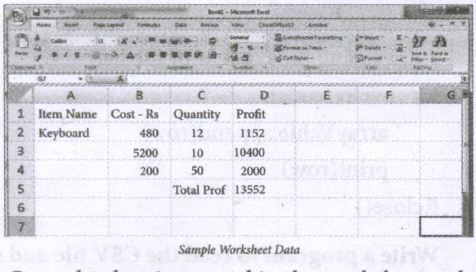
Once the data is entered in the worksheet, select File ⟶ Save As option, and for the "Save as type option" select CSV (Comma delimited) or type the file name along with extension .csv.
15.
To create a CSV file in Notepad,
(i) First open a new file using
File ⟶New or ctrl +N.
(ii) Then enter the data separating each value with a comma and each row with a new line.
(iii) For example consider the following details
Topic1, Topic2, Topic3
one, two, three
Example1, Example2, Example3
(iv) Save this content in a file with the extension.csv.

12th Standard Syllabus & Materials
12th Standard
TN 12th Computer Applications களப்பெயர் முறைமை (DNS) Sample Question Papers Study Material - QB365 Set A
NEW12th Standard
TN 12th Computer Applications வலையமைப்பு எடுத்துக்காட்டுகள் மற்றும் நெறிமுறைகள் Sample Question Papers Study Material - QB365 Set A
NEW12th Standard
TN 12th Computer Applications கணினி வலையமைப்பு ஓர் அறிமுகம் Sample Question Papers Study Material - QB365 Set A
NEW12th Standard
TN 12th Computer Applications PHP-உடன் MySQL-ஐ இணைத்தல் Sample Question Papers Study Material - QB365 Set A



Tamilnadu Stateboard 12th Standard Subjects

Maths

Chemistry

Physics

Biology
Computer Science

Business Maths and Statistics

Economics

Commerce

Accountancy

History

Computer Applications
Biology
Computer Technology
Computer Applications
Computer Science
Business Maths and Statistics
Commerce
Economics
Maths
Chemistry
Physics
Computer Technology
History
Accountancy

Tamil

English

French
Tamilnadu Stateboard Standards
