
 100% FREE ACCESS
12th Standard Syllabus & Materials
12th Standard
TN 12th Maths Applications of Matrices and Determinants Sample Question Papers Study Material - QB365 Set A
NEW12th Standard
TN 12th Computer Applications மின்னணு தரவு பரிமாற்றம் Sample Question Papers Study Material - QB365 Set A
NEW12th Standard
TN 12th Computer Applications மின் - வணிக பாதுகாப்பு அமைப்புகள் Sample Question Papers Study Material - QB365 Set A
NEW12th Standard
TN 12th Computer Applications மின்னணு செலுத்தல் முறைகள் Sample Question Papers Study Material - QB365 Set A
NEW12th Standard
TN 12th Computer Applications மின் - வணிகம் Sample Question Papers Study Material - QB365 Set A
NEW12th Standard
TN 12th Computer Applications திறந்த மூல கருத்துருக்கள் Sample Question Papers Study Material - QB365 Set A

Published on: 01/10/2019
CorelDRAW 2018
Download Tamil Nadu 12th Standard Computer Technology question papers, model tests, one-mark questions, important questions, and public exam papers in PDF format. Free study materials and answer keys for TN State Board students.
Questions + Answers key
Take MCQ Computer Technology Test
1.
To combine two or more objects press _________
Ctrl + D
Ctrl + L
Ctrl + S
Ctrl + A
2.
To break apart a combined object, press __________
Ctrl + K
Ctrl + C
Ctrl + S
Ctrl + A
3.
_________ key combination is used to create a duplicate of a selected object
Ctrl + D
Ctrl + C
Ctrl + S
Ctrl + A
4.
To exit CorelDraw, press ____________
Ctrl + F4
Ctrl + F3
Shift + F4
Alt + F4
5.
_________ key is used to select the Freehand tool.
F2
F3
F4
F5
6.
How many types of Spirals are there?
5
3
2
7
7.
Which tool is used to draw a circle?
Shape tool
Ellipse tool
Rectangle tool
Crop tool
8.
___________ is next to Standard tool bar.
Property bar
Title bar
Menu bar
status bar
9.
__________ are also known as raster images.
Vector graphics
Bitmaps
Lines
None of these
10.
_____________ is a vector graphics application
PageMaker
Photoshop
CorelDRAW
MS Word
11.
Write the steps to ungroup a grouped object.
12.
Write the steps to group objects.
13.
Why is a ruler used for in CorelDRAW?
14.
What is a property bar in CorelDRAW?
15.
Write the steps to start CorelDRAW.
16.
What is CorelDRAW used for?
17.
What do you achieve by welding objects? Write the steps to weld objects.
18.
How will you assign a fill colour and outline colour to an object?
19.
To correct your mistake in CorelDRAW what should you do? What is the keyboard shortcut to do it?
20.
What are the two types of spirals? Explain.
21.
Write the steps to draw a rectangle in CorelDRAW.
22.
What are the differences between Vector graphics and bitmaps?
23.
Write the steps to draw a grid.
24.
Write the steps to draw a spiral.
1.
(b)
Ctrl + L
2.
(a)
Ctrl + K
3.
(a)
Ctrl + D
4.
(d)
Alt + F4
5.
(d)
F5
6.
(c)
2
7.
(b)
Ellipse tool
8.
(a)
Property bar
9.
(b)
Bitmaps
10.
(c)
CorelDRAW
11.
To ungroup a group object
(i) Select the grouped object using the Pick tool.
(ii) Choose Object > Group > Ungroup
(iii) Objects on the menu Bar. (or)
(iv) Press Ctrl + U in the keyboard (or)
(v) Click on the Ungroup Objects button on the Property Bar.
(vi) The grouped object will break into its component objects
12.
To create a group object
(i) Select the objects with the Pick tool.
(ii) (To select multiple objects hold down Shift key while selecting them.)
(iii) Choose Object > Group > Group.
(iv) Objects (or) Press Ctrl + G. The selected objects will be grouped as a single object.
13.
(i) The horizontal and vertical rulers run along the top and left sides of the document window and pasteboard area.
(ii) They are helpful for measuring and positioning objects.
14.
The property bar is next to Standard toolbar.
(i) It displays the most commonly used functions that are relevant to the active tool.
(ii) Even though it looks like a toolbar, the property bar content changes depending on the tool or task.
15.
Using the Start Menu
(i) Choose Start > All Programs > CoreIDRAW Graphics Suite 2018 > CoreIDRAW 2018.
(ii) The CorelDRAW 2018 - Welcome Screen window will appear.
16.
CorelDraw is a versatile graphics application for creating high quality vector illustrations, logo designs, and page layouts.
17.
(i) By welding you can create irregular shapes.
(ii) The welded objects take on the outline and fill of the object that was selected last.
(iii) Welded objects can revert to their original individual objects only by using the Undo button.
To weld objects sing Property Bar
(i) Select the objects with the Pick tool by holding the Shift key.
(ii) Choose Object > Shaping > Weld in the menu bar (or)
(iii) Click on Weld button on the Property bar.
(iv) The objects will be welded and will become a single outline object.
18.
To fill colour to any object:
(i) Select the object using the Pick tool.
(ii) Click on any colour on the Color palette.
(iii) The selected colour will be applied to the object.
(iv) Right click on any colour on the Color palette.
(v) The outline colour of the selected object will change to the selected colour.
19.
To specify the Undo settings
1. Choose Tools > Options in the menu bar.
2. In the Workspace list of categories, click General
3. In the Undo levels area, type a value in one or both of the following boxes:
(i) Regular - specifies the number of actions that can be reversed when you use the Undo command with vector objects.
(ii) Bitmap effects - specifies the number of actions that can be reversed when you work with bitmap effects.
The keyboard shortcut is
(i) To Undo an action, press Ctrl + Z.
20.
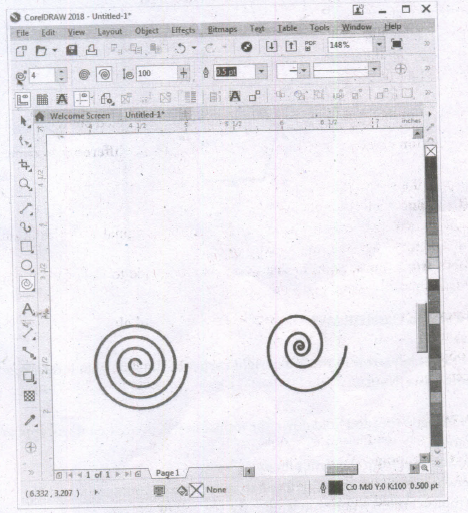
There are two types of spirals. They are
(i) Symmetrical spiral:
A Symmetrical spiral expands evenly so that the distance between each revolution is equal.
(ii) Logarithmic spiral:
A Logarithmic spiral expands with increasingly larger distances between revolutions.
21.
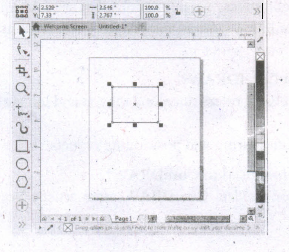
Drawing a Rectangle
(i) To draw a rectangle, select the Rectangle tool in the toolbox. The mouse pointer changed to a crosshair with a small rectangle beneath it.
(ii) Click and drag anywhere in the drawing area. As you drag, a rectangle appears.
(iii) Release the mouse button when the rectangle is of the desired size.
(iv) Now a rectangle will appear on the screen.
22.
| Vector graphics | Bitmaps |
| Vector graphics are made of lines and curves. | Bitmaps are also known as raster images. |
| They are generated from mathematical descriptions. | They are composed of small squares called pixels |
| These graphics are ideal for logos and illustrations. |
23.
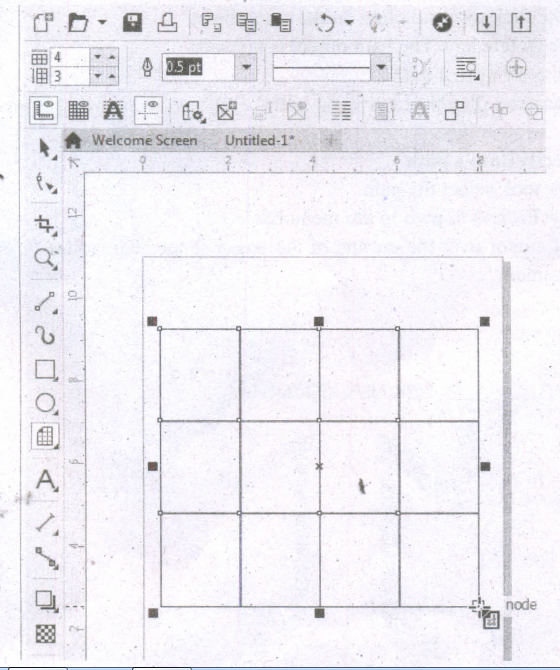
Drawing Grids
Using Graph Paper tool, you can draw a grid and set the number of rows and columns. A grid is a grouped set of rectangles that you can break apart.
To draw a grid,
1. Click and hold the Polygon tool. A flyout menu will appear.
2. Select the Graph Paper tool from the flyout menu.
3. Now type values in the top and bottom portions of the Columns and rows box on the property bar. The value you type in the top portion of the Columns and rows box specifies the number of columns; the value you type in the bottom portion specifies the number of rows.
4. Click on anywhere in the drawing area where you want the grid to appear.
5. Drag diagonally to draw the required grid.
If you want to draw the grid from its center point outward, hold down Shift key as you drag; if you want to draw a grid with square cells, hold down Ctrl key as you drag.
24.
To draw a spiral,
(i) Click and hold the Polygon tool. A flyout menu will appear.
(ii) Click on the Spiral tool from the flyout menu.
(iii) Now you should type a value in the Spiral revolutions box on the property bar to set the number of full-circle revolutions to appear in the new spiral object.
(iv) Next, click one of the following buttons on the property bar:
1. Symmetrical spiral
2. Logarithmic spiral
If you want to change the amount by which the spiral expands as it moves outward, move the Spiral expansion slide. Drag diagonally in the drawing window until the spiral is the required size.

12th Standard Syllabus & Materials
12th Standard
TN 12th Computer Applications வலையமைப்பு வடமிடல் Sample Question Papers Study Material - QB365 Set A
NEW12th Standard
TN 12th Computer Applications களப்பெயர் முறைமை (DNS) Sample Question Papers Study Material - QB365 Set A
NEW12th Standard
TN 12th Computer Applications வலையமைப்பு எடுத்துக்காட்டுகள் மற்றும் நெறிமுறைகள் Sample Question Papers Study Material - QB365 Set A
NEW12th Standard
TN 12th Computer Applications கணினி வலையமைப்பு ஓர் அறிமுகம் Sample Question Papers Study Material - QB365 Set A



Tamilnadu Stateboard 12th Standard Subjects

Maths

Chemistry

Physics

Biology

Computer Science

Business Maths and Statistics

Economics

Commerce

Accountancy

History
Computer Applications
Biology
Computer Technology
Computer Applications
Computer Science
Business Maths and Statistics
Commerce
Economics
Maths
Chemistry
Physics
Computer Technology
History
Accountancy

Tamil

English

French
Tamilnadu Stateboard Standards
