
 100% FREE ACCESS
12th Standard Syllabus & Materials
12th Standard
TN 12th Computer Applications மின்னணு தரவு பரிமாற்றம் Sample Question Papers Study Material - QB365 Set A
NEW12th Standard
TN 12th Computer Applications மின் - வணிக பாதுகாப்பு அமைப்புகள் Sample Question Papers Study Material - QB365 Set A
NEW12th Standard
TN 12th Computer Applications மின்னணு செலுத்தல் முறைகள் Sample Question Papers Study Material - QB365 Set A
NEW12th Standard
TN 12th Computer Applications மின் - வணிகம் Sample Question Papers Study Material - QB365 Set A
NEW12th Standard
TN 12th Computer Applications திறந்த மூல கருத்துருக்கள் Sample Question Papers Study Material - QB365 Set A
NEW12th Standard
TN 12th Computer Applications வலையமைப்பு வடமிடல் Sample Question Papers Study Material - QB365 Set A

Published on: 05/09/2022
QB365 provides a detailed and simple solution for every Possible Book Back Questions in Class 12 Computer Technology Subject - AutoCAD 2016, English Medium. It will help Students to get more practice questions, Students can Practice these question papers in addition to score best marks.
Download Tamil Nadu 12th Standard Computer Technology question papers, model tests, one-mark questions, important questions, and public exam papers in PDF format. Free study materials and answer keys for TN State Board students.
Questions + Answers key
Take MCQ Computer Technology Test
1.
Write about the rectangle object and the steps to draw a rectangle in AutoCAD.
2.
Write briefly about Command window.
3.
Write about AutoCAD Interface.
1.
(i) One of the most basic shapes used by drafters and designers is the rectangle. You can create a rectangle using the LINE command, but doing so has some disadvantages.
(ii) For example, you would have to take the time to make sure that the corner angles are exactly 90°. Also, each line segment would be a separate object.
(iii) Therefore, AutoCAD 2016 provides the RECTANG command, which allows you to create a rectangle with perfect corners and as a single object.
(iv) Clicking anywhere on a rectangle created with the RECTANG command selects the entire rectangle.
To draw a Rectangle using the cursor to select the corners:
1. Command: RECTANGLE (or) REC (Press Enter Key)
2. The following will appear on the command line:
RECTANGLE
Specify first corner point or [Chamfer/Elevation/Fillet/Thickness/Width]:
Specify the location of the first corner by moving the cursor to a location (P1) and then press the left mouse button.
3. The following will appear on the command line:
Specify other corner point or [Area/Dimensions/Rotation]:
Specify the location of the diagonal corner (P2) by moving the cursor diagonally away from the first corner (P1) and pressing the left mouse button. Now a rectangle will appear.
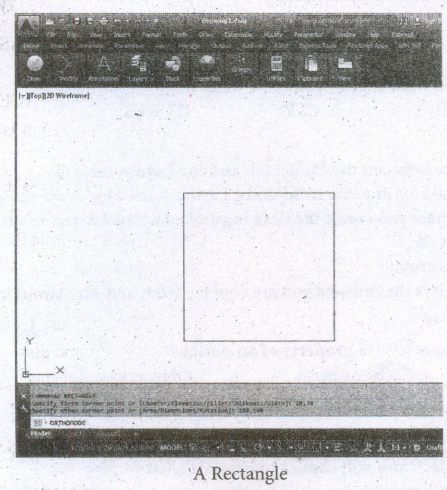
Draw a rectangle defined by diagonal points (20,30) and (150,160).
Command: RECTANGLE ⤶
Specify first corner point or [Chamfer/Elevation/Fillet/Thickness/Width]: 20,30 ⤶
Specify other corner point or [Area/Dimensions/Rotation]: 150,160 ⤶
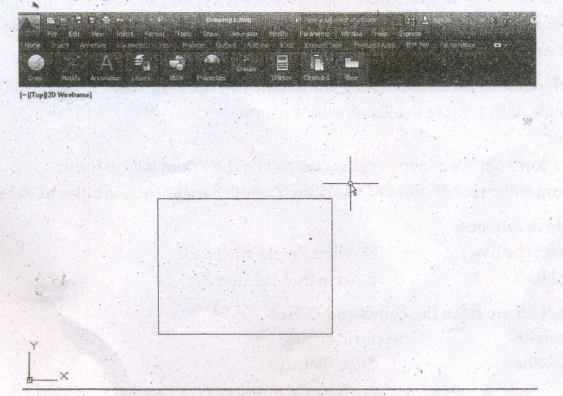
A Rectangle define by diagonal points (20.30) and (150,160)
2.
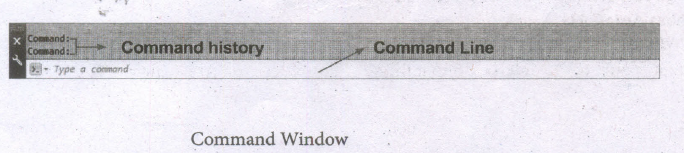
Command Window
(i) The command window is normally located at the bottom of the application window, just above the statusbar.
(ii) This window normally contains three lines of text and the first two lines list the immediate command history,
(iii) The bottom line is the command line. If you do not see the command window, press Ctrl + 9 to make it appear.
(iv) You can enter a command manually at the command line.
(v) You can type at the cursor position on the command line, that is, the Command: prompt.
(vi) If you just type the first letter of a command, it will list all the commands starting with that letter.
(vii) Note: Always press ENTER after you type values on the command line.
(viii) You can drag this window to a different place on the screen and resize it.
(ix) When you enter a command, AutoCAD doesn't care if you use UPPERCASE or lowercase characters, or a combination of either.
(x) If you make a mistake typing on the command line, press the BACKSPACE key to correct.
(xi) You can press ESC at any time. If you press ESC while an operation is in progress, it terminates the command.
(xii) To repeat the command you previously entered in AutoCAD, press ENTER (or the spacebar) at the 'Command:' prompt.
(xiii) As an alternative, right-click to display the cursor menu, and then select the Repeat option.
3.
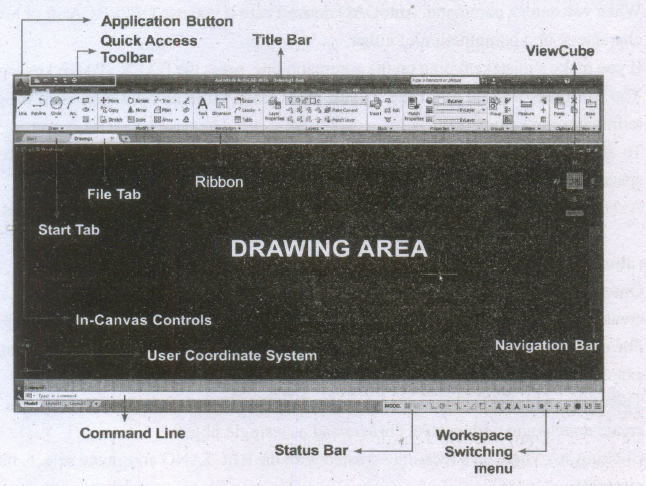
The AutoCAD 2016 interface is based on Ribbons and the Application Menu,
The important feature of this interface is that the size of the Graphical Area will be bigger.

12th Standard Syllabus & Materials
12th Standard
TN 12th Computer Applications களப்பெயர் முறைமை (DNS) Sample Question Papers Study Material - QB365 Set A
NEW12th Standard
TN 12th Computer Applications வலையமைப்பு எடுத்துக்காட்டுகள் மற்றும் நெறிமுறைகள் Sample Question Papers Study Material - QB365 Set A
NEW12th Standard
TN 12th Computer Applications கணினி வலையமைப்பு ஓர் அறிமுகம் Sample Question Papers Study Material - QB365 Set A
NEW12th Standard
TN 12th Computer Applications PHP-உடன் MySQL-ஐ இணைத்தல் Sample Question Papers Study Material - QB365 Set A



Tamilnadu Stateboard 12th Standard Subjects

Maths

Chemistry

Physics

Biology

Computer Science

Business Maths and Statistics

Economics

Commerce

Accountancy

History
Computer Applications
Biology
Computer Technology
Computer Applications
Computer Science
Business Maths and Statistics
Commerce
Economics
Maths
Chemistry
Physics
Computer Technology
History
Accountancy

Tamil

English

French
Tamilnadu Stateboard Standards
