
 100% FREE ACCESS
12th Standard Syllabus & Materials
12th Standard
TN 12th Computer Applications மின்னணு தரவு பரிமாற்றம் Sample Question Papers Study Material - QB365 Set A
NEW12th Standard
TN 12th Computer Applications மின் - வணிக பாதுகாப்பு அமைப்புகள் Sample Question Papers Study Material - QB365 Set A
NEW12th Standard
TN 12th Computer Applications மின்னணு செலுத்தல் முறைகள் Sample Question Papers Study Material - QB365 Set A
NEW12th Standard
TN 12th Computer Applications மின் - வணிகம் Sample Question Papers Study Material - QB365 Set A
NEW12th Standard
TN 12th Computer Applications திறந்த மூல கருத்துருக்கள் Sample Question Papers Study Material - QB365 Set A
NEW12th Standard
TN 12th Computer Applications வலையமைப்பு வடமிடல் Sample Question Papers Study Material - QB365 Set A

Published on: 01/10/2020
12th Standard Computer Technology English Medium Important 5 Mark Book Back Questions (New Syllabus 2020)
Download Tamil Nadu 12th Standard Computer Technology question papers, model tests, one-mark questions, important questions, and public exam papers in PDF format. Free study materials and answer keys for TN State Board students.
Questions + Answers key
Take MCQ Computer Technology Test
1.
Write briefly about Command window.
2.
Explain the components used in Flash Window.
3.
Explain in detail about production team Roles and Responsibilities.
4.
Write the steps to draw a grid.
5.
Write the steps to place text into a document.
6.
How can you convert text in a text block to a frame?
1.
Command Window
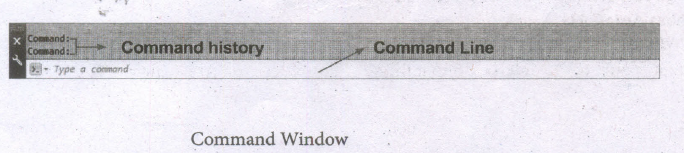
(i) The command window is normally located at the bottom of the application window, just above the statusbar.
(ii) This window normally contains three lines of text and the first two lines list the immediate command history,
(iii) The bottom line is the command line. If you do not see the command window, press Ctrl + 9 to make it appear.
(iv) You can enter a command manually at the command line.
(v) You can type at the cursor position on the command line, that is, the Command: prompt.
(vi) If you just type the first letter of a command, it will list all the commands starting with that letter.
(vii) Note: Always press ENTER after you type values on the command line.
(viii) You can drag this window to a different place on the screen and resize it.
(ix) When you enter a command, AutoCAD doesn't care if you use UPPERCASE or lowercase characters, or a combination of either.
(x) If you make a mistake typing on the command line, press the BACKSPACE key to correct.
(xi) You can press ESC at any time. If you press ESC while an operation is in progress, it terminates the command.
(xii) To repeat the command you previously entered in AutoCAD, press ENTER (or the spacebar) at the 'Command:' prompt.
(xiii) As an alternative, right-click to display the cursor menu, and then select the Repeat option.
2.
The Flash CS6 workspace includes a variety of tools and other components that you work with to create Flash applications.
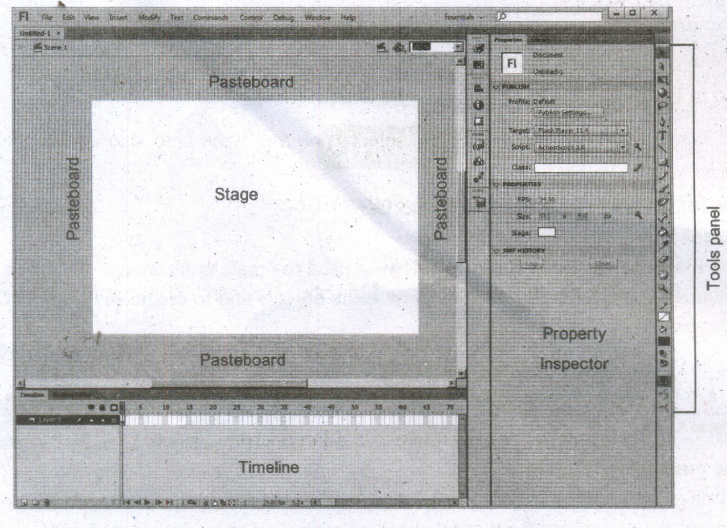
Flash Window Components
The Flash window is divided into four main components. They are
1. Stage and Pasteboard
2. Timeline
3. Tools panel
4. Property Inspector
1. Stage and Pasteboard:
(i) The white rectangle area in the middle of your workspace is called the Stage.
(ii) All the animations, objects and scenes for a Flash movie are created, edited, placed and played back in the stage.
(iii) The gray area surrounding the Stage in Flash is the Pasteboard.
2. Timeline
(i) The time line is one of the most important components of Flash.
(ii) It is located below the Stage. It is used to specify of each element's appearance and animation.
(iii) The Timeline also contains Frames and Layers.
(iv) Flash movies measure time in frames. Frames are the discrete, small slices of time.
3. Tools panel
(i) The Flash Tools panel includes the tools you need to create, select, or edit graphics on the Stage.
(ii) The double arrows at the top of the Tools panel are used to collapse the panel to icon only view, or to expand the panel and see all the tools.
4. Property Inspector
(i) The Property Inspector appears on the right side of your Flash workspace by default.
(ii) It is grouped with the Library panel.
(iii) It displays properties and options for objects selected on the Stage, and also allows you to modify them.
(iv) The object can be text, an image, a line, or any other shape.
3.
(i) Managing team members in a way to get maximum outcome with high degree of efficiency is mandatory in multimedia production.
(ii) The fine quality high-end multimedia production application requires a specialize team comprises of the following members:
Production Manager:
(i) In a multimedia production, the role of production manager is to define, and coordinate, the production of the multimedia project in time and with full quality.
(ii) The production manager should be an expertise in the technology expert, good at proposal writing, good communication skills and budget management skills.
(iii) Also must have experience in human resource management and act as an efficient team leader.
Content Specialist:
(i) Content specialist is responsible for performing all research activities concerned with the proposed application's content.
(ii) Program content refers to projects information, graphics, data or facts presented through the multimedia production.
Script Writer:
(i) Video and film scripts represents a linear sequence of events.
(ii) The script writer visualizes the concepts in three dimensional environments and if needed uses the virtual reality integration into the program.
Text Editor:
(i) The content of a multimedia production always must flow logically and the text should always be structured and correct grammatically.
(ii) Text and narration is an integrated part of the application.
Multimedia Architect:
(i) The multimedia architect integrates all the multimedia building blocks like graphics, text, audio, music, video, photos and animation by using an authoring software.
Computer Graphic Artist:
(i) The role of Computer Graphic Artist is to deal with the graphic elements of the programs like backgrounds, bullets, buttons, pictures editing, 3-D objects, animation, and logos etc.
Audio and Video Specialist:
(i) The roles of these specialists are needed for dealing with narration and digitized videos to be added in a multimedia presentation.
(ii) They are responsible for recording, editing sound effects and digitizing.
Computer Programmer:
(i) The computer programmer writes the lines of code or scripts in the appropriate language.
(ii) These scripts usually develops special- functions like developing the software to give the size and shape of video windows, controlling peripherals and so on.
Web Master:
(i) The responsibility of the web master is to create and maintain an Internet web page.
(ii) They converts a multimedia presentation into a web page.
(iii) Final multimedia product is ready for consultation is a joint effort of the entire team.
(iv) Initially, the production manager identifies the project content, while the web master provides access to a wide range of community through web-services.
4.
Drawing Grids
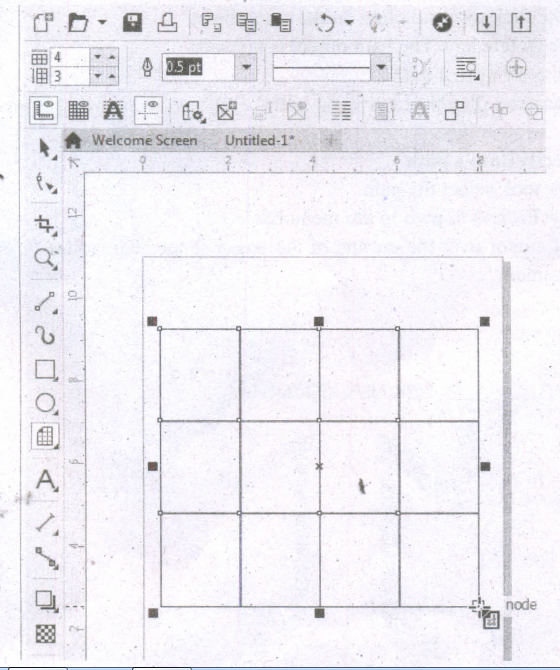
Using Graph Paper tool, you can draw a grid and set the number of rows and columns. A grid is a grouped set of rectangles that you can break apart.
To draw a grid,
1. Click and hold the Polygon tool. A flyout menu will appear.
2. Select the Graph Paper tool from the flyout menu.
3. Now type values in the top and bottom portions of the Columns and rows box on the property bar. The value you type in the top portion of the Columns and rows box specifies the number of columns; the value you type in the bottom portion specifies the number of rows.
4. Click on anywhere in the drawing area where you want the grid to appear.
5. Drag diagonally to draw the required grid.
If you want to draw the grid from its center point outward, hold down Shift key as you drag; if you want to draw a grid with square cells, hold down Ctrl key as you drag.
5.
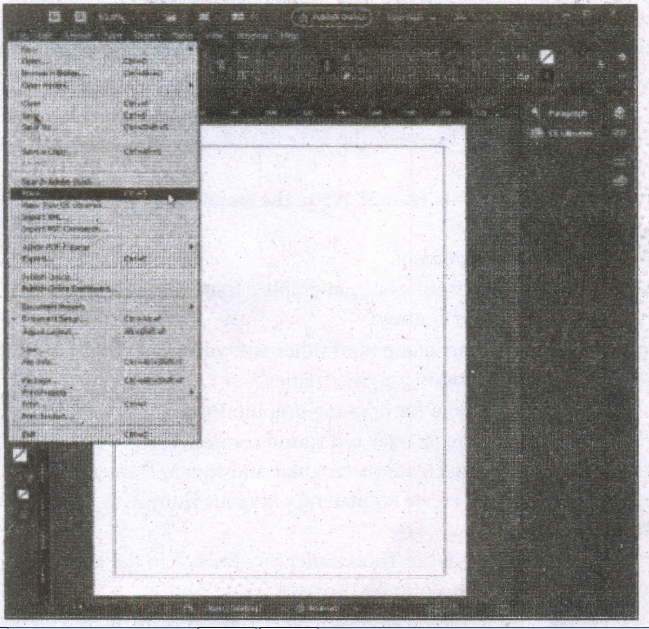
Follow these steps to place text into a document:
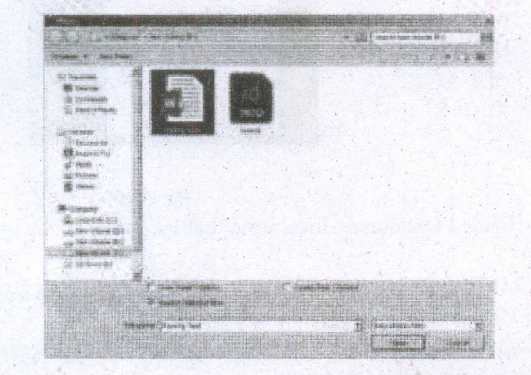
1. Choose File> Place in the menu bar, Place dialog box appears.
2. Locate the text file you want to place, select it and click the Open button on the right side of the Place dialog box.
Place option in the File Menu
Place dialog box
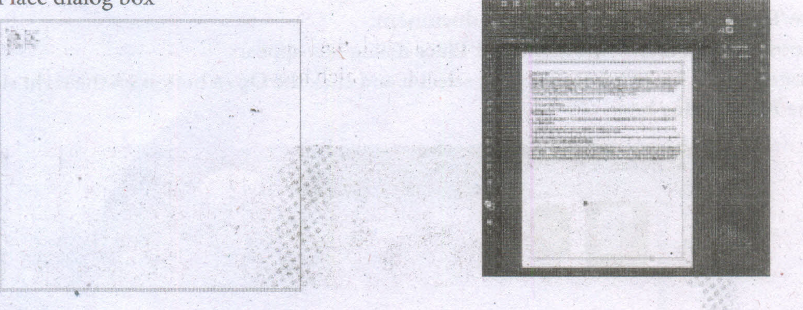
The loaded text cursor
Text Frame
3. Your cursor changes to the loaded text cursor, indicating that the text is ready to be placed into your document.
4. Either click to place the text (filling the current column from the point at which you clicked to the end of the page) or click and drag to create a new text frame.
5. If a text frame cannot contain all the text placed within it, a red plussign overflow symbol appears on the lower-right border of the text frame.
(i) Clicking this overflow symbol loads the remaining text into your cursor for placement in an additional text frame.
(ii) To place this text, just click or click and drag to create a new text frame with the additional text.
(iii) This new text frame is linked to the previous text frame.
(iv) When linked, text flows freely between the two frames if you change the size of the frames or the formatting of the text. .
6.
Converting text in a Text block to a Frame
After created text in a text block, if you want to convert it to a frame. You can do this by using these steps.
1. Draw the frame of your choice using one of the Pagemaker's Frame tool.
2. Select the text block you want to insert in the frame.
3. Click the frame while pressing the Shift key. Now both elements will be selected.
4. Choose Element > Frame > Attach Content on the Menu bar.
5. Now the text appears in the frame.
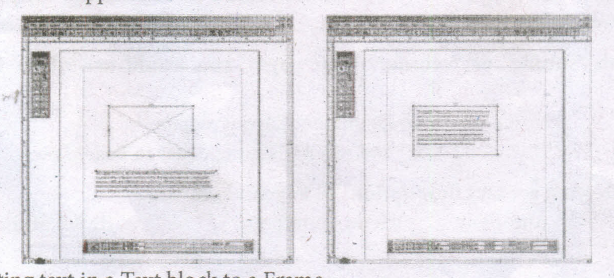
Converting text in a Text block to a Frame

12th Standard Syllabus & Materials
12th Standard
TN 12th Computer Applications களப்பெயர் முறைமை (DNS) Sample Question Papers Study Material - QB365 Set A
NEW12th Standard
TN 12th Computer Applications வலையமைப்பு எடுத்துக்காட்டுகள் மற்றும் நெறிமுறைகள் Sample Question Papers Study Material - QB365 Set A
NEW12th Standard
TN 12th Computer Applications கணினி வலையமைப்பு ஓர் அறிமுகம் Sample Question Papers Study Material - QB365 Set A
NEW12th Standard
TN 12th Computer Applications PHP-உடன் MySQL-ஐ இணைத்தல் Sample Question Papers Study Material - QB365 Set A



Tamilnadu Stateboard 12th Standard Subjects

Maths

Chemistry

Physics

Biology

Computer Science

Business Maths and Statistics

Economics

Commerce

Accountancy

History
Computer Applications
Biology
Computer Technology
Computer Applications
Computer Science
Business Maths and Statistics
Commerce
Economics
Maths
Chemistry
Physics
Computer Technology
History
Accountancy

Tamil

English

French
Tamilnadu Stateboard Standards
