
 100% FREE ACCESS
12th Standard Syllabus & Materials
12th Standard
TN 12th Computer Applications மின்னணு தரவு பரிமாற்றம் Sample Question Papers Study Material - QB365 Set A
NEW12th Standard
TN 12th Computer Applications மின் - வணிக பாதுகாப்பு அமைப்புகள் Sample Question Papers Study Material - QB365 Set A
NEW12th Standard
TN 12th Computer Applications மின்னணு செலுத்தல் முறைகள் Sample Question Papers Study Material - QB365 Set A
NEW12th Standard
TN 12th Computer Applications மின் - வணிகம் Sample Question Papers Study Material - QB365 Set A
NEW12th Standard
TN 12th Computer Applications திறந்த மூல கருத்துருக்கள் Sample Question Papers Study Material - QB365 Set A
NEW12th Standard
TN 12th Computer Applications வலையமைப்பு வடமிடல் Sample Question Papers Study Material - QB365 Set A

Published on: 01/10/2020
12th Standard Computer Technology English Medium Model 5 Mark Book Back Questions (New Syllabus 2020)
Download Tamil Nadu 12th Standard Computer Technology question papers, model tests, one-mark questions, important questions, and public exam papers in PDF format. Free study materials and answer keys for TN State Board students.
Questions + Answers key
Take MCQ Computer Technology Test
1.
Write about the rectangle object and the steps to draw a rectangle in AutoCAD.
2.
Describe some of the tools displayed in Tools Panel.
3.
Explain in detail Techniques of Animation.
4.
Write the steps to draw a polygon.
5.
Write a short note on:
(i) Application bar
(ii) Document tab
(iii) Tools panel
6.
Explain the tools in PageMaker toolbox.
1.
(i) One of the most basic shapes used by drafters and designers is the rectangle. You can create a rectangle using the LINE command, but doing so has some disadvantages.
(ii) For example, you would have to take the time to make sure that the corner angles are exactly 90°. Also, each line segment would be a separate object.
(iii) Therefore, AutoCAD 2016 provides the RECTANG command, which allows you to create a rectangle with perfect corners and as a single object.
(iv) Clicking anywhere on a rectangle created with the RECTANG command selects the entire rectangle.
To draw a Rectangle using the cursor to select the corners:
1. Command: RECTANGLE (or) REC (Press Enter Key)
2. The following will appear on the command line:
RECTANGLE
Specify first corner point or [Chamfer/Elevation/Fillet/Thickness/Width]:
Specify the location of the first corner by moving the cursor to a location (P1) and then press the left mouse button.
3. The following will appear on the command line:
Specify other corner point or [Area/Dimensions/Rotation]:
Specify the location of the diagonal corner (P2) by moving the cursor diagonally away from the first corner (P1) and pressing the left mouse button. Now a rectangle will appear.
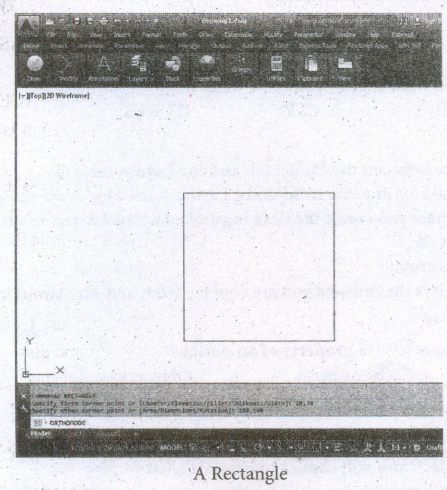
Draw a rectangle defined by diagonal points (20,30) and (150,160).
Command: RECTANGLE ⤶
Specify first corner point or [Chamfer/Elevation/Fillet/Thickness/Width]: 20,30 ⤶
Specify other corner point or [Area/Dimensions/Rotation]: 150,160 ⤶
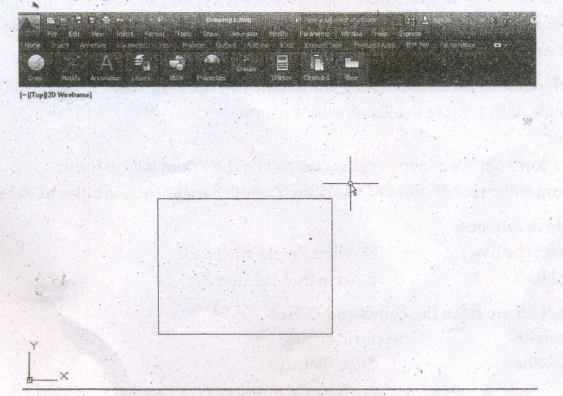
A Rectangle define by diagonal points (20.30) and (150,160)
2.
The Flash Tools panel includes the tools you need to create, select, or edit graphics on the Stage.
(i) The double arrows at the top of the Tools panel are used to collapse the panel to icon only view, or to expand the panel and see all the tools.
(ii) By default, the toolbar is on the right side of your screen.
(iii) The single capital letter in parentheses indicates tile keyboard shortcuts to select those tools.
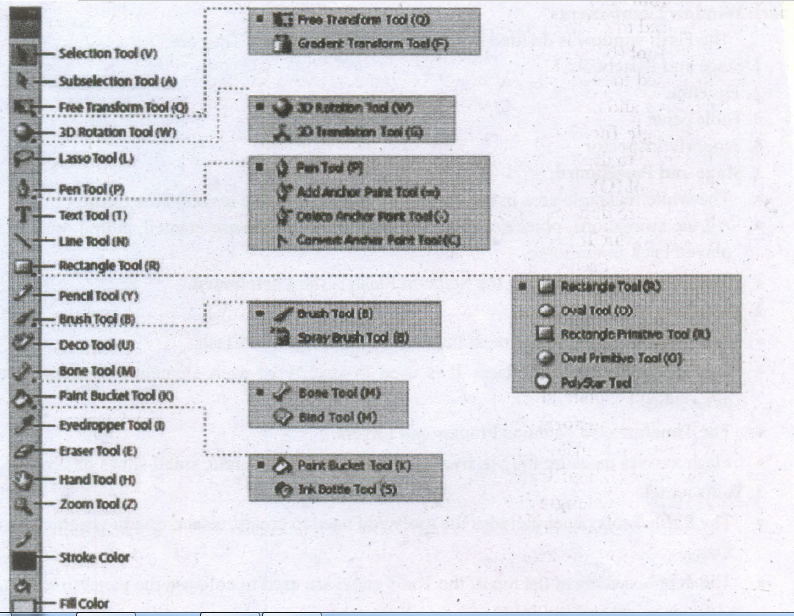
3D Rotation Tool (W)
It is used to create 3D effects by rotating movie clips in 3D space on the Stage.
3D Translation Tool (G)
It is used to create 3D effects by moving movie clips in 3D space on the Stage. The 3D Rotation and the 3D Translation tools are grouped within one icon on the Tools panel.
Lasso Tool (L)
It is used to select objects or parts of objects by drawing a freehand.
Pen Tool (P)
It is used to draw lines and curves by creating a series of dots, known as anchor points, that are automatically connected. Other tools used to add, delete, and convert the anchor points created by the Pen tool are grouped with the Pen tool.
Text Tool (T)
It is used to create and edit text.
Line Tool (N)
It is used to draw straight lines. You can draw vertical, horizontal, and 45° diagonal lines by pressing and holding Shift key while drawing the line.
Rectangle Tool(R)
It is used to draw rectangular shapes. Press and hold Shift key to draw a perfect square.
Oval Tool (O)
It is used to draw oval shapes. Press and hold Shift key to draw a perfect circle.
Subselection Tool (A)
This tool is used to select, drag, and reshape an object. We know that vector graphics are composed of lines and curves (each of which is a segment) connected by anchor points. When you select art object with this tool, it displays the anchor points and allows you to use them to edit the object.
Free Transform Tool (Q)
It is used to rotate, scale, skew, and distort objects.
Gradient Transform Tool (F)
It is used to transform a gradient fill by adjusting the size, direction, or center of the fill. The Free and Gradient Transform tools are grouped within one icon on the Tools panel.
Primitive Rectangle and Oval (R)
It is used to draw objects with properties such as corner radius or inner radius, that can be changed using the Properties panel.
PolyStar Tool
It is used to draw polygons and stars. The Rectangle, Oval, Primitive, and PolyStar tools are grouped within one tool on the Tools panel.
3.
(i) Animation is the process displaying still images so quickly so that they give the impression of continuous movement.
(ii) In animation the screen object is a vector image in animation. Using numerical transformations the movement of that image along its paths is calculated for their defining coordinates.
(iii) The least frame rate of at least 16 frames per second gives the impression of smoothness and for natural looking it should be at least 25 frames per second.
(iv) Animations may be in two or three dimensional.
(v) The two dimensional animation, bring an image alive, that occur on the flat X and Y axis of the screen.
(vi) While in three dimensional animation it occurs along the three axis X, Y and Z. Animation tools are very powerful and effective.
(vii) The two basic types of animations are Path animation and Frame animation.
Path Animation:
(i) Path animation involves moving an object on a screen that has a constant background.
(ii) e.g. a cartoon character, may move across the screen regardless of any change in the background or the character.
Frame Animation:
(i) In frame animations, multiple objects are allowed to travel simultaneously and the background or the objects also changes.
4.
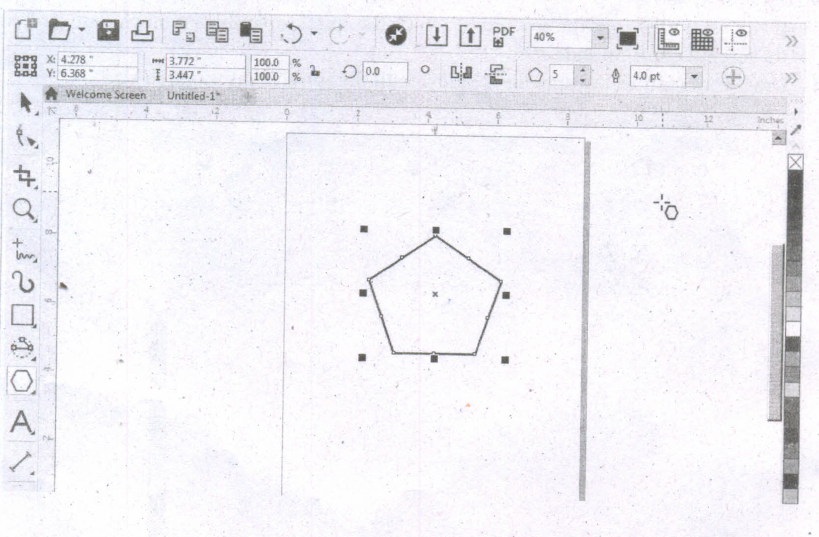
Creating Polygons
1. To draw a polygon Cabo known as pentagon: a five-sided figure, select the Polygon tool in the toolbox. The mouse pointer changes to a crosshair with a small polygon beneath it.
2. Click on anywhere in the drawing area and drag the mouse pointer.
3. Release the mouse button where you like the end of the polygon.
4. To increase the number of sides of your polygon, select the polygon you have drawn using the Pick tool.
5. Place the mouse pointer on the Number of Points on Polygon text box and type the number of sides you like for you polygon. You can also set the number of sides for your polygon and then draw it.
5.
Application bar
(i) The Application bar sits at the top of the workspace and includes several menus.
(ii) To open a menu, click !he menu name on the Application bar.
(iii) Each menu lists commands that relate to the menu category.
(iv) To the right of the menu names are workspace and view options.
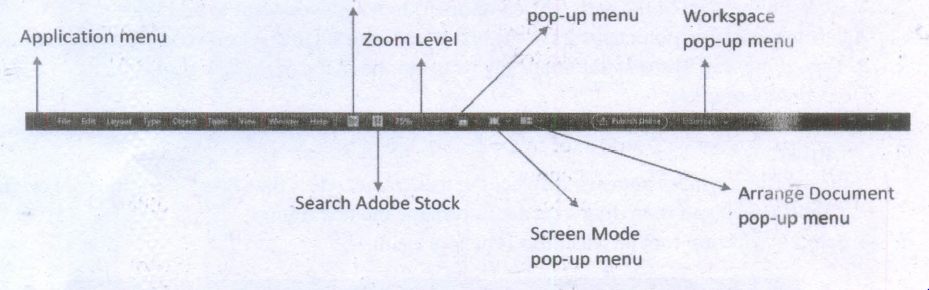
1. Application menu
2. Search Adobe Stock
3. Zoom Level
4. pop-up menu
5. Screen Mode
6. pop-up menu
7. Workspace
8. pop-up menu
9. Arrange Document
10. pop-up menu
Document tab:
(i) The document tab appears just above the horizontal ruler and includes the document's name, its current magnification level, and a Close button.
(ii) When more than one document is open, a tab appears for each document and the document tabs appear in a horizontal row.
(iii) Click a document tab to view that document in the window.
(iv) You can drag a document tab out of the group to open it in a stand-alone window.
Tools panel:
(i) The Tools panel contains the tools available in InDesign.
(ii) There are tools for creating objects, such as the Rectangle tool, tools for transforming objects, such as the rotate tool, and tools for changing the page view and navigating the workspace, such as the Zoom tool and the Hand tool.
(iii) Some tools have a small triangle in the lower-right comer.
(iv) This indicates that additional tools are available beneath that tool.
(v) Click and hold the tool to see the hidden tools.
6.
Tool Toolbox Cursor Use
| Pointer Tool | Used to select, move, and resize text objects and graphics |
| Text tool | Used to type, select, and edit text. |
| Rotating tool | Used to select and rotate objects |
| Cropping tool | Used to trim imported graphics. |
| Line tool | Used to draw straight lines in any direction. |
| Constrained line tool | Used to draw vertical or horizontal lines. |
| Rectangle frame tool | Used to create rectangular placeholders for text and graphics. |
| Ellipse tool | Used to draw circles and ellipses. |
| Ellipse frame tool | Used to create elliptical placeholders for text and graphics. |
| Polygon tool | Used to draw polygons. |
| Polygon frame tool | Used to create polygonal placeholders for text and graphics. |
| Hand tool | Used to scroll the page (an alternative to the scroll bar) |
| Zoom tool | Used to magnify or reduce an area of the page |

12th Standard Syllabus & Materials
12th Standard
TN 12th Computer Applications களப்பெயர் முறைமை (DNS) Sample Question Papers Study Material - QB365 Set A
NEW12th Standard
TN 12th Computer Applications வலையமைப்பு எடுத்துக்காட்டுகள் மற்றும் நெறிமுறைகள் Sample Question Papers Study Material - QB365 Set A
NEW12th Standard
TN 12th Computer Applications கணினி வலையமைப்பு ஓர் அறிமுகம் Sample Question Papers Study Material - QB365 Set A
NEW12th Standard
TN 12th Computer Applications PHP-உடன் MySQL-ஐ இணைத்தல் Sample Question Papers Study Material - QB365 Set A



Tamilnadu Stateboard 12th Standard Subjects

Maths

Chemistry

Physics

Biology

Computer Science

Business Maths and Statistics

Economics

Commerce

Accountancy

History
Computer Applications
Biology
Computer Technology
Computer Applications
Computer Science
Business Maths and Statistics
Commerce
Economics
Maths
Chemistry
Physics
Computer Technology
History
Accountancy

Tamil

English

French
Tamilnadu Stateboard Standards
