
 100% FREE ACCESS
12th Standard Syllabus & Materials
12th Standard
TN 12th Computer Applications மின்னணு தரவு பரிமாற்றம் Sample Question Papers Study Material - QB365 Set A
NEW12th Standard
TN 12th Computer Applications மின் - வணிக பாதுகாப்பு அமைப்புகள் Sample Question Papers Study Material - QB365 Set A
NEW12th Standard
TN 12th Computer Applications மின்னணு செலுத்தல் முறைகள் Sample Question Papers Study Material - QB365 Set A
NEW12th Standard
TN 12th Computer Applications மின் - வணிகம் Sample Question Papers Study Material - QB365 Set A
NEW12th Standard
TN 12th Computer Applications திறந்த மூல கருத்துருக்கள் Sample Question Papers Study Material - QB365 Set A
NEW12th Standard
TN 12th Computer Applications வலையமைப்பு வடமிடல் Sample Question Papers Study Material - QB365 Set A

Published on: 31/08/2019
Adobe InDesign CC 2019
Download Tamil Nadu 12th Standard Computer Technology question papers, model tests, one-mark questions, important questions, and public exam papers in PDF format. Free study materials and answer keys for TN State Board students.
Questions + Answers key
Take MCQ Computer Technology Test
1.
A _________ is a color that you apply to the outline of an object.
Stroke
Fill
Out-Color
Paint
2.
A color you apply to the inside of an object is called
Fill
Stroke
Paint
In-Color
3.
______ images consist of pixels created in a program such as Adobe Photoshop
Bitmap
JPEG
PNG
All of these
4.
The space between columns on a page is called
Gutter
vacuum
empty area
Interstellar
5.
Every piece of text in InDesign is inside a
text frame
shape
clipboard
None of the above
6.
What is the use of page tool?
Stroke
Fill
Out-Color
Paint
7.
When does a tooltip appear?
Gutter
vacuum
empty area
Interstellar
8.
How many types of orientation are available by default? What are they?
text frame
shape
clipboard
None of the above
9.
How many graphic frames are found in Tools panel? What are they?
10.
How can you make characters superscript or subscript?
11.
What are the view commands in InDesign?
Spot colors
Color Dye
Color Styles
Laser ink
12.
Write the steps to create type on a path.
13.
Fit Spread in Window
14.
Fit page in Window
15.
Actual Size
16.
Zoom Out
17.
Zoom In
1.
(a)
Stroke
2.
(a)
Fill
3.
(a)
Bitmap
4.
(a)
Gutter
5.
(a)
text frame
6.
Zooming allows you to quickly zoom in on, or get closer to, any object in your document.
7.
If you place the cursor over any tool in the Tools panel without clicking, a tooltip appears displaying the tool's name and a keyboard shortcut in parentheses.
8.
Orientation:
(i) Specify a page orientation for the document.
(ii) Landscape or Portrait.
9.
The Tools panel contains three tools for drawing graphic frames.
1. Ellipse Frame - This tool lets you create oval and round frames.
2. Rectangle Frame - This tool lets you create rectangular and square frames.
3. Polygon Frame - This tool lets you create equilateral polygons frames.
10.
Making Characters Superscript or Subscript
You can change the text in Superscript or Subscript from Control palette:
(i) Select the character that you want to change Superscript or Subscript.
(ii) Click on one of the buttons in the Control palette.
Superscript (T2)
Subscript (H2O)
(iii) The character you selected changes to the required one.
11.
Using the view commands
(i) Choose View > Zoom In for magnifying to the next preset percentage.
(ii) Choose View > Zoom Out for reducing and retracting to the previous preset percentage.
(iii) Choose View > Actual Size for the document to be displayed at 100%.
(iv) Choose View > Fit page in Window for scaling the view size to match the monitor size.
(v) Choose View > Fit Spread in Window for displaying the targeted spread in the window.
(vi) Choose View > Entire Pasteboard for displaying the current page or spread and its surrounding pasteboard that ().revisible within the document window.
12.
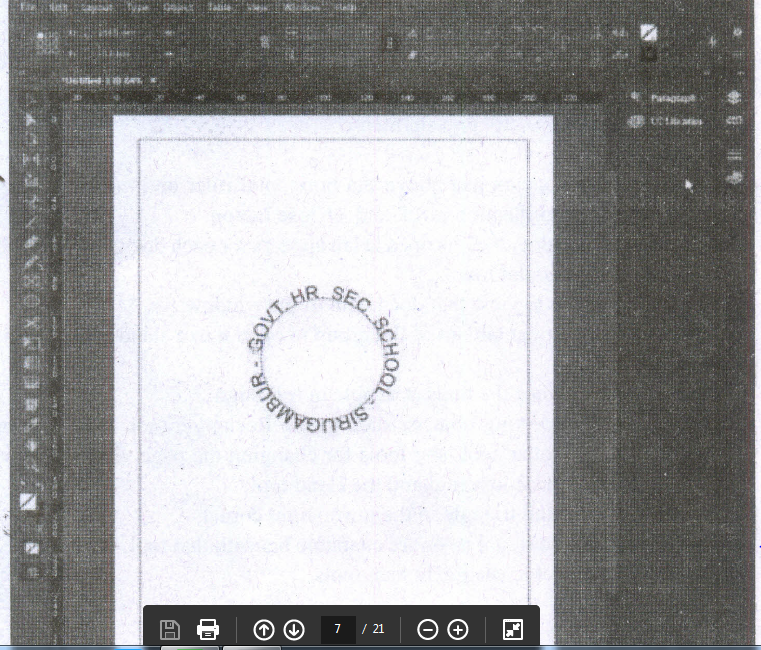
Creating Path Type
(i) With the Type on a Path tool, you can add type along the inner or outer edge of a path.
(ii) You can place the text on either side of the path, but not on both.
(iii) If you initially place it on the inner part of the path, you can always move it to the outer part of the path later.
(iv) When you select text on a path, brackets appear that you can drag to adjust the position and placement of the text.
Create Type on a Path
1. Select the Type on a Path tool on the Tools panel.
2. Click on the edge of the path (closed or open) to which you want to add type. A flashing insertion point appears in the text frame. Any fill or stroke on the object is removed.
3. Type some text. The text automatically wraps to the shape of the text frame. Don't press Enter key. The type appears along the edge of the object, conforms to its shape, and removes the fill and stroke. If the overflow symbol appears, deselect the text frame, select the Direct Selection tool on the Tools panel, and then drag a corner to reshape the text frame.
4. Select a Selection tool or select the Type tool again.
13.
for displaying the targeted spread in the window
14.
for scaling the view size to match the monitor size
15.
for the document to be displayed at 100%
16.
for magnifying to the next preset percentage
17.
for reducing and retracting to the previous preset percentage.

12th Standard Syllabus & Materials
12th Standard
TN 12th Computer Applications களப்பெயர் முறைமை (DNS) Sample Question Papers Study Material - QB365 Set A
NEW12th Standard
TN 12th Computer Applications வலையமைப்பு எடுத்துக்காட்டுகள் மற்றும் நெறிமுறைகள் Sample Question Papers Study Material - QB365 Set A
NEW12th Standard
TN 12th Computer Applications கணினி வலையமைப்பு ஓர் அறிமுகம் Sample Question Papers Study Material - QB365 Set A
NEW12th Standard
TN 12th Computer Applications PHP-உடன் MySQL-ஐ இணைத்தல் Sample Question Papers Study Material - QB365 Set A



Tamilnadu Stateboard 12th Standard Subjects

Maths

Chemistry

Physics

Biology

Computer Science

Business Maths and Statistics

Economics

Commerce

Accountancy

History
Computer Applications
Biology
Computer Technology
Computer Applications
Computer Science
Business Maths and Statistics
Commerce
Economics
Maths
Chemistry
Physics
Computer Technology
History
Accountancy

Tamil

English

French
Tamilnadu Stateboard Standards
