
 100% FREE ACCESS
12th Standard Syllabus & Materials
12th Standard
TN 12th Maths Applications of Matrices and Determinants Sample Question Papers Study Material - QB365 Set A
NEW12th Standard
TN 12th Computer Applications மின்னணு தரவு பரிமாற்றம் Sample Question Papers Study Material - QB365 Set A
NEW12th Standard
TN 12th Computer Applications மின் - வணிக பாதுகாப்பு அமைப்புகள் Sample Question Papers Study Material - QB365 Set A
NEW12th Standard
TN 12th Computer Applications மின்னணு செலுத்தல் முறைகள் Sample Question Papers Study Material - QB365 Set A
NEW12th Standard
TN 12th Computer Applications மின் - வணிகம் Sample Question Papers Study Material - QB365 Set A
NEW12th Standard
TN 12th Computer Applications திறந்த மூல கருத்துருக்கள் Sample Question Papers Study Material - QB365 Set A

Published on: 01/03/2021
12th Standard English Medium Computer Technology Reduced Syllabus Public Exam Model Question Paper with Answer key - 2021
Download Tamil Nadu 12th Standard Computer Technology question papers, model tests, one-mark questions, important questions, and public exam papers in PDF format. Free study materials and answer keys for TN State Board students.
Questions + Answers key
Take MCQ Computer Technology Test
1.
A cellection of graphics programs and supporting data files is called a ___________
Groupware application
Freehand package
Graphics suite
Shared program collection
2.
__________ specify the margins for each side of the document.
Primary Text Frame
Columns
Column Gutter
Margins
3.
Which of the following is not an example for library?
Company logos
legal jargon
contact information
Image editors
4.
What is the full form of PDF?
Picture Document Format
Portable Document Format
Portable Direct Format
Pixel Document Format
5.
If you wanted to "shuffle" or "reorder" your pages, you would use which PageMaker command?
Shuffle
Document Layout palette
Sort Pages
You can not shuffle pages in PageMaker
6.
The largest font size inPageMaker is:
650
72
823
1,200
7.
UCS is short for
User Coordinate System
User Currency System
User Control System
User Computer System
8.
The default stage color is white but it can be changed by choosing selecting different color on the Document Properties dialog box?
Modify > Document Properties
Modify > Document
Edit > Document
Edit > Document Properties
9.
RTF file format was introduced by ________
TCS
Microsoft
Apple
IBM
10.
________ refers to any type of application that involves more than one type of media such as text, graphics video animation and sound
an executable file
desktop publishing
multimedia
hypertext
11.
_________ key is used to select the Freehand tool.
F2
F3
F4
F5
12.
__________ are also known as raster images.
Vector graphics
Bitmaps
Lines
None of these
13.
A set of two document pages that face each other can be termed as
Spread
folder
File
frame
14.
Which tool lets you edit text?
Text tool
Type tool
Crop tool
Hand tool
15.
Which menu contains the New option?
File menu
Edit menu
Layout menu
Type menu
16.
Name some flyout in shape tools?
17.
What is meant by content collector tool?
18.
What are the main components of the window?
19.
How do you get rid of the UCS icon?
20.
What is Flash?
21.
Classify the IMAGE component in multimedia.
22.
What is CorelDRAW used for?
23.
What is Zooming?
Graphic
Vector
Scalar
Everything must be text
24.
Give some examples of DTP software
25.
What Is Video-on-demand?
26.
Mention the options in the zoom in veiw menu?
27.
Write a note about scrolking the document?
28.
How can you enter commands such as LINE, CIRCLE, and ERASE quickly at the keyboard?
29.
Name tools used to do the following:
(a). Draw lines
(b). Draw free hand drawing
(c). Erase what we have drawn
30.
Describe the various file formats in multimedia.
31.
What do you do to convert a line into an arrow?
32.
What are the view commands in InDesign?
Spot colors
Color Dye
Color Styles
Laser ink
33.
How do you link frames containing text?
34.
Explain How Do I Take Good Portraits?
35.
How will you transform an object?
36.
How will you work will the pagemaker pages?
37.
How will you place text in a frame?
38.
Explain in detail about production team Roles and Responsibilities.
39.
How to create a star in CorelDRAW?
40.
How can you insert picture in a graphic frame? Write the steps.
41.
Write a short note on:
(i) Application bar
(ii) Document tab
(iii) Tools panel
42.
Write the steps to draw a star using polygon tool?
43.
1.
(c)
Graphics suite
2.
(d)
Margins
3.
(d)
Image editors
4.
(b)
Portable Document Format
5.
(c)
Sort Pages
6.
(a)
650
7.
(a)
User Coordinate System
8.
(b)
Modify > Document
9.
(b)
Microsoft
10.
(c)
multimedia
11.
(d)
F5
12.
(b)
Bitmaps
13.
(a)
Spread
14.
(b)
Type tool
15.
(a)
File menu
16.
1. Shape
2. Smooth
3. Smear
4. Twirl
5. Attract
6. Repel
7. Smudge
8. Roughen
17.
(i) When you select the Content Collector tool, click objects or stories to add them to the Content Conveyor at the bottom of the screen.
(ii) You can then use the Content Placer Tool to copy and link these objects from the Content Conveyer into another layout or document.
(iii) Press B to switch between the Content Collector and Content Placer tools.
18.
The main components of the above window are Title bar, Menu bar, Toolbar, Ruler, Scroll bars and Text area .
19.
you can turn it off with the UCSICON command. Type the command name, and then enter the Off option, as follows:
(i) Command: ucsicon (Press ENTER.)
(ii) Enter an option [ON/OFF/All/No origin/Origin/Properties ]
20.
Adobe Flash Professional CS6 is a software used to create animations.
i) It contains tools that can be used to draw basic objects and to create scenes.
ii) It is developed by Adobe systems.
21.
(i) Images acts as an vital component in multimedia.
(ii) These images are generated by the computer in two ways, as bitmap or raster images and as vector images.
22.
CorelDraw is a versatile graphics application for creating high quality vector illustrations, logo designs, and page layouts.
23.
The Page tool is used for creating different page sizes within a document.
24.
(i) Adobe PageMaker,
(ii) Adobe InDesign,
(iii) QuarkXPress,
25.
(i) Video-on-demand is existing video or an archived webcast available for people to watch on the web any time.
(ii) The original video can be digitized as a Real Media, Windows Media, QuickTime, or Flash Video file and can be viewed with the appropriate player.
26.
(i) The Zoom tool.
(ii) The zoom commands in the View menu: Zoom In, Zoom Out, Fit Page in Window, Fit Spread in Window, Actual Size, and Entire Pasteboard.
(iii) The Zoom Level pop-up menu in the left side of the application bar.
27.
(i) In PageMaker, there are two sets of scroll bars; one for up and down movement and the other for the left and right movement of the document.
(ii) Pagemaker's scroll bars work differently than those in a word processor.
28.
LINE:
LINE Specify first point: Start point.
Specify next point or [Undo]: Position the cursor and then enter distance.
Specify next point or [Undo]: Position the cursor and then enter distance.
CIRCLE:
Drawing a Circle by Specifying Center and
Diameter
1. Click Home > Draw > Circle > Center, Radius on the ribbon.
2. Select an arbitrary point in the graphics window to specify the center point:
3. Type a value as the radius and press ENTER.
ERASE:
Method 1
Select the Erase command first and then select the objects to be erased.
Press Enter Key and the objects selected will disappear.
Method 2
Select the object to be erased.
Press the Delete Key.
29.
(a). Draw lines - Line tool
(b). Draw free hand drawing - Free transform tool
(c). Erase what we have drawn - Erase tool
30.
1. WAV (Waveform Audio File Format)
2. MP3 (MPEG Layer-3 Format)
3. AVI (Audio/Video Interleave)
4. MPEG (Moving Picture Experts Group)
5. AIFF (Audio Interchange File Format)
6. Rich Text Format
31.
To add arrowhead to a line
(i) Using the Freehand tool draw a line.
(ii) Select the line.
(iii) Click the drop-down button on the End Arrowhead Selector on the Property tool bar.
(iv) Then click the desired arrow tip.
Now the line appears with an arrow.
You can set the line style, width, and the colour of the line using the Properties bar.
32.
Using the view commands
(i) Choose View > Zoom In for magnifying to the next preset percentage.
(ii) Choose View > Zoom Out for reducing and retracting to the previous preset percentage.
(iii) Choose View > Actual Size for the document to be displayed at 100%.
(iv) Choose View > Fit page in Window for scaling the view size to match the monitor size.
(v) Choose View > Fit Spread in Window for displaying the targeted spread in the window.
(vi) Choose View > Entire Pasteboard for displaying the current page or spread and its surrounding pasteboard that ().revisible within the document window.
33.
➝ Draw a second frame with the Frame tool of your choice.
➝ Click the first frame to select it.
➝ Click on the red triangle to load the text icon.
➝ Click the second frame. PageMaker flows the text into the second frame.(i)
34.
Here are some general guidelines for taking good portraits:
(i) Use longer focal lengths instead of shorter (telephoto instead of wide angle). This will make your subjects face more natural and less bulbous.
(ii) Use a wide aperture for shallow depth of field. This will focus attention on your subject and not your background.
(iii) Avoid distracting backgrounds.
(iv) Try to achieve even illumination by exploiting natural light. If you can't use natural light, then use studio lights and/or multiple flashes and/or a bounce flash.
(v) Avoid taking pictures where part of your subject's face is in shadow unless you really know what you're doing.
(vi) Avoid using a single flash pointing directly at the subject. This will create harsh shadows on either the subject of the area behind the subject.
35.
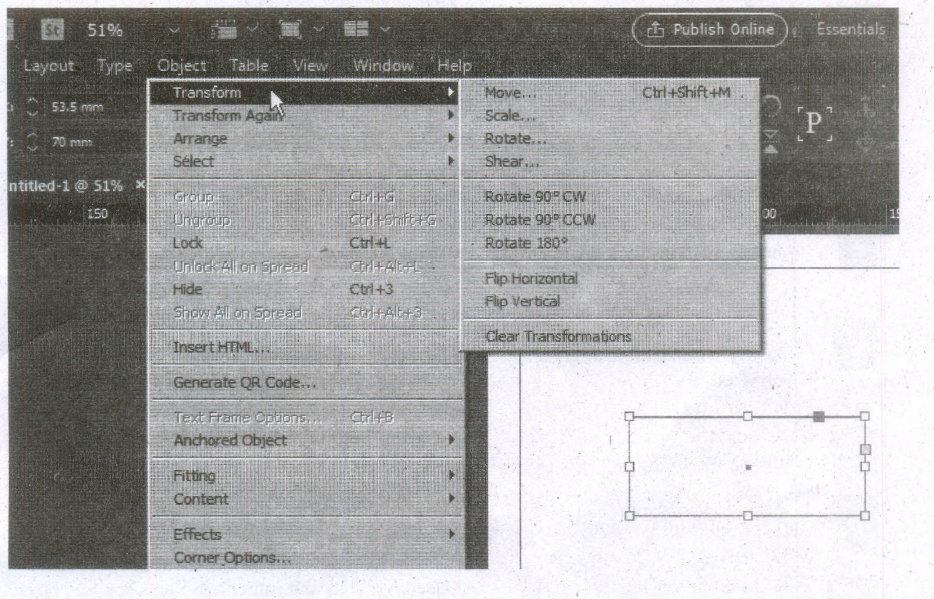
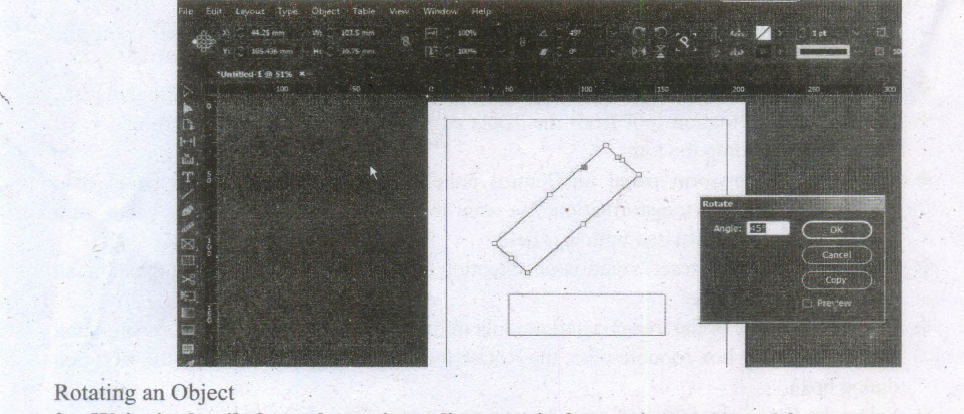
(i) Transform is a term used to describe the act of moving an object, scaling it, skewing it, or rotating it. You can do all of the above in the Transform or Control panels.
(ii) When you transform something, you change its appearance. For example, you can rotate an object 450 or scale an object 50% to make it half its original size.
(iii) The Transform commands in InDesign include Move, Scale, Rotate, Shear, and Flip. You can also transform objects using buttons on the Transform panel or the Control panel.
(iv) You can change the width and height of an object and its location on the page. Before you transform an object, you choose a reference point from which to transform it.
(v) This point is called the point of origin, and it is the point of the selected object that remains fixed during the transformation.
Transformation Basics:
There are many ways to transform an object in InDesign. Select the object using the Selection tool, then:
(i) Drag a selection handle to scale the object (but not necessarily the contents of that object).
(ii) Select a transformation tool from the Tools panel, set the center of transformation (if necessary), and drag the tool.
(iii) Display the Transform panel or Control panel and enter values in the panel field corresponding to the transformation you want to apply or choose a preset value from the pop-up menu associated with that field.
(iv) Choose one of the "preset" rotation or reflection options from the Transform panel menu or Control panel menu.
(v) Double-click one of the transformation tools in the Toolbox to display the corresponding transform dialog box (double-click the Rotate tool, for example, to display the Rotation dialog box).
(vi) Select the Free Transform tool, and drag the tool around the object.
(vii) Press keyboard shortcuts. There's no "right" or "best" way to do transformations-you can experiment with the different methods and see which you like best. We change methods depending on the situation (and our mood).
36.
(i) The main purpose of PageMaker is composing pages. You can insert new pages into a document, remove existing pages, move between pages, and sort pages in a large document.
Going to a specific Page:
PageMaker provides several methods for navigating the pages in your publication.
Method 1:
(i) You can move from one page to another by using the Page up and Page down keys on your keyboard.
(ii) This is probably the navigation methods you will use most often.
Method 2:
(i) You can move from one page to another by using the page icons. at the left bottom of the screen. Click on the page icon that corresponds to the page that you want to view. The page is displayed.
Method 3:
Using the Go to Page dialog box. Refer Figure 1.52 and 1.53
To go to a specific page in a document.
(i) Choose Layout > Go to Page in the menu bar (or) Press Alt + Ctrl + G in the keyboard.
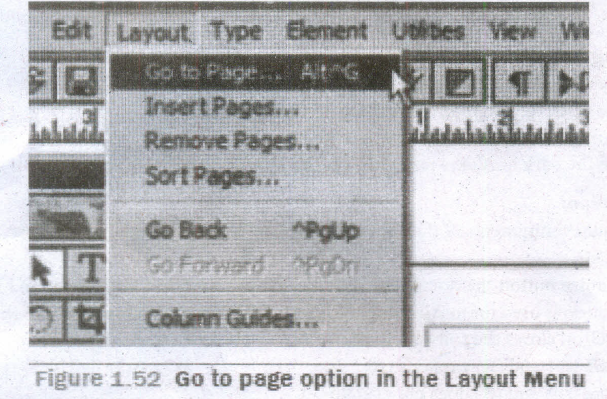
Go to page option in the Layout Menu
Now the Go to Page dialog box appears.
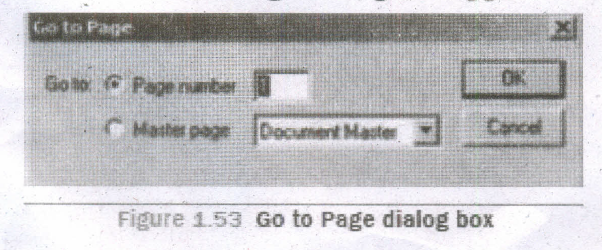
Go to Page dialog box
(i) In the dialog box, type the page number that you want to view.
(ii) Then click on OK button. The required page is displayed on the screen.
37.
Placing Text in a Frame
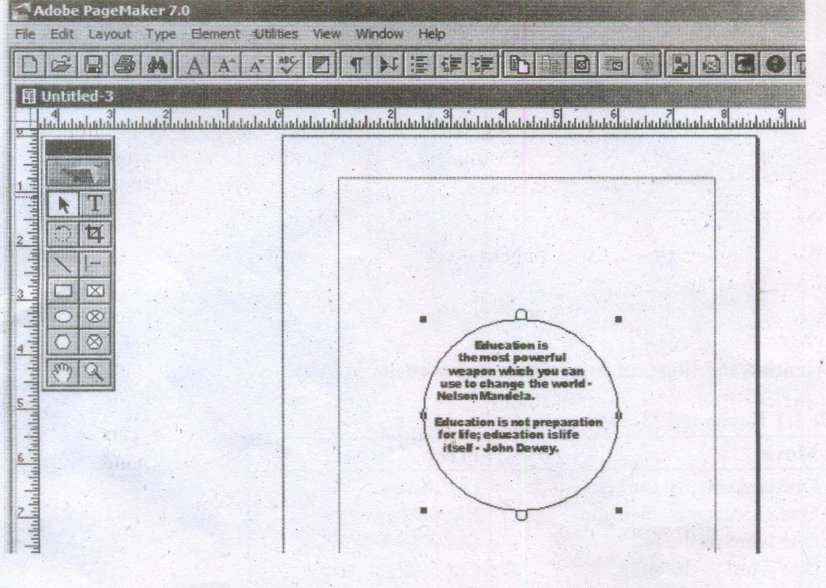
To place text in a Frame:
(i) Click on one of a Frame tool from the Toolbox.
(ii) Draw a frame with one of PageMaker's Frame. tools (Rectangle frame tool or Ellipse Frame Tool or Polygon frame Tool). Make sure the object remains selected.
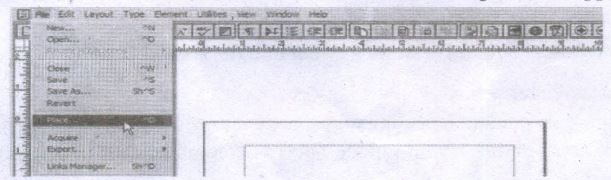
(iii) Click on File. The File menu will appear.
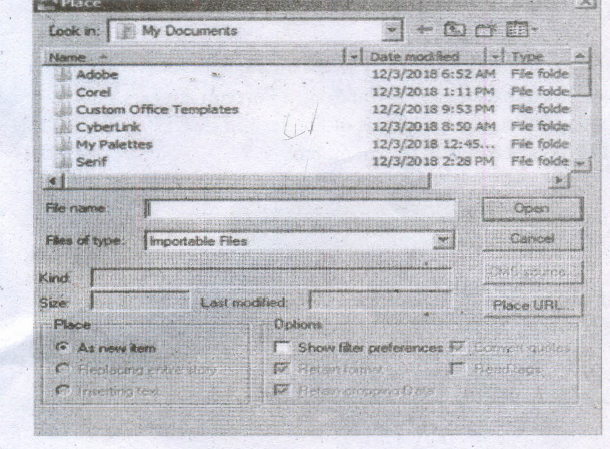
(iv) Click on Place. The Place dialog box will appear.
(v) Locate the document that contains the text you want to place, select it.
(vi) Click on Open.
(vii) Click in a frame to place the text in it. The text will be placed in the frame.
38.
(i) Managing team members in a way to get maximum outcome with high degree of efficiency is mandatory in multimedia production.
(ii) The fine quality high-end multimedia production application requires a specialize team comprises of the following members:
Production Manager:
(i) In a multimedia production, the role of production manager is to define, and coordinate, the production of the multimedia project in time and with full quality.
(ii) The production manager should be an expertise in the technology expert, good at proposal writing, good communication skills and budget management skills.
(iii) Also must have experience in human resource management and act as an efficient team leader.
Content Specialist:
(i) Content specialist is responsible for performing all research activities concerned with the proposed application's content.
(ii) Program content refers to projects information, graphics, data or facts presented through the multimedia production.
Script Writer:
(i) Video and film scripts represents a linear sequence of events.
(ii) The script writer visualizes the concepts in three dimensional environments and if needed uses the virtual reality integration into the program.
Text Editor:
(i) The content of a multimedia production always must flow logically and the text should always be structured and correct grammatically.
(ii) Text and narration is an integrated part of the application.
Multimedia Architect:
(i) The multimedia architect integrates all the multimedia building blocks like graphics, text, audio, music, video, photos and animation by using an authoring software.
Computer Graphic Artist:
(i) The role of Computer Graphic Artist is to deal with the graphic elements of the programs like backgrounds, bullets, buttons, pictures editing, 3-D objects, animation, and logos etc.
Audio and Video Specialist:
(i) The roles of these specialists are needed for dealing with narration and digitized videos to be added in a multimedia presentation.
(ii) They are responsible for recording, editing sound effects and digitizing.
Computer Programmer:
(i) The computer programmer writes the lines of code or scripts in the appropriate language.
(ii) These scripts usually develops special- functions like developing the software to give the size and shape of video windows, controlling peripherals and so on.
Web Master:
(i) The responsibility of the web master is to create and maintain an Internet web page.
(ii) They converts a multimedia presentation into a web page.
(iii) Final multimedia product is ready for consultation is a joint effort of the entire team.
(iv) Initially, the production manager identifies the project content, while the web master provides access to a wide range of community through web-services.
39.
Creating Stars
Polygon-tool has a small arrow in the lower-right corner of the tool. That little arrow indicates that this tool has a flyout.
To draw a star,
1. Click on the Polygon tool and hold down the mouse key. A flyout menu will appear showing you other tools.
2. Click on the Star tool from the flyout menu.
3. Click on anywhere in the drawing area and drag the mouse pointer.
4. Release the mouse button where you would like the end of the star.
40.
Creating Graphic Frame
(i) Graphic frame can hold graphic content.
(ii) You can distinguish a text frame from a normal graphic frame because the graphic frames display a non-printing 'X' in their centres.
(iii) Graphic frames are used to import pictures of other software programs. In InDesign, all imported images are contained within graphic frames.
(iv) The Tools panel contains three tools for drawing graphic frames.
1. Ellipse Frame - This tool lets you create oval and round frames.
2. Rectangle Frame - This tool lets you create rectangular and square frames.
3. Polygon Frame - This tool lets you create equilateral polygons frames.
To create a Rectangle frame
1. Click on the Rectangle Frame tool in the Tools panel (or) Press F in the keyboard.
2. Position the Rectangle Frame tool pointer on the page.
3. Drag to create a rectangle frame that is approximately the size and shape you want, then release the mouse button.
When you release the mouse button after creating a Rectangle frame, the frame you created is active.
If the Selection tool was previously selected, the frame is displayed within its bounding box, which contains eight resizing handles, which help you to change the shape or size of the bounding box or the frame.
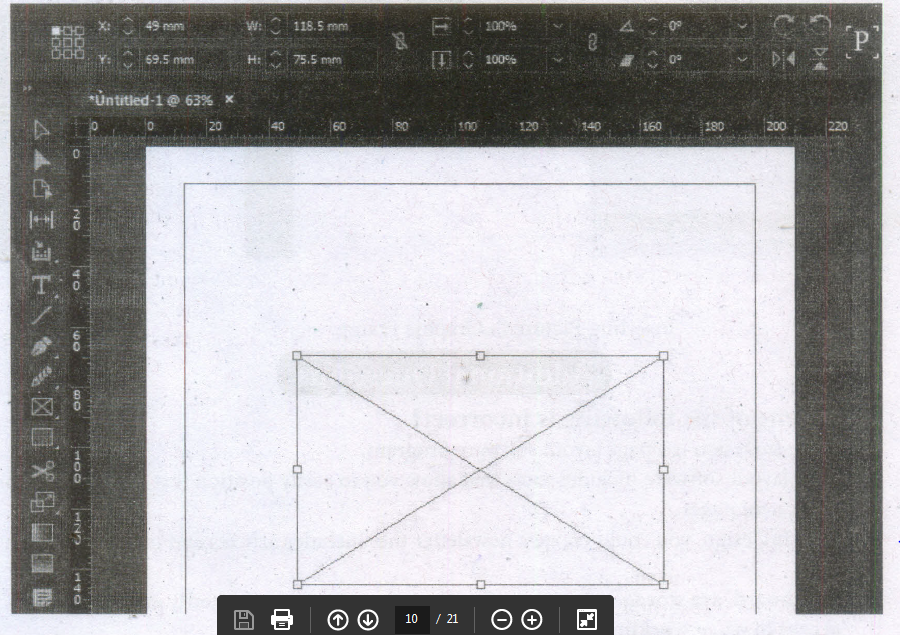
Creating a Rectangle frame
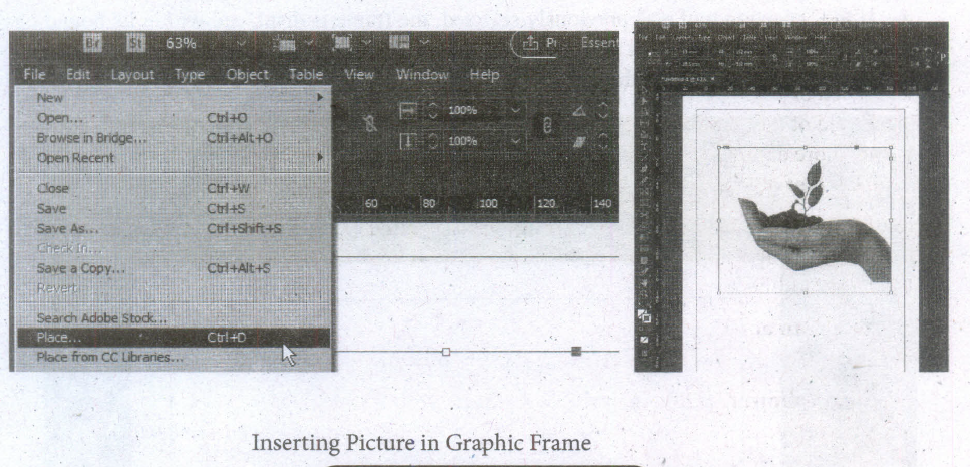
Inserting Picture in Graphic Frame
Graphic frames are used to import pictures of other software programs. You can insert the picture in the frame.
1. Make a graphic frame.
2. Choose File > Place in the menu.
The Place dialog box appears.
3. Locate and select the picture you want to insert the frame.
4. Click on Open.
The picture will appear in the graphic frame.
41.
Application bar
(i) The Application bar sits at the top of the workspace and includes several menus.
(ii) To open a menu, click !he menu name on the Application bar.
(iii) Each menu lists commands that relate to the menu category.
(iv) To the right of the menu names are workspace and view options.
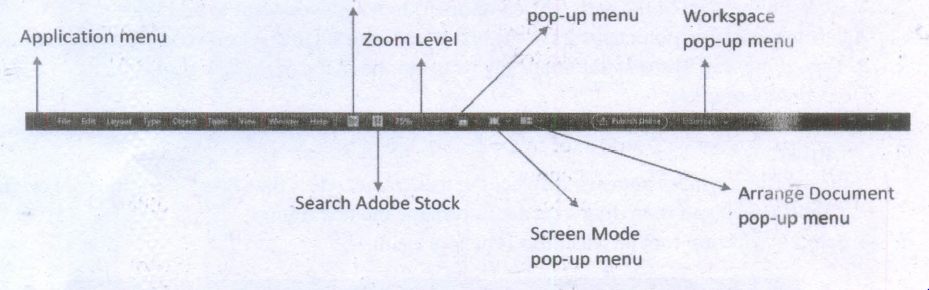
1. Application menu
2. Search Adobe Stock
3. Zoom Level
4. pop-up menu
5. Screen Mode
6. pop-up menu
7. Workspace
8. pop-up menu
9. Arrange Document
10. pop-up menu
Document tab:
(i) The document tab appears just above the horizontal ruler and includes the document's name, its current magnification level, and a Close button.
(ii) When more than one document is open, a tab appears for each document and the document tabs appear in a horizontal row.
(iii) Click a document tab to view that document in the window.
(iv) You can drag a document tab out of the group to open it in a stand-alone window.
Tools panel:
(i) The Tools panel contains the tools available in InDesign.
(ii) There are tools for creating objects, such as the Rectangle tool, tools for transforming objects, such as the rotate tool, and tools for changing the page view and navigating the workspace, such as the Zoom tool and the Hand tool.
(iii) Some tools have a small triangle in the lower-right comer.
(iv) This indicates that additional tools are available beneath that tool.
(v) Click and hold the tool to see the hidden tools.
42.
Drawing a Star using Polygon tool To draw a Star
1. Click on the Polygon tool from the toolbox. The cursor changes to a crosshair.
2. Click and drag anywhere on the screen. As you drag, a Polygon appears.
3. Release the mouse button when the Polygon is of the desired size.
4. Choose Element > Polygon Settings in the menu bar.
43.

12th Standard Syllabus & Materials
12th Standard
TN 12th Computer Applications வலையமைப்பு வடமிடல் Sample Question Papers Study Material - QB365 Set A
NEW12th Standard
TN 12th Computer Applications களப்பெயர் முறைமை (DNS) Sample Question Papers Study Material - QB365 Set A
NEW12th Standard
TN 12th Computer Applications வலையமைப்பு எடுத்துக்காட்டுகள் மற்றும் நெறிமுறைகள் Sample Question Papers Study Material - QB365 Set A
NEW12th Standard
TN 12th Computer Applications கணினி வலையமைப்பு ஓர் அறிமுகம் Sample Question Papers Study Material - QB365 Set A



Tamilnadu Stateboard 12th Standard Subjects

Maths

Chemistry

Physics

Biology

Computer Science

Business Maths and Statistics

Economics

Commerce

Accountancy

History
Computer Applications
Biology
Computer Technology
Computer Applications
Computer Science
Business Maths and Statistics
Commerce
Economics
Maths
Chemistry
Physics
Computer Technology
History
Accountancy

Tamil

English

French
Tamilnadu Stateboard Standards
