
 100% FREE ACCESS
12th Standard Syllabus & Materials
12th Standard
TN 12th Maths Applications of Matrices and Determinants Sample Question Papers Study Material - QB365 Set A
NEW12th Standard
TN 12th Computer Applications மின்னணு தரவு பரிமாற்றம் Sample Question Papers Study Material - QB365 Set A
NEW12th Standard
TN 12th Computer Applications மின் - வணிக பாதுகாப்பு அமைப்புகள் Sample Question Papers Study Material - QB365 Set A
NEW12th Standard
TN 12th Computer Applications மின்னணு செலுத்தல் முறைகள் Sample Question Papers Study Material - QB365 Set A
NEW12th Standard
TN 12th Computer Applications மின் - வணிகம் Sample Question Papers Study Material - QB365 Set A
NEW12th Standard
TN 12th Computer Applications திறந்த மூல கருத்துருக்கள் Sample Question Papers Study Material - QB365 Set A

Published on: 01/03/2021
12th Standard English Medium Computer Technology Reduced Syllabus Three mark Important Questions with Answer key - 2021(Public Exam)
Download Tamil Nadu 12th Standard Computer Technology question papers, model tests, one-mark questions, important questions, and public exam papers in PDF format. Free study materials and answer keys for TN State Board students.
Questions + Answers key
Take MCQ Computer Technology Test
1.
Write a note on the following:
a) combo box
b) spinners
c) artistic text
2.
How will open and close the tools panels?
3.
Mention the options in the zoom in veiw menu?
4.
What is meant by sage tool?
5.
How will you change a color?
6.
What is meant by formatting a document?
7.
Write a note about scrolking the document?
8.
Briefly describe the following methods of producing circles.
a. centre and radius
b. centre and diameter
9.
How can you enter commands such as LINE, CIRCLE, and ERASE quickly at the keyboard?
10.
Differentiate between Zoom Tool and Hand Tool.
11.
Explain animation industry and their scope.
12.
Write roles and responsibilities of Production team members.
13.
Briefly explain about Multimedia Components.
14.
How to create duplication objects and Cloning objects? Write the difference between them.
15.
What do you do to convert a line into an arrow?
16.
Flyout of which tool has star tool in it? What is that tool’s keyboard shortcut?
17.
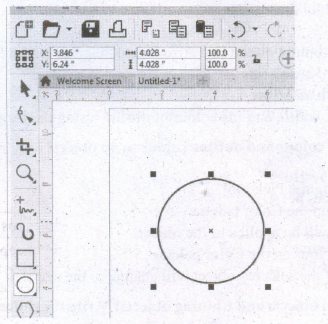
Write the steps to draw a circle in CorelDRAW.
18.
What are the differences between Vector graphics and bitmaps?
19.
Explain briefly how you can create an object.
20.
Write all the keyboard shortcuts for functions associated with zooming.
Fill
Stroke
Paint
In-Color
21.
Write about any 3 tools found in the tools panel.
Gradient
Color Mix
Color Palette
none
22.
How to you insert page numbers in Master pages?
23.
How do you link frames containing text?
24.
Write the use of any three tools in PageMaker along with symbols
25.
What is PageMaker? Explain its uses.
1.
a) Combo box:
(i) Combo (short for combination) is a num box with a clickable selection button for access to preset values.
(ii) You can either a specific value in a combo box by typing or choose a value from the selector.
b) Spinners:
(i) These are similar to combo boxes, in that they can be used to specify values by typing or using mouse actions.
c) Artistic text:
(i) An Artistic text is a type of text to which you can apply special effects, such as shadows.
2.
To open or close the Tools panel
(i) Choose Window > Tools to close the Tools panel. To reopen the Tools panel, choose Window > Tools again. (or)
(ii) Press Tab key (with any tool but the Type tool selected) to close all open panels, including the Tools panel. To reopen those panels, press Tab again.
(iii) We can also close a floating Tools panel by clicking its Close box.
3.
(i) The Zoom tool.
(ii) The zoom commands in the View menu: Zoom In, Zoom Out, Fit Page in Window, Fit Spread in Window, Actual Size, and Entire Pasteboard.
(iii) The Zoom Level pop-up menu in the left side of the application bar.
4.
The Page tool is used for creating different page sizes within a document.
(i) To create a different page size, press Shift+P to select the Page tool, and click the page in the layout to select it.
(ii) Then use the options in the Control page to change the page layout.
5.
(i) There are so many drawing tools in PageMaker.
(ii) Line tool, Rectangle tool, Ellipse tool and Polygon tool are four main drawing tools.
6.
(i) Formatting is the process of changing the general arrangement of text, i.e., improving the appearance of the text by using various fonts, fonts colors, and font styles.
(ii) A font is a set of letters, numbers or symbols in a certain style. Each font looks different from other fonts.
7.
(i) In PageMaker, there are two sets of scroll bars; one for up and down movement and the other for the left and right movement of the document.
(ii) Pagemaker's scroll bars work differently than those in a word processor.
8.
a. centre and radius:
Ribbon: Home > Draw > Circle drop-down > Center, Radius
Toolbar: Draw > Circle
Menu Bar: Draw > Circle
Command: CIRCLE or C
b. centre and diameter:
Drawing a Circle by Specifying Center and Diameter
1. Click Home > Draw > Circle > Center, Diameter on the ribbon. (or) Type CIRCLE or C in the Command line.
2. The following message appears in the command line.
Specify center point for circle or [3P/2P/Ttr (tan radius)]: Left-click with the mouse anywhere on the screen. (or) Type a Value.
Specify radius of circle or [Diameter]: Enter D for Diameter option.
Specify diameter of circle: Enter the value of Diameter.
9.
LINE:
LINE Specify first point: Start point.
Specify next point or [Undo]: Position the cursor and then enter distance.
Specify next point or [Undo]: Position the cursor and then enter distance.
CIRCLE:
Drawing a Circle by Specifying Center and
Diameter
1. Click Home > Draw > Circle > Center, Radius on the ribbon.
2. Select an arbitrary point in the graphics window to specify the center point:
3. Type a value as the radius and press ENTER.
ERASE:
Method 1
Select the Erase command first and then select the objects to be erased.
Press Enter Key and the objects selected will disappear.
Method 2
Select the object to be erased.
Press the Delete Key.
10.
| Hand Tool (H) | Zoom Tool (Z) |
| It is used to move the Stage around the Pasteboard by dragging the Stage. | It is used to change the magnification of an area of the Stage. Clicking an area of the Stage zooms in and holding down Alt Key and clicking zooms out. |
11.
Animation is the process displaying still images so quickly so that they give the impression of continuous movement.
(i) In animation the screen object is a vector image in animation.
(ii) Animation tools are very powerful and effective.
(iii) The two basic types of animations are Path animation and Frame animation.
12.
Production Manager
(i) In a multimedia production, the role of production manager is to define, and coordinate, the production of the multimedia project in time and with full quality.
(ii) The production manager should be an expertise in the technology expert, good at proposal writing, good communication skills and budget management skills.
(iii) Also must have experience in human resource management and act as an efficient team leader.
Content Specialist
(i) Content specialist is responsible for performing all research activities concerned with the proposed application's content.
(ii) Program content refers to projects information, graphics, data or facts presented through the multimedia production.
Script Writer
(i) Video and film scripts represents a linear sequence of events.
(ii) The script writer visualizes the concepts in three dimensional environments and if needed uses the virtual reality integration into the program.
13.
Multimedia has five major components like text, images, sound, video and animation. They are explained in detail below:
Text:
(i) Text is the basic components of multimedia and most common ways of communicating information to other person.
(ii) Even though multimedia includes images, video, audio and graphics; Text is the basic components used in multimedia.
Static Text:
(i) Static text, the text or the words will remain static as heading or in a line, or in a paragraph.
(ii) The words are given along with the images to explain about the images.
(iii) In static text the words will either give information or support an image or an video.
Hypertext:
(i) A hypertext is a system which consists of nodes, the text and the links between the nodes, which defines the paths he user need to follow for the text access in non-sequential ways.
14.
Cloning Objects
(i) To create a clone of a selected object.
Choose Edit > Clone from the menu bar.
(ii) The clone will be offset slightly to the upper right of the original and placed on top as shown below. The new copy is automatically selected.
(iii) Cloning differs from duplication in that most changes made to the original object (the "master") are automatically applied to the clone.
15.
To add arrowhead to a line
(i) Using the Freehand tool draw a line.
(ii) Select the line.
(iii) Click the drop-down button on the End Arrowhead Selector on the Property tool bar.
(iv) Then click the desired arrow tip.
Now the line appears with an arrow.
You can set the line style, width, and the colour of the line using the Properties bar.
16.
(i) Flyout of polygon tool has star tool in it.
(ii) The tool's keyboard shortcut is (Y).
17.
Creating Circles
(i) To draw a circle, select the Ellipse tool in the toolbox.
(ii) The mouse pointer changes to a crosshair with a small ellipse beneath it.
(iii) Click on anywhere in the drawing area and hold down the Ctrl key while dragging the mouse pointer.
(iv) Release the mouse button where you like the end of the circle.
18.
| Vector graphics | Bitmaps |
| Vector graphics are made of lines and curves. | Bitmaps are also known as raster images. |
| They are generated from mathematical descriptions. | They are composed of small squares called pixels |
| These graphics are ideal for logos and illustrations. |
19.
Creating an Object:
(i) Shapes can add visual interest to a document and serve as a background for text.
(ii) The tools for creating shapes include the Rectangle, Ellipse, and Polygon tools.
(iii) To select a shape tool, click and hold down the mouse button on the Rectangle tool (or currently selected shape tool) on the Tools panel, and then select the shape tool you want to use.
(iv) With a shape tool selected, you can create a shape manually by dragging in the document, or you can click in the document to open the shape's dialog box and define its settings.
(v) You use the Swatches panel to add color to the fill and stroke (border) of your shape, and the Stroke panel to change the weight (thickness) and style of the stroke.
20.
Using the keyboard
(i) Press Ctrl + = to zoom in.
(ii) Press Ctrl + - to zoom out.
(iii) Press Ctrl + 1 to view a page at actual size.
(iv) Press Ctrl + 2 to view a page at 200%.
(v) Press Ctrl + 0 to fit the entire page in the document window.
(vi) Press Alt + Ctrl + 0 to fit the entire spread in the document window.
(vii) Press Ctrl + Spacebar or Ctrl + Alt + Spacebar to temporarily access the Zoom tool and zoom in or out.
21.
Type Tool ()
(i) The Type tool is used to enter and edit text.
(ii) To create a text frame, select the Type tool and drag the tool in the document window.
(iii) To select the Type tool, press T.
Path Type Tool ( )
(i) The Path Type tool is used to enter and edit text on a path (Adobe calls this the "Type on a Path" tool).
(ii) To add text on a path, select the Path Type tool and click the tool on a path. A flashing text insertion point (or text cursor) appears on the path.
(iii) At this point, text you enter will flow along the path.
(iv) To select the Path Type tool, press Shift +T.
Add Anchor Point tool ( )
When you click the Add Anchor Point tool on a selected path, InDesign adds a point at that location on the path.
22.
To make page numbers appear on every page
(i) Click on Master Pages icon.
(ii) Then click on Text Tool. Now the cursor changes to I - beam.
(iii) Then click on the left Master page where you want to put the page number.
(iv) Press Ctrl +Alt + P.
(v) The page number displays as 'LM' on the left Master Page.
(vi) Similarly click on the right Master page where you want to put the page number.
(vii) Press Ctrl +Alt + P.
(viii) Tile page number displays as 'RM' on the right Master Page, but will appear correctly on the actual pages.
23.
➝ Draw a second frame with the Frame tool of your choice.
➝ Click the first frame to select it.
➝ Click on the red triangle to load the text icon.
➝ Click the second frame. PageMaker flows the text into the second frame.(i)
24.
i) Pointer Tool Used to select, move, and resize text objects and graphics.
ii) Text tool Used to type, select, and edit text.
iii) Rotating tool Used to select and rotate objects.
25.
(i) Adobe PageMaker is a page layout software.
(ii) It is used to design and produce documents that can be printed.
(iii) You can create anything from a simple business card to a large book.
(iv) Page layout software includes tools that allow you to easily position text and graphics on document pages.
(v) For example, using PageMaker, you could create a newsletter that intended articles and pictures on each page.

12th Standard Syllabus & Materials
12th Standard
TN 12th Computer Applications வலையமைப்பு வடமிடல் Sample Question Papers Study Material - QB365 Set A
NEW12th Standard
TN 12th Computer Applications களப்பெயர் முறைமை (DNS) Sample Question Papers Study Material - QB365 Set A
NEW12th Standard
TN 12th Computer Applications வலையமைப்பு எடுத்துக்காட்டுகள் மற்றும் நெறிமுறைகள் Sample Question Papers Study Material - QB365 Set A
NEW12th Standard
TN 12th Computer Applications கணினி வலையமைப்பு ஓர் அறிமுகம் Sample Question Papers Study Material - QB365 Set A



Tamilnadu Stateboard 12th Standard Subjects

Maths

Chemistry

Physics

Biology

Computer Science

Business Maths and Statistics

Economics

Commerce

Accountancy

History
Computer Applications
Biology
Computer Technology
Computer Applications
Computer Science
Business Maths and Statistics
Commerce
Economics
Maths
Chemistry
Physics
Computer Technology
History
Accountancy

Tamil

English

French
Tamilnadu Stateboard Standards
