
 100% FREE ACCESS
12th Standard Syllabus & Materials
12th Standard
TN 12th Maths Applications of Matrices and Determinants Sample Question Papers Study Material - QB365 Set A
NEW12th Standard
TN 12th Computer Applications மின்னணு தரவு பரிமாற்றம் Sample Question Papers Study Material - QB365 Set A
NEW12th Standard
TN 12th Computer Applications மின் - வணிக பாதுகாப்பு அமைப்புகள் Sample Question Papers Study Material - QB365 Set A
NEW12th Standard
TN 12th Computer Applications மின்னணு செலுத்தல் முறைகள் Sample Question Papers Study Material - QB365 Set A
NEW12th Standard
TN 12th Computer Applications மின் - வணிகம் Sample Question Papers Study Material - QB365 Set A
NEW12th Standard
TN 12th Computer Applications திறந்த மூல கருத்துருக்கள் Sample Question Papers Study Material - QB365 Set A

Published on: 01/03/2021
12th Standard English Medium Computer Technology Reduced Syllabus Two mark Important Questions with Answer key - 2021(Public Exam)
Download Tamil Nadu 12th Standard Computer Technology question papers, model tests, one-mark questions, important questions, and public exam papers in PDF format. Free study materials and answer keys for TN State Board students.
Questions + Answers key
Take MCQ Computer Technology Test
1.
What is meant by start tab?
2.
Name the icons in quick access toolbar?
3.
Write about the search bar?
4.
What is meant by application button?
5.
Who are the persons use auto cad software?
6.
Draw neat diagram of timeline.
7.
How will the the flash background appears in default?
8.
What is meant by flash-created movies?
9.
How will you create a document?
10.
What Is A Ambient occlusion?
11.
What Is Animation?
12.
What Are Multimedia Software's?
13.
How will you save a drawing?
14.
Name some flyout in shape tools?
15.
What is meant by flyout?
16.
How will you start a corel draw using the shortcuts?
17.
What is meant by bitmaps?
18.
What is meant by gap tool?
19.
What is meant by document window?
20.
What is meant by control panel?
21.
What is meant by page layout software?
22.
Write about threading text blocks?
23.
What are the main components of the window?
24.
How will you create a new document?
25.
How do you exit AutoCAD?
26.
When a file has not yet been saved for the first time, what appears when you pick either Save or Save As... from the Application Menu bar?
27.
In which Ribbon control panel are the Arc and Circle buttons found?
28.
What are the practical differences between creating a rectangle using the LINE command and creating it using the RECTANG command? Why might you choose one command instead of the other?
29.
Which Function key turns the OSNAP feature on and off?
30.
What appears when you rest the pointer on a button on the Ribbon?
31.
How do you start AutoCAD?
32.
Write steps to start Adobe Professional Flash CS6?
33.
List out Multimedia Production team members.
34.
List out video file formats.
35.
List out image file formats.
36.
Classify the IMAGE component in multimedia.
37.
List out Multimedia Components.
38.
Write the steps to ungroup a grouped object.
39.
Why is an artistic Media tool used in CorelDRAW?
40.
What is a property bar in CorelDRAW?
41.
Write the steps to start CorelDRAW.
42.
Write the steps to create a New Document in CorelDRAW.
43.
Write the steps to add bullets or numbering to a paragraph.
44.
What is the use of page tool?
Stroke
Fill
Out-Color
Paint
45.
When does a tooltip appear?
Gutter
vacuum
empty area
Interstellar
46.
What is an ‘Essential’ in InDesign document window?
Spread
folder
File
frame
47.
How many types of orientation are available by default? What are they?
text frame
shape
clipboard
None of the above
48.
How do you insert a page in PageMaker?
49.
What is threading text blocks?
50.
Write about the Menu bar of PageMaker
1.
(i) When you click the Start tab at any moment, you will get the AutoCAD 2016 Initial screen again.
(ii) Using it, you can start a new drawing, open an existing drawing, etc.
2.
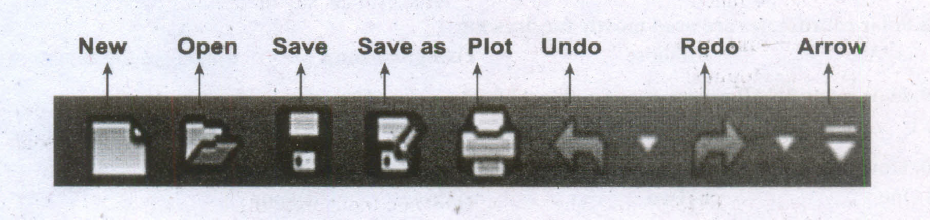
3.
(i) The Search bar displays at the top of the Application menu.
(ii) It is used to search for any command.
4.
The Application menu appears when you click the red "A" called the Application Button.
5.
AutoCAD software is used by architects, CAD technicians, designers, engineers, project managers, and CAD.
6.
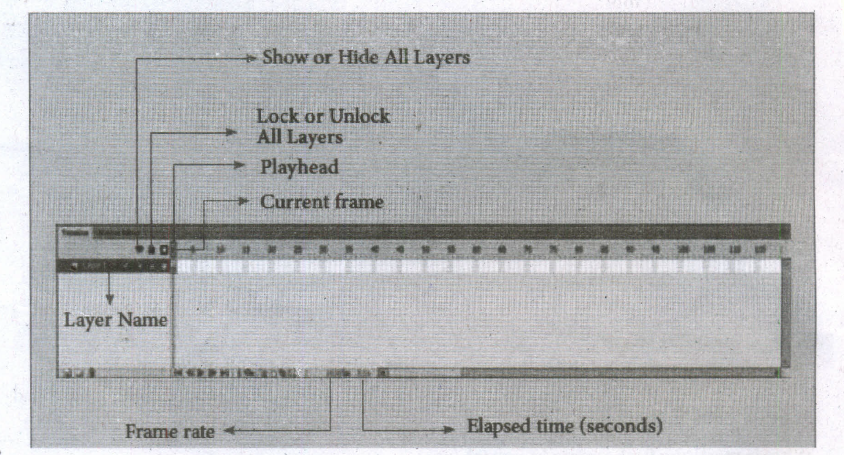
7.
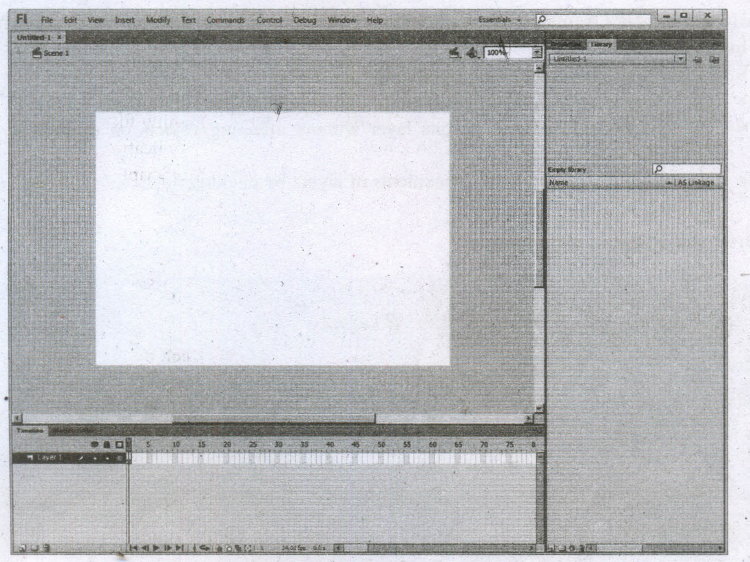
(i) By default, the Flash Stage appears white, but, you can change its background color from the Document settings dialog box using the Modify > Document (Ctrl +J) command.
(ii) To change the view of the Stage, Zoom in and out.
(iii) To help in positing the items on the Stage, you can use the grid, guides and rulers.
8.
i) A theater stage, the Flash Stage is the area that viewers see when a movie is playing.
ii) The term movie refers to Flash-created movies.
9.
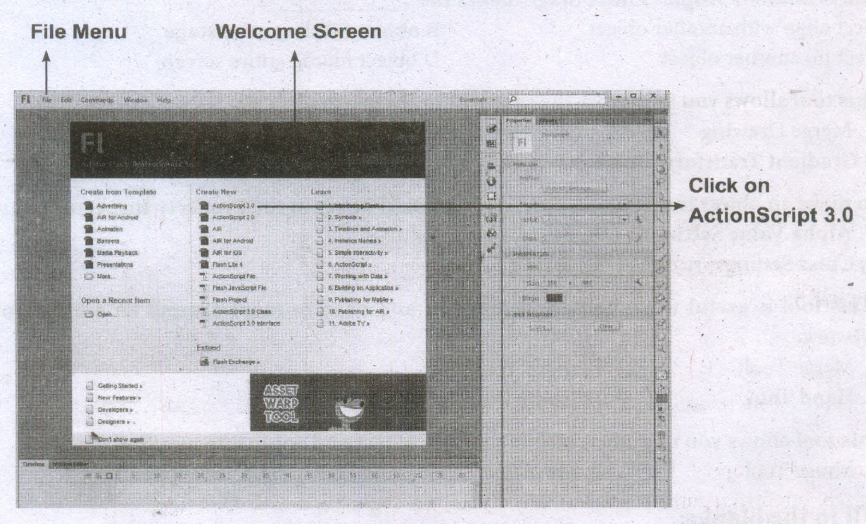
The Welcome Screen of the Flash is the launch pad for creating and opening files. It appears when Flash is first launched or when no documents are open in the application. From the Create New column in the middle of the Welcome Screen, click on Action Script 3.0.
2. From the File menu, choose File> New to create a new document.
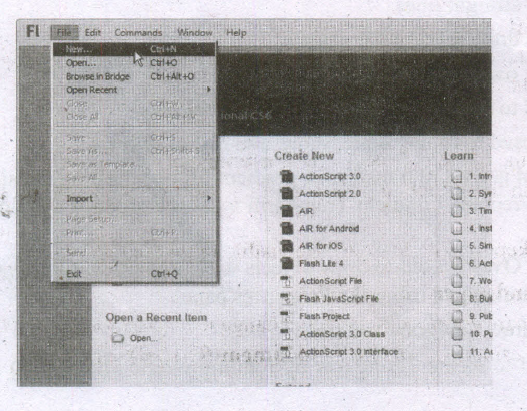
The New Document dialog box appears. Under the General tab, choose ActionScript 3.0.,and press OK to create a new document.
10.
(i) Ambient occlusion is a shading method used in 3D computer graphics which helps add realism to local reflection models by taking into account.
(ii) Ambient occlusion is a method for simulating global illumination, while keeping a respectable ratio between results.
11.
Animation is the rapid display of a sequence of images of 2-D or 3-D artwork or model positions in order to create an illusion of movement.
12.
The software used to create multimedia experiences can be placed into 3 distinct categories:
(i) Audio Software
(ii) Graphics Software
(iii) Video Software
13.
To save a drawing
1. Choose File > Save in the menu bar.
2. Save Drawing dialog appears.
3. In the Save Drawing dialog box.
4. Type a filename in the File name list box.
5. Locate the folder where you want to save the file.
14.
1. Shape
2. Smooth
3. Smear
4. Twirl
5. Attract
6. Repel
7. Smudge
8. Roughen
15.
The toolbox contains a range of tools that can be used for specific drawing and editing tasks.
(i) Some tools are used to draw shapes, and other tools are used to apply colors, patterns, or
(ii) fills to objects, Some tools belong to flyouts.
(iii) They are groups of related tools.
(iv) A small arrow which is in the lower right comer of a toolbox button indicates that the tool belongs to a flyout.
(v) The last-used tool in the flyout appears on the button.
16.
Using the Shortcut
(i) First, locate the CorelDRAW 2018 shortcut icon. This is a colourful balloon shaped icon with CorelDRAW 2018 written beneath it.
(ii) When you find it, position the mouse over the CorelDRAW 2018 icon and double click to open the CorelDRAW 2018.
17.
(i) Bitmaps are also known as raster images.
(ii) They are composed of small squares called pixels.
(iii) Each pixel is mapped to a location in an image and has numerical colour values.
18.
(i) The Gap tool is used to adjust the spacing between objects. Press U to select the Gap tool, place the pointer between objects, and drag to change the gap between aligned objects.
(ii) Shift-drag to move the gap between only the two nearest objects; Ctrl-drag to resize the gap instead of moving it; Alt-drag to move the gap and objects in the same direction.
(iii) CtrI+Alt-drag to resize the gap and move the objects. Adding the Shift key to any combination affects only the two nearest objects.
19.
(i) The document window is the central area that represents the open InDesign document.
(ii) It resembles a piece of paper and is surrounded by a black border. The black border represents the page border.
20.
(i) The Control panel is located directly beneath the Application bar and above the horizontal ruler.
(ii) Options in the Control panel change depending on what is selected in the document.
21.
lnDesign is a page layout software program used to design and produce documents that can be printed or used on the Web.
22.
(i) An text in PageMaker resides inside containers called text blocks.
(ii) A Text block can be connected to other text block so that the text in one text block can flow into another text block.
(iii) Text blocks that are connected in this way are threaded. The process of connecting text among Text blocks is called threading text. Text that flows through one or more threaded blocks is called a story.
23.
The main components of the above window are Title bar, Menu bar, Toolbar, Ruler, Scroll bars and Text area .
24.
To create a new document,
i) Choose File> New in the menu bar. (or) Press Ctrl + N in the keyboard. Now Document Setup dialog box appears.(Figure 1.3)
ii) Enter the appropriate settings for your new document in the Document Setup dialog box.
iii) Click on OK button.
25.
You can close the current drawing file without actually quitting AutoCAD by choosing Close > Current Drawing from the Application Menu or by entering CLOSE at the Command prompt. To close the current opened file or all opened files,
(i) Click on the Application button. Now Application menu appears.
(ii) Move the mouse to the Close button, then select either Current Drawing to dose the current file, or All Drawings to close all the opened files in single command.
26.
To save your work and remain in AutoCAD:
1. Click the Save button in the Quick Access toolbar.
2. If the drawing has not yet been named, the Save Drawing As dialog box appears.
3. Name the drawing in the File name text box, and then choose Save.
27.
Ribbon control panel are the Arc and Circle buttons found in ARC toul.
28.
(i) Creating a rectangle using the LINE command, but doing so has some disadvantages.
(ii) For example, you would have to take the time to make sure that the comer angles are exactly 90°. Also, each line segment would be a separate object.
(iii) Therefore, AutoCAD 2016 provides the RECTANG command, which allows you to create a rectangle with perfect corners and as a single object.
(iv) Clicking anywhere on a rectangle created with the RECTANG command selects the entire rectangle.
29.
(i) If the SNAP MODE button is chosen, the, snap mode will turn ON.
(ii) When snap is on, the cursor under mouse control can only be moved in jumps from one snap point to another.
(iii) The F9 key acts as a toggle key to turn the snap off or on.
30.
(i) Ribbon Minimized to Panels
(ii) Ribbon Minimized to Panel Titles
(iii) Ribbon Minimized to Panel Tabs
31.
To start AutoCAD 2016,
(i) double-click the AutoCAD 2016- English icon on your Desktop (or)
(ii) Click Start > All Programs > Autodesk > AutoCAD 2016 > AutoCAD 2016 - English.
32.
To start Adobe Flash Professional CS6, choose Start > All Programs > Adobe Flash Professional CS6.
33.
(i) The production team for a high end multimedia project requires a team efforts.
(ii) The team comprises of members playing various roles and responsibilities like Script writer, Production manager, Editor, Graphics Architect, Multimedia Architect and Web Master.
34.
(i) AVI (Audio Video Interleave),
(ii) MPEG (Moving Picture Experts Group)
35.
Compression formats used for this purpose are GIF, TIFF and JPEG.
36.
(i) Images acts as an vital component in multimedia.
(ii) These images are generated by the computer in two ways, as bitmap or raster images and as vector images.
37.
Multimedia has five major components like text, images, sound, video and animation.
38.
To ungroup a group object
(i) Select the grouped object using the Pick tool.
(ii) Choose Object > Group > Ungroup
(iii) Objects on the menu Bar. (or)
(iv) Press Ctrl + U in the keyboard (or)
(v) Click on the Ungroup Objects button on the Property Bar.
(vi) The grouped object will break into its component objects
39.
An artistic Media tool used in CorelDRAW were artistic brush, spray, and calligraphic effects.
40.
The property bar is next to Standard toolbar.
(i) It displays the most commonly used functions that are relevant to the active tool.
(ii) Even though it looks like a toolbar, the property bar content changes depending on the tool or task.
41.
Using the Start Menu
(i) Choose Start > All Programs > CoreIDRAW Graphics Suite 2018 > CoreIDRAW 2018.
(ii) The CorelDRAW 2018 - Welcome Screen window will appear.
42.
To create a New Document
(i) Click on New Document button in the Welcome Screen window.
(ii) Now Create a New Document dialog box appears. It lets you specify a wide range of document properties.
(iii) You can name the document, set the page size, select a color mode such as CMYK or ROB, and set color profiles.
(iv) Click on OK button.
43.
Add Bullets or Numbering to a Paragraph
1. Select the paragraphs to which you want to add bullets or numbers.
2. Choose Type > Bulleted & Numbered Lists, and then click Apply Bullets or Apply Numbers.
The last used settings in the Bullets and Numbering dialog box are applied to the text.
44.
Zooming allows you to quickly zoom in on, or get closer to, any object in your document.
45.
If you place the cursor over any tool in the Tools panel without clicking, a tooltip appears displaying the tool's name and a keyboard shortcut in parentheses.
46.
When you start InDesign for the first time, you see the default workspace called "Essentials", with the Control panel and Tools panel along the top and left side of the InDesign window.
47.
Orientation:
(i) Specify a page orientation for the document.
(ii) Landscape or Portrait.
48.
Inserting a page
1. Click on Layout in the menu bar. The Layout menu will appear.
2. Click on Insert page. The Insert Page dialog box will appear.
3. Type the number of pages you want to add to the Insert Page dialog box.
4. Click on Before or After to specify where you want to add the page relative to the active page.
5. In multi-page documents, type a new page number in the Existing Page Box to change the relative page.
6. Click on OK button. The page will be inserted in your document.
49.
(i) All text in PageMaker resides inside containers called text blocks.
(ii) A Text block can be connected to other text block so that the text in one text block can flow into another text block.
50.

i) It contains the following menus File, Edit, Layout, Type, Element, Utilities, View, Window, Help.
ii) When you click on a menu item, a pulldown menu appears.
iii) There may be sub-menus under certain options in the pull-down menus.

12th Standard Syllabus & Materials
12th Standard
TN 12th Computer Applications வலையமைப்பு வடமிடல் Sample Question Papers Study Material - QB365 Set A
NEW12th Standard
TN 12th Computer Applications களப்பெயர் முறைமை (DNS) Sample Question Papers Study Material - QB365 Set A
NEW12th Standard
TN 12th Computer Applications வலையமைப்பு எடுத்துக்காட்டுகள் மற்றும் நெறிமுறைகள் Sample Question Papers Study Material - QB365 Set A
NEW12th Standard
TN 12th Computer Applications கணினி வலையமைப்பு ஓர் அறிமுகம் Sample Question Papers Study Material - QB365 Set A



Tamilnadu Stateboard 12th Standard Subjects

Maths

Chemistry

Physics

Biology

Computer Science

Business Maths and Statistics

Economics

Commerce

Accountancy

History
Computer Applications
Biology
Computer Technology
Computer Applications
Computer Science
Business Maths and Statistics
Commerce
Economics
Maths
Chemistry
Physics
Computer Technology
History
Accountancy

Tamil

English

French
Tamilnadu Stateboard Standards
