
 100% FREE ACCESS
12th Standard Syllabus & Materials
12th Standard
TN 12th Maths Applications of Matrices and Determinants Sample Question Papers Study Material - QB365 Set A
NEW12th Standard
TN 12th Computer Applications மின்னணு தரவு பரிமாற்றம் Sample Question Papers Study Material - QB365 Set A
NEW12th Standard
TN 12th Computer Applications மின் - வணிக பாதுகாப்பு அமைப்புகள் Sample Question Papers Study Material - QB365 Set A
NEW12th Standard
TN 12th Computer Applications மின்னணு செலுத்தல் முறைகள் Sample Question Papers Study Material - QB365 Set A
NEW12th Standard
TN 12th Computer Applications மின் - வணிகம் Sample Question Papers Study Material - QB365 Set A
NEW12th Standard
TN 12th Computer Applications திறந்த மூல கருத்துருக்கள் Sample Question Papers Study Material - QB365 Set A

Published on: 05/06/2021
QB365 provides detailed and simple solution for every book back questions in class 12 Computer Technology subject.It will helps to get more idea about question pattern in every book back questions with solution.
Download Tamil Nadu 12th Standard Computer Technology question papers, model tests, one-mark questions, important questions, and public exam papers in PDF format. Free study materials and answer keys for TN State Board students.
Questions + Answers key
Take MCQ Computer Technology Test
1.
Explain the use of the LINE Undo option.
2.
Name tools used to do the following:
(a). Draw lines
(b). Draw free hand drawing
(c). Erase what we have drawn
3.
Describe the various file formats in multimedia.
4.
Describe the features and techniques of animation.
5.
How will you assign a fill colour and outline colour to an object?
6.
Write the steps to draw a circle in CorelDRAW.
7.
How many graphic frames are found in Tools panel? What are they?
8.
Write all the keyboard shortcuts for functions associated with zooming.
Fill
Stroke
Paint
In-Color
9.
How to you insert page numbers in Master pages?
10.
Mention three tools in PageMaker and write their keyboard shortcuts.
1.
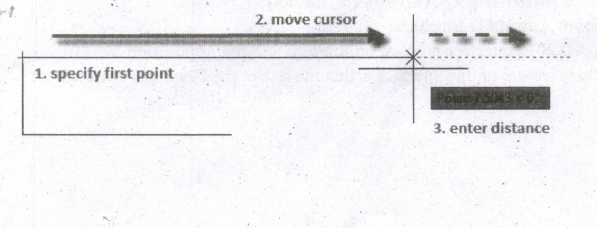
The following prompts are displayed.
Specify first point
(i) Sets the starting point for the line.
(ii) Click a point location.
(iii) With object snaps or grid snap turned on, the points will be placed precisely.
(iv) You can also enter coordinates.
(v) If instead, you press Enter at the prompt, a new line starts from the endpoint of the most recently created line, polyline, or arc.
(vi) If the most recently created object is an arc, its endpoint defines the starting point of the line.
(viii) The line is tangent to the arc.
Specify next point
(i) Specifies the endpoint of the line segment.
(ii) You can also use polar and object snap tracking together with direct distance entry.
Close
Connects the first and last segments.
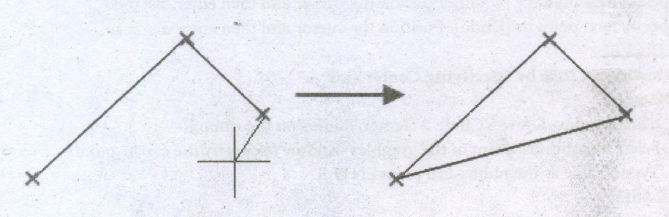
Undo
Removes the most recent segment of a line sequence.
2.
(a). Draw lines - Line tool
(b). Draw free hand drawing - Free transform tool
(c). Erase what we have drawn - Erase tool
3.
1. WAV (Waveform Audio File Format)
2. MP3 (MPEG Layer-3 Format)
3. AVI (Audio/Video Interleave)
4. MPEG (Moving Picture Experts Group)
5. AIFF (Audio Interchange File Format)
6. Rich Text Format
4.
Animation is the process displaying still images so quickly so that they give the impression of continuous movement.
(i) In animation the screen object is a vector image in animation.
(ii) Using numerical transformations the movement of that image along its paths is calculated for their defining coordinates.
(iii) The least frame rate of at least 16 frames per second gives the impression of smoothness and for natural looking it should be at least 25 frames per second.
(iv) Animations may be in two or three dimensional.
(v) The two dimensional animation, bring an image alive, that occur on the flat X and Y axis of the screen.
(vi) While in three dimensional animation it occurs along the three axis X, Y and Z. Animation tools are very powerful and effective.
(vii) The two basic types of animations are Path animation and Frame animation.
5.
To fill colour to any object:
(i) Select the object using the Pick tool.
(ii) Click on any colour on the Color palette.
(iii) The selected colour will be applied to the object.
(iv) Right click on any colour on the Color palette.
(v) The outline colour of the selected object will change to the selected colour.
6.
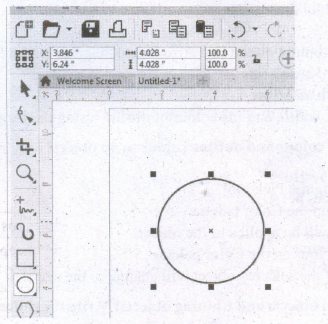
Creating Circles
(i) To draw a circle, select the Ellipse tool in the toolbox.
(ii) The mouse pointer changes to a crosshair with a small ellipse beneath it.
(iii) Click on anywhere in the drawing area and hold down the Ctrl key while dragging the mouse pointer.
(iv) Release the mouse button where you like the end of the circle.
7.
The Tools panel contains three tools for drawing graphic frames.
1. Ellipse Frame - This tool lets you create oval and round frames.
2. Rectangle Frame - This tool lets you create rectangular and square frames.
3. Polygon Frame - This tool lets you create equilateral polygons frames.
8.
Using the keyboard
(i) Press Ctrl + = to zoom in.
(ii) Press Ctrl + - to zoom out.
(iii) Press Ctrl + 1 to view a page at actual size.
(iv) Press Ctrl + 2 to view a page at 200%.
(v) Press Ctrl + 0 to fit the entire page in the document window.
(vi) Press Alt + Ctrl + 0 to fit the entire spread in the document window.
(vii) Press Ctrl + Spacebar or Ctrl + Alt + Spacebar to temporarily access the Zoom tool and zoom in or out.
9.
To make page numbers appear on every page
(i) Click on Master Pages icon.
(ii) Then click on Text Tool. Now the cursor changes to I - beam.
(iii) Then click on the left Master page where you want to put the page number.
(iv) Press Ctrl +Alt + P.
(v) The page number displays as 'LM' on the left Master Page.
(vi) Similarly click on the right Master page where you want to put the page number.
(vii) Press Ctrl +Alt + P.
(viii) Tile page number displays as 'RM' on the right Master Page, but will appear correctly on the actual pages.
10.
| S. No. | Tools | Keyboard Shortcut |
| 1 | Pointer Tool | F9 |
| 2 | Rotating Tool | Shift + F2 |
| 3 | Line Tool | Shift + F3 |
| 4 | Rectangle Tool | Shift + F4 |
| 5 | Ellipse Tool | Shift + F5 |
| 6 | Polygon Tool | Shift + F6 |

12th Standard Syllabus & Materials
12th Standard
TN 12th Computer Applications வலையமைப்பு வடமிடல் Sample Question Papers Study Material - QB365 Set A
NEW12th Standard
TN 12th Computer Applications களப்பெயர் முறைமை (DNS) Sample Question Papers Study Material - QB365 Set A
NEW12th Standard
TN 12th Computer Applications வலையமைப்பு எடுத்துக்காட்டுகள் மற்றும் நெறிமுறைகள் Sample Question Papers Study Material - QB365 Set A
NEW12th Standard
TN 12th Computer Applications கணினி வலையமைப்பு ஓர் அறிமுகம் Sample Question Papers Study Material - QB365 Set A



Tamilnadu Stateboard 12th Standard Subjects

Maths

Chemistry

Physics

Biology

Computer Science

Business Maths and Statistics

Economics

Commerce

Accountancy

History
Computer Applications
Biology
Computer Technology
Computer Applications
Computer Science
Business Maths and Statistics
Commerce
Economics
Maths
Chemistry
Physics
Computer Technology
History
Accountancy

Tamil

English

French
Tamilnadu Stateboard Standards


