
11th Standard Syllabus & Materials
11th Standard
TN 11th English Supplementary - 3 - The First Patient (Play) Sample Question Papers Study Material - QB365 Set A
NEW11th Standard
TN 11th English Prose - 3 - Forgetting Sample Question Papers Study Material - QB365 Set A
NEW11th Standard
TN 11th English Prose - 2 - The Queen of Boxing Sample Question Papers Study Material - QB365 Set A
NEW11th Standard
TN 11th English Poem - 1 - Once Upon A Time Sample Question Papers Study Material - QB365 Set A
NEW11th Standard
TN 11th English Prose - 1 - The Portrait of a Lady Sample Question Papers Study Material - QB365 Set A
NEW11th Standard
TN 11th Computer Applications Tamil Computing Sample Question Papers Study Material - QB365 Set A

Published on: 24/08/2026
Download Tamil Nadu 11th Standard Computer Applications question papers, model tests, one-mark questions, important questions, and public exam papers in PDF format. Free study materials and answer keys for TN State Board students.
Questions + Answers key
Take MCQ Computer Applications Test
1.
Find & Replace option is available in which menu?
File
Edit
Format
Tools
2.
Which is displayed at the top part of the window?
Menu bar
Tool bar
Title bar
Format bar
3.
Which of the following tag is a structural tag?
< html >
< h1 >
< br >
< p >
4.
Which of the following symbol is used to define a closing tag?
< >
%
/
\
5.
An HTML document is bounded within a pair of ________ tags
< body >.....< /body >
< title > ......... < /title >
< html >……. < /html >
< head >…… < /head >
6.
HTML tags should be specified within:
[ ]
{ }
( )
< >
7.
HTML is acronym for
Hyper Transfer Markup Language
Hyper Text Markup Language
Hyper Transfer Makeup Language
Hyper Text Makeup Language
8.
A formula in calc may begin with________.
=
+
-
All the above
9.
Which key is used to move the cell pointer in the forward direction within the worksheet?
Enter
Tab
Shift + Tab
Delete
10.
Grid of cells with a programmable calculator :
Spreadsheet
Database
Word processor
Linux
11.
Which of the following applications was the parent to Open Office Calc?
Visicalc
LibreCalc
Lotus 123
StarOffice Calc
12.
Which is the first electronic Spreadsheet?
Excel
Lotus 1-2-3
Visicalc
OpenOffice Calc
13.
What is the shortcut key for finding and replacing text in a document?
Ctrl + F1
Ctrl + F
Ctrl + F5
Ctrl +F7
14.
Which menu contains the Numbering option?
File
Edit
Tools
Format
15.
Which is the opening screen of OpenOffice?
Star desktop
Star Center
Star Screen
Star window
16.
What are the different packages in OpenOffice Writer?
17.
How do you define comments in HTML?
18.
Explain with the help of an example the difference between container and empty elements of HTML.
19.
What are the keyboard shortcuts to cut, copy and paste?
20.
21.
How do you merge cells in a table?
22.
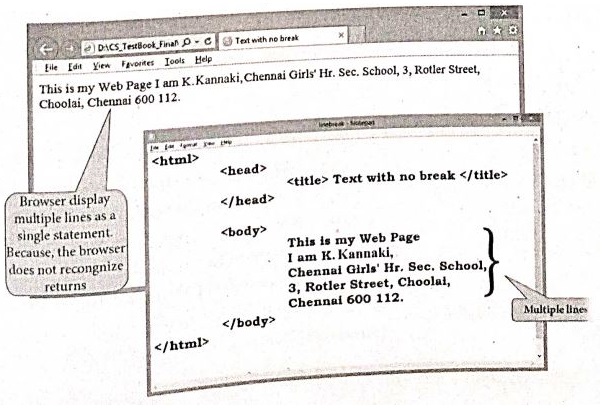
Write a HTML program to display your school name and address using various grading level tags.
23.
Write the steps to Find and Replace a word with another word in OpenOffice Writer?
24.
25.
What is Header and Footer? How do you insert page numbers in footer area?
26.
What are the different methods to change margin in Writer?
27.
How do you insert rows and columns?
28.
What are the different types of orientation?
29.
What is the difference between moving and copying text?
30.
What are the attributes available in < html >tags?
31.
Write any three formatting options.
32.
Write about inserting columns and rows in Calc
1.
(b)
Edit
2.
(c)
Title bar
3.
(a)
< html >
4.
(c)
/
5.
(c)
< html >……. < /html >
6.
(d)
< >
7.
(b)
Hyper Text Markup Language
8.
(d)
All the above
9.
(b)
Tab
10.
(a)
Spreadsheet
11.
(d)
StarOffice Calc
12.
(c)
Visicalc
13.
(b)
Ctrl + F
14.
(d)
Format
15.
(b)
Star Center
16.
Openoffice is a productive office suite with a collection of different software packages such as
(i) Openoffice writer - Word processor to create text documents
(ii) Openoffice calc - Spreadsheet to create worksheets
(iii) Openoffice Base - Database
(iv) Openoffice Impress - Presentation Software
(v) Openoffice Draw - Drawing software
(vi) Openofice Forumula - Create formula and equations..
17.
The tag <!> is used to create comments. In HTML, the text what you type within this tag is considered as comments and it is ignored by the browser. Comments never show up onscreen. Comments can be placed anywhere in HTML document.
The general form of comments: <! comments >
18.
Container Elements:
(i) The tags which require opening and closing is known as container elementsor tags.
(ii) Example: <html>, <body>, <title>, <p> etc,
Empty Elements:
(i) The tags which require only opening tag is known as empty elements or tags.
(ii) Example: <br>.
19.
The key board shortcuts to cut, copy, paste
Cut - Ctrl + X
Copy - Ctrl + C
Paste - Ctrl + V
20.
21.
To merge a group of cells:
(i) Select the cells to merge.
(ii) Right click and choose Cell ➝ Merge or choose Table ➝ Merge Cells from the menu bar.
22.
23.
OpenOffice Writer has a Find and Replace feature that helps to locate for a text inside a document and replace it with another word.
Click Edit Find & Replace (or) Ctrl + F
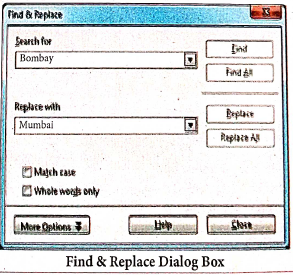
The Find & Replace dialog box appears as shown.
Steps to Find & Replace a text :
(i) Type the text you want to find in the Search forbox For Example : To search a word "Bombay" in a document and replace with "Mumbai", enter the word "Bombay" in the Search for box.
(ii) Enter the word " Mumbai" in the Replace with box and Click Find button, to start the search, the found word is highlighted and the first occurrence of "Bombay" is highlighted.
(iii) To replace text, click Replace button.
The highlighted word is replaced with the word given in the Replace with box.
(iv) Click Find All Writer selects all instances of the search text in the document.
All occurrences of Bombay are highlighted.
(v) Click Replace All button, Writer replaces all matches.
This will replace all occurrences of "Bombay" with "Mumbai".
(vi) Enable Match caseto perform the search case sensitively so that uppercase and lower cases are distinguished separately.
(vii) Enable Whole Words only to make the search more specific to words. For example, if you search for the word "Image", the command will only find Image" not "Imaging" "Images" etc.
24.
25.
The header is a section of the document that appears in the top margin, which displays the title or chapter name, author name of a document.
(i) Select from the main menu Insert \(\rightarrow\)Header \(\rightarrow\) Default.
(ii) The header text area is separated from the normal text area.
(iii) In the header area, Enter the text that is to be repeated in all pages or Select Insert \(\rightarrow\) Fields \(\rightarrow\) Title.
The footer is a section of the document that appears in the bottom margin of the page which displays the page number, date, time etc. which gets displayed on all the pages automatically.
(i) Select from the main menu Insert \(\rightarrow\) Footer \(\rightarrow\) Default
(ii) Place the insertion pointer in the footer part of the page.
(iii) Select Insert \(\rightarrow\) Fields \(\rightarrow\) Date to insert date in all the pages.
Inserting and Formatting page numbers
The page numbers can be inserted by performing the following steps:
(i) Place the insertion pointer where you want to insert the page number
(ii) choose Insert \(\rightarrow\)Fields \(\rightarrow\)Page Number
(iii) The page number appears with gray background.
Normally, the page numbers appear as 1,2,3....., To change the numbering style, the following sequence of steps can be performed:
(i) Position the insertion pointer where the page number has to appear.
(ii) Select Format\(\rightarrow\) page, which will display the Page Style dialog box.
(iv) In the Layout settings, select the format drop down combobox
(v) Select the desired style and click OK button.
26.
Page margins are the white space around the top, bottom, left and right of your document.
Changing or setting page margins in openoffice writer can be done in two ways:
(i) Using the Rulers - quick and easy, but does not have precise values.
(ii) Using the Page Style dialog box - can specify precise values for the margins.
Changing Page Margins using Ruler:
(i) The shaded sections of the rulers are the margins.
(ii) Hold the mouse pointer over the line between the gray and white sections.
(iii) The mouse pointer turns into a double-headed arrow.
(iv) Hold down the left mouse button and drag the mouse to move the margin and release it at the required point.
(v) The new margin is set.
Using the Page Style Dialog Box:
To change margins using the Page Style dialog box
(i) Right-click anywhere on the page and select Page from the popup menu or select page tab of page style dialog box.
(ii) In the Margins boxes, specify the values for left, right, top and bottom margins.
(iii) Click on OK button.
27.
To insert rows or columns inside a table:
(i) Place the insertion pointer in the row or in the column where you would like to add new rows or columns and right-click.
(ii) Choose Row \(\rightarrow\) Insert - to insert a new row or Column \(\rightarrow\) Insert - to insert a new column. A dialog box will appear, from which you can select the number of rows or columns to insert. You can also set the position of the new rows or columns to Before or After.
28.
There are two different orientation :
(i) Landscape: The width of the document is more than the height. This is best suited for displaying professional photos, invitatíons, albums, tables etc.
(ii) Portrait :This is the most common and default orientation. Here, the height of the document is more than the width. Normally books, newspapers will be displayed in this format.
29.
| Moving text | Copying text |
| To move a text from one location to another | To copy a text from one location to another |
| Select the text to be moved | Select the text to be copied |
Click Ctrl + X or Cut Icon  or Edit \(\rightarrow\)Cut or Edit \(\rightarrow\)Cut |
Click Ctrl + C or Copy Icon  or Edit \(\rightarrow\) Copy or Edit \(\rightarrow\) Copy |
| The text is removed from the source location and placed in the clipboard | A duplicate copy of the text is made and send to the clipboard |
| Take the insertion pointer to the new location to be moved | Take the insertion pointer to the new location to be copied |
30.
Attributes of < html > tag:
(i) The < html > tag is used to specify the beginning and closing of an HTML document. This tag does not have any effect on the appearance of a document. This is only used to make browsers and other programs, known that this is an HTML document.
(ii) < html > tag has two attributes viz. dir and lang to specify the text direction and language setting respectively.
| Attribute | Value to be set to attribute | Description |
| dir | Itr (align left-to-right) rtl (align right-to-Ieft) | dir attribute specifies the direction of the text to be aligned within the entire document. It is global attribute. i) Itr is the default value. ii) rtl is used for Arabian languages. |
| lang | Predefined language code English - en Tamil- ta Telugu - te |
lang attribute specify the language used within the document. Predefined language code will be used for this purpose. Malayalam - ml; Kannada - kn; Hindi - hi; French - fr; German - de; |
31.
| Formatting Option | Keyboard Shortcut | Description |
| Bold | Ctrl + B | Used to make the data as Bold |
| Italic | Ctrl + I | Used to italicize data |
| Underline | Ctrl + U | Used to underline the data |
32.
(i) Inserting a Column : In Calc, we can insert a new column anywhere in the worksheet.
Step 1 : Select the column where a new column should be inserted.
Step 2 : Right-click on the selected column name that you have selected. A pop up menu appears.
Step 3 : click the "Insert Columns" option from the menu.
Now, a new column will be inserted to the left of the current column. A new column can also be inserted using Insert \(\rightarrow\)Columns command.
(ii) Inserting Rows : In Calc, we can insert a new row anywhere in the worksheet.
Step 1: Select the row where a new row is to be inserted.
Step 2: Right-click on the row number, a pop-up menu appears
Step 3 : click "Insert Rows" option from the menu.
Now, a new row will be inserted above the current row. Insert \(\rightarrow\)Rows command is used to insert a new row.

11th Standard Syllabus & Materials
11th Standard
TN 11th Computer Applications Computer Ethics and Cyber Security Sample Question Papers Study Material - QB365 Set A
NEW11th Standard
TN 11th Computer Applications JavaScript Functions Sample Question Papers Study Material - QB365 Set A
NEW11th Standard
TN 11th Computer Applications Control Structure in JavaScript Sample Question Papers Study Material - QB365 Set A
NEW11th Standard
TN 11th Computer Applications Introduction to JavaScript Sample Question Papers Study Material - QB365 Set A



Tamilnadu Stateboard 11th Standard Subjects

Maths

Commerce

Economics

Biology

Business Maths and Statistics

Accountancy

Computer Science

Physics

Chemistry
Maths
Biology
Economics
Physics
Chemistry

History
Business Maths and Statistics

Computer Science
Accountancy
Computer Applications
History
Computer Technology
Commerce
Computer Applications
Computer Technology

Tamil

English

French
Tamilnadu Stateboard Standards


