
 100% FREE ACCESS
11th Standard Syllabus & Materials
11th Standard
TN 11th Tamil இயற்கை வேளாண்மை,சுற்றுச்சூழல் -செய்யுள் - மனோன்மணீயம் Important Questions And Answers Study Material - QB365 Set A
NEW11th Standard
TN 11th Tamil என்னுயிர் என்பேன் -துணைப்பாடம் - இசைத்தமிழர் இருவர் Important Questions And Answers Study Material - QB365 Set A
NEW11th Standard
TN 11th Tamil மொழி கலை -செய்யுள் - ஒவ்வொரு புல்லையும் Important Questions And Answers Study Material - QB365 Set A
NEW11th Standard
TN 11th Tamil பீடு பெற நில் - இலக்கணம் - பகுபத உறுப்புகள் Important Questions And Answers Study Material - QB365 Set A
NEW11th Standard
TN 11th Tamil பீடு பெற நில் - துணைப்பாடம் - வாடிவாசல் Important Questions And Answers Study Material - QB365 Set A
NEW11th Standard
TN 11th Tamil பீடு பெற நில் - செய்யுள் - குறுந்தொகை Important Questions And Answers Study Material - QB365 Set A

Published on: 02/08/2018
In this question paper, some of the important one mark, two and five marks questions from the chapter Spreadsheet-Basics Basics (OpenOffice Calc) are covered.
For parents, Please subscribe and get the plenty of question with answer for your children practice. For Subscription please Click here.
Download Tamil Nadu 11th Standard Computer Applications question papers, model tests, one-mark questions, important questions, and public exam papers in PDF format. Free study materials and answer keys for TN State Board students.
Questions + Answers key
Take MCQ Computer Applications Test
1.
Expansion of Visicalc is_______.
Vision calc
Vision calculator
Visicalc calculator
Visible calc
2.
Who referred as ' The Father of the Spreadsheet'?
Daniel Bricklin
Bob Frankston
William oughtred
Dennis Ritchie
3.
The first Electronic worksheet developed by_______.
Daniel Bricklin
Bob Frankston
William oughtred
(a) and (b)
4.
Lotus 1-2-3 introduced in the year_______.
1985
1985
1979
1987
5.
Ms-Excel introduced in the year_______.
1982
1985
1979
1987
6.
Which of the following key combinations is used to increase the width of the current column?
Alt + Right arrow
Ctrl + Right arrow
Alt + Left arrow
Ctrl + Left arrow
7.
Which of the following symbol is used to make a cell address as an absolute reference?
+
%
&
$
8.
What will be the result from the following expression (Assume H1=12, H2=12)? = H1< >H2
True
False
24
1212
9.
What will be the result from the following formula (Assume A1=5, B2=2)? +A1^B2
7
25
10
52
10.
A formula in calc may begin with________.
=
+
-
All the above
11.
Which key is used to move the cell pointer in the forward direction within the worksheet?
Enter
Tab
Shift + Tab
Delete
12.
A column heading in Calc is represented using________.
Number
Symbol
Date
Alphabet
13.
Grid of cells with a programmable calculator :
Spreadsheet
Database
Word processor
Linux
14.
Which of the following applications was the parent to Open Office Calc?
Visicalc
LibreCalc
Lotus 123
StarOffice Calc
15.
Which is the first electronic Spreadsheet?
Excel
Lotus 1-2-3
Visicalc
OpenOffice Calc
16.
Differentiate Active cell and Home cell.
17.
How many navigation buttons in Calc sheet tab? Name them.
18.
Define cell printer
19.
What is cell address? Give example.
20.
Differentiate spreadsheet and worksheet.
21.
Write the steps to insert a new column in a worksheet.
22.
Write the steps to Copy a formula from one cell to multiple cells.
23.
Name the file type for the extension (i) .odt (ii) .ods (iii) . odp
24.
Write the three types of reference Operators?
25.
Write the classification of data types in Openoffice calc.
26.
Explain how will you insert a function wizard.
27.
Explain how will you insert a function using Direct Insert method.
1.
(c)
Visicalc calculator
2.
(a)
Daniel Bricklin
3.
(a)
Daniel Bricklin
4.
(a)
1985
5.
(d)
1987
6.
(a)
Alt + Right arrow
7.
(d)
$
8.
(b)
False
9.
(b)
25
10.
(d)
All the above
11.
(b)
Tab
12.
(d)
Alphabet
13.
(a)
Spreadsheet
14.
(d)
StarOffice Calc
15.
(c)
Visicalc
16.
Active cell is identified by cell pointer. Cell pointer is located in cell A1, then A1 is called Home cell.
17.
(i) Move to the First sheet
(ii) Move to the previous sheet
(iii) Move to Next sheet
(iv) Move to the Last sheet
18.
Cell pointer is a rectangle element which can be moved around the worksheet.
19.
Cell address is the combination of column heading and row number. For example, the intersection of column B and row 4 makes a cell B4.
20.
Spreadsheet is a software package and worksheet is a file created using spreadsheet software.
21.
Step 1: Select the column where you want the new column should be inserted.
Step 2: Right-click on the column name that you selected. A pop-up menu will appear.
Step 3: click the "Insert Columns" option from the menu
22.
Step 1: Copy the formula from H2 using Ctrl + C or Edit ➝ Copy (or) click "Copy" icon.
Step 2: Select all cells (i.e. H3 to H11) in which you want to paste this addition formula.
Step 3: Paste the copied formula using Ctrl +V or Edit ➝ Paste (or) Click "Paste" icon.
23.
(i) .odt - Openoffice Documents
(ii) .ods - Openoffice Calc
(iii) .odp - Openoffice Impress
24.
There are three types of reference operators that are used to refer cells in calc; They are
(i) Range Reference Operator,
(ii) Range Concatenation
(iii) Intersection Operator.
25.
| Alphabetic data type | Consists only alphabets |
| Numeric data type | Consists only numbers (whole number or fractional numbers) |
| Alphanumeric data types | Consists the combination of alphabets and numerals |
| Date data type | Consists only dates |
| Time data type | Consists only time |
26.
Step 1: Click fx icon from Formula bar (or) choose Insert ➝ Functions (or) Press Ctrl +F2.
Step 2: Pull down category list box, Choose the type of functions "Mathematics"; All function under Mathematics category displayed in "Functions" list box.
Step 3: Scroll the "Functions" list box and select the type of function. The selected function and wizard shows description about the selected function on the right comer of the dialog box.
Step 4: Click ''Next'' command button.
Step 5: Type cell address according to the function selected or click Select cell button., Now, Function Wizard will be shrinked, and displayed as a floating toolbar as with the selected function.
Step 6: Click on the cell which is contains the value according the function selected. Now, Minimized wizard shows the cell address selected.
Step 7: Click "Maximize" button to display full wizard. Now, Function wizard appears.
Step 8: Directly type the cell address according to the selected function.
Step 9: Result Function box at the top right comer is also shown the result of the function. If you agreed the result, click "OK" button. If you click "Back" button, it will display the previous page of this wizard.
27.
Direct Insert method:
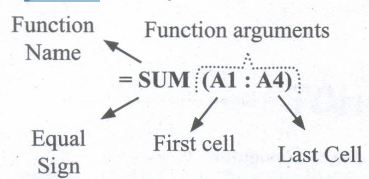
If you know the function name and its syntax known, it can be directly typed in any cell of the worksheet.
For example, SUM is the most frequently using function to add a set of values. The syntax of the SUM () is
= SUM (range 1; range 2; range 3 range n)
** (Remember that the meaning of Range explained previously in this chapter)
To find the sum of the values on A1, A2, A3, A4, A4 in AS, Place your cell pointer in AS and directly type the formulae as follows.
= SUM (A1: A4)
While directly typing a function the following points should be kept in mind.
(i) A function should begins with a equal sign.
(ii) Use proper name of the function to be used.
(iii) Within brackets, arguments should be given as per the syntax. Each function has unique argument list.
(iv) After typed a function, "Enter" key must be pressed.

11th Standard Syllabus & Materials
11th Standard
TN 11th Tamil பீடு பெற நில் - செய்யுள் - காவடிச்சிந்து Important Questions And Answers Study Material - QB365 Set A
NEW11th Standard
TN 11th Tamil பீடு பெற நில் - உரைநடை - மலை இடப்பெயர்கள் : ஓர் ஆய்வு Important Questions And Answers Study Material - QB365 Set A
NEW11th Standard
TN 11th Tamil மாமழை போற்றுதும் - துணைப்பாடம் - யானை டாக்டர் Important Questions And Answers Study Material - QB365 Set A
NEW11th Standard
TN 11th Tamil மாமழை போற்றுதும் - செய்யுள் - ஐங்குறுநூறு Important Questions And Answers Study Material - QB365 Set A



Tamilnadu Stateboard 11th Standard Subjects

Maths

Commerce

Economics

Biology

Business Maths and Statistics

Accountancy

Computer Science

Physics

Chemistry
Maths
Biology
Economics
Physics
Chemistry

History
Business Maths and Statistics

Computer Science
Accountancy
Computer Applications
History
Computer Technology
Commerce
Computer Applications
Computer Technology

Tamil

English

French
Tamilnadu Stateboard Standards
