
 100% FREE ACCESS
11th Standard Syllabus & Materials
11th Standard
TN 11th Tamil இயற்கை வேளாண்மை,சுற்றுச்சூழல் -செய்யுள் - மனோன்மணீயம் Important Questions And Answers Study Material - QB365 Set A
NEW11th Standard
TN 11th Tamil என்னுயிர் என்பேன் -துணைப்பாடம் - இசைத்தமிழர் இருவர் Important Questions And Answers Study Material - QB365 Set A
NEW11th Standard
TN 11th Tamil மொழி கலை -செய்யுள் - ஒவ்வொரு புல்லையும் Important Questions And Answers Study Material - QB365 Set A
NEW11th Standard
TN 11th Tamil பீடு பெற நில் - இலக்கணம் - பகுபத உறுப்புகள் Important Questions And Answers Study Material - QB365 Set A
NEW11th Standard
TN 11th Tamil பீடு பெற நில் - துணைப்பாடம் - வாடிவாசல் Important Questions And Answers Study Material - QB365 Set A
NEW11th Standard
TN 11th Tamil பீடு பெற நில் - செய்யுள் - குறுந்தொகை Important Questions And Answers Study Material - QB365 Set A

Published on: 21/01/2020
Download Tamil Nadu 11th Standard Computer Applications question papers, model tests, one-mark questions, important questions, and public exam papers in PDF format. Free study materials and answer keys for TN State Board students.
Questions + Answers key
Take MCQ Computer Applications Test
1.
Write about Tamil Office Automation Applications.
2.
Explain the working of Firewall server.
3.
Write the rules of naming variables in Javascript program.
4.
Explain How will you create drop-down list box with an example.
5.
Write a JavaScript to find sum of two numbers using function.
6.
Explain the structure of email.
7.
Write a Javascript to display the given number is words using switch-case (Number between only 1 and 5)
8.
Explain with an example the use of break and continue statement in loops?
9.
Write a Java Script program using while statement to display 10 numbers.
10.
What is Link and explain the types of links.
11.
Classify and explain any five e-commerce parties with suitable examples.
12.
Explain the different ways of finding a file or Folder.
13.
Explain the versions of Windows Operating System.
14.
Explain the main purpose of an operating system
15.
Explain RAM in detail.
16.
Convert the following Decimal numbers to its equivalent Binary, Octal, Hexadecimal. - 255
17.
Explain Impact Printers with an Example.
18.
Discuss the various generations of computers.
19.
1.
Famous Office automation software like Microsoft Office, Open Office etc., provides complete Tamil interface facility. These softwares are downloadable and installed in your computer After installation, our office automation software environment will completely changed to Tamil. Menu bars, names of icons, dialog boxes will be shown in Tamil. Moreover, you can save files With Tamil names and create folders with Tamil names.
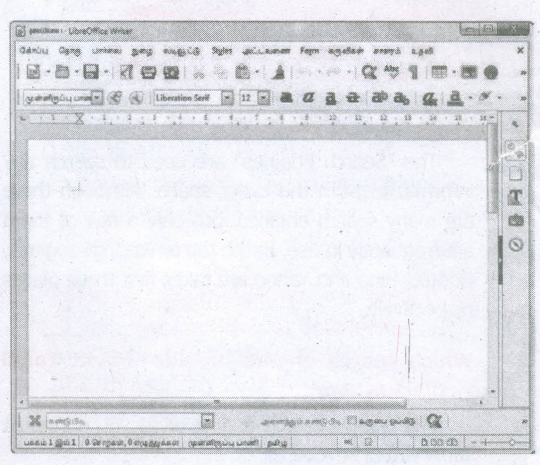
Apart from that Tamil Libra Office, Tamil Open Office, Azhagi Unicode Editor, Ponmozhi, Menthamiz, Kamban, Vani are office automation software working exclusively for Tamil. These applications are designed to work completely in Tamil.
2.
Firewall Server:
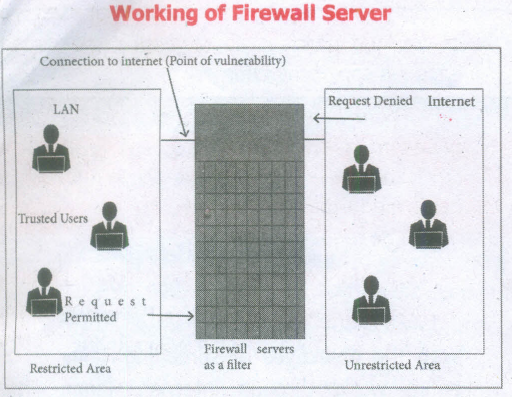
A firewall is a computer network security-based system that monitors and controls the incoming and outgoing network traffic based on predefined security rules. A firewall commonly establishes a block between a trusted internal computer network and entrusted computer outside the network.
They are generally categorized as network-based or host-based.
1. Network-based firewalls are positioned on the gateway computers of LANs [local area Network], WANs [Wide Area Network], and intranets,
2. Host-based firewalls are positioned on the network node itself. The host-based firewall may be a service as a part of the operating system or an agent application such as endpoint security or protection.
3.
Rules for naming variable:
(i) The first character must be a letter or an underscore ( _ ). Number cannot be as the first character
(ii) The rest of the variable name cap include any letter, any number, or the underscore. You can't use any other characters, including spaces, symbols, and punctuation marks.
(iii) JavaScript variable names are case sensitive.
(iv) That is, a variable named Register Number is treated as an entirely different variable than one named register number.
(v) There is no limit to the length of the variable name.
(vi) JavaScript's reserved words cannot be used as a variable name. All programming languages have a supply of words that are used internally by the language and that. cannot be used for variable names
4.
The < select > tag is used to create dropdown list box in HTML.
It provides a list of various options as a dropdown list.
This element is more helpful when a number of options are to be displayed in a limited space. The < option > tag.is used to specify list items
Attributes of < Select > tag:
Name - Provide the name to the control, which is sent to the server.
Size - Determine the style of dropdown list box.
Size = 1 dropdown list box
Size = 2 List box
Multiple -Allows user to select multiple values.
Attributes of < Option > tag:
Selected - Indicate default selection
Value - Value to be submitted to server
< Select name = area size= 2 >
< option value = CHN > Chennai < /option >
< option value = MDR selected > Madurai < /option >
< option value = CBO > Coimbatore < /option >
< option value = KKM > Kanyakumari < /option >
< /Select > < /p >
5.
< html >
< head >
< title > Function Example < /title >
< script type = "text/JavaScript'' >
var input 1 = window.prompt("Enter Valuel :", "0");
var input2=Window.prompuEnter Value2:","0");
var v1=parselnt(input1);
var v2=parselnt(input2);
var s=sum(v1,v2);
document. writeln(" < br > < h4 >< u > Example for
Function< /u >< /h4 >");
document. writeln("First No: "+v 1+< br > Second
No:"+ v2+"< br >The Sum = " + s);
function sum(x, y)
{
var s=x+y;
return s;
}
< /script >
< /head >
< body >
< /body >
< /html >
6.
Structure of email: Click the Compose button and then writing an e-mail contents.
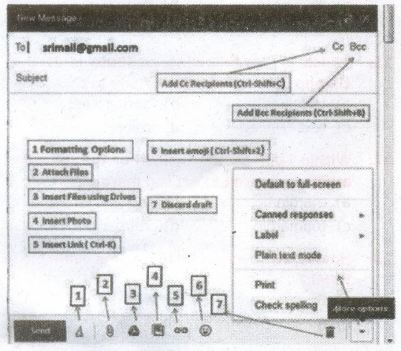
When sending an e-mail message, several fields are required to be filled:
(i) The To field is where you type the e-mail address of the person who is the recipient of your message.
(ii) The From filed should contain you e-mail address.
(iii) If you are replying to a message, the To and From fields are automatically filled out; if it's a new message, you'll need to enter them manually.
(iv) The Subject should consist of a few words describing the e-mail's contents. The Subject lets the recipient see what the e-mail is about, without opening and reading the full e-mail. This field is optional.
(v) The CC (Carbon Copy) field allows you to specify recipients who are not direct addressees (listed in the "To" field). This field is optional.
(vi) The BCC (Blind Carbon Copy) field is similar to CC, except the recipients are secret. Each BCC recipient will receive the e-mail, but will not see who else received a copy. The addressees(anyone listed in the "To" field) remain visible to all recipients. This field is optional.
(vii) Finally, the Message Body is the location you type your main message. It often contains your signature at the bottom; similar to a handwritten letter.
7.
< Html >
< Body >
< script language="Javascript" type="text/ javascript" > .
var N=0;
var N = promt ("Enter the Number","0");
switch (N)
{
case 1 :
document.write ("One");
break;
case 2 :
document.write ("Two");
break;
case 3 :
document.write ("Three");
break;
case 4 :
document.write ("Four");
break;
case 5 :
document.write ("Five");
break;
default:
document.write ("Invalid! Enter between 1 and 5");
}
< /script >
< /body >
< /Html >
8.
JavaScript also supports statements used to modify flow control, specifically break and continue.
The break statement will terminate the loop early.
For example:
for(var n=0;n < =10;n++)
{
if(n==5)
{
break;
}
document, write (n+" < br >");
}
In the above example, which writes out the value of nstarting from 0, when n is equal to 5 the break statement is executed and the loop is terminated.
The continue statement will skip back to the loop condition check. When the continue statement is executed, the current iteration of the enclosing loop is terminated, and the next iteration begins.
For example,
for(var .n=:0;n < =10;n++)
{
if(n==5)
{
continue;
}
document, write (n+" < br >");
}
In the above example, which writes out the value of n starting from 0, when n is equal to 5 the continue statement is executed and the continue statement continues the loop without printing the value.
9.
<Html>
<Head>
<Title> Program-To display 10 natural number
</Title>
</Head>
<body>
<script language = "Javascript" type="text / Javascript">
document.write("<h2> The First 10 natural Number</h2>");
var n=1;
while (n<=10)
{
document.write(n+"<br">
n = n = 1;
}
</script>
</body>
</Html>
10.
Link isan important feature of HTML to connect web resources. Link in HTML is used to create hyperlinks to web content. Web content may be an HTML document or an external webpage or any multimedia content such as an image, video, audio, animation etc., or even a part of the current document.
There are two important things needed to create a link in HTML,
1. The name of the file or URL to Which you want to link
2. The text that will serve as the clickable link.
The anchor tag < A > is used to create links along with HREF attribute. HREF is abbreviated as "Hypertext Reference".
Internal Links: Creating a link to a particular section of the same document is known as Internal Link. To create an internal link, the attribute Name is used along with < A > tag. The Name attribute of < A > tag establish the link to the content within the document.
An HTML code to demonstrate Internal Linking:
< html >
< head >
< title > South India< /title >
< /head >
< body >
< A href = #TN > Tamil Nadu < /A >
< A Name =TN > < B > Tamilnadu < /B > < /A >
< p > Tamil Nadu literally 'The Land of Tamils' or 'Tamil Country' is one of the 29 states of India. Its capital and largest city is Chennai (formerly
known as Madras). < /p >
< /body >
< /html >
External Links : To Establish link with an external web page in known as external link. It is created by províding the URL of the external file in the HREF attribute of < A > tag of the current page.
An HTML code to demonstrate Internal Linking with an external websisite/webpage:
< html >
< head >
< title > Links< /title >
< /head >
< body >
< hI align=center >
Welcome to < br >
< A href= "http://www.tnscert.org" >
State Council of Educational Research and Training, Tamilnadu < /A >
< /h1 >
< /body >
< /html >
11.
Classifying e-commerce according to the parties involved:
1. Business to consumer (B2C) : Transactions happen between businesses and consumers. In B2C e-commerce, businesses are the ones selling products or services to end-users (i.e. consumers).
2. Business to business (B2B) : As its name states, B2B e-commerce pertains to transactions conducted between two businesses. Any company whose customers are other businesses operate on a B2B model.
3. Consumer to business (C2B) : Consumer to qusiness e-commerce happens when a consumer sells or contributes monetary value to a business. Many crowdsourcing campaigns fall under C2B e-commerce.
4. Consumer to consumer (C2C) : As you might have guessed, C2C e-commerce happens when something is bought and sold between two consumers. C2C commonly takes place on online marketplaces such as eBay, in which one individual sells a product or service to another
5. Government to business (G2B) : G2C transactions take place when a company pays for government goods, services, or fees online. Examples could be a business paying for taxes using the Internet.
6. Business to government (B2G) : When a government entity uses the Internet to purchases goods or services from a business, the transaction may fall under B2G e-commerce. Let's say a city or town hires a web design firm to update its website. This type of deal may be considered a form of B2G.
7. Consumer to government (G2C) : Consumers can also engage in B2C e-commerce. People paying for traffic tickets or paying for their car registration renewals Online may fall under this category
12.
Finding Files and Folders : You can use the search box on the Start menu to quickly search a particular folder or file in the computer or in a specific drive.
To find a file or folder:
(i) Click the Start button, the search box appears at the bottom of the start menu.
(ii) Type the name of the file or the folder you want to search. Even if you give the part of the file or folder name, it will display the list of files or folders starting with the specified name.
(iii) The files or the folders with the specified names will appear, if you click that file, it will directly open that file or the folder.
(iv) There is another option called "See more results" which appears above the search box.
(v) If you click it, it will lead you to a Search Results dialog box where you can click and open that file or the folder.
Searching Files or folders using Computer icon :
(i) Click Computer lcon from desktop or from Start menu.
(ii) The Computer disk drive screen will appear and at the top right corner of that screen, there is a search box option.
(iii) Type the name of the file or the folder you want to search. Even if you give the part of the file or folder name, it will display the list of files or folders starting with the specified name.
(iv) Just click and open that file or the folder.
13.
| S.No | Versions | Year | Specific features |
| 1. | Windows 1.x | 1985 | 1. Introduction of GUI in 16 - bit. processor 2. Mouse was introduced as an input device |
| 2. | Windows 2.x | 1987 | 1. Supports to minimize or maximize windows. 2. Control panel feature was introduced with various system settings and customising options. |
| 3. | Windows 3.x | 1992 | 1. Introduced the concept of multitasking. 2. Supported 256 colours which brought a more modern, colourful look to the interface. |
| 4. | Windows 95 | 1995 | 1. Introduced Start button, the taskbar, Windows Explorer and Start menu. 2. Introduced 32 - bit processor and focused more on multitasking. |
| 5. | Windows 98 | 1998 | 1. Integration of the Web browser (Internet Explorer) with the Operating System. 2. DOS gaming began to disappear as Windows based games improved. 3. Plug and play feature was introduced. |
| 6. | Windows NT | Designed to act as servers in network. | |
| 7. | Windows Me | 2000 | It introduced automated system diagnostics and recovery tools. |
| 8. | Windows 2000 | 2000 | 1. Served as an Operating System for business desktop and laptop systems. 2. Four versions of Windows 2000 were released: Professional (for business desktop and laptop systems), Server (both a Web server and an office server), Advanced Server (for line-of-business applications) and Data Centre Server (for high traffic computer networks). |
| 9. | Windows XP | 2001 | 1. Introduced 64-bit Processor. 2. Improved Windows appearance with themes and offered a stable version |
| 10. | Windows Vista | 2006 | Updated the look and feel of Windows |
| 11. | Windows 7 | 2009 | Booting time was improved, introduced new user interfaces like Aero Peek, pinning programs to taskbar, handwriting recognition etc. and Internet Explorer 8. |
| 12. | Windows 8 | 2012 | 1. Windows 8 is faster than previous versions of Windows. 2. Start button was removed 3. Windows 8 takes better advantage of multi-core processing, solid state drives (SSD), touch screens and other alternate input methods. 4. Served as common platform for mobile and computer. |
| 13. | Windows 10 | 2015 | 1. Start Button was added again. 2. Multiple desktop. 3. Central Notification Center for App notification and quick actions. 4. Cortana voice activated personal assistant. |
14.
The main purpose of using an operating system:
(i) It controls and coordinates all the activities of a computer system.
(ii) It provides an environment for a computer user to execute programs on computer hardware in a convenient and efficient manner.
(iii) It enables the user to design the application, and also it provides an interface to interact with the computer and controls the execution of all kinds .of programs without knowing the internals of the hardware.
(iv) It interprets the command and instructions to perform the specified tasks.
(v) It coordinates and assigns the compilers, assemblers, utility programs to the users.
(vi) It detects errors present in the hardware and software.
(vii) It maintains the internal time clock.
(viii) It protects itself from being destroyed by any users.
(ix) It serves two major functions
1. Supervision (Prevent errors)
2. Management (Operation and control of I/O devices)
(x) It loads the programs itself into memory so that user can interact with hardware and software.
15.
(i) The main memory is otherwise called as Random Access Memory. This is available in computers in the form of Integrated Circuits ( lCs ). It is the place in a computer where the Operating System, Application Programs and the data in current use are kept temporarily so that they can be accessed by the computer's processor.
(ii) The smallest unit of information that can be stored in the memory is called as a bit. The memory can be accessed by a collection of 8 bits which is called as a byte.
(iii) The bytes are referred by 'B'. If a computer has 1 megabyte of memory, then it can store 10,48,576 bytes.(or characters) of information. [Hence 1MB is 1024KB and 1 KB is 1024 Bytes, So 1024 x 1024 =10,48,576 Bytes].
(iv) RAM is a volatile memory, which means that the information stored init is not permanent. As soon as the power is turned off, whatever data resides in RAM is lost. It allows both read and write operations.
(v) There are two basic types of RAM Dynamic RAM (DRAM), Static RAM (SRAM)
(vi) These two types differ in the technology they use to hold data. Dynamic RAM being a common type needs to be refreshed frequently. Static RAM needs to be refreshed less often, which makes it faster.
(vii) Hence, Static RAM is more expensive than Dynamic RAM.
16.
25510
.png)
= 111111112
= 111111112 = ?8
= \(\overline { \underset { \overset { \downarrow }{ 3 } }{ 11 } } \) \(\overline { \underset { \overset { \downarrow }{ 7 } }{ 111 } } \) \(\overline { \underset { \overset { \downarrow }{ 7 } }{ 111 } } \)
=3778
= 111111112 =?16
= \(\overline { \underset { \overset { \downarrow }{ \overset { 15 }{ \overset { \downarrow }{ f } } } }{ 1111 } } \) \(\overline { \underset { \overset { \downarrow }{ \overset { 15 }{ \overset { \downarrow }{ f } } } }{ 1111 } } \)
= ff16
= 25510 = 111111112 = 3778 = ff16
17.
Impact Printers:
(i) These printers print with striking of hammers or pins on ribbon. These printers can print on multi-part (using carbon papers) by using mechanical pressure.
(ii) For example, Dot Matrix printers and Line matrix printers are impact printers.
(iii) A Dot matrix printer that prints using a fixed number of pins or wires. Each dot is produced by a tiny metal rod, also called a "wire" or "pin", which works by the power of a tiny electromagnet or solenoid, either directly or through a set of small levers.
(iv) It generally prints one line of text at a time. The printing speed of these printers varies from 30 to 1550 CPS (Character Per Second).
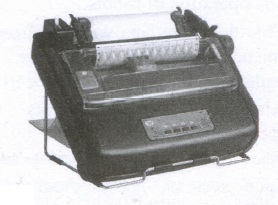
(v) It generally prints one line of text at a time. The printing speed of these printers varies from 30 to 1550 CPS (Character Per Second).
18.
| S.No | Generation | Period | Main Component used | Merits/ Demerits |
| 1 | First Generation | 1940 - 1956 | Vaccum tubes | 1. Big in size 2. Consumed more power 3. Malfunction due to over heat 4. Machine Language was used |
| First Generation Computer - ENIAC, EDVAC, UNIVAC 1 ENIAC weighed about 27 tons, size 8 feet x 100 feet x 3 feet and consumed around 150 watts of power |
||||
| 2 | Second Generation | 1956-1964 | Transistors | 1. Smaller compared to First Generation 2. Generated Less Heat 3. Consumed less power compared to first generation 4. Punched cards were used 5. First operating system was developed - Batch Processing and Multiprogramming Operating System 6. Machine language as well as Assembly language was used. |
| Second Generation Computers - IBM 1401, IBM 1620, UNIVAC 1108 | ||||
| 3 | Third Generation | 1964-1971 | Integrated Circuits (IC) | 1. Computers were smaller, faster and more reliable 2. Consumed less power. 3. High-Level Languages were used |
| Third Generation Computers -IBM ·360 series, Honeywell 6000 series | ||||
| 4 | Fourth Generation | 1971-1980 | Microprocessor Very Large Scale Integrated Circuits (VLSI) |
1. Smaller and Faster 2. Microcomputer series such as IBM and APPLE were developed 3. portable Computers were introduced |
| 5 | Fifth Generation | 1980-till date | Ultra Large Scale Integration (ULSI) | 1. Parallel, Processing 2. Super conductors 3. Computers size was drastically reduced. 4. Can recognize Images and Graphics 5. Introduction of Artificial Intelligence and Expert Systems 6. Able to solve high complex problems including decision making and logical reasoning |
| 6 | Sixth Generation | In future |  |
1. Parallel and Distributed computing 2. Computers have become smarter faster and smaller 3. Development of robotics 4. Natural Language Processing 5. Development of Voice Recognition Software. |
19.

11th Standard Syllabus & Materials
11th Standard
TN 11th Tamil பீடு பெற நில் - செய்யுள் - காவடிச்சிந்து Important Questions And Answers Study Material - QB365 Set A
NEW11th Standard
TN 11th Tamil பீடு பெற நில் - உரைநடை - மலை இடப்பெயர்கள் : ஓர் ஆய்வு Important Questions And Answers Study Material - QB365 Set A
NEW11th Standard
TN 11th Tamil மாமழை போற்றுதும் - துணைப்பாடம் - யானை டாக்டர் Important Questions And Answers Study Material - QB365 Set A
NEW11th Standard
TN 11th Tamil மாமழை போற்றுதும் - செய்யுள் - ஐங்குறுநூறு Important Questions And Answers Study Material - QB365 Set A



Tamilnadu Stateboard 11th Standard Subjects

Maths

Commerce

Economics

Biology

Business Maths and Statistics

Accountancy

Computer Science

Physics

Chemistry
Maths
Biology
Economics
Physics
Chemistry

History
Business Maths and Statistics

Computer Science
Accountancy
Computer Applications
History
Computer Technology
Commerce
Computer Applications
Computer Technology

Tamil

English

French
Tamilnadu Stateboard Standards
