
 100% FREE ACCESS
11th Standard Syllabus & Materials
11th Standard
TN 11th Tamil இயற்கை வேளாண்மை,சுற்றுச்சூழல் -செய்யுள் - மனோன்மணீயம் Important Questions And Answers Study Material - QB365 Set A
NEW11th Standard
TN 11th Tamil என்னுயிர் என்பேன் -துணைப்பாடம் - இசைத்தமிழர் இருவர் Important Questions And Answers Study Material - QB365 Set A
NEW11th Standard
TN 11th Tamil மொழி கலை -செய்யுள் - ஒவ்வொரு புல்லையும் Important Questions And Answers Study Material - QB365 Set A
NEW11th Standard
TN 11th Tamil பீடு பெற நில் - இலக்கணம் - பகுபத உறுப்புகள் Important Questions And Answers Study Material - QB365 Set A
NEW11th Standard
TN 11th Tamil பீடு பெற நில் - துணைப்பாடம் - வாடிவாசல் Important Questions And Answers Study Material - QB365 Set A
NEW11th Standard
TN 11th Tamil பீடு பெற நில் - செய்யுள் - குறுந்தொகை Important Questions And Answers Study Material - QB365 Set A

Published on: 13/11/2019
Download Tamil Nadu 11th Standard Computer Applications question papers, model tests, one-mark questions, important questions, and public exam papers in PDF format. Free study materials and answer keys for TN State Board students.
Questions + Answers key
Take MCQ Computer Applications Test
1.
Which of the following is not an advantages of CSS?
Maintainability
Reducing size
Reusability
Understand easily
2.
Which attribute is used to indicate the scripting language and its value should be sent to " Text/JavaScript".
Language
Text 1
Type
Body
3.
Which of the following is not an attribute of < Marquee > tag?
align
Hspace and Vspace
Direction
Scrollamount
4.
In HTML, a piece of text or image can be moved horizontally or vertically by using:
< marquee >
< img >
< embed >
< text >
5.
Who is the "father of Internet"?
Charles Babbage
Vinton Gray Cerf
Bob Kahh
Tim Berner's lee
6.
A list block can be defined inside another list is:
Inner List
Nested List
Outer List
Listing List
7.
In HTML, colours are represented as
Binary values
Octal values
Decimal values
Hexadecimal values
8.
Which level in the Multilevel directory system is root directory?
fourth
Third
Second
First
9.
Which of the following Operating system support Mobile Devices?
Windows 7
Linux
BOSS
iOS
10.
Which of the following memory have faster access time?
CD
DVD
BIu-ray
Cache
11.
How many ways are there to represent signed binary number?
2
4
1
6
12.
Which one of the following is the main memory?
ROM
RAM
Flash drive
Hard disk
13.
Which menu contains the Slide Transition option?
Slide Show
View
Tools
Format
14.
Which of the following applications was the parent to Open Office Calc?
Visicalc
LibreCalc
Lotus 123
StarOffice Calc
15.
Which option allows you to assign text, tables, graphics and other items to a key or key combination?
Autoformat
Automatic
Auto Text
Autographics
16.
Explain the attributes available with < body > tag.
17.
Write a note on Ubuntu OS.
18.
What are the differences between Windows and Linux Operating system?
19.
Differentiate CD and DVD.
20.
Subtract 101111 from 110101
21.
Define Transistor.
22.
Who uses the presentation software and why
23.
Write the steps to insert a new row in a in a worksheet?
24.
Write about the drawing toolbar.
25.
What is word processor?
26.
What is inline sound or movie?
27.
What is the role of ICANN?
28.
What is the use of find command in Windows?
29.
What is HDMI?
30.
Convert 729510 to hexadecimal
31.
Name few presentation software.
32.
How the negative numbers are entered in a worksheet?
33.
Define Hanging Indent.
34.
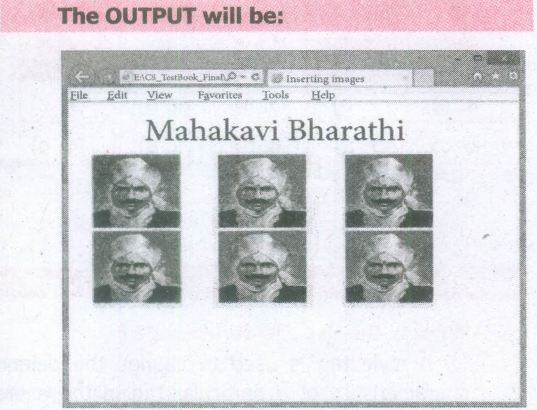
Explain all the attributes of < IMG > tag with suitable HTML code.
35.
Explain the four structural tags used in webpage.
36.
Explain the do’s and don’t of safe surfing on internet.
37.
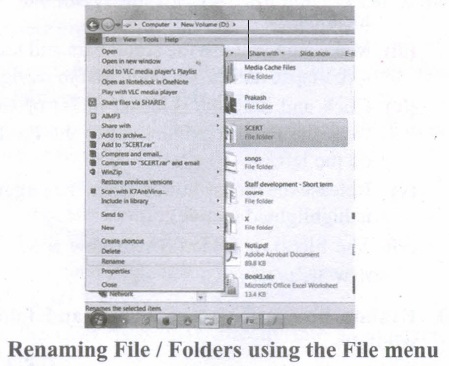
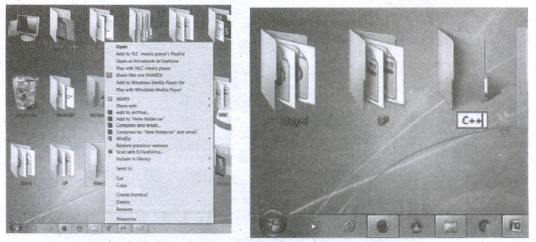
Explain the different methods of renaming files and folders.
38.
Explain File Management.
39.
Arrange the memory devices in ascending order based on the access time.
40.
Explain any two input and output devices.
41.
List some advantages of using template.
42.
43.
Write the steps to use a drawing tool in a writer.
1.
(b)
Reducing size
2.
(c)
Type
3.
(a)
align
4.
(a)
< marquee >
5.
(b)
Vinton Gray Cerf
6.
(b)
Nested List
7.
(d)
Hexadecimal values
8.
(d)
First
9.
(d)
iOS
10.
(d)
Cache
11.
(a)
2
12.
(b)
RAM
13.
(a)
Slide Show
14.
(d)
StarOffice Calc
15.
(c)
Auto Text
16.
The <body> tag defines the documents body. The contents of an HTML page reside within the <body> tag. <body> tag contains several attributes.
(i) Background Colour: bgcolor = color:
By default all the browsers display the text on white background. However, the background color of the browser can be changed by using bgcolor tag.
The tag to change background colour:
<body bgcolor = color_name/color_code>
<body bgcolor = yellow>
(ii) Body text Colour: text = color: The default text colour of body section is "black; it is often called as automatic color, text attribute within body tag is used to change the text colour.
The tag to change body text colour:
<body text = color_name/color_code>
<body text = #FFFF00>
(iii) Background image: background = image:
An image or picture can be applied as background to a webpage. When you insert an image as background, the text will be displayed on top of the image. Background images can be a texture or bitmap or even a photo.
The tag to apply an image as background:
<body background = "image_name_with_extenstion">
<body background = "E:\Images\ flower01.gif">
(iv) Setting Margins:margin = value : The margin refers the blank area from left or top edge of the browser window. Generally there is no default margin setting in any bowser. If you want to leave some space as margin to left or top; leftmargin or topmargin attributes will be used respectively.
The tag to specify the left and top margin:
<body leftmargin = value topmargin = value>
<body leftmargin = 50 topmargin = 50>
17.
(i) Ubuntu is a Linux-based operating system. It is designed for computers, smart phones, and network servers.
(ii) The system is developed by a UK based company called Canonical Ltd.
(iii) All the principles used to develop the Ubuntu software are based on the principles of Open Source software development.
18.
| Windows OS | Linux OS |
| It is a commercial licensed OS. | It is a open source OS. |
| Only one distributor | Many distributors |
| It uses GUI | It uses kemal. |
| It boot only from primary partition | It boot either from a primary or from a logical partition. |
| Secure | Insecure. |
19.
| CD | DVD |
| Expansion is Compact Disk | Expansion is Digital Versatile Disc. |
| A standard CD can store about 700 MB of Data. | A standard DVD can hold 4.7 GB of data. |
| CD players cannot play DVDs. | DVD players can play CDs. |
| It stores upto 80min of audio. | It can range from 4.7GB to 17.08 GB. |
20.
1 1 0 1 0 1
- 1 0 1 1 1 1
____________
0 0 0 1 1 0
____________
21.
(i) The transistor ("transfer resistance") is made up of semiconductors.
(ii) It is a component used to control the amount of current or voltage or used for amplification modulation or switching of an electronic signal.
22.
Several people make use of the presentation software while giving presentations, some examples are as follows.
(i) Sales persons need to give presentation to their customers clients and managers.
(ii) Human Resource departments use the presentation to provide training to new staff.
(iii) In schools, teachers can better explain concepts by the means of presentation.
(iv) Students also create presentation on topic given by their teachers.
(v) The presentation software is mostly used during seminars, conferences. This helps the presenter easily project his key points on a large screen while talking about the topic simultaneously.
23.
Step 1: Select the row where you want the new row to be inserted.
Step 2: Right-click on the row number that you selected, A pop-up menu will appear
Step 3: click "Insert Rows" option from the menu.
24.
Drawing toolbar is used to create various shapes in a document using various drawing tools. The drawing toolbar can be obtained by clicking. View Toolbars Drawing or The user can change the properties (till color, line type and weight, anchoring) for the tool appear in a document.
25.
An application used to create and manipulate text documents.
26.
Music can be played in the background to a webpage, while the page is viewed. This is known as 'inline' sound or movie.
27.
(i) The responsibility to promote global information exchange through the internet technology.
(ii) Internet Corporation for Assigned Names and Numbers(ICANN) administers the domain name registration.
(iii) It helps to avoid a name which is already registered.
28.
The Find command on the Start menu to quickly search your entire computer or a specific folder or drive.
29.
High-Definition Multimedia Interface is an audio/ video interface which transfers the uncompressed video and audio data from a video controller, to a compatible computer monitor, LCD projector, digital television etc.
30.
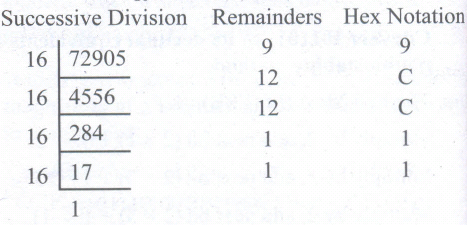
31.
OpenOffice.org Impress, Microsoft PowerPoint and Apple's Keynote
32.
Negative numbers may be entered with a minus sign or within brackets
33.
This is a special kind of indent where the first line of the paragraph alone hangs outside leaving the rest of the text. To apply Hanging indent, a negative value is given in the "first line" option of the paragraph dialog box.
34.
Attributes of < img > tag:
Other than src, the < img > tag has many attributes the enable to control how the image is presented on the page.
Alt (Alternative Text)
The alt attribute within < img > tag is used to describe the image, so that some text is conveyed even when the image cannot be displayed.
Ex:
< img src = bharathiyar.gif alt = "National Poet of India" >
Width and Height:
Width and Height attributes are used to set the width and height of an image. The values of these attributes should be either pixels or percentage of its actual size. If these attributes are not specified, the browser displays the image in its original size.
Vspace (Vertical Space) and Hspace (Horizontal Space):
Vspace and Hspace attributes are used to set Vertical and Horizontal space between the images.
An HTML code to demonstrate < img > attributes:
< html >
< head >
< title > Inserting Images < /title >
< /head >
< body >
< h1 align = center > Mahakavi Bharathi
< /h1 >
< img src = bharathiyar.gif alt = "National
Poet of' India" Width = 20% Height = 25% vpace = 20 Hspace = 20 >
< img src = bharathiyar.gif alt = "National
Poet of India" Width = 20% Height = 25% vpace = 20 Hspace = 20 >
< img src = bharathiyar.gif alt = "National
Poet of India" Width = 20% Height = 25% vpace = 20 Hspace = 20 > < br >
< img src = bharathiyar.gif alt = "National
Poet of 'India" Width = 20% Height = 25% vpace = 20 Hspace = 20 >
< img src = bharathiyar.gif alt = "National
Poet of India" Width = 20% Height = 25% vpace = 20 Hspace = 20 >
< img src = bharathiyar.gif alt = "National
Poet of India" Width = 20% Height = 25% vpace = 20 Hspace = 20 > < br >
< /body >
< /html >
35.
| Opening Tag | Closing Tag | Description |
|---|---|---|
| < html > | < /htrnl > | The < html > tag identified the document as an HTML document. All HTML documents should begins with < htrnl > and end with < /htrnl >. |
| < head > | < /head > | The < head > tag contains information about the document, including its title, scripts used, style definition and document descriptions |
| < title > | < /title > | The < title > tag contains the title of the document. The title specified between opening and closing tags appears in the title bar / page tab of the browser. < title > tag should be placed within < head > tag. |
| < body > | < /body > | The < body > tag encloses all the tags, attributes and information to be displayed in the web page. < body > tag should be entered below the < /head > tag. |
36.
Following is the do's and don't of safe surfing on Internet:
1. Don't give out your personal information - Don't put personal details such as your home address, telephone numbers or parent's work address online as cybercriminals can use this information to create a fake profile, with your details.
2. What goes online, stays online - Use privacy settings to make sure only your friends and family can see photos you post. Avoid posting holiday plans as criminals may track your movements
3. Check your security and privacy settings - Make sure your social network privacy settings are secured so only your friends can see your personal information and use your privacy settings to restrict who can see your posts, videos and photos
4. Password safety - Sharing your password with your parents is a sensible idea, but avoid sharing your password with your friends, even if they promise they won't tell anyone! Also, when setting your password, make sure it isn't something people may guess such as your pet's name. Use a mixture of letters, numbers and upper and lower case characters
5. Always protect your mobile device - Make sure your mobile phone is pin-protected so all your personal information stored on it is safe. Download a security app which allows you to remotely wipe any personal data, should your mobile be lost or stolen
6. Don't talk to strangers online or offline - Don't meet up with strangers and let your parents know if a stranger has tried to get in contact with you online
7. Listen to the adults who are known to you - Adults will always be worried about you. Help set their mind at rest and avoid chatting online with strangers
8. Be wary of unsecured or unknown websites - When shopping online, use reputable and known retailers.
9. Be careful what links you click on - Avoid clicking links in an email, Instant Message or on your social network unless you are sure the message is from someone you know.
37.
Method 1
Using the FILE Menu:
(i) Select the File or Folder you wish to Rename.
(ii) Click on the File menu and select Rename.
(iii) Type in the new name. While renaming a file keep the same file extension (e.g. ".doc") as it earlier had, otherwise, the file will no longer be associated with the program that created it.
(iv) To finalise the renaming operation, press Enter the file or folder name.
Method 2
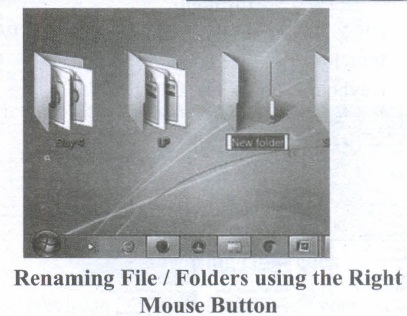
Using the Right Mouse Button:
(i) Select the file or folder you wish to rename.
(ii) Click the right mouse button while still pointing to the file.
(iii) Select Rename from the shortcut menu.
(iv) Type in the new name.
(v) To finalise the renaming operation, press enter or click away from the rectangle that surrounds the file or folder name.
Method 3
Using the Left Mouse Button
(i) Select the file or folder you wish to rename.
(ii) Wait a moment then click again (not in quick succession like a double click). A surrounding rectangle will appear around the name;
(iii) Type in the new name.
(iv) To finalise the renaming operation, press enter or click away from the rectangle that surrounds the file or folder-name.
38.
(i) File management is an important function of OS which handles the data storage techniques. The operating System manages the files, folders and directory systems on a computer.
(ii) Any type of data in a computer is stored in the form of files and directories/folders through File Allocation Table (FAT).
(iii) The FAT stores general information about files like filename, type (text or binary), size, starting address and access mode (sequential/indexed / indexed-sequential/direct/relative).
(iv) The file manager of the operating system helps to create, edit, copy, allocate memory to the files and also. updates the FAT.
(v) The OS also takes care of the files that are opened with proper access rights to read or edit them. There are few other file management techniques available like Next Generation File System (NTFS) and ext2(Linux).
39.
A memory is just like a human brain. It is used to store data and instructions. Computer memory is the storage space in the computer, where data and instructions are stored. There are two types pf accessing methods to access (read or write) the memory.
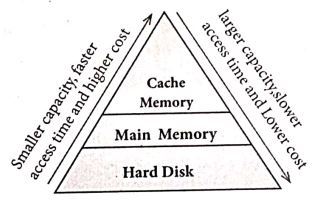
They are sequential access and random access. In sequential access, the memory is accessed in an orderly manner from starting to end. But, in random access, any byte of memory can be accessed directly without navigating through previous bytes. Different memory devices are arranged according to the capacity, speed and cost as shown in Figure.
40.
(i) Scanner :
Scanners are used to enter the information directly into the computer's memory. This device works like a Xerox machine. The scanner converts any type of printed or written information including photographs into a digital format, which can be manipulated by the computer.
(ii) Fingerprint Scanners :
Fingerprint Scanner is a fingerprint recognition device used for computer security, equipped with the fingerprint recognition feature that uses biometric technology. Fingerprint Reader / Scanner is a very safe and convenient device for security instead of using passwords, which is vulnerable to fraud and is hard to remember.
(iii) Monitor :
Monitor is the most commonly used output device to display the information. It looks like a TV. Pictures on a monitor are formed with picture elements called PIXELS. Monitors may either be Monochrome which display text or images in Black and White or can be color, which display results in multiple colors. There are many types of monitors available such as CRT (Cathode Ray Tube), LCD (Liquid Crystal Display) and LED (Light Emitting Diodes). The monitor works with the VGA (Video Graphics Array) card. The video graphics card helps the keyboard to communicate with the screen. It acts as an interface between the computer and display monitor. Usually the recent motherboards incorporate built-in video card.
(iv) Plotter :
Plotter is an output device that is used to produce graphical output on papers. It uses single colour or multi colour pens to draw pictures.
41.
(i) Professional Graphic Design: Even the user don't have graphic design experience, they know how to make adjustments to existing graphics.
(ii) Branding: Templates can easily be modified by changing colors, fonts, graphics etc.
(iii) Speed: With a good starting point in each slide, the presentation is made in a snap.
(iv) Quick customization: It's much easier to edit the template in its original form, not as a copy of a copy.
(v) Consistency: A consistent design scheme will avoid Jarring transitions and sneaking suspicion that the presentation was pasted together as a ransom note.
42.
43.
To use a drawing tool, the steps are as given below:
(i) Click in the document where you want the drawing to be anchored.
(ii) Select the tool from the Drawing toolbar The mouse pointer changes to a drawing-functions pointer.
(iii) Move the cross-hair pointer to the place in the document where you want the graphic to appear and then click-and-drag to create the drawing object. Release the mouse button. The selected drawing function remains active, so you can draw another object of the same type.
(iv) To cancel the selected drawing function, press the Esc key or click on the Select icon on the Drawing toolbar.
(v) You can now change the properties (fill color, line type and weight, anchoring, and others) of the drawing object using either the Drawing Object Properties toolbar or the choices in the dialog box.

11th Standard Syllabus & Materials
11th Standard
TN 11th Tamil பீடு பெற நில் - செய்யுள் - காவடிச்சிந்து Important Questions And Answers Study Material - QB365 Set A
NEW11th Standard
TN 11th Tamil பீடு பெற நில் - உரைநடை - மலை இடப்பெயர்கள் : ஓர் ஆய்வு Important Questions And Answers Study Material - QB365 Set A
NEW11th Standard
TN 11th Tamil மாமழை போற்றுதும் - துணைப்பாடம் - யானை டாக்டர் Important Questions And Answers Study Material - QB365 Set A
NEW11th Standard
TN 11th Tamil மாமழை போற்றுதும் - செய்யுள் - ஐங்குறுநூறு Important Questions And Answers Study Material - QB365 Set A



Tamilnadu Stateboard 11th Standard Subjects

Maths

Commerce

Economics

Biology

Business Maths and Statistics

Accountancy

Computer Science

Physics

Chemistry
Maths
Biology
Economics
Physics
Chemistry

History
Business Maths and Statistics

Computer Science
Accountancy
Computer Applications
History
Computer Technology
Commerce
Computer Applications
Computer Technology

Tamil

English

French
Tamilnadu Stateboard Standards
