
 100% FREE ACCESS
11th Standard Syllabus & Materials
11th Standard
TN 11th Tamil இயற்கை வேளாண்மை,சுற்றுச்சூழல் -செய்யுள் - மனோன்மணீயம் Important Questions And Answers Study Material - QB365 Set A
NEW11th Standard
TN 11th Tamil என்னுயிர் என்பேன் -துணைப்பாடம் - இசைத்தமிழர் இருவர் Important Questions And Answers Study Material - QB365 Set A
NEW11th Standard
TN 11th Tamil மொழி கலை -செய்யுள் - ஒவ்வொரு புல்லையும் Important Questions And Answers Study Material - QB365 Set A
NEW11th Standard
TN 11th Tamil பீடு பெற நில் - இலக்கணம் - பகுபத உறுப்புகள் Important Questions And Answers Study Material - QB365 Set A
NEW11th Standard
TN 11th Tamil பீடு பெற நில் - துணைப்பாடம் - வாடிவாசல் Important Questions And Answers Study Material - QB365 Set A
NEW11th Standard
TN 11th Tamil பீடு பெற நில் - செய்யுள் - குறுந்தொகை Important Questions And Answers Study Material - QB365 Set A

Published on: 13/09/2019
Download Tamil Nadu 11th Standard Computer Applications question papers, model tests, one-mark questions, important questions, and public exam papers in PDF format. Free study materials and answer keys for TN State Board students.
Questions + Answers key
Take MCQ Computer Applications Test
1.
Write the specific use of Cortana.
2.
Write a note on FAT.
3.
Complete the Table
1) 0 x 0 = _
2) 1 x 1 = _
3) 1 x _ = 0
4) _ x 0 = 0
4.
How will you create a presentation.
5.
How are transition effects helpful in creating an effective presentation in Impress?
6.
Write the Editing Shotkeys to move and copy the text in the document.
7.
What is meant by workspace in the document window?
8.
Differentiate cut and copy options.
9.
What are the security management features available in Operating System?
10.
What is a program counter?
11.
Distinguish between data and information
12.
How many in-built slide layouts does impress consist of?
13.
Explain how will you copy files and folders in windows.
14.
Explain the main purpose of an operating system
15.
How AND and OR can be realized using NAND and NOR gate
16.
Discuss the various generations of computers.
17.
Explain view buttons in Impress.
18.
Which facility provides you to move or copy the file or folders in Windows?
Windows Explorer
My computer
This PC
Recycle bin
19.
Which of the following is not a version of windows 2000?
server
professional
DOS
Data center server
20.
Processing takes place in parallel is called _______operating system.
Real time
Multiuser
Distributed
Multiprocessing
21.
Which of the following is made up of poly carbonate plastic material?
BIu - ray
CD
DVD
ROM
22.
Which of the following is the idea behind positional numbering systems?
Absolute Value
Place Volume
Radix
All of these
23.
The hexadecimal equivalent of 1011 is ________.
14
15
11
12
24.
To convert an octal number of binary equivalent, each octal digit is expressed as....
3 bits form
4 bits form
8 bits form
2 bits form
25.
ISCII has been used by.......
IBM
Apple
Microsoft
IBM & Apple
26.
Which gate is called as the logical inverter?
AND
OR
NOT
XNOR
27.
How many bytes does 1 KiloByte contain?
1000
8
4
1024
28.
Which of the following is a type of computation in which many calculations are carried out simultaneously?
NLP
ANN
Parallel Processing
Parallel Computing
29.
Expand ANN _____
Artical Neural Network
Artificial Neurons Network
Artificial Neural Network
Artificial Network Neurons
30.
Which of the following period the first generation computers belongs________.
1956-1963
1940-1956
1964-1971
1980-1990
31.
Which generation of computer used IC's?
First
Second
Third
Fourth
32.
Which one of the following is used to in ATM machines
Touch Screen
Speaker
Monitor
Printer
1.
Use of Cortana
(i) Gives reminders based on time, places or people.
(ii) Track packages, teams, interests and flights.
(iii) Send emails and texts.
(iv) Find facts, files, places and information.
(v) Open any application on your system.
2.
(i) Any type of data in a computer is stored in the form of files and directories/folders through File Allocation Table (FAT).
(ii) The FAT stores general information about files like filename, type(text or binary), size, starting address and access mode (sequential/indexed sequential /direct/relative).
3.
1) 0 x 0 = 0
2) 1 x 1 = 1
3) 1 x 0 = 0
4) 0 x 0 = 0
4.
create a presentation by anyone of the following methods.
(i) By selecting an Empty presentation.
(ii) By selecting From template.
(iii) By selecting from Open existing presentation
5.
Transition effects are special effects that play when the user view a presentation in slide show. In other words,it appear after vanishing of the current slide and before the appearance of the next slide. These effects are used to enhance the initial appearance of the slides.
6.
| Operation | Action | Icons | Shortcut key |
| Cut | Cuts the selected text |  |
Ctrl +X |
| Copy | To make a duplication of the text. |
 |
Ctrl+ C |
| Paste | To paste the text to a new location after cut or copy process. |
 |
Ctrl+V |
| Undo | Cancels the previous operation that was performed |
 |
Ctrl+Z |
7.
(i) The Workspace is the area in the document window where you enter or type the text of the document.
(ii) It is the point of insertion for typing within the document.
8.
| Cut | Copy |
| It is the process of moving a block from one place to another |
It is the process of making duplicate copies of the block of a worksheet. |
9.
The Operating System provides three levels of securities to the user end. They are
(i) File access level
(ii) System level
(ill) Network level.
10.
The Program Counter (PC) is a special register in the CPU which always keeps the address of the next instruction to be executed.
11.
| Data | Information |
| Data is defined as an unprocessed collection of raw facts, suitable for communication, interpretation or processing. | Information is a collection of facts from which conclusions may be drawn. |
| (Eg) 134, 16, 'Kavitha', 'C' | (Eg) Kavitha is 16 years old. |
12.
In built the openoffice impress consists of 12 different layout of slides.
13.
To copy file(s) or folder(s), first select the file(s) or folder(s) and then choose one of the following:
(i) Click on the EDIT menu, select the COPY function.
(ii) Keyboard shortcut, CTRL + C.
(iii) Or else click on the selected item with the RIGHT mouse button and select "COPY" from the shortcut menu.
To place a copy of the file( s) or folder( s) in the new location, navigate to the new location then paste using one of the following:
(i) Click on the EDIT menu, select the PASTE function.
(ii) Keyboard shortcut, CTRL + V.
(iii) In the position where you want the item to be pasted, click with the Right mouse button and select "Paste" from the shortcut menu.
Method Dragging and Dropping:
(i) In the RIGHT pane, select the file( s) or folder( s) you want to copy.
(ii) Manipulate the FOLDER LIST on the left side of the Windows Explorer so that it shows the new location.
(iii) Make sure you use the scroll bars and the + and ( collapse and expand buttons) to navigate.
(iv) Hold down the CTRL key on the keyboard and at the same time, click and drag the selected file(s) and/or folder(s) over to the FOLDER LIST on the left, and drop it where you want to copy the file(s) and/or folder(s) to.
(v) Before dropping, make sure the target folder is highlighted (active). Also make sure you release the mouse before you release the CTRL key when dropping.
(vi) The file(s) and folder(s) will now appear in the new area.
14.
The main purpose of using an operating system:
(i) It controls and coordinates all the activities of a computer system.
(ii) It provides an environment for a computer user to execute programs on computer hardware in a convenient and efficient manner.
(iii) It enables the user to design the application, and also it provides an interface to interact with the computer and controls the execution of all kinds .of programs without knowing the internals of the hardware.
(iv) It interprets the command and instructions to perform the specified tasks.
(v) It coordinates and assigns the compilers, assemblers, utility programs to the users.
(vi) It detects errors present in the hardware and software.
(vii) It maintains the internal time clock.
(viii) It protects itself from being destroyed by any users.
(ix) It serves two major functions
1. Supervision (Prevent errors)
2. Management (Operation and control of I/O devices)
(x) It loads the programs itself into memory so that user can interact with hardware and software.
15.
AND and OR operation from NAND gates are shown below
.png)
A.B = (A NAND B) NAND ( A NAND B)
OR operation
.png)
A+B (ANAND A)NAND (B NANDY Y)
b) AND AND OR operation from NOR gates are shown below.
.png)
A - B = (A NORA A) NOR (B NOR B)
.png)
A+ B = (A NOR B) NOR (A NOR B)
16.
| S.No | Generation | Period | Main Component used | Merits/ Demerits |
| 1 | First Generation | 1940 - 1956 | Vaccum tubes | 1. Big in size 2. Consumed more power 3. Malfunction due to over heat 4. Machine Language was used |
| First Generation Computer - ENIAC, EDVAC, UNIVAC 1 ENIAC weighed about 27 tons, size 8 feet x 100 feet x 3 feet and consumed around 150 watts of power |
||||
| 2 | Second Generation | 1956-1964 | Transistors | 1. Smaller compared to First Generation 2. Generated Less Heat 3. Consumed less power compared to first generation 4. Punched cards were used 5. First operating system was developed - Batch Processing and Multiprogramming Operating System 6. Machine language as well as Assembly language was used. |
| Second Generation Computers - IBM 1401, IBM 1620, UNIVAC 1108 | ||||
| 3 | Third Generation | 1964-1971 | Integrated Circuits (IC) | 1. Computers were smaller, faster and more reliable 2. Consumed less power. 3. High-Level Languages were used |
| Third Generation Computers -IBM ·360 series, Honeywell 6000 series | ||||
| 4 | Fourth Generation | 1971-1980 | Microprocessor Very Large Scale Integrated Circuits (VLSI) |
1. Smaller and Faster 2. Microcomputer series such as IBM and APPLE were developed 3. portable Computers were introduced |
| 5 | Fifth Generation | 1980-till date | Ultra Large Scale Integration (ULSI) | 1. Parallel, Processing 2. Super conductors 3. Computers size was drastically reduced. 4. Can recognize Images and Graphics 5. Introduction of Artificial Intelligence and Expert Systems 6. Able to solve high complex problems including decision making and logical reasoning |
| 6 | Sixth Generation | In future | 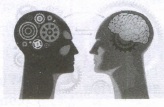 |
1. Parallel and Distributed computing 2. Computers have become smarter faster and smaller 3. Development of robotics 4. Natural Language Processing 5. Development of Voice Recognition Software. |
17.
(i) Normal, Outline, Notes, Handout and Slide Sorter, These five tabs are called View Buttons. There are many toolbars that can be used during the slide creation; they are revealed by selecting. them with View \(\rightarrow \) Toolbars.
(ii) The actual Workspace section is below the View Buttons. This is where you assemble the various parts of your selected slide. Each view is designed to ease the completion of certain tasks.
(iii) Normal view is the main view for creating individual slides. Use this view to format and design slides and to add text, graphics and animation effects.
(iv) Outline view shows topic titles, bulleted lists' and numbered lists for each slide in outline format. Use this view to rearrange the order of slides, edit titles and headings, rearrange the order of items in a list and add new slides.
(v) Notes view lets you add notes to each slide that are not seen when the presentation is shown.
(vi) Slide Sorter view shows a thumbnail of each slide in order. Use this view to rearrange the order of slides, produce a timed slide show, or add transitions between selected slides.
(vii) Handout view lets you print your slides for a handout. Youcan choose one, two, three, four, or six slides per page from Tasks pane \(\rightarrow \) Layouts. Thumbnails can be re-arranged in this view by dragging and dropping them.
18.
(a)
Windows Explorer
19.
(c)
DOS
20.
(d)
Multiprocessing
21.
(b)
CD
22.
(c)
Radix
23.
(c)
11
24.
(a)
3 bits form
25.
(d)
IBM & Apple
26.
(c)
NOT
27.
(d)
1024
28.
(d)
Parallel Computing
29.
(c)
Artificial Neural Network
30.
(b)
1940-1956
31.
(c)
Third
32.
(a)
Touch Screen

11th Standard Syllabus & Materials
11th Standard
TN 11th Tamil பீடு பெற நில் - செய்யுள் - காவடிச்சிந்து Important Questions And Answers Study Material - QB365 Set A
NEW11th Standard
TN 11th Tamil பீடு பெற நில் - உரைநடை - மலை இடப்பெயர்கள் : ஓர் ஆய்வு Important Questions And Answers Study Material - QB365 Set A
NEW11th Standard
TN 11th Tamil மாமழை போற்றுதும் - துணைப்பாடம் - யானை டாக்டர் Important Questions And Answers Study Material - QB365 Set A
NEW11th Standard
TN 11th Tamil மாமழை போற்றுதும் - செய்யுள் - ஐங்குறுநூறு Important Questions And Answers Study Material - QB365 Set A



Tamilnadu Stateboard 11th Standard Subjects

Maths

Commerce

Economics

Biology

Business Maths and Statistics

Accountancy

Computer Science

Physics

Chemistry
Maths
Biology
Economics
Physics
Chemistry

History
Business Maths and Statistics

Computer Science
Accountancy
Computer Applications
History
Computer Technology
Commerce
Computer Applications
Computer Technology

Tamil

English

French
Tamilnadu Stateboard Standards
