
 100% FREE ACCESS
11th Standard Syllabus & Materials
11th Standard
TN 11th Tamil இயற்கை வேளாண்மை,சுற்றுச்சூழல் -செய்யுள் - மனோன்மணீயம் Important Questions And Answers Study Material - QB365 Set A
NEW11th Standard
TN 11th Tamil என்னுயிர் என்பேன் -துணைப்பாடம் - இசைத்தமிழர் இருவர் Important Questions And Answers Study Material - QB365 Set A
NEW11th Standard
TN 11th Tamil மொழி கலை -செய்யுள் - ஒவ்வொரு புல்லையும் Important Questions And Answers Study Material - QB365 Set A
NEW11th Standard
TN 11th Tamil பீடு பெற நில் - இலக்கணம் - பகுபத உறுப்புகள் Important Questions And Answers Study Material - QB365 Set A
NEW11th Standard
TN 11th Tamil பீடு பெற நில் - துணைப்பாடம் - வாடிவாசல் Important Questions And Answers Study Material - QB365 Set A
NEW11th Standard
TN 11th Tamil பீடு பெற நில் - செய்யுள் - குறுந்தொகை Important Questions And Answers Study Material - QB365 Set A

Published on: 14/12/2019
Spreadsheet-Basics
Download Tamil Nadu 11th Standard Computer Applications question papers, model tests, one-mark questions, important questions, and public exam papers in PDF format. Free study materials and answer keys for TN State Board students.
Questions + Answers key
Take MCQ Computer Applications Test
1.
Active sheet tab will appear in ------------ clear.
Green
Red
Purple
White
2.
Spreadsheet window has ---------- sets of scroll bars
3
4
2
none
3.
Which of the following shows the current cell address?
Name box
Input box
Cell box
Function button
4.
The main area of the Openoffice calc window is called_______.
Work area
Worksheet
Work space
All of these
5.
Expansion of Visicalc is_______.
Vision calc
Vision calculator
Visicalc calculator
Visible calc
6.
Name the two types of cell references.
7.
How calc calculates the results in a worksheet?
8.
How will you select multiple sheets in a worksheet?
9.
Define cell printer
10.
What is cell address? Give example.
11.
How the functions are categorized in Openoffice Calc?
12.
How will you insert cells, row and columns using "Insert cells" Toolbar.
13.
Write the steps to insert a new row in a in a worksheet?
14.
Write the steps to save a worksheet.
15.
Write the steps to construct a formula in a worksheet?
16.
Explain how will you insert a function using Direct Insert method.
17.
Explain how will you generate whole number series.
18.
Explain how will you cut, copy and Paste data in a worksheet.
19.
Explain the three types of default toolbars in OpenOffice Calc.
1.
(d)
White
2.
(c)
2
3.
(a)
Name box
4.
(d)
All of these
5.
(c)
Visicalc calculator
6.
Cell references are of two types
(i) Relative cell reference
(ii) Absolute Cell reference.
7.
Calc calculates the results using the rule of precedence followed in Mathematics. The order is:
(i) Exponentiation ( ^ )
(ii) Negation ( - )
(iii) Multiplication and Division ( *, /)
(iv) Addition and Subtraction (+, -)
8.
Multiple sheets can also be selected by clicking that sheet with simultaneously pressing the Ctrl button (Ctrl + Click). All selected sheets will turn to white colour.
9.
Cell pointer is a rectangle element which can be moved around the worksheet.
10.
Cell address is the combination of column heading and row number. For example, the intersection of column B and row 4 makes a cell B4.
11.
In Calc, the functions are categorized as 11 types. They are,
(i) Database
(ii) Date and Time
(iii) Financial
(iv) Information
(v) Logical
12.
(i) Insert Cells floating toolbar is also used to insert cells, rows and columns
(ii) Click View ➝Toolbars ➝ Insert Cell
(iii) A tiny floating toolbar appears on the screen with four icons; using these icons, you can insert cells, rows and columns.
13.
Step 1: Select the row where you want the new row to be inserted.
Step 2: Right-click on the row number that you selected, A pop-up menu will appear
Step 3: click "Insert Rows" option from the menu.
14.
The process of saving a worksheet is very similar to saving a document.
Steps to save a worksheet are as follows:
Step 1: File ➝ Save (or) Ctrl + S (or) Click "Save" icon on the standard tool bar.
Step 2: If the spreadsheet has not been saved previously, the Save As dialog box will appear.
Step 3: Type the name in "File Name" list box.
Step 4: Click "Save as type" list box. It shows all possible formats to save your file. From the list select "Microsoft Excel 97/2000/XP (.xls)" option, and then click "Save" button
15.
To construct a formula, you should follow the steps below:
(i) Cell pointer should be in the cell in which you want to display the result.
(ii) Formula should begin with an = sign.
(iii) In a formula, use only cell reference (cell addresses) instead of the actual values within the cells.
(iv) While constructing a formula, BODMAS rule should be kept in mind.
16.
Direct Insert method:
If you know the function name and its syntax known, it can be directly typed in any cell of the worksheet.
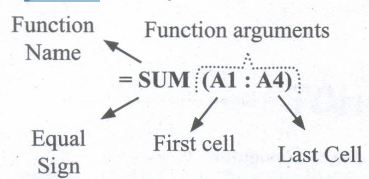
For example, SUM is the most frequently using function to add a set of values. The syntax of the SUM () is
= SUM (range 1; range 2; range 3 range n)
** (Remember that the meaning of Range explained previously in this chapter)
To find the sum of the values on A1, A2, A3, A4, A4 in AS, Place your cell pointer in AS and directly type the formulae as follows.
= SUM (A1: A4)
While directly typing a function the following points should be kept in mind.
(i) A function should begins with a equal sign.
(ii) Use proper name of the function to be used.
(iii) Within brackets, arguments should be given as per the syntax. Each function has unique argument list.
(iv) After typed a function, "Enter" key must be pressed.
17.
Generating whole number series:
Step 1: In cell A1, type as 1 (one) and press enter
Step 2: click A1 to place the cell pointer
Step 3: Click "Drag Fill Handle" of cell pointer; now the mouse pointer becomes a small +
Step 4: Drag over the cells; While dragging, the generated values will be displayed as tooltip.
Step 5: Leave the mouse pointer. Selected cells will be filled with series of values
18.
Copy and Paste Data:
(i) Select the cell or cells you want to copy
(ii) Select Edit ➝ Copy or Click "Copy" icon from the standard toolbar or Press Ctrl + C
(iii) Move the cell pointer to the cell in which you want to paste.
(iv) Select Edit ➝ Paste or Click "Paste" icon or Press Ctrl + V
Cut and Paste Data:
(i) Select the cell or cells you want to cut
(ii) Select Edit ➝ Cut or Click "Cut" icon from the standard toolbar or Press Ctrl + X
(iii) Move the cell pointer to the cell in which you want to paste.
(iv) Select Edit ➝ Paste or Click "Paste" icon or Press Ctrl +V
19.
There are three toolbars available by default. They are:
(i) Standard Toolbar
(ii) Formatting Toolbar
(iii) Formula bar
Standard Toolbar: contains frequently using File, Edit and Data menu commands as buttons (icons) such as New spreadsheet, Open an existing spreadsheet, Save, Send, print, print preview, Cut, Copy, Paste, Sorting, inserting chart etc.,
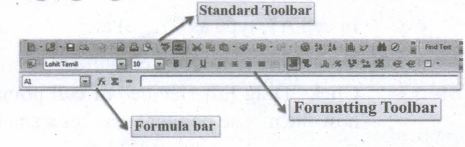
Formatting Toolbar - contains frequently using text and cell formatting commands as buttons such as changing font style, font size, font colour, alignments, cell formatting etc.,
Formula bar - This is a very important element in a spreadsheet. It contains Name box, Function Wizard, Sum button, Function button and Input line.
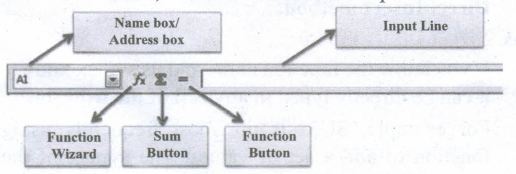
Name box: It shows the current cell address
Function Wizard: Used to insert function.
Sum button: Used to - quickly insert sum function.
Function button: Used to input formula or function
Input Line: This is used to show the contents of the current cell. It always, shows actually what you typed in a cell. It is also used to edit the contents.

11th Standard Syllabus & Materials
11th Standard
TN 11th Tamil பீடு பெற நில் - செய்யுள் - காவடிச்சிந்து Important Questions And Answers Study Material - QB365 Set A
NEW11th Standard
TN 11th Tamil பீடு பெற நில் - உரைநடை - மலை இடப்பெயர்கள் : ஓர் ஆய்வு Important Questions And Answers Study Material - QB365 Set A
NEW11th Standard
TN 11th Tamil மாமழை போற்றுதும் - துணைப்பாடம் - யானை டாக்டர் Important Questions And Answers Study Material - QB365 Set A
NEW11th Standard
TN 11th Tamil மாமழை போற்றுதும் - செய்யுள் - ஐங்குறுநூறு Important Questions And Answers Study Material - QB365 Set A



Tamilnadu Stateboard 11th Standard Subjects

Maths

Commerce

Economics

Biology

Business Maths and Statistics

Accountancy

Computer Science

Physics

Chemistry
Maths
Biology
Economics
Physics
Chemistry

History
Business Maths and Statistics

Computer Science
Accountancy
Computer Applications
History
Computer Technology
Commerce
Computer Applications
Computer Technology

Tamil

English

French
Tamilnadu Stateboard Standards
