
 100% FREE ACCESS
11th Standard Syllabus & Materials
11th Standard
TN 11th Tamil இயற்கை வேளாண்மை,சுற்றுச்சூழல் -செய்யுள் - மனோன்மணீயம் Important Questions And Answers Study Material - QB365 Set A
NEW11th Standard
TN 11th Tamil என்னுயிர் என்பேன் -துணைப்பாடம் - இசைத்தமிழர் இருவர் Important Questions And Answers Study Material - QB365 Set A
NEW11th Standard
TN 11th Tamil மொழி கலை -செய்யுள் - ஒவ்வொரு புல்லையும் Important Questions And Answers Study Material - QB365 Set A
NEW11th Standard
TN 11th Tamil பீடு பெற நில் - இலக்கணம் - பகுபத உறுப்புகள் Important Questions And Answers Study Material - QB365 Set A
NEW11th Standard
TN 11th Tamil பீடு பெற நில் - துணைப்பாடம் - வாடிவாசல் Important Questions And Answers Study Material - QB365 Set A
NEW11th Standard
TN 11th Tamil பீடு பெற நில் - செய்யுள் - குறுந்தொகை Important Questions And Answers Study Material - QB365 Set A

Published on: 20/08/2019
Word Processor Basics ( OpenOffice Writer )
Download Tamil Nadu 11th Standard Computer Applications question papers, model tests, one-mark questions, important questions, and public exam papers in PDF format. Free study materials and answer keys for TN State Board students.
Questions + Answers key
Take MCQ Computer Applications Test
1.
Find & Replace option is available in which menu?
File
Edit
Format
Tools
2.
What is changing the default appearance of the text called?
Text formatting
Page formatting
Special formatting
Paragraph formatting
3.
Which is displayed at the top part of the window?
Menu bar
Tool bar
Title bar
Format bar
4.
________ allows you to assign text, tables, graphics and other items to a key or key combination.
Auto
Automatic
AutoText
Default
5.
_________ is the default setting, with which the table occupies the entire width of the text area.
Default
Right
Left
Automatic
6.
State the differences between proprietary software and open source software.
7.
What are the different packages in OpenOffice Writer?
8.
What is word processing?
9.
What is the use of Word Art in writer?
10.
What are Hyperlinks?
11.
Write the steps to change the line spacing of text.
12.
What are the different ways to save a document?
13.
How do you insert cells, rows and columns?
14.
What are comments, footnotes and endnotes in writer?
15.
Write about the drawing toolbar.
16.
Write the steps to Find and Replace a word with another word in OpenOffice Writer?
17.
Explain the important features of Openoffice Writer.
18.
Write about the drawing toolbar.
19.
What are the different methods to change margin in Writer?
1.
(b)
Edit
2.
(a)
Text formatting
3.
(c)
Title bar
4.
(c)
AutoText
5.
(d)
Automatic
6.
| Proprietary software | Open source software | ||
| Package | Developer | Package | Developer |
| Microsoft Word | Microsoft Corporation | Open Office Writer | Apache |
| WPS Word | Kingsoft | Libre Office Writer | The document foundation |
| WordPro | Lotus Corportation | Abiword | Abisource |
7.
Openoffice is a productive office suite with a collection of different software packages such as
(i) Openoffice writer - Word processor to create text documents
(ii) Openoffice calc - Spreadsheet to create worksheets
(iii) Openoffice Base - Database
(iv) Openoffice Impress - Presentation Software
(v) Openoffice Draw - Drawing software
(vi) Openofice Forumula - Create formula and equations..
8.
Word processor is a computer software to create, edit, manipulate, transmit, store and retrieve a text document. The above said activities are called as word processing.
9.
Word Art helps to apply Special effects and change the appearance of the text to make it more presentable and attractive.
10.
1. Hyperlink is a reference to data that the reduce can directly follow either by clicking or tapping.
2. A hyperlink points to a whole document or to a specific element within a document.
11.
(i) Rightclick \(\rightarrow\)line spacing, select the type single, 1.5 or double.
(ii) Select the entire document by Edit\(\rightarrow\) Select All
(iii) Format- paragraph
(iv) The paragraph dialog box appears, click Indents & Spacing tab
(v) In the line spacing option, select the type and click OK button.
12.
(i) You can save by clicking File \(\rightarrow\) Save on top left corner and then click File \(\rightarrow\) Save As or Ctrl+Shift+S. After that browse the location where exactly you want to save in your computer.
(ii) You can also save by just pressing Ctrl + S and then browse the location where you want to save.
(iii) All documents in OpenOffice writer will be stored with .odt extension. You can store your OpenOffice document as Microsoft Word document or pdf.
13.
To insert rows or columns inside a table:
(i) Place the cursor in the row or in the column where you would like to add new rows or columns and right-click.
(ii) Choose Row ➝ Insert - to insert a row or Column ➝ Insert - to insert a column. A dialog box will appear, from which you can select the number of rows or columns to insert. You can also set the position of the new rows or columns to Before or After.
To split a cell:
(i) Place the cursor inside the cell.
(ii) Right click and choose Cell ➝ Split, or choose Table ➝ Split Cells from the menu bar.
(iii) Select the direction of the split, horizontally (for rows), or vertically (for columns), as well as the total number of cells to create.
14.
Comments:
Comments also called "notes", which authors and reviewers often use to exchange ideas ask for suggestions or brainstorm during the review process.
Footnotes:
Afoot note will contain the source of the information or additional information about the text contained in the document. It appear at the bottom of a page.
End notes:
At end note is additional information or credits given at the end of the document instead of at the end of each page.
15.
Drawing toolbar is used to create various shapes in a document using various drawing tools. The drawing toolbar can be obtained by clicking. View Toolbars Drawing or The user can change the properties (till color, line type and weight, anchoring) for the tool appear in a document.
16.
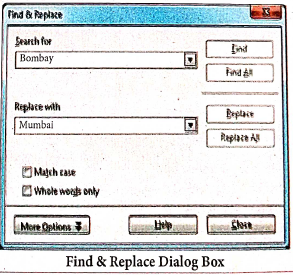
OpenOffice Writer has a Find and Replace feature that helps to locate for a text inside a document and replace it with another word.
Click Edit Find & Replace (or) Ctrl + F
The Find & Replace dialog box appears as shown.
Steps to Find & Replace a text :
(i) Type the text you want to find in the Search forbox For Example : To search a word "Bombay" in a document and replace with "Mumbai", enter the word "Bombay" in the Search for box.
(ii) Enter the word " Mumbai" in the Replace with box and Click Find button, to start the search, the found word is highlighted and the first occurrence of "Bombay" is highlighted.
(iii) To replace text, click Replace button.
The highlighted word is replaced with the word given in the Replace with box.
(iv) Click Find All Writer selects all instances of the search text in the document.
All occurrences of Bombay are highlighted.
(v) Click Replace All button, Writer replaces all matches.
This will replace all occurrences of "Bombay" with "Mumbai".
(vi) Enable Match caseto perform the search case sensitively so that uppercase and lower cases are distinguished separately.
(vii) Enable Whole Words only to make the search more specific to words. For example, if you search for the word "Image", the command will only find Image" not "Imaging" "Images" etc.
17.
Writer provides these important features:
(i) Templates and styles.
(ii) Page layout methods, including frames, columns, and tables.
(iii) Embedding or linking of graphics, spreadsheets, and other objects.
(iv) Built-in drawing tools.
(v) Master documents-to group a collection of documents into a single document.
(vi) Change tracking during revisions.
(vii) Database integration, including a bibliography database.
(viii) Export to PDF, including bookmarks.
18.
OpenOffice writer uses the drawing tools, to create various shapes by using the Drawing toolbar. To use the drawing tools repeatedly, you can move this toolbar to a convenient place on the window. The drawing tool bar can be obtained by clicking View ➝ Toolbars ➝ Drawing.
To use a drawing tool, the steps are as given below:
(i) Click in the document where you want the drawing to be anchored.
(ii) Select the tool from the Drawing toolbar as shown in Figure 6.44 The mouse pointer changes to a drawing-functions pointer.
(iii) Move the cross-hair pointer to the place in the document where you want the graphic to appear and then click-and-drag to create the drawing object.
(iv) Release the mouse button. The selected drawing function remains active, so you can draw another object of the same type.
(v) To cancel the selected drawing function, press the Esc key or click on the Select icon on the Drawing toolbar.
(vi) now change the properties (fill color, line type and weight, anchoring, and others) of the drawing object using either the Drawing Object Properties toolbar or the choices in the dialog box.
19.
Page margins are the white space around the top, bottom, left and right of your document.
Changing or setting page margins in openoffice writer can be done in two ways:
(i) Using the Rulers - quick and easy, but does not have precise values.
(ii) Using the Page Style dialog box - can specify precise values for the margins.
Changing Page Margins using Ruler:
(i) The shaded sections of the rulers are the margins.
(ii) Hold the mouse pointer over the line between the gray and white sections.
(iii) The mouse pointer turns into a double-headed arrow.
(iv) Hold down the left mouse button and drag the mouse to move the margin and release it at the required point.
(v) The new margin is set.
Using the Page Style Dialog Box:
To change margins using the Page Style dialog box
(i) Right-click anywhere on the page and select Page from the popup menu or select page tab of page style dialog box.
(ii) In the Margins boxes, specify the values for left, right, top and bottom margins.
(iii) Click on OK button.

11th Standard Syllabus & Materials
11th Standard
TN 11th Tamil பீடு பெற நில் - செய்யுள் - காவடிச்சிந்து Important Questions And Answers Study Material - QB365 Set A
NEW11th Standard
TN 11th Tamil பீடு பெற நில் - உரைநடை - மலை இடப்பெயர்கள் : ஓர் ஆய்வு Important Questions And Answers Study Material - QB365 Set A
NEW11th Standard
TN 11th Tamil மாமழை போற்றுதும் - துணைப்பாடம் - யானை டாக்டர் Important Questions And Answers Study Material - QB365 Set A
NEW11th Standard
TN 11th Tamil மாமழை போற்றுதும் - செய்யுள் - ஐங்குறுநூறு Important Questions And Answers Study Material - QB365 Set A



Tamilnadu Stateboard 11th Standard Subjects

Maths

Commerce

Economics

Biology

Business Maths and Statistics

Accountancy

Computer Science

Physics

Chemistry
Maths
Biology
Economics
Physics
Chemistry

History
Business Maths and Statistics

Computer Science
Accountancy
Computer Applications
History
Computer Technology
Commerce
Computer Applications
Computer Technology

Tamil

English

French
Tamilnadu Stateboard Standards
