
 100% FREE ACCESS
11th Standard Syllabus & Materials
11th Standard
TN 11th Tamil இயற்கை வேளாண்மை,சுற்றுச்சூழல் -செய்யுள் - மனோன்மணீயம் Important Questions And Answers Study Material - QB365 Set A
NEW11th Standard
TN 11th Tamil என்னுயிர் என்பேன் -துணைப்பாடம் - இசைத்தமிழர் இருவர் Important Questions And Answers Study Material - QB365 Set A
NEW11th Standard
TN 11th Tamil மொழி கலை -செய்யுள் - ஒவ்வொரு புல்லையும் Important Questions And Answers Study Material - QB365 Set A
NEW11th Standard
TN 11th Tamil பீடு பெற நில் - இலக்கணம் - பகுபத உறுப்புகள் Important Questions And Answers Study Material - QB365 Set A
NEW11th Standard
TN 11th Tamil பீடு பெற நில் - துணைப்பாடம் - வாடிவாசல் Important Questions And Answers Study Material - QB365 Set A
NEW11th Standard
TN 11th Tamil பீடு பெற நில் - செய்யுள் - குறுந்தொகை Important Questions And Answers Study Material - QB365 Set A

Published on: 27/11/2019
Working with Typical Operating System
Download Tamil Nadu 11th Standard Computer Technology question papers, model tests, one-mark questions, important questions, and public exam papers in PDF format. Free study materials and answer keys for TN State Board students.
Questions + Answers key
Take MCQ Computer Technology Test
1.
In which version of windows the mouse was introduced?
1
2
3
95
2.
Which of the following is not an access applications?
Word processing
games
Spreadsheets
C++
3.
Which is the default browser for Ubuntu?
Firefox
Internet Explorer
Chrome
Thunderbird
4.
Under which of the following OS, the option Shift + Delete - permanently deletes a file or folder?
Windows 7
Windows 8
Windows 10
All of the OS
5.
Which is the default folder for many Windows Applications to save your file?
My Document
My Pictures
Documents and Settings
My Computer
6.
What is meant by application window?
7.
What is Shut down?
8.
What is Trash in Ubuntu OS?
9.
How will you log off from Ubuntu OS?
10.
Mention the different server distributions in Linux OS.
11.
Name the methods followed while copying files and folders to removable disk.
12.
How will you delete files and folders?
13.
Write a note on window.
14.
Differentiate Save, Save As and Save a Copy in Ubuntu OS.
15.
List out the major differences between Windows and Ubuntu OS.
16.
Explain the elements of Windows.
17.
Explain the different types of icons of windows desktop.
18.
Write the procedure to create, rename, delete and save a file in Ubuntu OS. Compare it with Windows OS.
19.
Explain the versions of Windows Operating System.
1.
(a)
1
2.
(d)
C++
3.
(a)
Firefox
4.
(d)
All of the OS
5.
(a)
My Document
6.
It is an area on a computer screen with defined boundaries, and within which information is displayed. Such windows can be resized, maximized, minimized, placed side by side, and overlaid.
7.
Shut down is a term used to describe the process of closing all software programs in preparation to turn off a computer's power.
8.
Trash is the equivalent of Recycle bin. All the deleted Files or Folders are moved here.
9.
Choose an option logout through the session indicator on the far right side of the top paner.
10.
The server distributions in Linux OS
(i) Ubuntu
(ii) CentOS
(iii) Red Hat
(iv) SUSE
(v) Fedora
11.
There are several methods of transferring files to or from a removable disk.
(i) Copy and Paste
(ii) Drag and Drop
(iii) Send To
(iv) Copy and Paste using keyboard shortcuts
12.
(i) When you delete a folder, the folder and its entire contents (any files or sub-folders) will also be deleted.
(ii) When you delete a file, the file and its contents are deleted.
(iii) If you delete a file or folder from the C: or D: drives (your local hard drives), they will go into your Recycle bin which means you still have an opportunity to recover them.
(iv) If you delete a file or folder from any other drive, including network drives, the C: drive or thumb drives, they are permanently deleted
To delete a file or folder:
Right- click the file or folder that you want to delete, and then click Delete.
13.
(i) The window is an area on the screen that displays information for a specific program.
(ii) Window is a typical rectangular area in an application or a document or a-dialog.
(iii) A typical window includes a title bar along the top that describes the contents of the window, A followed by a toolbar that contains user interface buttons.
(iv) Most of the window's remaining area is used to display the content.
14.
Save - This will save the document without asking for a new name or location. It will overwrite the original.
Save As - This will prompt you to save the document using a dialog box. This allows to change the file name or location.
15.
| S.No | Ubuntu OS | Windows |
| 1. | Open source (Licensing freedom) |
Closed source (Licensing Restriction |
| 2. | Online peer support | Paid-help-desk support |
| 3. | Full hardware support | Partial hardware support |
| 4. | Support CUI | No CUI support |
| 5. | Flexibility | Rigidity |
16.
(i) The Title Bar and control buttons - The title bar will display the name of the program and the name of the document that has been currently opened and also contains control buttons like Minimize, MaximizelRestore and Close buttons.
(ii) The Menu bar - The menu bar is seen under the title bar. Menus in the menu bar can be accessed through shortcuts involving the Alt key and the mnemonic letter that appears underlined in the menu title. Additionally, pressing Alt or F 10 brings the focus on the first menu of the menu bar.
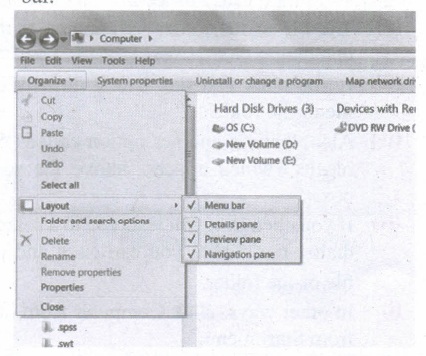
(iii) In Windows 7, in the absence of the menu bar, you have to click organize and in the sub menu list, click the layout option from it and then select the desired item from that list.
(iv) The Workspace: The Workspace is the area in the document window where you enter or type the text of document. It is the point of insertion for typing within the document.
(v) The Scroll bars: A scrollbar is an interaction technique in which continuous text, pictures, or any other content can be scrolled in a predetermined direction (up, down, left, or right) on a computer display so that all contents can be viewed, even if only a fraction of the content can be seen on a device's screen at a time. Refer figure 5.10 to view the Scroll bars.
(vi) Corners and borders: The corners and borders of the windows help to drag and hence help to resize the Windows. The mouse cursor changes to a double arrow when positioned over a border or a corner. Drag the border or corner in the direction indicated by the double arrow to the desired shape.
(a) The corners can be resized diagonally by dragging it across any of the corners. It will resize the window on all the sides simultaneously.
(b) On the other hand, the borders will let you to resize the window by either dragging it in left side, right side, from the top or from the bottom of the window.
(c) It will change the size of the window at one side only depending on the side in which the dragging is made.
17.
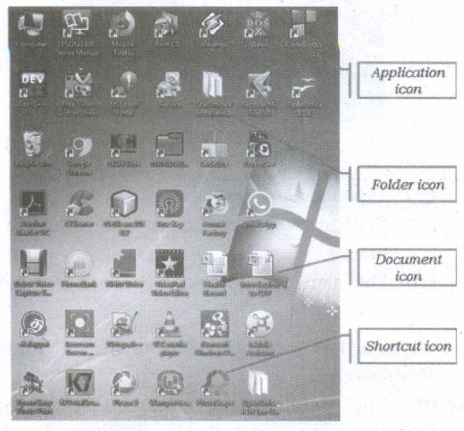
Application Icons:
(i) These icons are representing Software package's logo. Double-click over this icon, the related application gets invoked.
(ii) Shortcut Icons: These icons point to a particular application or file or folder. By double clicking over them the related application or file or folder will open. This represents the shortcut form to open a particular application.
(iii) Document Icons: Active document window which is a window within an application window is called as the document icon.
18.
In Ubuntu OS:
(i) Create a file: By right clicking in the desktop' and also files be created by using file menu.
(ii) Delete a file: By using right click choosing move to trash or by using menu.
(iii) Rename a file: By using right click and choosing rename option.
(iv) Save a file: Press ctrl + x or F2 to exit. You will. then be asked if you want to save. (or) Press ctrl+ O or F3 and ctrl + x or F2 for save and exit.
In windows OS:
(i) Create file: Open an application and created by using file menu.
(ii) Delete a file: By right click on a file and choose delete option to delete a file.
(iii) Rename a file: By right click on a file and choose rename option to rename a file.
(iv) Save file: Press ctrl+S or file-save to save the file.
19.
| S.No | Versions | Logo | Year | Prominent feature |
| 1. | Windows 1.x |  |
1985 | 1. Introduction of GUI in 16 - bit. processor 2. Mouse was introduced as an input device |
| 2. | Windows 2.x |  |
1987 | 1. Supports to minimize or maximize windows. 2. Control panel feature was introduced with various system settings and customising options. |
| 3. | Windows 3.x |  |
1992 | 1. Introduced the concept of multitasking. 2. Supported 256 colours which brought a more modem, colourful look to the interface. |
| 4. | Windows 95 |  |
1995 | 1. Introduced Start button, the taskbar, Windows Explorer and Start menu. 2. Introduced 32 - bit processor and focused more on multitasking. |
| 5. | Windows 98 |  |
1998 | 1. Integration of the Web browser (Internet Explorer) with the Operating System. 2. DOS gaming began to disappear as Windows based games improved. 3. Plug and play feature was introduced. |
| 6. | Windows NT |  |
Designed to act as servers in network. | |
| 7. | Windows Me |  |
2000 | IIt introduced automated system diagnostics and recovery tools. |
| 8. | Windows 2000 |  |
2000 | 1. Served as an Operating System for business desktop and laptop systems. 2. Four versions of Windows 2000 were released: Professional (for business) 3. desktop and laptop systems), Server (both a Web server and an office server), 4. Advanced Server (for line-of-business applications) and Data Centre Server (for high traffic computer networks). |
| 9 | Windows XP |  |
2001 | 1. Introduced 64-bit Processor. 2. Improved Windows appearance with themes and offered a stable version |
| 10. | Windows Vista |  |
2006 | Updated the look and feel of Windows |
| 11. | Windows 7 |  |
2009 | Booting time was improved, introduced new user interfaces like Aero Peek, pinning programs to taskbar, handwriting recognition etc. and Internet Explorer 8. |
| 12. | Windows 8 |  |
2012 | 1. Windows 8 was faster than previous versions of Windows. 2. Start button was removed 3. Windows 8 takes better advantage of multicore processing, solid state drives (SSD), touch screens and other alternate input methods. 4. Served as common platform for mobile and computer. |
| 13. | Windows 10 |  |
2015 | 1. Start Button was added again. 2. Multiple desktop. 3. Central Notification Center for App notification and quick actions. 4. Cortana voice activated personal assistant. |

11th Standard Syllabus & Materials
11th Standard
TN 11th Tamil பீடு பெற நில் - செய்யுள் - காவடிச்சிந்து Important Questions And Answers Study Material - QB365 Set A
NEW11th Standard
TN 11th Tamil பீடு பெற நில் - உரைநடை - மலை இடப்பெயர்கள் : ஓர் ஆய்வு Important Questions And Answers Study Material - QB365 Set A
NEW11th Standard
TN 11th Tamil மாமழை போற்றுதும் - துணைப்பாடம் - யானை டாக்டர் Important Questions And Answers Study Material - QB365 Set A
NEW11th Standard
TN 11th Tamil மாமழை போற்றுதும் - செய்யுள் - ஐங்குறுநூறு Important Questions And Answers Study Material - QB365 Set A



Tamilnadu Stateboard 11th Standard Subjects

Maths

Commerce

Economics

Biology

Business Maths and Statistics

Accountancy

Computer Science

Physics

Chemistry
Maths
Biology
Economics
Physics
Chemistry

History
Business Maths and Statistics

Computer Science
Accountancy
Computer Applications
History
Computer Technology
Commerce
Computer Applications
Computer Technology

Tamil

English

French
Tamilnadu Stateboard Standards
