
 100% FREE ACCESS
11th Standard Syllabus & Materials
11th Standard
TN 11th Tamil இயற்கை வேளாண்மை,சுற்றுச்சூழல் -செய்யுள் - மனோன்மணீயம் Important Questions And Answers Study Material - QB365 Set A
NEW11th Standard
TN 11th Tamil என்னுயிர் என்பேன் -துணைப்பாடம் - இசைத்தமிழர் இருவர் Important Questions And Answers Study Material - QB365 Set A
NEW11th Standard
TN 11th Tamil மொழி கலை -செய்யுள் - ஒவ்வொரு புல்லையும் Important Questions And Answers Study Material - QB365 Set A
NEW11th Standard
TN 11th Tamil பீடு பெற நில் - இலக்கணம் - பகுபத உறுப்புகள் Important Questions And Answers Study Material - QB365 Set A
NEW11th Standard
TN 11th Tamil பீடு பெற நில் - துணைப்பாடம் - வாடிவாசல் Important Questions And Answers Study Material - QB365 Set A
NEW11th Standard
TN 11th Tamil பீடு பெற நில் - செய்யுள் - குறுந்தொகை Important Questions And Answers Study Material - QB365 Set A

Published on: 26/09/2019
HTML - Structural Tags
Download Tamil Nadu 11th Standard Computer Applications question papers, model tests, one-mark questions, important questions, and public exam papers in PDF format. Free study materials and answer keys for TN State Board students.
Questions + Answers key
Take MCQ Computer Applications Test
1.
Which of the following language used to create web pages?
HTML
ASP
JAVA
VB
2.
The tag used to insert a line break:
< h1 >
< br >
< html >
< p >
3.
In HTML, colours are represented as
Binary values
Octal values
Decimal values
Hexadecimal values
4.
Which of the following symbol is used to define a closing tag?
< >
%
/
\
5.
HTML is acronym for
Hyper Transfer Markup Language
Hyper Text Markup Language
Hyper Transfer Makeup Language
Hyper Text Makeup Language
6.
Write note on < body > tag
7.
What about tag.
8.
Differentiate Tags and Attributes.
9.
Name the types of HTML elements.
10.
Write a note on < br > tag
11.
What is attribute?
12.
What is word processor?
13.
What is Text Editor?
14.
How do you define comments in HTML?
15.
What is the wrong in the following coding?
< html >
< my web page >
< title > Welcome to my web page
< /head >
< /title >
16.
Explain with the help of an example the difference between container and empty elements of HTML.
17.
Write briefly about HTML attributes.
18.
What are the HTMLwriting tools?
19.
Explain two attributes used in HTML
20.
What is HTML?
21.
How do you view the source file?
22.
Explain the attributes available with < body > tag.
23.
Explain Heading tag with its attributes.
24.
Explain the four structural tags used in webpage.
25.
Explain the steps to create a webpage.
1.
(a)
HTML
2.
(b)
< br >
3.
(d)
Hexadecimal values
4.
(c)
/
5.
(b)
Hyper Text Markup Language
6.
i) The < body > tag encloses all the tags, attributes and information to be displayed in the web page.
ii) < body > tag should be entered below the < /head > tag
7.
The < html > tag identified the document as an HTML document. All HTML documents should begins with < html > and end with < /html >.
8.
Tags are known as elements of HTML. Additional tnformatton such as colour, alignment etc., can be included with an HTML tag is know, as attribute. Attributes are used to improve the appearance of an HTML document
9.
The HTML elements (Tags) can be classified as two types :
(1) Container elements
(2) Empty elements.
10.
The < br > tag is used for line break. The < br > is an empty tag, does not have close tag and attribute. It should be placed at the end of a line.
11.
HTML is made up of tags and its attributes. Tags are known as elements of HTML. Additional information such as colour, alignment etc., can be included with an HTML tagis known as attribute.
12.
An application used to create and manipulate text documents.
13.
An application used to type and modifies text contents, but it is not a word processor
14.
The tag <!> is used to create comments. In HTML, the text what you type within this tag is considered as comments and it is ignored by the browser. Comments never show up onscreen. Comments can be placed anywhere in HTML document.
The general form of comments: <! comments >
15.
1. </html> tag is missing
2. There is no opening tag <head>
3. </title> tag not closed properly.
Corrected Code:
<html>
<head>
<title> Welcome to my web page </title>
</head>
</html>
16.
Container Elements:
(i) The tags which require opening and closing is known as container elementsor tags.
(ii) Example: <html>, <body>, <title>, <p> etc,
Empty Elements:
(i) The tags which require only opening tag is known as empty elements or tags.
(ii) Example: <br>.
17.
i) Attributes are special words used inside a tag to specify additional information to a tag. Attributes should be placed within the opening tag. Most of the tags support specialized attributes and there are also a few global elements that can be used with any tag.
ii) Global elements are common to all HTML elements; they can be used on all elements.
18.
HTML Writing Tools:
i) To get started writing HTML, there is no need of web server, web hosting or even internet connection. We can write, test and link web pages without a network.
ii) To create and testing a HTML document i.e. web page need an application text editor to write HTML code and a browser to view them.
19.
| Attribute | Value to be set to attribute | Description |
|---|---|---|
| dir | ltr (align left- to-right) rtl (align right-to-left) | dir attribute specifies the direction of the text to be aligned within the entire document. It is global attribute. 1. ltr is the default value 2. rtl is used for Arabian languages |
| lang | Predefined language code English - en Tamil- ta Telugu - te |
lang attribute specify the language used with in the document. Predefined language code will be used for this purpose. Malayalam - ml Kannada - Kn; Hindi - hi; French - fr; German - de; |
20.
HTML stands for Hyper Text Markup Language. HTML is a special markup language used to create web pages. This, language tells the browsers, how to display the text, images, animations and other contents of a hypertext document on the screen. The language also tells, how to make a document interactive through special hyper links.
21.
Viewing Source file : Source file is an HTML document, what you actually type in text editor (Notepad or getit). You can view your original source fle in the browser. The following steps are to be followed to view a source file.
(i) Double click on the browser.
(ii) Select View \(\rightarrow\) PageSource(FirefoxandChrome)/ View Source (Internet Explorer) Ctrl + U (all browser).
(iii) Source file will be displayed.
(iv) In Internet Explorer, View \(\rightarrow\) Source is also used to open source file.
22.
The <body> tag defines the documents body. The contents of an HTML page reside within the <body> tag. <body> tag contains several attributes.
(i) Background Colour: bgcolor = color:
By default all the browsers display the text on white background. However, the background color of the browser can be changed by using bgcolor tag.
The tag to change background colour:
<body bgcolor = color_name/color_code>
<body bgcolor = yellow>
(ii) Body text Colour: text = color: The default text colour of body section is "black; it is often called as automatic color, text attribute within body tag is used to change the text colour.
The tag to change body text colour:
<body text = color_name/color_code>
<body text = #FFFF00>
(iii) Background image: background = image:
An image or picture can be applied as background to a webpage. When you insert an image as background, the text will be displayed on top of the image. Background images can be a texture or bitmap or even a photo.
The tag to apply an image as background:
<body background = "image_name_with_extenstion">
<body background = "E:\Images\ flower01.gif">
(iv) Setting Margins:margin = value : The margin refers the blank area from left or top edge of the browser window. Generally there is no default margin setting in any bowser. If you want to leave some space as margin to left or top; leftmargin or topmargin attributes will be used respectively.
The tag to specify the left and top margin:
<body leftmargin = value topmargin = value>
<body leftmargin = 50 topmargin = 50>
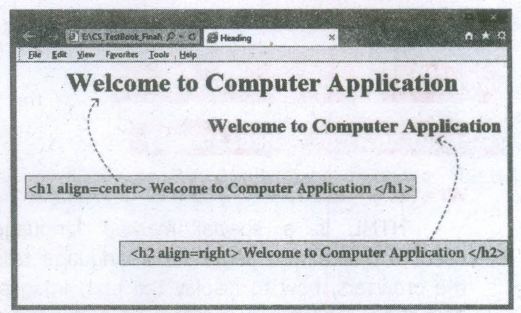
23.
Headings are used to include titles to sections of a web page. HTML has six levels of headings viz. < hi > to < h6 >. The number with h indicates the level of heading. Header tags are display the body text as bolder and larger in size according to its level.
The syntax of heading tags:
< h ... > Heading text < /h ... >
Attribute of Headings tag :
Align is an attribute to set right, center and justify alignment to headings. Left if the default alignment, so that it is not supported in latest version of HTML. Justify alignment is not supported by older browsers.
The tag is to specify the alignment to headings:
< h# align = value >
Where # is the level number, value may be Right, Center or Justify. Justify alignment only used for paragraphs.
HTML code with Heading and align attributes:
< html >
< head >
< title > Heading < /title >
< /head >
< body >
< hi align=center > Welcome to Computer Application < /hi >
< hi align=right > Welcome to Computer
Application < /h2 >
< /body >
< /html >
24.
| Opening Tag | Closing Tag | Description |
|---|---|---|
| < html > | < /htrnl > | The < html > tag identified the document as an HTML document. All HTML documents should begins with < htrnl > and end with < /htrnl >. |
| < head > | < /head > | The < head > tag contains information about the document, including its title, scripts used, style definition and document descriptions |
| < title > | < /title > | The < title > tag contains the title of the document. The title specified between opening and closing tags appears in the title bar / page tab of the browser. < title > tag should be placed within < head > tag. |
| < body > | < /body > | The < body > tag encloses all the tags, attributes and information to be displayed in the web page. < body > tag should be entered below the < /head > tag. |
25.
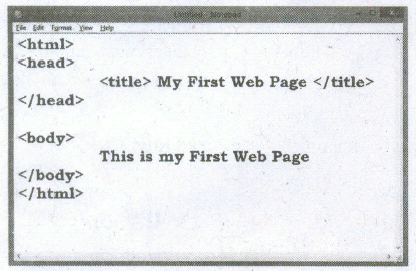
Creating a Webpage :
Step 1: Open a text editor Windows7:
Start ⟶ All Programs Accessories ⟶ Notepad⟶Linux: Applications ⟶ Accessories ⟶ Text Editor.
Step 2: In the appearing Note pad / Text Editor, type the HTML document.
Step 3: Save the file as HTML
(i) Click File ⟶ Save (or) Press Ctrl + S
(ii) Save as dialog box appears.
(iii) In "File Name" text box, type a file name with .htm or .htmlextension.
(iv) Select "All Files" from "Save as type" list box. Click "Save" button.

11th Standard Syllabus & Materials
11th Standard
TN 11th Tamil பீடு பெற நில் - செய்யுள் - காவடிச்சிந்து Important Questions And Answers Study Material - QB365 Set A
NEW11th Standard
TN 11th Tamil பீடு பெற நில் - உரைநடை - மலை இடப்பெயர்கள் : ஓர் ஆய்வு Important Questions And Answers Study Material - QB365 Set A
NEW11th Standard
TN 11th Tamil மாமழை போற்றுதும் - துணைப்பாடம் - யானை டாக்டர் Important Questions And Answers Study Material - QB365 Set A
NEW11th Standard
TN 11th Tamil மாமழை போற்றுதும் - செய்யுள் - ஐங்குறுநூறு Important Questions And Answers Study Material - QB365 Set A



Tamilnadu Stateboard 11th Standard Subjects

Maths

Commerce

Economics

Biology

Business Maths and Statistics

Accountancy

Computer Science

Physics

Chemistry
Maths
Biology
Economics
Physics
Chemistry

History
Business Maths and Statistics

Computer Science
Accountancy
Computer Applications
History
Computer Technology
Commerce
Computer Applications
Computer Technology

Tamil

English

French
Tamilnadu Stateboard Standards
