
 100% FREE ACCESS
11th Standard Syllabus & Materials
11th Standard
TN 11th Tamil இயற்கை வேளாண்மை,சுற்றுச்சூழல் -செய்யுள் - மனோன்மணீயம் Important Questions And Answers Study Material - QB365 Set A
NEW11th Standard
TN 11th Tamil என்னுயிர் என்பேன் -துணைப்பாடம் - இசைத்தமிழர் இருவர் Important Questions And Answers Study Material - QB365 Set A
NEW11th Standard
TN 11th Tamil மொழி கலை -செய்யுள் - ஒவ்வொரு புல்லையும் Important Questions And Answers Study Material - QB365 Set A
NEW11th Standard
TN 11th Tamil பீடு பெற நில் - இலக்கணம் - பகுபத உறுப்புகள் Important Questions And Answers Study Material - QB365 Set A
NEW11th Standard
TN 11th Tamil பீடு பெற நில் - துணைப்பாடம் - வாடிவாசல் Important Questions And Answers Study Material - QB365 Set A
NEW11th Standard
TN 11th Tamil பீடு பெற நில் - செய்யுள் - குறுந்தொகை Important Questions And Answers Study Material - QB365 Set A

Published on: 21/03/2019
+1 Public Exam March 2019 Important Creative 3 Mark Questions and Answers
Download Tamil Nadu 11th Standard Computer Applications question papers, model tests, one-mark questions, important questions, and public exam papers in PDF format. Free study materials and answer keys for TN State Board students.
Questions + Answers key
Take MCQ Computer Applications Test
1.
Write script for the following criteria.
2.
What are the functions of the for loop parts?
3.
Write note on Tamil operating system
4.
List the familiar Tamil Keyuuard interfaces and Tamil keyboard layouts.
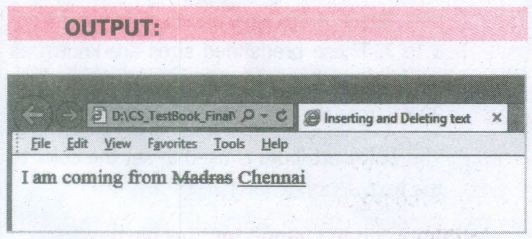
5.
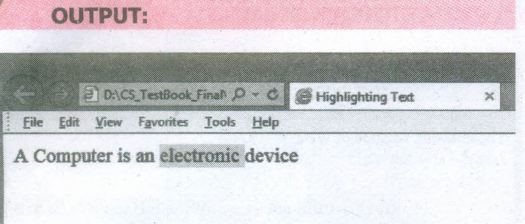
List the website address of popular e-Libraries.
6.
Write note on e-Governance
7.
What are the relational or comparison operators used in JavaScript? Explain.
8.
What are the rules for naming avariable?
9.
How to prevent cyber crime?
10.
Explain the working of Proxy Server.
11.
Why web sites use cookies?
12.
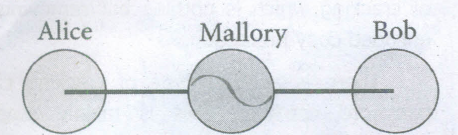
An illustration of the man-in-the-middle attack
13.
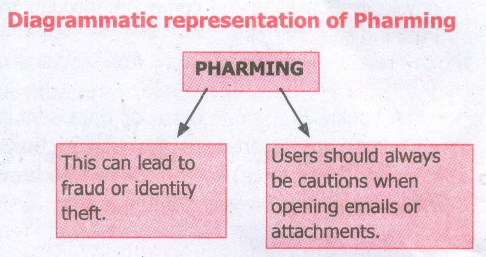
What is Pharming? Explain with suitable diagram.
14.
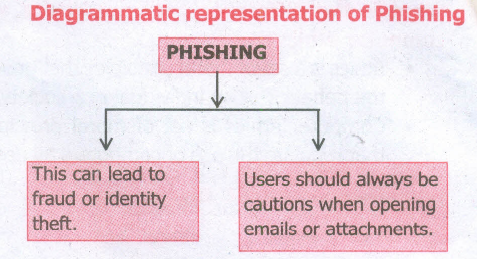
What is phishing? Explain with suitable diagram.
15.
What is cyber attack and cyber security?
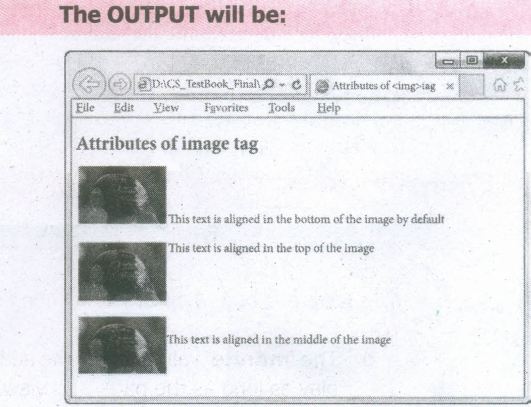
16.
Write note on unauthorized access.
17.
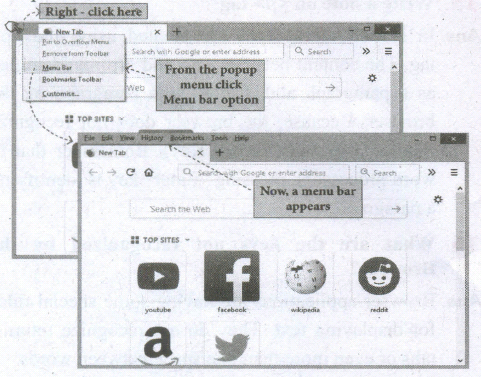
What is ethical issue? List the common ethical issues.
18.
What are the guidelines of ethics?
19.
Write HTML code to change the background colour of browser using CSS.
20.
How will link CSS with HTML?
21.
Explain Sitewide Style Sheet.
22.
Tabulate some pre-defined functions and its function with an example.
23.
How will you insert video and sound in a webpage?
24.
How will you insert an image in a HTML document?
25.
Explain the usage of multiple fonts with face attribute.
26.
Explain the usage of < B >, < I >, < U >, < S > tags
27.
Write about inserting and deleting text in html document.
28.
Explain Highlighting text with an example.
29.
Write note on Physical Style tags / Container tags.
30.
Explain Container a empty Elements.
31.
Write briefly about HTML attributes.
32.
Write about Webpage.
33.
What are the different methods of accessing the internet?
34.
Write a note on important attributes of < script > tag.
35.
Write the rule of operands used in logical expression
36.
Write the syntax of alert dialog box.
37.
Write the syntax of confirm () dialog box.
38.
Explain the prompt Dialog Box.
39.
Define (i) Ordered list (ii) Unordered list (iii) Definition list
40.
Define
(i) cell
(ii) Border
(iii) column
(iv) Table.
41.
Explain the attributes used to customize the ordered list.
42.
Write-the usage and final output of the following tags
(i) < strong > (ii) < em > (iii) < ins > (iv) < del >
43.
Write a short note on (i) Subscript (ii) Superscript.
44.
Explain any 2 use of the < Marquee > tag.
45.
Explain the use of < select > tag.
46.
Write a note on method attribute of < form > tag.
47.
What is the use of form in HTML?
48.
Write a note on following attribute of < Marquee > tag?
(i) Scroll delay
(ii) Scroll amount
(iii) loop
49.
What is the use of align attribute of < img > tag? Explain its values.
50.
What is use of < ! > tag?
51.
Explain two attributes used in HTML
52.
Write the steps for viewing webpage in a Browser.
53.
Explain HTML document structure.
54.
What is HTML?
55.
Expand
(i) VSNL
(ii) SERP
(iii) SID
56.
What is loT?
57.
What is sandboxing?
58.
Definition of rootkit.
59.
Write a note on spam.
60.
What is computer worm?
61.
What is Malicious Spyware?
62.
Write a short note on e-learning.
63.
What is E-banking?
64.
What is the use of social networking?
65.
Write a note on DNS.
66.
What is broadband?
67.
Write the description of the following Generic Domain Name.
(i) .com
(ii) .gov
(iii) .org
(iv) .net
(v) .edu
68.
Write a note on Intranet
69.
Write a note on extranet.
70.
How will you create desktop shortcuts in windows?
71.
Name the methods followed while copying files and folders to removable disk.
72.
Write a note on Ubuntu OS.
73.
How will you start and close a program in windows?
74.
What is the difference between the application window and the document window?
75.
Write a note on window.
76.
Write a note on desktop.
77.
Differentiate between Windows 7 and Windows 8.
78.
Write the most popular operating systems.
79.
How the Linux OS was created?
80.
Why modern OS use a GUI?
81.
What is protected by the security modules of an OS?
82.
What are the techniques employed by an OS to optimize the CPU time?
83.
How is virtual memory is implemented?
84.
What are the types of management done by Operating System.
85.
Give an example of Real Time Processing.
86.
Write a note on BOSS.
87.
What are the requirements of segment in memory management?
88.
What does security management refers?
89.
Write the objectives of operating system.
90.
Write the usage of operating system.
91.
Differentiate Internet and Intranet.
92.
What is meant by distributed computing?
93.
Compare between 32-bit and 64 bit microprocessor?
94.
Why Blu-Ray disc is developed ?
95.
Differentiate Primary Memory and secondary memory.
96.
Differentiate RAM and ROM.
97.
What is the use of System Bus?
98.
List out the operation carried out by and Instruction set.
99.
What is Clock speed?
100.
Write the three main units of microprocessor.
101.
Add FACE16 + 897316
102.
Name the different types of operations that can be performed in Binary arithmetics
103.
Add the binary numbers 1101012 and 1011112
104.
What negative value does 1001 - 1011 represent
105.
Find the Answer the Following; 1002 - 12
106.
Write a note on a hexadecimal number system
107.
Write a note on Decimal Number system
108.
Describe the parameters are used to determine the value of each digit in a number.
109.
Write the De Morgan's law.
110.
Reason out why the NAND an NOR are called universal gates?
111.
Add 2010+2510
112.
Differentiate Dot Matrix Printer and Laser Printer.
113.
Differentiate optical mouse and laser mouse.
114.
What is use of ALU?
115.
Define POST.
116.
What is Nano-technology?
117.
What is Robotics?
118.
What is Machine language?
119.
Define Transistor.
120.
How will you create a presentation.
121.
Write a short note on impress.
122.
Write the steps to change the font and effects of the current design theme of a presentation
123.
What do you understand by animation and how does it help in enhancing a presentation?
124.
Define Table, Record and Filed.
125.
Write the steps for using Auto filter
126.
Write the steps to sort the data in the worksheet
127.
How the functions are categorized in Openoffice Calc?
128.
How will you insert cells, row and columns using "Insert cells" Toolbar.
129.
Write the steps to insert a new column in a worksheet.
130.
Name the file type for the extension (i) .odt (ii) .ods (iii) . odp
131.
Write the steps to save a worksheet.
132.
What are relational operators? Give on example.
133.
What are arithmetic operators? Give one example.
134.
Write the classification of data types in Openoffice calc.
135.
Differentiate standard and formatting toolbar.
136.
How will you print the current document in black and white a gray scale.
137.
How will you formate the table using formatting toolbar?
138.
Write the steps followed to customize the width and spacing of the columns a page in writer.
139.
How will you define the number of columns on a page in writer?
140.
Define Spell check.
141.
How will you apply borders to an entire document?
142.
Write the steps followed to change the papersize in writer.
143.
Write the steps followed to apply different style of bullets and numbering.
144.
Define Highlighting.
145.
Why DDE link used while using paste special option?
146.
Write the Editing Shotkeys to move and copy the text in the document.
147.
What is a Watermark?
148.
Write the steps to insert line numbers in writer?
149.
How do you insert cells, rows and columns?
150.
Write about the drawing toolbar.
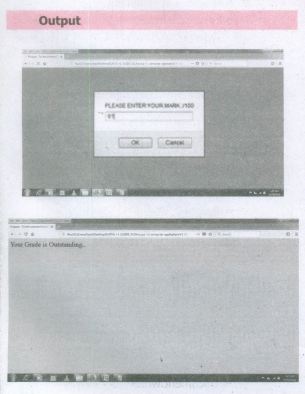
1.
| MARK | GRADE |
| > 90 | 1 - OUTSTANDING |
| 71-90 | 2 - EXCELLENT |
| 51-70 | 3 - GOOD |
| 41-50 | 4 - SATISFACTORY |
| < = 40 | 5 - POOR |
CODE:
< Html >
< Head >
< Title >Program - To test witch command in JavaScript < /Title >
< /Head >
< Body >
< script language="javascript" type="text/ javascript" >
var grade=0;
var marks=prompt("Please enter your marks/100:","0' };
if(marks >90) ,
{grade = 1; }
else if(marks>70)&&(marks<=90) {grade=2;}
else if(marks>50)&&(marks<=70) {grade=3; }
else if(marks>40)&&(marks<=50) {grade=4; } .
else {grade=5; }
switch(grade)
{
case 1:
document.write("Your Grade is Outstanding ..' };
break;
case 2'
document.write("Your Grade is
Excellent..'');
break;
case 3:
document. writef'Your Grade isGood..'');
break;
case 4:
document.write("Your Grade is Satisfectory ..'');
break;
default:
document.write("Your Grade Poor and have to re-appear Exam..'');
}
< /script >
< /Body >
< /Html >
.JPG)
2.
The for structure within parenthesis there are three parts each separated by semicolon.
They are:
i) The first part of the loop initialize a variable which is also called as control variable.
ii) In most case the control variable is declared as well as initialized.
iii) The second part isthe conditional statemem that determines how many times the loop will be iterated.
iv) The third and final part determines how the value of control variable is changed (Incremented/Decremented)
3.
1. An operating system should be easy to work and its environment should be in understandable form. Thus, all operating systems used in computers and smart phones offered environment in Tamil.
2. Windows Tamil Environment interface should be downloading and install from internet. It shows all windows elements such as Taskbar, desktop elements, names of icons, commands in Tamil
4.
1. NHM Writer, E-Kalappai and Lippikar - are familiar Tamil keyboard interfaces software that is used for Tamil typing which works on Tamil Unicode, using phonetics.
2. Sellinam and Ponmadal - are familiar Tamil keyboard layouts that works on Androidoperating system in Smart phone using phonetics.
5.
| Tamil e-Ubrary | Website address |
| Tamilnadu School Education andTeacher Education Training Textbooks and Resource Books |
http://www.textbooksonline. tn.nic.in/ |
| Tamil Virtual Academy | http://www.tamilvu.org/library/libindex.htm |
| Connemara Public Library | http://connemarapublic librarychennaLcom Veettukku_oru_noolagam /lndex.htrnl |
| Tamil Digital Library | http://tamildigitallibray.in/ |
| Chennai Library | http://www.chennailibrary. com |
| Thamizhagam | http://www.thamizham.net/ parithi/ parihi.html |
6.
1. Getting Government services through internet is known as e-Governance.
2. Government of Tamilnadu has been giving its services through Internet.
3. One can communicate with Government of Tamilnadu from any corner of the state.
4. One can get important announcements, government orders and government welfare schemes from the web portal of Government of Tamilnadu
7.
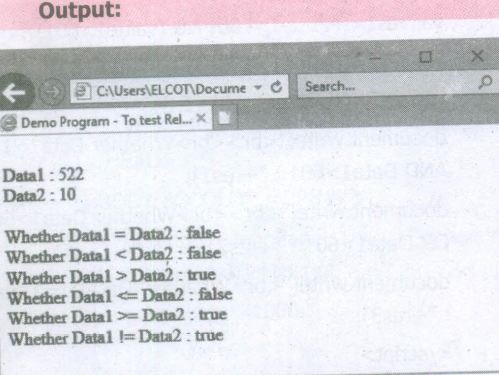
Relational or Comparison Operators:
Relational operators are also called as Comparison operators, they compares two values and the result is true or false. Javascnpt provides a rich set of relational operators including = = (equal to), != (not equal to), < (less than), > (greater than), < = (less than or equal to), and > = (greater than or equal to). Using a relational operator in an expression causes the expression to evaluate as true if the condition holds or false if otherwise.
| Relational (Comparison) Operator | Meaning | Meaning Example | Result |
| = = | Equality | x==y | False |
| ! = | In-equality | x! = y | True |
| < | Less-than | x < y | True |
| > | Greaterthan | x > y | False |
| < = | Less-than or equal to | x < = y | True |
| > = | Greaterthan or equal to | x > = y | False |
HTMLCODE:
< Html >
< Head >
< Title >Demo Program - To test
Relational (Comparison) Operators in JavaScript
< /Title >
< /Head >
< Body >
< script language="javascript" type="text!
javascript" >
var valuel = 522, value2=lO;
document. write(" < br > Data1 :
"+valuel);
document.wrlte("< br >Data2 :
"+value2);
document. write("< br > < br> Whether
Datal = Data2 : "+(valuel==value2));
document. write(" < br > Whether Data1
< Data2 : "+(valuel
> Data2 : "+(valuel > value2));
document. write(" < br > Whether Datal
< = Data2 : "+(valuel < =value2));
document. write(" < br > Whether Data1
> = Data2 : "+(valuel > =value2));
document.write("< br > Whether Datal
!= Data2 : "+(valuel!=value2));
< /script >
< /Body >
< /Html >
8.
Rules for naming variable:
a) The first character must be a letter or an underscore (-). Number cannot be as the first character.
b) The rest of the variable name can include any letter, any number, or the underscore. we can't use any other characters, including spaces, symbols, and punctuation marks.
c) JavaScript variable names are case sensitive. That is, a variable named Register Number is treated as an entirely different variable than one named registernumber.
d) There is no limit to the length of the variable name.
e) JavaScript's reserved words cannot be used as a variable name. All programming lanquaqes have a supply of words that are used internally by the language and that cannot be used for variable names.
9.
To protect the information the following points to be noted:
1. Complex password settings can make your surfing secure.
2. When the internet is not in use, disconnect it.
3. Do NOT open spam mail or emails that have an unfamiliar sender.
4. When using anti-virus software, keep it up to- date
10.
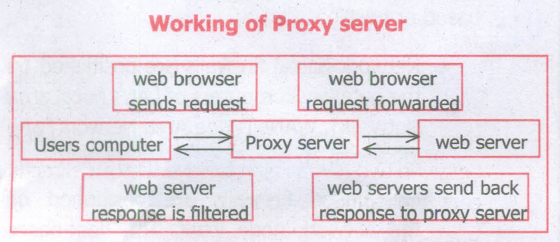
1. A proxy server acts as an intermediary between the end users and a web server. A client connects to the proxy server, requesting some service, such as a file, connection, web page, or other resources available from a different server.
2. The proxy server examines the request, checks authenticity and grants the request based on that. Proxy servers typically keep the frequently visited site addresses in its cache which leads to improved response time.
11.
Web sites typically use cookies for the following reasons:
1. To collect demographic information about who has visited the Web site.
2. Sites often use this information to track how often visitors come to the site and how long they remain on the site.
3. It helps to personalize the user's experience on the Web site.
4. Cookies can help store personal information about users so that when a user subsequently returns to the site, a more personalized experience is provided.
12.
13.
Pharming:
Pharming is a scamming practice in which malicious code is installed on a personal computer or server, misdirecting users to fraudulent web sites without their knowledge or permission. Pharming has been called "phishing without a trap". It is another way hackers attempt to manipulate users on the Internet. It is a cyberattac intended to redirect a website's traffic to a fake site.
14.
Phishing:
1. Phishing is a type of computer crime used to attack, steal user data, including login name, password and credit card numbers. It occurs when an attacker targets a victim into opening an e-rnailer an instant text message.
2. The attacker uses phishing to distribute malicious links or attachments that can perform a variety of functions including the extraction of sensitive login credentials from victims.
15.
1. Cyber attacks are launched primarily for causing significant damage to a computer system or for stealing important information from an individual or from an organization.
2. Cyber security is a collection of various technologies, processes and measures that reduces the risk of cyber-attacks and protects organizations and individuals from computer-based threats.
16.
UNAUTHORIZED ACCESS:
1. Unauthorized access is when someone gains access to a website, program, server, service, or other system by breaking into a legitimate user account.
2. For example, if someone tries guessing a password or user name for an account that was not theirs until they gained access, it is considered an unauthorized access.
17.
An Ethical issue is a problem or issue that requires a person or organization to choose between alternatives that must be evaluated as right (ethical) or wrong (unethical). These issues must be addressed and resolved to have a positive influence in society.
Some of the common ethical issues are listed below:
1. Cyber crime
2. Software Piracy
3. Unauthorized Access
4. Hacking
5. Use of computers to commit fraud
6. Sabotage in the form of viruses
7. Making false claims using computers.
18.
GUIDELINES OF ETHICS:
Generally, the following guidelines should be observed by computer users:
1. Honesty: Users should be truthful while using the internet.
2. Confidentiality: Users should not share any important information with unauthorized people.
3. Respect: Each user should respect the privacy of other users.
4. Professionalism: Each user should maintain a professional conduct.
5. Obey The Law: Users should strictly obey the cyber law in computer usage.6.
6. Responsibility: Each user should take ownership and responsibility for their actions.
19.
Changing background color of browser using C55
--- Back_Color.ess ---
body
{
background-color : pink;
}
--- Background_CSS.htm ---
< html >
< head >
< title > Changing Background using C55 < /title >
< link rel = "stylesheet" type="textjcss" href="Body-Color.css" >
< /head >
< body >
< Hi > Welcome to C55 < /Hi >
< /body >
< /html >
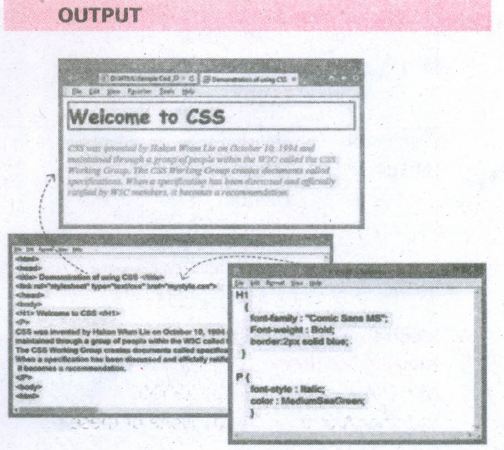
20.
Linking CSS with HTML:
The < link > tag is used to add CSSfile with HTML in head section. While using < link > tag, the following attributes are also included along with standard values.
rel = "stylesheet"
type = "text/css"
The href attribute is used to link the .css file.
General format of < Link > tag
< Link rel = "stylesheet" type = "text/css" href = CSS_File_Name_with_Extension >
HTML Code for Formatting HTML element through CSS:
Mystyle.css
H1
{
font-family: "Comic Sans MS";
Font-weight: Bold;
border:2px solid blue;·
}
P {
font-style : Italic;
color :MediumSeaGreen;
}
--- CSS_Test.htm ---
< html >
< head >
< title > Demonstration of using CSS < /title >
< link rel="stylesheet" type="text/css"
href= "mystyle.css" >
< /head >
< body >
< H1 > Welcome to CSS < /H1 >
< p >
CSS was invented by HakonWium Lie on October 10, 1994 and maintained through a group of people within the W3C called the C5S Working Group. The CSSWorking Group creates documents called specifications. When a specification has been discussed and officially ratified by W3C members, it becomes a recommendation.
< /p >
< body >
< html >
21.
Sitewide Style Sheets:
1. cascading Style Sheets (CSS) are also called as Sitewide Style sheets or external style.
2. CSS is a style sheet language used for describing the formatting of a document written in HTML.
3. Using CSS, you can control the font colour, font style, spacing between pages, columns size, border colour, background image or colour and various other effects in a web page.
4. In external styles, we can store all style information in a separate file and include it in your web pages using an HTML tag.
6. The separate file should be saved with the extension .css
22.
| Function | Description | Example | Result |
| toUpperCase( ) | Used to convertgiven string into uppercase | x="java" x.toUpperCase( ); | JAVA |
| to Lower Case ( ) | Used to convert given string into lowercase | x="JAVA" x.toLowerCase( ); | java |
| length | Used to find length of the given string | x="JAVA" x.length( ); | 4 |
| parselnti ( ) | Used to convert the given float value into an integer | parselnt(34.234); | 34 |
| parseFloat( ) | Used to convert the given string into a integer | parseInt(34.23"); | 34.23 |
23.
1. The < embed > tag is used to attach an audio or video file easily within webpage.
2. This tag includes the controls of the- multimedia automatically in the browser.
3. The < noernbed > tag may be used as an alternate to display some other media file, in the case of the browser does not support < embed > tag.
Src is the primary attribute used with < embed > tag. The src attribute used to specify the name of the media file with its source location. Other attributes such as alt, height, width and align are used as it is used with < img >.
General Format:
< embed src = audio / video file name with location > < /embed >
An HTML code to demonstrate adding audio and video files (internal source):
< html >
< head >
< title > Adding Multimedi Files < /title >
< /head >
< body >
< img src="D:\Images\TN_Logo.
png" alt =, "Govt. of Tamilnadu Logo"
height=25% width = 15% >
< marquee > Welcome to < b > The State
Council of Educational Research and
Traning < /b >, Tamilnadu < /marquee >
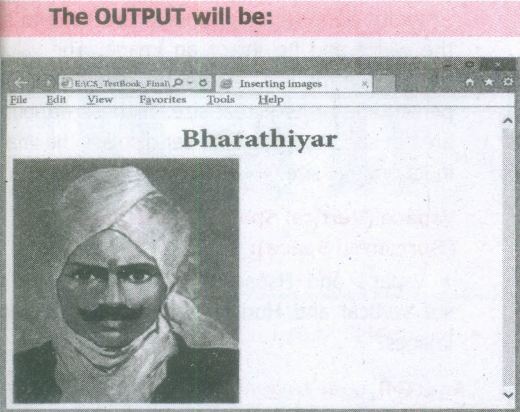
24.
Inserting Images with HTML document
The < IMG > tag along with the attribute src (Source) is used to add images in HTML document.
General format:
< img src = image_name_with_extension > (OR)
< img src = URL >
Ex:
< img src = image1.gif >
Src attribute is the main attribute used to specify the filename of the image to be inserted.
If the image is not in the current working folder, image file name should clearly specify with the path of the file or URL, where the file is available.
Ex:
< img src = "D:\images\animals\cat.jpeg" >
An HTMLcode to insert an inline image:
< html >
< head >
< title > Inserting Images < /title >
< /head >
< body >
< h1 align = center > Bharathiyar< /h1 >
< img src = bharathiyar.gif >
< /body >
< /html >
25.
Multiple fonts with face attribute:
The face attribute of font tag ·is used to change font style of a segment of text. In face attribute, we can assign more than one font-name at a time within double quotes with comma. For example,
< font face = "Bookman old style!, Broadway!, Forte, Arial" >
Welcome to HTML
< /font >
Browser first tries to find out whether the font-name in the list is supported or not. If the first font is not supported by the browser, then it displays the text in second font, otherwise it will display next one. If no font in the list is supported, then the browser display the in the default font.
26.
These tags may be shows the same output, but the usage of tags are varying. The following table shows the usage of this kind of tags.
| Tag | Usage | Tag | Usage | Final Output |
| < b > | To show the text in bold | < strong > | To show important text | Bold |
| < i > | To show the text as italics | < em > | To call attention | Italics |
| < u > | To show the text as underlined | < ins > | To insert a text | Underline |
| < s > | To show the wrong text in bold | < del > | To replaced or deleted text | Bold |
While writing HTML document, we should use the appropriate tags according to its usage. If we want show a text as underlined use < u > instead of < ins >
27.
The text what we see on browser cannot delete or insert. But we can show a text as deleted or inserted. < del > and < ins > tags are used to markup a segment of text as deleted or inserted respectively. These two tags are container tags. The text what we specify between < del > and < fdel > will be displayed as strike through. The text we specify between < ins > and < fins > will be shown as underlined.
< html >
< head >
< title > Inserting and Deleting text
< /title>
< /head >
< body >
I am coming from < del > Madras< fdel >
< ins > Chennai < fins >
< /body >
< /html >
28.
Highlighting text :
Highlighting is an important formatting feature is used to call attention to the reader. The < mark > tag is used to highlight the text in HTML. This is also a container tag. Whatever the text given between < mark > and < /mark > will be displayed as highlighting with default color.
HTML CODE:
< html >
< head >
< title > Highlighting text < /title >
< /head >
< body >
A Computer is an < mark > electronic
< /mark > device
< /body >
< /html >
29.
All tags which are in pair are called a container tags. All container tags required a closing tag. These tags are otherwise known as "Physical Style" tags.
Physical Style Tags
| Opening Tag | ClosingTag | Description |
| < b > | < /b > | Text will be bold |
| < i > | < /i > | Text will be italics |
| < u > | < /u > | Text will be underlined |
| < tt > | < /tt > | Text will be old type writer style i.e fixed width font |
30.
The HTMLelements (Tags)can bedassified as two types -
(1) Container elements
(2) Empty elements.
(1) Container Elements·
The tags which are required opening and closing is known as container elements or tags. For example: < html >, < body >, < title >, < p > etc.,
(2) Empty Elements:
The tags which are required, only opening tag is known as empty elements or tags.
For example: < br >
31.
i) Attributes are special words used inside a tag to specify additional information to a tag. Attributes should be placed within the opening tag. Most of the tags support specialized attributes and there are also a few global elements that can be used with any tag.
ii) Global elements are common to all HTML elements; they can be used on all elements.
32.
Webpage :
A webpage is a page of a Website. A webpage can be accessed by a URL in a browser and that page can be copied and or send to a friend for review whereas websites are collections of multiple page that must be navigated to view other content.
33.
Indirect Access:
This is most common method used in home and office networks. The device e.g. computer connects to a network using Ethernet or WiFi and the network connects to the Internet using Asymmetric digital subscriber line ADSL (cable or fibre).
Direct Access:
This is most common method used when travelling. The device e.g. smart phone connects directly to the Internet using 3G/4G mobile networks or public Wi-Fi. There are two ways to look for the information on the web.
34.
The < SCRIPT > tag takes two important attributes -
(i) Language:
This attribute specifies that the scripting language. Typically, its value will be javascript. Although recent versions of HTML (Extensible HyperText Markup Language - XHTML, its successor) have phased out the use of this attribute is optional.
(ii) Type:
This attribute is used to indicate the scripting language and its value should be set to "text / javascript".
35.
The strict rules are as follows:
(i) For && (AND) the result is false if the first operand is false; otherwise, the result is the Boolean value of the second operand.
(ii) For || (OR) the result is true if the first operand is true; otherwise, the result is the Boolean value of the second operand.
(iii) For! (NOT) the result is true if the operand is false; otherwise, the result is true.
36.
The syntax of alert box is
Alert(" Message ");
(or) Window.alert(" Message ");
Example:
alert (" Name is compulsory entry ");
(or) window.alert('' Name is compulsory entry ");
37.
The syntax of confirm dialog box is
confirm ("message ");
(or)
window.confirm (" message ");
Example:
confirm (" Hai Do you want to continue: ");
(or)
window.confirm(" Hai Do you want to continue: ");
38.
The prompt dialog box is displayed using a method called prompt() which takes two parameters:
(i) a label which you want to display in the text box and
(ii) a default string !o display in the text box. This dialog box has two buttons: OK and Cancel.
If the user clicks the OK button, the prompt() will return the entered value from the text box. If the user clicks the Cancel button, the prompt () returns null.
39.
(i) Ordered List :
Indents lists having numbers or letters in front of every list item.
(ii) Unordered List:
Indents lists having a bullet symbol in front of every list item.
(iii) Definition List:
Lists showing definition terms and definition descriptions.
40.
(i) Cell: An individual box in a table.
(ii) Border: A line surrounded by cells.
(iii) Column: Vertical structure of a table.
(iv) Table: A Structure of rows and columns or grid of cells.
41.
Attributes of Ordered List :
There are two attributes can be used to customize ordered list.
1. Type - Changing numbering style
2. Start - Changing numbering order.
Type - is used to change the number style. The default number style is standard Arabic numeral If (1,2,3 .....)
| Type Value | Numbering Style |
|---|---|
| 1 | Standard Arabic Numerals 1,2,3,4 ............. |
| a | Lowercase letters a, b, c, d.......... |
| A | Uppercase letter A, B, C, D |
| i | Lowercase Roman numerals i, ii, iii,iv,v..;........... |
| I | Uppercase Roman numerals I, II,III, IV, V ................ |
Start - is used to specify the number of letter with which start the list. The default starting point is 1. The value Of the start attribute should be a decimal number, regardless of the. numbering style being used.
42.
| Tag | Usage | Final Output |
|---|---|---|
| < strong > | To show important text | Bold |
| < em > | To call attention | Italics |
| < ins > | To insert a text | Underline |
| < del > | To replaced or deleted text | Strikethrough |
43.
(i) A Subscript is a way to display a character or a, number below the normal line of type. For example: The scientific notation for water is H2O. It should be written as H2O Here, 2 is appearing below the normal line. This is called subscript.
(ii) A Superscript is also a way to show a character or a number above the normal line of type. For example: The familiar algebra equation "a plus b the whole square" should be written as (a+b)2 Here, the square value 2 is appearing above the normal line. This is called superscript.
44.
(i) Direction:
1. This is used to specify the direction of the movement of text or image.
2. The text or image will move towards right to left by default. So, the default direction is left.
3. The Possible values are 'up', 'down', 'left' or 'right'.
(ii) Behaviour:
1. This attribute is used to specify the type of scrolling.
2. The values are 'scroll', 'slide' and 'alternate'.
45.
The < select > tag is used to create dropdown list box in HTML. It provides a list of various options as a dropdown list. This element is more helpful when a number of options are to be displayed in a limited space.
46.
The method attribute of the form tag is used to identify how the form element names and values will be sent to the server. The get method will append the names of the form elements and their values to the URL. The post method will send the names and values of the form elements as packets.
47.
Forms are used to receive information from the user:
1. Forms are commonly used to allow users to register on a Web site, to log in to a Web site, to order a product, and to send feedback.
2. In search engines, forms are used to accept the keywords for search.
48.
(i) Scroll delay:
This attribute is used to define the time delay between each jump. The time unit should be in seconds.
(ii) Scroll amount :
This is used to define the speed of the scroll.
(iii) Loop:
This is for defining how many times the marquee element should repeat on the screen. The default value is 'infinite', which means the marquee element scrolls endlessly.
49.
Align:
The align attribute used to aligns the image with respect to the base line of the text. This attribute has the following values.
(i) Bottom - Aligns the bottom of the image with the baseline of the text. This is the default setting.
(ii) Middle - Aligns the middle of the image with the baseline of the text.
(iii) Top - Aligns the top of the image with the baseline of the text.
Left and Right values of Align attribute:
Using left and right values with align attribute, displayed the image on the left and right side of the text.
An HTMLcode to demonstrate baseline of text:
< html >
< head >
< title > Attributesof < img > tag < /title >
< /head >
< body >
< h2 > Attributes of imagetag < /h2 >
< img src="D:\Images\Bird.jpg" alt =
"ParrotImage" >
This text is aligned in the bottom of the
imageby default < br > < br > < br >
< img src="D:\Images\Bird.jpg" alt =
"ParrotImage" align=top >
This text is aligned in the top of the
image
< br > < br >
< img src="D:\Images\Bird.jpg"
alt="Parrot Image" allqn=middle >
This text is alignedon the middleof the
image
< /body >
< /html >
50.
Comments are used to describe the page or provide some kind of indication of the status of the page. The tag < ! > is used to create comments. In HTML, the text what you type within this tag is considered as .comments and it is ignored by the browser. Comments never show up onscreen. Comments can be placed anywhere in HTML document. The general form of comments:
< ! comments >
51.
| Attribute | Value to be set to attribute | Description |
|---|---|---|
| dir | ltr (align left- to-right) rtl (align right-to-left) | dir attribute specifies the direction of the text to be aligned within the entire document. It is global attribute. 1. ltr is the default value 2. rtl is used for Arabian languages |
| lang | Predefined language code English - en Tamil- ta Telugu - te |
lang attribute specify the language used with in the document. Predefined language code will be used for this purpose. Malayalam - ml Kannada - Kn; Hindi - hi; French - fr; German - de; |
52.
Step 1: Open a Browser (Internet Explorer / Mozilla Firefox or any)
Step 2: Click File ⟶ Open File (or) Press Ctrl + 0
If menu bar is not visible in your browser refer in this picture.
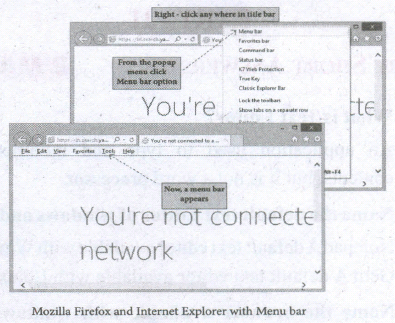
Step 3: From the "Open" dialog box, browse the folder in which the HTML document is saved. Choose the File name and click "Open" button.
53.
An HTML document contains the text of the page itself and HTML tags, which defined the structure and appearance of the document. It also contains hyperlinks to other pages or to include multimedia elements such as audio, video, animations etc. Entire HTML document is bounded within a pair of < html > and < /html > tags
HTML Document Structure:
< html >
< head >
< title > Title Name < /title >
< /head >
< body >
Body content
< /body >
< /html >
54.
HTML stands for Hyper Text Markup Language. HTML is a special markup language used to create web pages. This, language tells the browsers, how to display the text, images, animations and other contents of a hypertext document on the screen. The language also tells, how to make a document interactive through special hyper links.
55.
(i) Videsh Sanchar Nigam LTD
(ii) Search Engine Result Page
(iii) Safer Internet Day.
56.
The Internet of Things (loT) is the network of physical devices, such as vehicles, home appliances, and other items embedded with electronics, software, sensors, actuators and connectivity which enables these things to connect and exchanges data creating opportunities for more direct integration of the physical world into computer-based systems, resulting in efficiency improvements, economic benefits, and reduced human exertions.
57.
Sandboxing is a software managing techinque through which programs that are suspected to be infected with a virus can be run. The programs are run is a separated memory area and therefore cannot damage the operating systems.
58.
A rootkit is a collection of tools that are used to obtain administrator-level access to a computer or a network of computers. A rootkit could be installed on your computer by a cybercriminal exploiting a vulnerability or security hole. in a legitimate application on your PC and may contain spyware that monitors and records keystrokes.
59.
Spam in the security context is primarily used to describe email spam. Unwanted messages in your email inbox Spam, or electronic junk mail, is a nuisance as it can clutter your mailbox as well as potentially take up space on your mail server. However, spam messages can contain links that when clicked on could go to a website that installs malicious software onto your computer.
60.
(i) A computer worm is a software program that can copy itself from one computer to another without human interaction.
(ii) Worms can replicate in great volume and with great speed.
(iii) For example, a worm can send copies of itself to every contact in your email address book and then send itself to all the contacts in your contact's address books.
61.
Malicious spyware is used to describe the Trojan application that was created by cyber criminals to spy on their victims. An example would be key logger software that records a victim's every keystroke on his or her keyboard. The recorded information is periodically sent back to the originating cyber criminal over the Internet. Key logging software is widely available and is marketed to parents or businesses that want to monitor their kids' or employee's Internet usage.
62.
(i) E-Iearning is utilizing electronic technologies to access educational curriculum outside of a traditional classroom. It is a program delivered completely online.
(ii) E-Iearning is interactive in that you can also communicate with teachers, professors or other students in a class.
(iii) Sometimes it is delivered live, where you can "electronically" raise your hand and interact inreal time and sometimes it is a lecture that is prerecorded.
(iv) There is always a teacher/ professor interacting / communicating, grading participation, giving assignments and conducting tests.
63.
E-banking (Online banking), also known as internet banking, it is an electronic payment system that enables customers of a bank or other financial institution to conduct a range of financial transactions through the financial institution's website.
64.
(i) Social networking is the use of internet-based social media programs to make connections with friends, family, classmates, customers and clients.
(ii) Social networking can be done for social purposes, business purposes. or both: The programs show the associations between individuals and facilitate the acquisition of new contacts.
(iii) Examples of social networking includes Facebook.
65.
The heart of intranets and the internet is called as the Domain Name System(DNS), the way computers can contact each other and do things such as exchange electronic mail or display Web pages. The Internet Protocol (IP) uses this Internet address information and the DNS to deliver mail and other information from computer to computer
66.
(i) This high-speed Internet connection is provided through either cable or telephone companies. One of the fastest options available, broadband Internet uses multiple data channels to send large quantities of information.
(ii) The term broadband is shorthand for broad bandwidth. Broadband Internet connections such as DSL and cable are considered highbandwidth connections.
(iii) Although many DSL connections can be considered broadband, not all broadband connections are DSL.
67.
| Generic Domain Name | Description |
|---|---|
| (i) .com | Commercial Organisation |
| (ii) .gov | Government institution |
| (iii) .org | Non-profit Organisation |
| (iv) .net | Network Support Group |
| (v) .edu | Educational Institution |
68.
An Intranet is a website used by organizations to provide a place where employees can access company information (eg policies, procedures, staff, directory, department info), tools (quick links to common apps, forms etc.) and (collaborate (to social sharing tools similar facebook).
69.
An extranet is a private network that uses Internet technology and the public telecommunication system to securely share part of a business's information or operations With suppliers, vendors, partners, customers, or other businesses.
70.
Shortcuts to our most often used folders and files may be created and placed on the Desktop to help automate your work.
(i) Select the file or folder that you wish to have as a shortcut on the Desktop.
(ii) Right click on the file or folder.
(iii) Select Send to from the shortcut menu, then select Desktop (create shortcut) from the sub-menu.
(iv) A shortcut for the file or folder will now appear on your desktop and you can open it from the desktop in the same way as any other icon.
71.
There are several methods of transferring files to or from a removable disk.
(i) Copy and Paste
(ii) Drag and Drop
(iii) Send To
(iv) Copy and Paste using keyboard shortcuts
72.
(i) Ubuntu is a Linux-based operating system. It is designed for computers, smart phones, and network servers.
(ii) The system is developed by a UK based company called Canonical Ltd.
(iii) All the principles used to develop the Ubuntu software are based on the principles of Open Source software development.
73.
To start a program:
(i) Click the Start button and then point to Programs. The Program menu appears.
(ii) Point to the group that contains the program you want to start, and then click the program name.
(iii) You can also open a program by clicking Run on the Start menu, typing the path and the name of the program, and then clicking OK.
(iv) To quit a program, click the Close button in the upper right comer of the program window.
74.
(i) When we open any application such as OpenOffice Writer, Open Office Impress or OpenOffice Calc etc., you will find two Windows on the screen.
(ii) The larger Window is called the Application Window. This Window helps the user to communicate with the Application program.
(iii) The smaller window, which is inside the Application Window, is called the Document window.
(iv) This Window is used for typing, editing, drawing, and formatting the text and graphics.
75.
(i) The window is an area on the screen that displays information for a specific program.
(ii) Window is a typical rectangular area in an application or a document or a-dialog.
(iii) A typical window includes a title bar along the top that describes the contents of the window, A followed by a toolbar that contains user interface buttons.
(iv) Most of the window's remaining area is used to display the content.
76.
(i) The opening screen of Windows is called "Desktop".
(ii) The desktop of your computer may look different
(iii) This is because Windows allows you to change the appearance of the desktop.
(iv) The desktop is the opening screen which consists of the icons as well as the Start button.
(v) The desktop can be used to store information temporarily or to move around documents and windows.
77.
| Windows 7 | Windows 8 |
|---|---|
| Faster boot times, introduced new user interfaces and Internet Explorer 8. | Windows 8 was faster than previous versions of Windows. |
| The most used operating system on the Internet and also the most used for PC gaming. |
Windows 8 takes better advantage of multi-core processing, solid state drives (SSD), touch screens and other alternate input methods. |
78.
The most popular operating systems are as follows:
(i) Windows 7 is the most popular operating system for desktop and laptop computers.
(ii) Android is the most popular smart phone operating system.
(iii) iOS is the most popular tablet operating system.
79.
The Linux operating system was originated in 1991, as a project of "Linus Torvalds" from a university student of Finland. He posted information about his project on a newsgroup for computer students and programmers. He received support and assistance from volunteers who succeeded in creating a complete and functional operating system. Linux is similar to UNIX operating system.
80.
Modern operating systems use a graphical user interface, or GUI. A GUI use the mouse to click icons, buttons, menus and everything is clearly displayed on the screen using a combination of graphics and text elements.
81.
The security modules of an Operating System protect the resources and information of a computer system against destruction and unauthorized user access. It is a process of ensuring OS integrity, confidentiality and availability.
82.
In order to optimize the CPU time, the operating system employs two techniques - Buffering and Spooling.
83.
The idea of virtual memory is to use disk space to extend the RAM. The illusion of such a large amount of memory is created by subdividing the virtual memory into smaller pieces, which can be loaded into physical memory whenever they are needed by a process.
84.
(i) Software Management
(a) Processor Management
(b) Memory Management
(c) Device Management
(ii) Hardware Management
(a) File Management
(b) Tools Management
(c) Data Security.
85.
(i) Air traffic Control System, where at any moment the user must know the latest information to take further action.
(ii) Updating of a bank account of a customer to know the various transactions and balance to go for the next action.
86.
(i) Bharat Operating System Solution (BOSS) is the acronym of BOSS GNU / Linux or BOSS Linux.
(ii) It has been described as 'India's Own PC OS'.
(iii) It is developed by National Resource Center for Free/Open Source Software (NRCFOSS). It is available in all official Indian languages.
87.
Segments require hardware support in the form of a segment table which usually contains the physical address of the segment in memory, its size, and other data such as access protection bits and status (swapped in, swapped out, etc).
88.
(i) OS security management refers to specified steps or measures used to protect the as from threats, viruses, worms, malware or remote hacker intrusions.
(ii) OS security encompasses all preventive-control techniques, which safeguard any computer assets capable of being stolen, edited or deleted if OS security is compromised.
89.
(i) To hide details of hardware by creating abstraction.
(ii) To allocate resources to processes.
(iii) Provide a interactive and effective interface.
90.
(i) Easy interaction between the human and computer.
(ii) Starting computer operation automatically when power in turned on (Booting).
(iii) Controlling input & output devices.
(iv) Managing the utilization of main memory.
(v) Providing security to user program.
91.
| Internet | Intranet |
| The Internet is the global system of interconnected computer networks that use the Internet protocol suite (TCP/IP) to link devices worldwide. |
A local or restricted communications network, especially a private network created using World Wide Web software. |
92.
(i) Distributed computing is a field of computer science that studies distributed systems.
(ii) A distributed system is a model in which components located on networked computers communicate and coordinate their actions by passing messages.
(iii) The components interact with each other in order to achieve a common goal.
93.
| 32-bit | 64-bit |
| Data bus is 32-bit wide | Data bus 64-bits wide |
| Supports maximum of 3-4 GB of memory | It supports more than 4GB |
| Processing Power is low. | Processing Power is high |
| Example Pentium IV | Example Core i3, Core i7. |
94.
(i) BIu - Ray disc was developed to enable recording, rewriting and playback of high-definition video as well as storing large amount of data.
(ii) DVD uses a red laser to read and write data. But, Blu-ray uses a blue-violet laser to write. Hence, it is called as Blu-Ray.
95.
| S.No | Primary memory | Secondary memory |
| 1. | It is the main memory of the computer system. | It is the auxiliary memory from where stored data can be retrieved. |
| 2. | Data and Instructions are temporary. | Data and Instructions are permanent |
| 3. | Example: RAM, ROM | Example: Hard disk, CD, DVD |
96.
| S.No | RAM | ROM |
| 1. | The data or instructions can randomly be read as well as written on it. | The information can only be read but cannot be written on it |
| 2. | Any information stored in it is lost when a power supply is switched off. | The information remains stored even is if the power supply is switched off. |
| 3. | It is volatile memory. | It is non-volatile memory. |
| 4. | Types are SRAM and DRAM | Types are PROM, EPROM, EEPROM |
97.
(i) The address bus is used to point a memory location.
(ii) A decoder, a digital circuit is used to point to the specific memory location where the word can be located.
(iii) The address register is connected with the address bus, which provides the address of the instruction.
(iv) A data bus is used to transfer data between the memory and the CPU.
(v) The data bus is bidirectional and the address bus is unidirectional.
(vi) The control bus controls both read and write operations.
(vii) The system bus is a bunch of wires which is the collection of address bus, data bus and control bus that serves as communication channels between the microprocessor and other devices.
98.
(i) Data transfer
(ii) Arithmetic operations
(iii) Logical operations
(iv) Control flow
(v) Input/output
99.
Every microprocessor has an internal clock that regulates the speed at which it executes instructions. The speed at which the microprocessor executes instructions is called clock speed. Clock speed is measured in MHz (Mega Hertz) or in GHz (Giga Hertz).
100.
The microprocessor is made up on main units. They are:
(i) Arithmetic and Logic unit (ALU): To perform arithmetic and logical instructions based on computer instructions.
(ii) Control unit : To control the overall operations of the computer through signals.
(iii) Registers (Internal Memory): They are used to hold the instruction and data for the execution of the processor.
101.
F A C E
8 9 7 3
1 8 4 4 1
E+3 = 14-3=17 So 
1 + C + 7 = D + 7 = 13 + 7 = 20 
1+ F+ 8 = F+ 9 = 15 + 9 = 24 
102.
1. Addition
2. Subtraction
3. Multiplication
4. Division
103.
1 1 0 1 0 1
+ 1 0 1 1 1 1
__________
11 0 0 1 0 0
__________
104.
The 2's complement of 10011011 is 01101010 This represents a 10110
Therefore 100110112 = - 10110
105.
1002 - 12
.png)
1002 - 12 = 0112
106.
1. The base or radix is 16. Thus it has 16 possible digit symbols. It uses the digits 0 to 9 plus the. letters A, B, C, D, E and F (with respect to 10, 11, 12, 13, 14, 15).
2. It is generally used in microcomputers. Eg. (ABC)16.
107.
(i) The term Decimal is derived from a Latin prefix decimal, which means ten.
(ii) The Decimal number system has ten digits ranging from 0-9.
(iii) Because this system has ten digits. It is also called as a base ten number system or denary number system.
(iv) A decimal number should always be written with a subscript 10
108.
(i) The absolute value is the magnitude of a digit in a number.
(ii) For example, the digit 5 in 7458 has an absolute value of 5 according to its value in the number line.
(iii) The place value of a digit in a number refers to the position of the digit in that number such as tens, hundreds, and thousands.
(iv) The total value of a number is the sum of the absolute value x place value of each digit that the number consists of.
(v) The base value of a number is also known as the radix, which depends on the type of the number of systems that are being used.
109.
De Morgan's
\(\bar { A+B } =\bar { A } .\bar { B } \)
\(\left( \bar { A.B } \right) =\bar { A } +\bar { B } \)
110.
NAND and NOR gates are called Universal gates, because the fundamental logic gates can be realized through them
111.
.png)
8 bit Format of 2010 = 00010100
8 bit format of 2510 = 00011001
2010 + 2510 = _________
00101101
__________
2010 + 2510 = 001011012
112.
| Dot Matrix Printer | Laser printer |
| Printing speed is slow | Printing speed is high. |
| Suitable for black and white printing. | Suitable of colour printing. |
| It makes noise while printing. | It is silent while printing. |
113.
(i) Optical mouse uses Red, Blue or Green led whereas Laser mouse uses only infrared led.
(ii) Optical mouse has three buttons; Laser mouse has as many as 12 buttons and can be programmed by user.
(iii) Optical mouse is less sensitive and sensitive towards surface but Laser mouse is highly sensitive and able to work on any hard surface.
114.
(i) The ALU is a part of the CPU where various computing functions are performed on data.
(ii) The ALU performs arithmetic operations such as addition, subtraction, multiplication, division and logical operations.
(iii) The result of an operation is stored in internal memory of CPU.
(iv) The logical operations of ALU promote the decision-making ability of a computer.
115.
(i) POST (Power-On Self-Test) is the diagnostic testing sequence that a computer's basic input! output system runs to determine if the computer keyboard, random access memory, disk drives and other hardware are working correctly.
(ii) If the necessary hardware is detected and found to be operating properly, the computer begins to boot.
116.
Nano-technology is an engineering, science, and technology that develops machines or works with one atom or one molecule that is 100 nanometers or smaller.
117.
(i) Robot is a term coined by Karel Capek in the 1921 play RUR (Rossum's Universal Robots).
(ii) It is used to describe a computerized machine designed to respond to input received manually or from its surroundings.
118.
(i) Machine language is a collection of binary digits or bits that the computer reads and interprets.
(ii) In first generation, machined language was used.
119.
(i) The transistor ("transfer resistance") is made up of semiconductors.
(ii) It is a component used to control the amount of current or voltage or used for amplification modulation or switching of an electronic signal.
120.
create a presentation by anyone of the following methods.
(i) By selecting an Empty presentation.
(ii) By selecting From template.
(iii) By selecting from Open existing presentation
121.
Impress is OpenOffice.org's presentations (slideshow) module. You can create slides using Impress It contains different elements like text, bulleted and numbered lists, tables, charts, clip art and a range of graphics objects. Impress has access to the spelling checker and thesaurus. Also, it comes with prepackaged text styles, background styles with online help.
122.
Changing font:
(i) Choose format styles and formatting or press F11.
(ii) Select the style category by clicking on either the presentation styles icon or the Graphic Style icon at the top of the style and formatting window.
(iii) Right - Click on style to be modified and select modify from the pop menu.
123.
Animation refers to the visual effects that are added to the text as well as other objects in the slides in presentation. In other, words, animation effects are used to apply movement in the images and objects in slides. The use of animation enhances presentation and makes it more attractive.
124.
(i) The entire collection or related data in one table is referred to as a File or a Table.
(ii) Each row in a table represents a Record, which is a set of data for each database entry.
(iii) Each table column represents a Field, which groups each piece or item of data among the records into specific categories
125.
Using Auto filter:
(i) Click Auto Filter icon available on the "Standard tools bar" (or) Click Data ➝ Filter ➝ Auto Filter
(ii) The list box contains similar data in the fields.
(iii) Each list box item will be considered as filter criteria.
(iv) Select the data item from the list box. Now, Calc shows only the records which satisfy the selected criteria.
126.
Step 1: Select the data
Step 2: Goto Data - Sort in the menu bar. The dialog box will appear
Step 3: If you click sort menu, the dialog box show three options:
(i) Extend Selection,
(ii) Current Selection and
(iii) Cancel.
The extend selection is used to select more than one row/column. The current selection is used to continue with the existing selection. The cancel is used to exit without sorting. Now continue by selecting the Extend selection. The sort dialog box will appear.
Step 4:
(i) If you want to sort based on the Particulars, in the "sort criteria tab", choose column name in the "sort by" Tab.
(ii) Then choose, column name in the "Then by" Tab. Select your preference such as ascending or descending order.
(iii) After the sorting based on marks, the data appears in sorted format.
127.
In Calc, the functions are categorized as 11 types. They are,
(i) Database
(ii) Date and Time
(iii) Financial
(iv) Information
(v) Logical
128.
(i) Insert Cells floating toolbar is also used to insert cells, rows and columns
(ii) Click View ➝Toolbars ➝ Insert Cell
(iii) A tiny floating toolbar appears on the screen with four icons; using these icons, you can insert cells, rows and columns.
129.
Step 1: Select the column where you want the new column should be inserted.
Step 2: Right-click on the column name that you selected. A pop-up menu will appear.
Step 3: click the "Insert Columns" option from the menu
130.
(i) .odt - Openoffice Documents
(ii) .ods - Openoffice Calc
(iii) .odp - Openoffice Impress
131.
The process of saving a worksheet is very similar to saving a document.
Steps to save a worksheet are as follows:
Step 1: File ➝ Save (or) Ctrl + S (or) Click "Save" icon on the standard tool bar.
Step 2: If the spreadsheet has not been saved previously, the Save As dialog box will appear.
Step 3: Type the name in "File Name" list box.
Step 4: Click "Save as type" list box. It shows all possible formats to save your file. From the list select "Microsoft Excel 97/2000/XP (.xls)" option, and then click "Save" button
132.
Relational operators are symbols used for comparing two values such as greater than, less than, equal to etc. So, the relational operators are also called as Comparative operators.
Eg: if B= 98, C3 = 25, then = B3 < > C3 = 123 returns true.
133.
Arithmetic operators are the symbols for doing simple arithmetic operations such as addition, subtraction, multiplication, division etc., These operators return a numerical result.
| Operator | Name |
| + | Addition |
| - | Subtraction |
| * | Multiplication |
| / | Division |
| ^ | Exponent |
| % | Percent |
Eg: if B= 98, C3 = 25, then = B3 + C3 = 123
134.
| Alphabetic data type | Consists only alphabets |
| Numeric data type | Consists only numbers (whole number or fractional numbers) |
| Alphanumeric data types | Consists the combination of alphabets and numerals |
| Date data type | Consists only dates |
| Time data type | Consists only time |
135.
| Standard Toolbar | Formatting Toolbar |
|---|---|
|
Contains frequently using File, Edit and Data menu commands as buttons (icons) such as New spreadsheet, Open an existing spreadsheet, Save,Send, print, print preview, Cut, Copy, Paste, Sorting, inserting chart etc. |
Contains frequently using text and cell formatting commands as buttons such as changing font style, font Size, font colour, alignments, cell formatting, etc. |
136.
To print the current document in black and white or gray scale:
(i) Click File ➝ Print to open the Print dialog.
(ii) Click Properties to open the properties dialog for the printer. The available choices vary from one printer to another, but you should find an option for Color. See your printer's help or user manual for more information.
(iii) The choices for color may include black and white or gray scale. Choose one of these. Gray scale is best if you have any graphics inthe document. Click OK to confirm your choiceand return to the Print dialog, then click OKagain to print the document.
137.
Formatting a table involves formatting of the table layout, formatting of the table text, adjusting the size of the table, its position on the page, adding or removing rows or columns, merging and splitting cells, changing borders and the background.
138.
To customize the width and spacing of the columns, follow these steps:
(i) In the Width and spacing area, clear the Auto Width check box.
(ii) On the Width line, enter a width for each column.
(iii) On the Spacing line, enter the amount of space that you want between each pair of columns.
139.
To define the number of columns on a page:
(i) Choose Format - Columns or Select Columns page of the Page Style dialog box .
(ii) In the Columns dialog box, choose the number of columns and specify the spacing between the columns and if you want a vertical separator line to appear between the columns.
(iii) You can also use Writer's predefined column layouts, or you can create a customized column layout. The preview box, located to the right of the Settings area, shows how the column layout will look.
(v) Click OK to save the changes.
140.
Spell check is a software program that corrects spelling errors in word processing, email and documents. Spell check identifies and corrects misspelled words and the grammatical error is displayed with a green wavy line under the wrong word.
141.
Borders can be applied to an entire document; an entire page, paragraph, or just to certain sections of the document. From the page style dialog box, select the Border tab, the user defined area helps to define the area of borders, the line style of borders, colour of borders can be selected.
142.
To change the paper size:
(i) Select the page whose page size is to be changed
(ii) Select Format ➝ Page, the page style dialog box appears.
(iii) Select Page Tab
(iv) In the paper format group, select the format like A4, legal....
(v) On the width and height option can be used to set the page size.
143.
Style of Bullets and Numbering:
The default type of bullet is ( . ) and the default  type of numbering is (1, 2, 3 ....... ). The style of bullets and numbering can be changed by applying the following steps:
(i) Select the text to be bulleted
(ii) Format ➝ Bullets and Numbering ➝ Bullets
(iii) The bullets dialog box where different styles of bullets are displayed
(iv) Click on the particular style
(v) Click Ok button
144.
Highlighting is used to draw attention to important information in a text. Highlighting is beneficial because it first asks the reader to pick out the important parts, and then gives an effective way to review that information later.
145.
DDE is an acronym for Dynamic Data Exchange, a mechanism whereby the source data can be pasted into destination as a linked, 'live' copy of the original. Any changes made in the source will immediately reflect into the destination. The DDE link ensures that, the source document is always updated.
146.
| Operation | Action | Icons | Shortcut key |
| Cut | Cuts the selected text |  |
Ctrl +X |
| Copy | To make a duplication of the text. |
 |
Ctrl+ C |
| Paste | To paste the text to a new location after cut or copy process. |
 |
Ctrl+V |
| Undo | Cancels the previous operation that was performed |
 |
Ctrl+Z |
147.
(i) Watermarks are images or text displayed in transparency across the text. Watermarks can be added to a document either as Draft or confidential.
(ii) Openoffice has a gallery of watermarks to choose from or create the custom watermark such as company logo for a document.
148.
Step 1: Select the number of lines to be numbered
Step 2: Click Tools Line Numbering
Step 3: Select show numbering option in the top left corner
Step 4: Click OK.
149.
To insert rows or columns inside a table:
(i) Place the cursor in the row or in the column where you would like to add new rows or columns and right-click.
(ii) Choose Row ➝ Insert - to insert a row or Column ➝ Insert - to insert a column. A dialog box will appear, from which you can select the number of rows or columns to insert. You can also set the position of the new rows or columns to Before or After.
To split a cell:
(i) Place the cursor inside the cell.
(ii) Right click and choose Cell ➝ Split, or choose Table ➝ Split Cells from the menu bar.
(iii) Select the direction of the split, horizontally (for rows), or vertically (for columns), as well as the total number of cells to create.
150.
Drawing toolbar is used to create various shapes in a document using various drawing tools. The drawing toolbar can be obtained by clicking. View Toolbars Drawing or The user can change the properties (till color, line type and weight, anchoring) for the tool appear in a document.

11th Standard Syllabus & Materials
11th Standard
TN 11th Tamil பீடு பெற நில் - செய்யுள் - காவடிச்சிந்து Important Questions And Answers Study Material - QB365 Set A
NEW11th Standard
TN 11th Tamil பீடு பெற நில் - உரைநடை - மலை இடப்பெயர்கள் : ஓர் ஆய்வு Important Questions And Answers Study Material - QB365 Set A
NEW11th Standard
TN 11th Tamil மாமழை போற்றுதும் - துணைப்பாடம் - யானை டாக்டர் Important Questions And Answers Study Material - QB365 Set A
NEW11th Standard
TN 11th Tamil மாமழை போற்றுதும் - செய்யுள் - ஐங்குறுநூறு Important Questions And Answers Study Material - QB365 Set A



Tamilnadu Stateboard 11th Standard Subjects

Maths

Commerce

Economics

Biology

Business Maths and Statistics

Accountancy

Computer Science

Physics

Chemistry
Maths
Biology
Economics
Physics
Chemistry

History
Business Maths and Statistics

Computer Science
Accountancy
Computer Applications
History
Computer Technology
Commerce
Computer Applications
Computer Technology

Tamil

English

French
Tamilnadu Stateboard Standards
