
 100% FREE ACCESS
11th Standard Syllabus & Materials
11th Standard
TN 11th Tamil இயற்கை வேளாண்மை,சுற்றுச்சூழல் -செய்யுள் - மனோன்மணீயம் Important Questions And Answers Study Material - QB365 Set A
NEW11th Standard
TN 11th Tamil என்னுயிர் என்பேன் -துணைப்பாடம் - இசைத்தமிழர் இருவர் Important Questions And Answers Study Material - QB365 Set A
NEW11th Standard
TN 11th Tamil மொழி கலை -செய்யுள் - ஒவ்வொரு புல்லையும் Important Questions And Answers Study Material - QB365 Set A
NEW11th Standard
TN 11th Tamil பீடு பெற நில் - இலக்கணம் - பகுபத உறுப்புகள் Important Questions And Answers Study Material - QB365 Set A
NEW11th Standard
TN 11th Tamil பீடு பெற நில் - துணைப்பாடம் - வாடிவாசல் Important Questions And Answers Study Material - QB365 Set A
NEW11th Standard
TN 11th Tamil பீடு பெற நில் - செய்யுள் - குறுந்தொகை Important Questions And Answers Study Material - QB365 Set A

Published on: 04/09/2019
Word Processor Basics (OpenOffice Writer)
Download Tamil Nadu 11th Standard Computer Applications question papers, model tests, one-mark questions, important questions, and public exam papers in PDF format. Free study materials and answer keys for TN State Board students.
Questions + Answers key
Take MCQ Computer Applications Test
1.
What is the shortcut key for Undo?
Ctrl +E
Ctrl + U
Ctrl + Z
Ctrl + n
2.
3.
Find & Replace option is available in which menu?
File
Edit
Format
Tools
4.
What is changing the default appearance of the text called?
Text formatting
Page formatting
Special formatting
Paragraph formatting
5.
Which is the opening screen of OpenOffice?
Star desktop
Star Center
Star Screen
Star window
6.
State the differences between proprietary software and open source software.
7.
How do you merge cells in a table?
8.
How do you insert pictures in to your document?
9.
Write the steps to Find and Replace a word with another word in OpenOffice Writer?
10.
What is Header and Footer? How do you insert page numbers in footer area?
11.
Write the steps to change the line spacing of text.
12.
How do you insert rows and columns?
13.
What is the difference between moving and copying text?
1.
(c)
Ctrl + Z
2.
(a)
3.
(b)
Edit
4.
(a)
Text formatting
5.
(b)
Star Center
6.
| Proprietary software | Open source software | ||
| Package | Developer | Package | Developer |
| Microsoft Word | Microsoft Corporation | Open Office Writer | Apache |
| WPS Word | Kingsoft | Libre Office Writer | The document foundation |
| WordPro | Lotus Corportation | Abiword | Abisource |
7.
To merge a group of cells:
(i) Select the cells to merge.
(ii) Right click and choose Cell ➝ Merge or choose Table ➝ Merge Cells from the menu bar.
8.
Openoffice writer has the ability to insert and edit images in a more simply way.
(i) Place the insertion pointer where you want the image to appear
(ii) Select Insert \(\rightarrow\) Picture \(\rightarrow\) From file
(iii) The insert picture dialog box appears where the picture gallery opens from which the desired picture can be selected.
(iv) If the picture is not in the gallery, then browse the pictures from the folder, choose the desired picture.
(v) Click on the Open button
(vi) The selected picture is inserted into the document.
9.
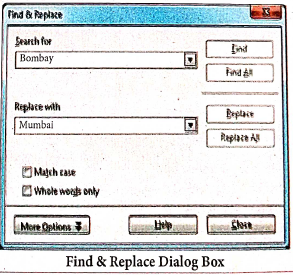
OpenOffice Writer has a Find and Replace feature that helps to locate for a text inside a document and replace it with another word.
Click Edit Find & Replace (or) Ctrl + F
The Find & Replace dialog box appears as shown.
Steps to Find & Replace a text :
(i) Type the text you want to find in the Search forbox For Example : To search a word "Bombay" in a document and replace with "Mumbai", enter the word "Bombay" in the Search for box.
(ii) Enter the word " Mumbai" in the Replace with box and Click Find button, to start the search, the found word is highlighted and the first occurrence of "Bombay" is highlighted.
(iii) To replace text, click Replace button.
The highlighted word is replaced with the word given in the Replace with box.
(iv) Click Find All Writer selects all instances of the search text in the document.
All occurrences of Bombay are highlighted.
(v) Click Replace All button, Writer replaces all matches.
This will replace all occurrences of "Bombay" with "Mumbai".
(vi) Enable Match caseto perform the search case sensitively so that uppercase and lower cases are distinguished separately.
(vii) Enable Whole Words only to make the search more specific to words. For example, if you search for the word "Image", the command will only find Image" not "Imaging" "Images" etc.
10.
The header is a section of the document that appears in the top margin, which displays the title or chapter name, author name of a document.
(i) Select from the main menu Insert \(\rightarrow\)Header \(\rightarrow\) Default.
(ii) The header text area is separated from the normal text area.
(iii) In the header area, Enter the text that is to be repeated in all pages or Select Insert \(\rightarrow\) Fields \(\rightarrow\) Title.
The footer is a section of the document that appears in the bottom margin of the page which displays the page number, date, time etc. which gets displayed on all the pages automatically.
(i) Select from the main menu Insert \(\rightarrow\) Footer \(\rightarrow\) Default
(ii) Place the insertion pointer in the footer part of the page.
(iii) Select Insert \(\rightarrow\) Fields \(\rightarrow\) Date to insert date in all the pages.
Inserting and Formatting page numbers
The page numbers can be inserted by performing the following steps:
(i) Place the insertion pointer where you want to insert the page number
(ii) choose Insert \(\rightarrow\)Fields \(\rightarrow\)Page Number
(iii) The page number appears with gray background.
Normally, the page numbers appear as 1,2,3....., To change the numbering style, the following sequence of steps can be performed:
(i) Position the insertion pointer where the page number has to appear.
(ii) Select Format\(\rightarrow\) page, which will display the Page Style dialog box.
(iv) In the Layout settings, select the format drop down combobox
(v) Select the desired style and click OK button.
11.
(i) Rightclick \(\rightarrow\)line spacing, select the type single, 1.5 or double.
(ii) Select the entire document by Edit\(\rightarrow\) Select All
(iii) Format- paragraph
(iv) The paragraph dialog box appears, click Indents & Spacing tab
(v) In the line spacing option, select the type and click OK button.
12.
To insert rows or columns inside a table:
(i) Place the insertion pointer in the row or in the column where you would like to add new rows or columns and right-click.
(ii) Choose Row \(\rightarrow\) Insert - to insert a new row or Column \(\rightarrow\) Insert - to insert a new column. A dialog box will appear, from which you can select the number of rows or columns to insert. You can also set the position of the new rows or columns to Before or After.
13.
| Moving text | Copying text |
| To move a text from one location to another | To copy a text from one location to another |
| Select the text to be moved | Select the text to be copied |
Click Ctrl + X or Cut Icon  or Edit \(\rightarrow\)Cut or Edit \(\rightarrow\)Cut |
Click Ctrl + C or Copy Icon  or Edit \(\rightarrow\) Copy or Edit \(\rightarrow\) Copy |
| The text is removed from the source location and placed in the clipboard | A duplicate copy of the text is made and send to the clipboard |
| Take the insertion pointer to the new location to be moved | Take the insertion pointer to the new location to be copied |

11th Standard Syllabus & Materials
11th Standard
TN 11th Tamil பீடு பெற நில் - செய்யுள் - காவடிச்சிந்து Important Questions And Answers Study Material - QB365 Set A
NEW11th Standard
TN 11th Tamil பீடு பெற நில் - உரைநடை - மலை இடப்பெயர்கள் : ஓர் ஆய்வு Important Questions And Answers Study Material - QB365 Set A
NEW11th Standard
TN 11th Tamil மாமழை போற்றுதும் - துணைப்பாடம் - யானை டாக்டர் Important Questions And Answers Study Material - QB365 Set A
NEW11th Standard
TN 11th Tamil மாமழை போற்றுதும் - செய்யுள் - ஐங்குறுநூறு Important Questions And Answers Study Material - QB365 Set A



Tamilnadu Stateboard 11th Standard Subjects

Maths

Commerce

Economics

Biology

Business Maths and Statistics

Accountancy

Computer Science

Physics

Chemistry
Maths
Biology
Economics
Physics
Chemistry

History
Business Maths and Statistics

Computer Science
Accountancy
Computer Applications
History
Computer Technology
Commerce
Computer Applications
Computer Technology

Tamil

English

French
Tamilnadu Stateboard Standards
