
 100% FREE ACCESS
11th Standard Syllabus & Materials
11th Standard
TN 11th Tamil இயற்கை வேளாண்மை,சுற்றுச்சூழல் -செய்யுள் - மனோன்மணீயம் Important Questions And Answers Study Material - QB365 Set A
NEW11th Standard
TN 11th Tamil என்னுயிர் என்பேன் -துணைப்பாடம் - இசைத்தமிழர் இருவர் Important Questions And Answers Study Material - QB365 Set A
NEW11th Standard
TN 11th Tamil மொழி கலை -செய்யுள் - ஒவ்வொரு புல்லையும் Important Questions And Answers Study Material - QB365 Set A
NEW11th Standard
TN 11th Tamil பீடு பெற நில் - இலக்கணம் - பகுபத உறுப்புகள் Important Questions And Answers Study Material - QB365 Set A
NEW11th Standard
TN 11th Tamil பீடு பெற நில் - துணைப்பாடம் - வாடிவாசல் Important Questions And Answers Study Material - QB365 Set A
NEW11th Standard
TN 11th Tamil பீடு பெற நில் - செய்யுள் - குறுந்தொகை Important Questions And Answers Study Material - QB365 Set A

Published on: 13/03/2020
11th Standard Computer Technology English Medium All Chapter Book Back and Creative Five Marks Questions 2020
Download Tamil Nadu 11th Standard Computer Technology question papers, model tests, one-mark questions, important questions, and public exam papers in PDF format. Free study materials and answer keys for TN State Board students.
Questions + Answers key
Take MCQ Computer Technology Test
1.
Explain the steps to perform mail merge speration.
2.
Write the steps to correct the word "Comupter" into "Computer" automatically.
3.
How will you insert mathematical equation in a document? Explain.
4.
Explain How will you insert a table using Insert table dialog box.
5.
Explain the types of paragraph alignment.
6.
Explain the action performed by the following by the following shortcut key.
1. Ctrl + S
2. Ctrl + O
3. Ctrl +Z
4. Ctrl + C
5. Ctrl + U
6. Ctrl + M
7. Ctrl + F
8. Ctrl + E
9. Ctrl + A
10. Ctrl + Y
7.
What are the morals that society adheres to?
8.
Explain any five internet applications with suitable examples.
9.
Define wired technology. Explain the common types of bounded media in the data transmission.
10.
Define Topology. Explain different topologies using schematic diagram.
11.
List out and explain advantages of Master slides in presentation.
12.
Discuss in detail about Graphic Objects feature in Presentation.
13.
Sivabalan created a presentation to be shown at his school’s Annual Function. Just 5 minutes before the presentation, he noticed that he has misspelt the name of the school, which is appearing in all the 30 slides of the presentation. How can he rectify this mistake in all the slides in one-shot?
14.
Valarmathi’s teacher asks her to create a presentation in OpenOffice Impress. As Valarmathi has never worked in Impress before, help her to perform the following tasks:
a. She wants that except for the first slide, all the slides should have the same design. For this, what does she need to do?
b. To easily communicate with her audience, she wants to provide them with a hard copy of the slides of the presentation. What should she create for it?
c. She wants to insert some pictures and movie files in some slides. How can she do that?
d. Suggest her the view that would be the most suitable for showing the presentation to the audience.
e. To make her presentation more attractive, she wants to add some effects in it. How can she do it? Suggest.
15.
Explain the applications of Header and Footer with example.
16.
Create a student database with register number, student name, Mark1, Mark2, and Mark3. Calculate the total and average of the students. Show the marks which are below 50 in red colour and marks above 50 is shown in green colour.
17.
Discuss in detail the steps to create chart in OpenOffice calc.
18.
Explain how to format a worksheet
19.
Read the following table
| A | B | C | D | E | |
|---|---|---|---|---|---|
| 1 | Year | Chennai | Madurai | Tiruchi | Coimbatore |
| 2 | 2012 | 1500 | 1250 | 1000 | 500 |
| 3 | 2013 | 1600 | 1000 | 950 | 350 |
| 4 | 2014 | 1900 | 1320 | 750 | 300 |
| 5 | 2015 | 1850 | 1415 | 820 | 200 |
| 6 | 2016 | 1950 | 1240 | 920 | 250 |
Above table shows the sales figures for “Air Cooler” sold in four major cities of Tamilnadu from the year 2012 to 2016. Based on this data, write the formula to calculate the following.
(1) Total sales in the year 2015.
(2) Total sales in Coimbatore from 2012 to 2016.
(3) Total sales in Madurai and Tiruchi during 2015 and 2016.
(4) Average sales in Chennai from 2012 to 2016
(5) In 2016, how many “Air Coolers” are sold in Chennai compared to Coimbatore?
20.
Write the steps to generate the following series. 5, 10, 20 ….. 2560.
21.
Explain the procedure of shutting down or logging of computer.
22.
Explain how will you find a file or folder in Windows.
23.
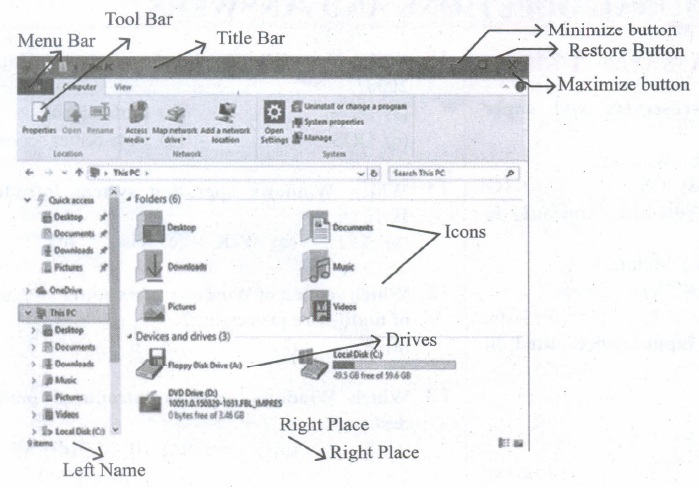
Observe the figure and mark all the window elements, Identify the version of the Windows Os.
24.
Draw and compare the icon equivalence in windows and Ubnutu.
25.
Answer the following:
(a) Which Class of software the OS belongs?
(b) What is the need of OS?
(c) Why OS is important?
(d) Name any three types of Operating systems.
(e) Name any three functions of OS.
26.
Explain the classification of Open source OS.
27.
List out the points to be noted while creating a user interface for an Operating system.
28.
Explain the concept of a Distributed Operating System along with its advantages.
29.
Define the following. (a) Bus (b) Data bus (c) Address bus (d) Control Bus
30.
Explain the classification of Microprocessor based on Instruction set?
31.
Explain the types of ROM.
32.
Explain the characteristics of a microprocessor.
33.
Perform the following binary computations:
(A) 1010 + 1510
(B) -1210 + 510
(C) 1410 -1210
(D) (-210) - (-610).
34.
What is number system? Describe different number systems in detail.
35.
Subtract 11010112 - 1110102
36.
Convert (98.46)10 to Binary
37.
Explain booting of computer and its types.
38.
Explain Non-Impact printers with an example.
39.
Explain the following:
a. Inkjet Printer
b. Multimedia projector
c. Bar code / QR code Reader
40.
Explain the basic components of a computer with a neat diagram.
41.
Explain Address book feature.
42.
Explain Mail Merge feature.
43.
Write the steps to preview before printing and steps in printing a document.
44.
How do you resize the position of a table?
45.
What are Header and Footer? How do you insert page numbers?
46.
1.
Step 1: Choose Mail Merge
Tools Mail Merge
Step 2: Select starting document.
This step has four option. Select any are option click next.
Step 3: Select document type
This step has two options. Select anyone option click next.
Step 4: Insert Address Block
This step has four sections. Work with the optins according to the user need. Click OK.
Step 5: Edit document
It helps user to add or modify the content of the letter. Click Next.
Step 6: Personalize document.
If helps to add specific comments to selected records. Click Next.
Step 7: Save, Print or Send.
The save as dialog box is used to save the created document by giving a suitable name and also merge, print and send merged document as E-mail. Click finish to view the mail merge on the screen.
2.
The necessary steps to correct the word "comupter" into "computer" automatically
(i) Goto Tools ⟶ Autocorrect option
(ii) Click the replace tab and type "computer" in Replace text box and "computer" in with textbox.
(iii) Then Click OK.
(iv) The word "Comupter" is replaced with "Computer" and displayed in the list.
(v) After entering this, when you type "comupter" in the document, it will be automatically changed to the correct spelling "computer".
3.
These equations can be inserted by following the steps below:
(i) Click on the Insert ⟶ Object ⟶ Formula
(ii) The equation editor opens at the bottom of the screen.
(iii) Click in the equation editor and type the equation.
(iv) To include symbols in the equation Right-click in the equation editor and select the symbol from the pop-up menu.
(v) Click inside the document to include the equation in the document and this will automatically exit the control from equation editor.
(vi) Double-click on a formula to edit the equation
4.
Using The Insert Table Dialog Box:
(i) To insert a table with more control over the settings and properties, use the Insert Table dialog box. To open the dialog box, click Table ⟶ Insert ⟶ Table or Ctrl + F12. The Insert table dialog box appears.
(ii) In the Name text box give a suitable name to the table.
(iii) Specify the number of columns and rows either using spin arrows or enter the value directly.
(iv) Click the Heading check box to make the first row of the table as heading, automatically the Repeat heading check box will be enabled to repeat the heading row when the table spans more than one page.
(v) Select the Border check box to display table with grid.
(vi) Click OK button to create a table.
5.
(i) Left-alignment - A paragraph's text is LEFT aligned when it is aligned evenly along the left margin and uneven along the right margin. This is the default alignment when a paragraph is typed.
(ii) Right-alignment - A paragraph's text is RIGHT aligned when it is aligned evenly along the right margin and uneven along the left margin.
(iii) Center-alignment- All the lines in the paragraph are aligned to the center of the page size.
(iv) Justified-alignment - All the lines in the paragraph, are arranged evenly both on the left and right margins. This is achieved in writer by automatically inserting additional space between the words.
6.
1. Save the document
2. Open an existing document.
3. Undo the last action.
4. Copy the text
5. Underlines text
6. Removes the applied formatting
7. Find and Replace
8. Center alignment
9. Select the entire document.
10. Redo and last action.
7.
8.
There are many applications of internet such as:
1. Communication: Computer users around the world extensively use the email service on internet to communicate with each other. Pictures, documents and other files are sent as email attachments. VolP stands for Voice over Internet Protocol, referring to the protocol that underlies all internet communication.
2. Job search:
Nowadays many people search for their jobs online as it is quicker and there is a larger variety of jobs vacancies present. People can publish resume online for prospective job. Popular examples are Naukri.com, Linkedln, etc
3. Video conferencing: It enables direct face to face communication across networks via web cameras, microphones and other communication tools. Video conferencing can enable individuals in distant locations to participate in meetings on short notice, with time and money saving. Video conferencing is very interactive in education to communicate between teacher to teacher, teacher to classroom and classroom to classroom with students at different places.
4. E-commerce: E-commerce or electronic commerce is the buying and selling of goods and services, or transmitting of funds or data, over an electronic network. These transactions occur either business-to-business, business to consumer, consumer to consumer or consumer to business. Flipkart, Snapdeal, Paytm, etc are example of e-commerce.
5 Travel: One can use internet to gather information about various tourist place. It can be used for booking Holiday tours. Some of the websites providing this service are goibibo.com, makemytrip.com, olacabs.com.
6. Nowadays internet is almost use in every fields. Due to increase in technology, use of internet has benefitted the users in many ways. Internet enables millions of computers from different organization and people to communicate and share resource globally.
9.
Wired Technology: Wired technology is more associated with wired communication. Wired technology refers to the transmission of data over a wired based communication technology.
Types of bounded media in the data transmission:
1. Twisted pair Cable:
(i) A twisted pair consists of two conductors (normally copper), each with its own plastic insulation, twisted together.
(ii) One of these wires is used to carry signals to the receiver, and the other is used only as ground reference. In addition to the signal sent by the sender on one of the wires, interference (noise) and crosstalk may affect both wires and create unwanted signals.
(iii) Twisted Pair is of two types:
(a) Unshielded Twisted Pair (UTP)
(b) Shielded Twisted Pair (STP)
2. Fibre Optical Cable:
(i) A fibre-optical cable is made of glass or plastic and transmits signals in the form of light.
(ii) In fibre optical cable, light moves only in one direction.
(iii) For two-way communication to take place a second communication must be made between the two devices.
(iv) Optical fibres use reflection to guide light through a channel. A glass or plastic core is surrounded by a cladding of less dense glass or plastic.
(v) The difference in density of the two materials must be such that a beam of light moving through the core is reflected off the cladding instead of being refracted into it.
3. Coaxial Cable:
(i) Coaxial is called by this name because it contains two conductors that are parallel to each other.
(ii) Copper is used in this as a central conductor. It is surrounded by PVCinstallation.
(iii) Outer metallic wrapping is used as a shield against noise and as a second conductor which completes the circuit.
(iv) The outer conductor is also encased inan insulating sheath.
(v) The outermost partis the plastic cover which protects the whole cable.
(vi) Anything and everything you see around yourself having wires and uses electricity to operate belongs to wired technology.
10.
Topology describes the physical cabling layout and the logical way of moving data between components. Network topology is the schematic description of a network arrangement, connecting various nodes (sender and receiver) through lines of connection. The following are different types of network topology:
1. BUS topology: Bus topology is a network type in which every computer and network device is connected to a single cable.
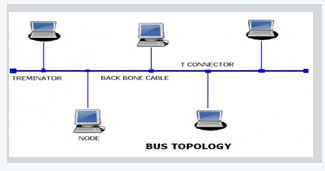
A single cable is used without additional electronics to amplify the signal or pass it along from computer to computer. Therefore, the bus is a passive topology.
Bus topology transmits data only in one direction.
2. STAR topology: In a star topology all the components are connected via a cable to a central location where they are all connected by a device called a hub. There is no direct connection among the computers. All the connections are made via the central hub.
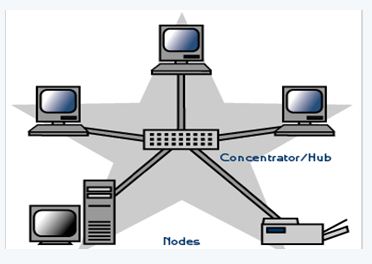
TREE topology: This type of topology is arranged in the form of a tree like structure in which top level contains parent node (root node), which is connected with the child nodes in the second level of hierarchy. The second level nodes are connected to the third level nodes, which in turn are connected to the fourth level nodes and so on. Except thetop-level nodes, each level node has a parent node.
Devices or nodes in a network get connected to each other via communication links and all these links are related to each other in one way or other. The geometric representation of such relationship of links and nodes is known as the topology of that network.
11.
1. Slide Master can save slide designs, including the foundation, shading, text styles, impacts, situating, and so on One advantage to utilizing Slide Master is that you can roll out widespread improvements to each current and future slide inside your show by just changing the Slide Master.
2. It can likewise insert pictures and different designs you don't need contacted into slides related with a Slide Master.
3. This keeps them behind the scenes and far removed when you are altering slide content.
4. Each form of PowerPoint is marginally extraordinary, yet admittance to the Slide Master can for the most part be found similarly.
5. In this specific form (PowerPoint 2011), Slide Master can be gotten to by exploring to View > Master > Slide Master. Once in Slide Master, you can make and alter slide designs similarly as you would alter some other PowerPoint slide.
6. Keep in mind, this goes about as a format, so you just need to place content into the slide that will be general for each slide.
7. You can make however many Slide Masters as you might want, with every one going about as its own template.
8. Now, you can apply these experts to your genuine show. Go to your Home tab and snap Layout to see a menu of the entirety of the designs related with the Slide Masters you have made.
9. Snap the one you need to apply to the slide - and the rest is simple.
10. Any time you need to change your slide design, simply return to Home > Layout to see the menu of every one of your lords and select another one.
11. Not with standing, as in many viewpoints throughout everyday life, while certain highlights can be gainful, they can likewise be unfavorable relying upon the circumstance. The Master Slides work in PowerPoint is an extraordinary illustration of this.
12.
1. Plans objects go about as compartments for various articles or as depictions of data. Compartments - Figures show all plans objects.
2. Graphics routinely unite text, blueprint, and concealing. Visual computerization may include the intentional decision, creation, or course of action of typography alone, as in a handout, flyer, standard, site, or book with no other segment.
3. Clarity or reasonable correspondence may be the unprejudiced, relationship with other social segments may be searched for, or basically, the creation of an unquestionable style.
4. Outlines can be helpful or imaginative. The last can be a recorded variation, similar to a photograph, or comprehension by a specialist to include crucial features, or a skilled worker, where case the capability with whimsical delineations may get clouded.
5. It can similarly be used for designing.
6. At the point when an application makes a DC, the framework consequently stores a bunch of default objects in it (there is no default bitmap or way).
7. An application can analyze the characteristics of the default objects by calling the GetCurrentObject and GetObject capacities.
8. The application can change these defaults by making another item and choosing it into the DC.
9. An article is chosen into a DC by calling the SelectObject function.
10. An application can set the current brush tone to a predetermined shading esteem with SetDCBrushColor.
11. The GetDCBrushColor work returns the DC brush tone. The SetDCPenColor work sets the pen tone to a predefined shading esteem. The GetDCPenColor work returns the DC pen tone.
13.
Open the presentation and then follow the below given steps:
1. On the 'Home' Tab → Editing → Choose → Replace option. Top left of the screen, then click Find → Replace option.
2. New window pops-out. Find what box.
3. In the find what box, you can enter the word 'Miss-pelt school name'.
4. Then in the replace with box enter the correct 'school name word' and then click 'Replace All' option.
5. Now, the correct school Name will be changed in all slides.
6. After following the above steps correctly, one can rectify the mistake.
14.
a. Select Format → Page from the Menu bar on the page setup, dialog box, choose background tab.
b. Select the type of fill you want for your background from the fine choices, None, color, gradient, hatching or bitmap. A list of choices for the selected fill type will appear → select it. Select one of the items on the list and click OK. The fill you have chosen is added to slide master then go normal view.
c. Select the first slide then right click → select slide design then select the design in slide master, then right click, a popup menu will appear, it displays 'back ground settings for all' you can choose 'No' option. The only first slide would not appear the background design.
Follow above steps to make first slide different from other slides.
15.
Header is the top margin of the page and Footer is the bottom margin of the page.
Application of Header and Footer:
(i) Header and Footer are some titles (such as Document Title, Author Name) or references (such as page no, number of pages, date) or remarks to be printed in the top (called as Header) and bottom of the page (called as Footer).
(ii) If we wish to get some information on every page, either on top or bottom of the page, we need to use header or footer as per the requirement.
16.
Data base here will be a table with column name as register number, student name, Mark1, Mark2, and Mark3.
Below is the database as per the requirement given in the question:
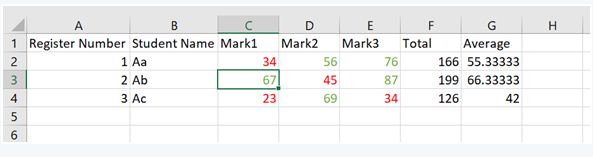
For total, Formula used is =Sum (C2:E2) and then drag the cursor for below rows.
For average, Formula used is =F2/3 and then drag the cursor for below rows.
17.
Creating and formatting charts :
(i) Select the cells that contain the data that you want to present in your chart.
(ii) Click the Insert → Chart option or click Insert Chart icon  on the Standard toolbar.
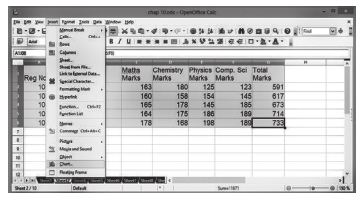
(iii) The Chart Wizard has three main part:
1. List of steps involved in setting up the chart, List of chart types, and The options for each chart type.
2. At any time you can go back to a previous step and change selections.
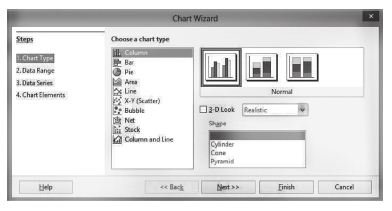
(iv) Choose a Chart type and its option type. Then click Next button.
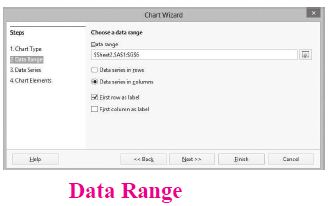
(v) In step 2, Data Range, manually correct any mistakes made in selecting the data. Click one of the options for data series in rows or in columns. Check whether the data range has labels in the first row or in the first column or both. Then click the finish button, or click Next to change some more details of the chart.
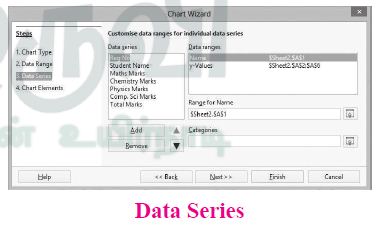
(vi) In the Data Series list box contains a list of all data series in the current chart.
1. To organize the data series, select an entry in the list
2. Click Add to add another data series below the selected entry. The new data series has the same type as the selected entry.
3. Click Remove to remove the selected entry from the Data Series list.
4. Use the Up and Down arrow buttons to move the selected entry in the list up or down. This does not change the order in the data source table, but changes only the arrangement in the chart.
5. Then click Next button.
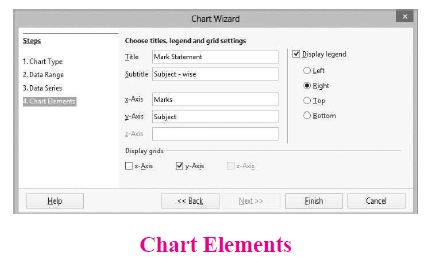
(vii) On the Chart Elements page, chart a title and, if desired, a subtitle. Use a title that draws the viewer's attention to the purpose of the chart: Then click Finish to create chart.
18.
(i) Formatting Data in a cell gives additional effect to the text. Additional effect includes changing the font style, font size, automatic wrapping, bold, underline, italic etc. The data in Calc can be formatted in several ways. Using formatting icons can be used.
(ii) Text formatting : Making the cell contents as bold, italics, underlined, changing font style, size, colour etc., comes under text formatting.
(iii) Number formatting : Number formatting options are used to visually change the format of a numeric content. These formatting changes are appear for visual as, it does not change the original value. For example, To display a number as currency form use Number format: Currency.
19.
| SI.NO | QUESTION | FORMULA | ANSWER |
| 1 | Total sales in the year 2015. |
= SUM(B5:E5) | 4285 |
| 2 | Total sales in Coimbatore from 2012 to 2016. |
= SUM(E2:E6) | 1600 |
| 3 | Total sales in Madurai and Tiruchi during 2015 and 2016. |
= SUM(C5:D6) | 4395 |
| 4 | Average sales in Chennai from 2012 to 2016. |
= AVERAGE(B2:B6) | 1760 |
| 5 | In 2016, how many "Air Coolers" are sold in Chennai compared to Coimbatore? |
= B6 - E6 | 1700 |
20.
The steps to generate the series 5,10,20.......2560.
Step 1 : Select Edit → fill → Series Command. The fill series dialog log opens. In the dialog box.
Step 2 : Select Direction (Down / Right / Up / Left) in which the series to be displayed.
Step 3 : Select Growth to generate the series
Step 4 : Initial value of the series 5 should be typed in start value box.
Step 5 : End value of the series 2560 should be typed in End value text box.
Step 6 : Growth value of the series 2 should be typed in Increment text box.
Step 7 : Click OK to generate the series.
21.
Log Off:
To log off from our computer:
(i) Click on the start button.
(ii) Select log off.
(iii) If any open programs asked to be closed then Windows force them to shut down. Any unsaved information will be last.
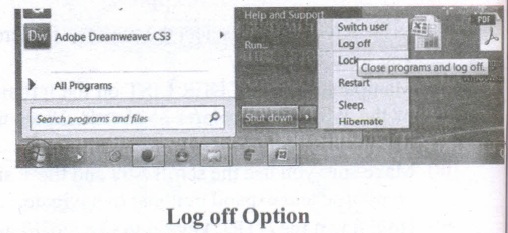
Shut Down:
To shut down our computer:
(i) Click on the start button.
(ii) Select shut down.
(iii) Then see the shut down windows dialog box opens.
(iv) If any open programs asked to be closed then Windows, force them to shut down. Any unsaved information will be lost.
22.
(i) Click the Start button, search text box appears above the start button in Windows 7 and type the name of the file or the folder you want to search.
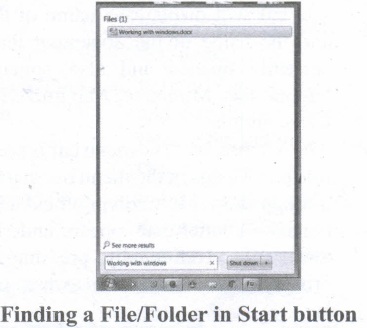
(ii) The file or the folder will appear at the top of that dialog box.
(iii) If you click that file, it will directly open that file or the folder.
(iv) Also, there is another option called "See more results" which appears above the search text box.
(v) If you click it, it will lead you to a search results dialog box where you can click and open that file or the folder.
(vi) In other ways, click Computer from desktop or from Start menu.
(vii) The Computer disk drive screen will appear and at the top right comer of that screen, there is a search text box option.
(viii) Type the name of the file or folder you want to find and it will display that particular file or the folder.
(ix) Just click and open that file or the folder.
23.
24.
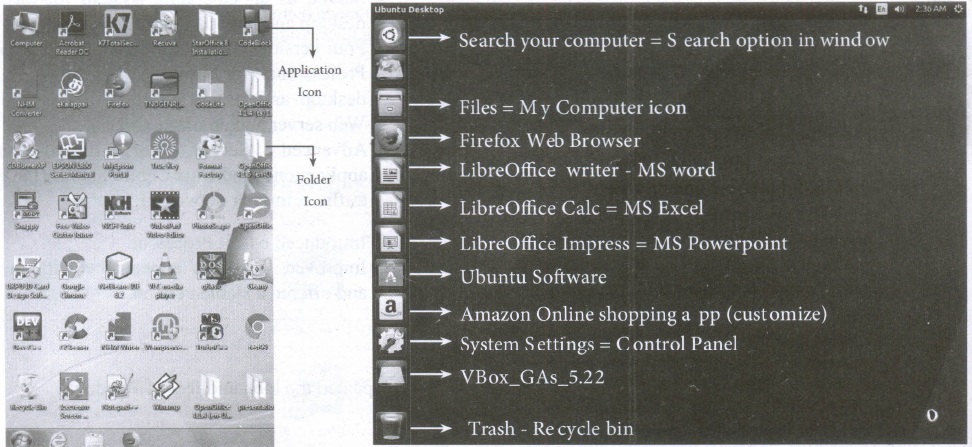
| S.No | Windows | Ubuntu |
| 1. | Recycle Bin | Trash |
| 2. | My computer | Files |
| 3. | Ms word | Libreoffice writer |
25.
(a) System Software
(b) Provide a platform to run application programs and activate the basic level hardware.
(c) Act as an interface between user, software and hardware.
(d) 1. Real Time OS
2. BOSS
3. Interactive OS
(e) 1. Process Management
2. Storage Management
3. Device Management.
26.
(i) Android is a mobile operating system developed by Google, based on the Linux and designed primarily for touchscreen mobile devices such as smartphones and tablets.
(ii) Google has further developed Android TV for televisions, Android Auto for cars and Android Wear for wrist watches, each with a specialized user interface.
(iii) Variants of Android are also used on game consoles, digital cameras, PCs and other electronic gadgets.
UNIX:
UNIX is a family of multitasking, multi-user operating systems that derive originally from AT&T Bell Labs, where the development began in the 1970s by Ken Thompson and Dennis Ritchie.
Linux:
(i) Linux is a family of open-source operating systems. It can be modified and distributed by anyone around the world.
(ii) This is different from proprietary software like Windows, which can only be modified by the company that owns it.
(iii) The main advantage of Linux operating system is that it is open source. There are many versions and their updates
(iv) Most of the servers run on Linux because it is easy to customize.
27.
(i) The user interface determines how command are given to the computer and how data is displayed on the screen.
(ii) User interface allows user to interact with computer effectively.
(iii) User interface is the first impression of a software where the user interacts with computer.
(iv) The user interface is mostly of two types:
1. Command line interface
2. Graphical user interface
(v) Command line interface: It indicates user must know machine language and program language.
(vi) Graphical user interface: In this user gives command by clicking or selecting the icons displayed on the screen.
The following points should be noted while creating a user interface for an Operating system:
(i) The user interface should satisfy the customers based on their needs.
(ii) The user interface should reduce number of errors committed by the user.
(iii) The user interface should save user time.
(iv) The user interface should make simple, common task easy.
(v) The user interface should be flexible and tolerant.
28.
The Distributed Operating System is used to access shared data and files that reside in any machine around the world. The user can handle the data from different locations. The users can access as if it is available on their own computer.
The advantages of distributed Operating System are as follows:
(i) A user at one location can make use of all the resources available at another location over the network.
(ii) Many computer resources can be added easily in the network
(iii) Improves the interaction with the customers and clients.
(iv) Reduces the load on the host computer.
29.
(a) Bus: A bus is a collection of wires used for communication between the internal components of a computer.
(b) Data bus:
(i) Data busis a collection of wires to carry data in bits.
(ii) A data bus is used to transfer data between the memory and the CPU.
(iii) The data bus is bidirectional.
(c) Address bus:
(i) Address bus is a collection of wires to carry data in bits.
(ii) The address bus is used to point a memory location.
(iii) The address bus is unidirectional.
(d) Control bus:
(i) Control bus is a control line/collection of wires to control the operation/functions.
(ii) The control bus controls both read and write operations.
30.
(i) The size of the instruction set is another important consideration while categorizing microprocessors.
(ii) Initially, microprocessors had very small instruction sets because complex hardware was expensive as well as difficult to build.
(iii) As technology had developed to overcome these issues, more and more complex instructions were added to increase the functionality of the microprocessor,
(iv) Let us learn more about the two types of microprocessors which are based on their instruction sets.
(v) RISC stands for Reduced Instruction Set Computers. They have a small set of highly optimized instructions.
(vi) Complex instructions are also implemented using simpler instructions, thus reducing the size of the instruction set.
(vii) Examples of RISC processors are Intel P6, Pentium IV, AMD K6 and K7.
(viii) CISC stands for Complex Instruction Set Computers. They support hundreds of instructions. Computers supporting CISC can accomplish a wide variety of tasks, making them ideal for personal computers.
(ix) Examples of CISC processors are Intel 386 & 486, Pentium, Pentium II and III, and Motorola 68000.
31.
Read-only memory (ROM):
(i) Read only memory refers to special memory in a computer with pre-recorded data at manufacturing time which cannot be modified. The stored programs that start the computer and perform diagnostics are available in ROMs. ROM stores critical programs such as the program that boots the computer. Once the data has been written onto a ROM chip, it cannot be modified or removed and can only be read. ROM retains its contents even when the computer is. turned off. So, ROM is called as a non-volatile memory.
(ii) Once the data has been written onto a ROM chip, it cannot be modified or removed and can only be read. ROM retains its contents even when the computer is turned off. So, ROM is called as a non-volatile memory.
Programmable Read-Only Memory (PROM) :
(i) Programmable read-only memory is also a nonvolatile memory on which data can be written only once. Once a program has been written onto a PROM, it remains there forever.
(ii) Unlike the main memory, PROMs retain their contents even when the computer is turned off.
(iii) The PROM differs from ROM. PROM is manufactured as a blank memory, whereas a ROM is programmed during the manufacturing process itself. PROM programmer or a PROM burner is used to write data to a PROM chip. The process of programming a PROM is called burning the PROM.
Erasable Programmable Read-Only Memory (EPROM):
(i) Erasable Programmable Read-Only Memory is a special type of memory which serves as a PROM, but the content can be erased using ultraviolet rays.
(ii) EPROM retains its contents until it is exposed to ultraviolet light. The ultraviolet light clears its contents, making it possible to reprogram the memory.
(iii) An EPROM differs from a PROM. PROM can be written only once and cannot be erased.
(vi) EPROMs are used widely in personal computers because they enable the manufacturer to change the contents of the PROM to replace with updated versions or erase the contents before the computer is delivered. Electrically
Electrically Erasable Programmable Read-Only Memory (EEPROM):
(i) Electrically Erasable Programmable Read-Only Memory is a special type of PROM that can be erased by exposing it to an electrical charge.
(ii) Like other types of PROM, EEPROM retains its contents even when the power is turned off. Comparing with all other types of ROM,. EEPROM is slower in performance.
32.
A Microprocessor's performance depends on the following characteristics:
(a) Clock speed
(b) Instruction set
(c) Word size
(a) Clock Speed
(i) Every microprocessor has an internal clock that regulates the speed at which it executes instructions.
(ii) The speed at which the microprocessor executes instructions is called clock speed. Clock speed is measured in MHz (Mega Hertz) or in GHz (Giga Hertz).
(b) Instruction set
(i) A command which is given to a computer to perform an operation on data is called an instruction.
(ii) Basic set of machine level instructions that a microprocessor is designed to execute is called as an instruction set. This instruction set carries out the following types of operations:
1. Data transfer
2. Arithmetic operations
3. Logical operations
4. Control flow
5. Input/output
(c) Word Size
(i) The number of bits that can be processed by a processor in a single instruction is called its word size.
(ii) Word size determines the amount of RAM that can be accessed by a microprocessor at one time and the total number of pins on the microprocessor.
(iii) Total number of input and output pins in turn determines the architecture of the microprocessor.
33.
(A) 1010 + 1510
Binary equivalent of 10 and 15
1010 =00001010
1510 =00001111
2510=___________
00011001
____________
(B) -1210 + 510
Binary addition of -12 and 5
1210 =00001100
l's complement =11110011
Add 1 to LSB = +1
2's complement =\(\_ \_ \_ \_ \_ \_ \_ \_ \\ 11110100\\ \_ \_ \_ \_ \_ \_ \_ \_ \_ \)
(C)-1410+1210=1410+(-12)10
1210 =00001100
l's complement =11110011
2's complement =11110100
Binary addition of 14 -1210
-1410=00001110
-1210=11110100
210=__________
00000010
__________
(D) -(210)-(-610)=-210+610
Binary addition of -12 and 5
210 =00000010
l's complement =11111101
Add 1 to LSB = +1
2's complement =\(\_ \_ \_ \_ \_ \_ \_ \_ \_ \\ 11111110\\ \_ \_ \_ \_ \_ \_ \_ \_ \_ \_ \)
-210 =11111110
610 =00000110
410=__________
00000100
___________
34.
A number system is a set of digits used to represent the values derived from a common base or radix.
Decimal Number System:
(i) The term Decimal is derived from a Latin prefix deci, which means ten.
(ii) The Decimal number system has ten digits ranging from 0-9. Because this system has ten digits.
(iii) It is also called as a base ten number system or denary number system.
(iv) Decimal number should always be written with a subscript 10.
Binary number System:
(i) The decimal number system is not convenient to implement in digital system.
(ii) For instance, it is very difficult to design electronic equipment so that it can work with 10 different voltage levels (each one representing one decimal character, 0 through 9).
(iii) On other hand, it is very easy to design simple, accurate electronic circuits that operate with only 2 voltage levels.
(iv) For this reason, almost every digital system utilizes the binary number system (base 2) as the basic number system of its operation;
(v) In a binary system, there are only two symbols or possible digit values, 0 and 1.
Octal Number System:
(i) The octal number system is playing a vital role in digital computer work.
(ii) The octal number system has a base of 8.
(iii) It means that it has eight unique symbols such as 0,1,2,3,4,5,6 and 7.
(iv) Thus, each digit of an octal number can have any value from 0 to 7.
(v) The places to the left of the octal point are positive powers of 8 and places to the right are negative powers of 8.
Hexadecimal Number System:
(i) The hexadecimal system uses base 16 in digital systems.
(ii) It has 16 possible symbols.
(iii) It uses the digits 0 through 9 plus the letters A, B, C, D, E and F as the 16 different symbols.
(iv) Hexadecimal System is a positional value system, wherein each hexadecimal digit has its own value or weight expressed as a power of 16.
35.
11010112 - 1110102
1101011
+111010
_______
110001
_______
= 1100012
36.
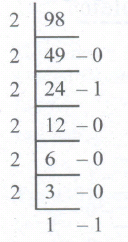
98.4610
1. Integer part
2. Fractional part
0.46 x 2 = 0.92 = 0
0.92 x 2 = 1.84 = 1
0.84 x 2 = 1.68 = 1
0.68 x 2 = 1.36 = 1
0.36 x 2 = 0.72 = 0
0.72 x 2 = 1.44 = 1
98.4610 = (1100010.011101...)2
37.
Booting of computer:
(i) An Operating system (OS) is a basic software that makes the computer to work. When a computer is switched on, there is no information in its RAM.
(ii) At the same time, in ROM, the pre-written program called POST (Power on Self Test) will be executed first. This program checks if the devices like RAM, keyboard, etc., are connected properly and ready to operate. If these devices are ready, then the BIOS (Basic Input Output System) gets executed. This process is called Booting.
(iii) Thereafter, a program called "Bootstrap Loader" transfers OS from hard disk into main memory. Now the OS gets loaded (Windows/Linux, etc.,) and will get executed. Booting process is of two types.
1) Cold Booting
2) Warm Booting
(iv) Cold Booting:
When the system starts from initial state i.e. it is switched on, we call it cold booting or Hard Booting. When the user presses the Power button, the instructions are read from the ROM to initiate the booting process.
(v) Warm Booting:
When the system restarts or when Reset button is pressed, we call it Warm Booting or Soft Booting. The system does not start from initial state arid so all diagnostic tests need not be carried out in this case. There are chances of data loss and system damage as the data might not have been stored properly.
38.
Non-Impact Printers:
(i) These printers do not use striking mechanism for printing. They use electrostatic or laser technology.
(ii) Quality and speed of these printers are better than Impact printers. For example, Laser printers and Inkjet printers are non-impact printers.
Laser Printers:
(i) Laser printers mostly work with similar technology used by photocopiers.
(ii) It makes a laser beam scan back and forth across a drum inside the printer, building up a pattern. It can produce very good quality of graphic images.
(iii) One of the chief characteristics of laser printer is their resolution - how many Dots per inch(DPI). The available resolution range around 1200 dpi. Approximately it can print 100 pages per minute(PPM).
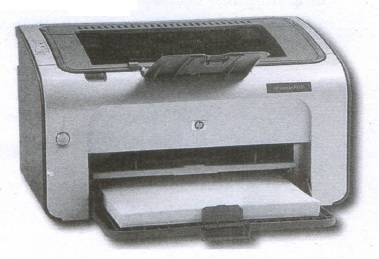
Inkjet Printers:
(i) Inkjet Printers use colour cartridges which combined Magenta, Yellow and Cyan inks to create color tones.
(ii) A black cartridge is also used for monochrome output. Inkjet printers work by spraying ionised ink at a sheet of paper.
(iii) The speed of Inkjet printers generally ranges from 1-20 PPM (Page Per Minute).
(iv) They use the technology offering ink by heating it so that it explodes towards the paper in bubbles or by using piezoelectricity in which tiny electric currents controlled by electronic circuits are used inside the printer to spread ink in jet speed.
(v) An Inkjet printer can spread millions of dots of ink at the paper every single second.
39.
(a) Inkjet Printers:
(i) Inkjet Printers use colour cartridges which combined Magenta, Yellow and Cyan inks to create color tones. A black cartridge is also used for monochrome output. Inkjet printers work by spraying ionised ink at a sheet of paper.
(ii) They use the technology of firing ink by heating it so that it explodes towards the paper in bubbles or by using piezoelectricity in which tiny electric currents controlled by electronic circuits are used inside the printer to spread ink in jet speed.
(iii) An Inkjet printer can spread millions of dots of ink at the paper every single second.
(b) Multimedia Projectors:
(i) Multimedia projectors are used to produce computer output on a big screen.
(ii) These are used to display presentations in meeting halls or in classrooms.
(c) Bar Code / QR Code Reader:
(i) A Barcode is a pattern printed in lines of different thickness. The Barcode reader scans the information on the barcodes transmits to the Computer for further processing.
(ii) The system gives fast and error free entry of information into the computer.
QR (Quick Response) Code:
The QR code is the two dimension bar code which can be read by a camera and processed to interpret the image.
40.
Components of a Computer:
The computer is the combination of hardware and software. Hardware is the physical component of a computer like motherboard, memory devices, monitor, keyboard etc., while software is the set of programs or instructions. Both hardware and software together make the computer system to function. Every task given to a computer follows an Inputprocess - output cycle (IPO cycle).
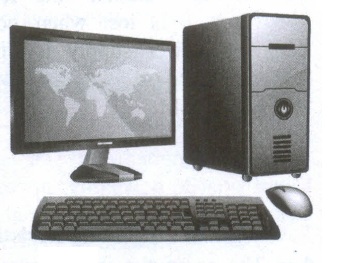
(i) Input unit: Input unit is used to feed any form of data to the computer, which can be stored in the memory unit for further processing.
Example: keyboard, mouse etc.
(ii) Central Processing Unit: CPU is the major component which interprets and executes software instructions. It also control the operation of all other components such as memory, input and output units.
(iii) Arithmetic and Logic Unit: The ALU is a part of the CPU where various computing functions are performed on data. The ALU performs arithmetic operations such as addition, subtraction, multiplication, division and logical operations.
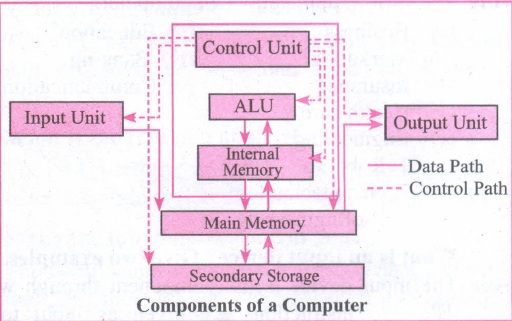
(iv) Control Unit: The control unit controls the flow of data between the CPU memory and I/o devices. It also controls the entire operation of a computer.
(v) Output Unit: An output unit is any hardware component that convey information to users in an understandable form. Example : Monitor, Printer etc.
(vi) Memory Unit: The Memory Unit is of two types which are primary memory and secondary memory. The primary memory is used to temporarily store the programs and data when the instructions are ready to execute. The secondary memory is used to store the data permanently. The Primary Memory is volatile, that is, the content is lost when the power supply is switched off. The Random Access Memory (RAM) is an example of a main memory. The Secondary memory is non volatile, that is, the content is available even after the power supply is switched off. Hard disk, CD-ROM and DVD ROM are examples of secondary memory.
41.
(i) An a address book is a database that stores names, address and other contact information for a computer user.
(ii) Address books allow easy access to the user's friend, family business associates and others by maintaining their email and other contact details on their computer.
(iii) Address books can be software based, or accessed online or through a network.
(iv) User may also be able to export contacts from their address books to mobile phone, PDAs and other portable electronic devices.
42.
(i) Mail merge is a process to create personalized letters and pre-addressed enveloped or mailing labels forms mailings form a form letter
(ii) The feature is usually employed in a word processing document which contains fixed text and variables (which act as place holders that are replaced by text from the data source.)
(iii) It is used to create multiple documents at once. These documents have identical layout, formatting, text and graphics.
(iv) The documents can create will mail merge include bulk labels, letters, envelops and emails and more using information stored in a list, database or spreadsheet
43.
to preview the document before taking the print out.
The steps to be followed to preview the document:
(i) Click File ⟶ Page Preview, or click the Page Preview button. The Writer displays the Page Preview toolbar displayed.
(ii) In the page preview toolbar click Multiple pages icon to display multiple pages.
(iii) To close the preview click on Close Preview button.
The following are some steps to change the printer setting:
(i) Click File ⟶ Print or Ctrl+P or' Print File icon which opens the Print dialog box that appears
(ii) Click General tab.
(iii) Select the required printer from the list of printers
(iv) Under Range and copies section: select All pages option to print all pages, select Pages option to specify the particular page or page range.
(v) Specify Number of copies using spin arrows.
(vi) Click Print button.
44.
Resize the position of Table:
A newly created table will occupy the entire width of the page area by default. The table can be resized as per our requirement:
(i) To resize a table quickly, move the mouse over the table edge until the cursor becomes a double headed arrow, and drag the border to its new desired position.
(ii) To resize a row height/column width using Mouse:
(iii) To resize row height
(iv) Move the insertion point over the horizontal border for the row height now the insertion point will change into double headed arrow, click and drag to resize the row height.
45.
The header is a section of the document that appears in the top margin, while the footer is a section of the document that appears in the bottom margin of the page. Typically, headers display the title or chapter name, author name of a document while the footer displays the page number, date, time etc which gets displayed on all the pages automatically.
To Insert Headers and Footers:
(i) Select from the main menu Insert -> Header -> Default
(ii) The header text area is separated from the normal text are (a)
(iii) Enter the text that is to be repeated in all pages or Select Insert -> Fields -> Title.
(iv) The Header dialog box is displayed
To insert a Footer, the steps are as given below:
(i) Select from the main menu Insert -> Footer -> Default
(ii) Piace the cursor in the Footer part of the page.
(iii) Select Insert -> Fields -> Page Number.
Once the headers and footers are given in the first page, the same text appears in all the pages.
Inserting and Formatting Page Numbers:
Once the Header/footer area is enabled, the page numbers can be inserted by performing the following steps:
(i) position the cursor where you want to insert the number
(ii) choose Insert -> Fields -> Page Number
(iii) The page number appears with a gray background
Normally, the page numbers appear as 1,2,3 ..... , To change the numbering style, the following sequence of steps can be performed:
(i) Position the cursor where the page number has to appear
(ii) Select Format -> page, which will bring the page style dialog box
(iii) Select page Tab
(iv) In the Layout settings, select the format drop down combo box
(v) Select the desired style and click OK button
46.

11th Standard Syllabus & Materials
11th Standard
TN 11th Tamil பீடு பெற நில் - செய்யுள் - காவடிச்சிந்து Important Questions And Answers Study Material - QB365 Set A
NEW11th Standard
TN 11th Tamil பீடு பெற நில் - உரைநடை - மலை இடப்பெயர்கள் : ஓர் ஆய்வு Important Questions And Answers Study Material - QB365 Set A
NEW11th Standard
TN 11th Tamil மாமழை போற்றுதும் - துணைப்பாடம் - யானை டாக்டர் Important Questions And Answers Study Material - QB365 Set A
NEW11th Standard
TN 11th Tamil மாமழை போற்றுதும் - செய்யுள் - ஐங்குறுநூறு Important Questions And Answers Study Material - QB365 Set A



Tamilnadu Stateboard 11th Standard Subjects

Maths

Commerce

Economics

Biology

Business Maths and Statistics

Accountancy

Computer Science

Physics

Chemistry
Maths
Biology
Economics
Physics
Chemistry

History
Business Maths and Statistics

Computer Science
Accountancy
Computer Applications
History
Computer Technology
Commerce
Computer Applications
Computer Technology

Tamil

English

French
Tamilnadu Stateboard Standards
