
 100% FREE ACCESS
11th Standard Syllabus & Materials
11th Standard
TN 11th Tamil இயற்கை வேளாண்மை,சுற்றுச்சூழல் -செய்யுள் - மனோன்மணீயம் Important Questions And Answers Study Material - QB365 Set A
NEW11th Standard
TN 11th Tamil என்னுயிர் என்பேன் -துணைப்பாடம் - இசைத்தமிழர் இருவர் Important Questions And Answers Study Material - QB365 Set A
NEW11th Standard
TN 11th Tamil மொழி கலை -செய்யுள் - ஒவ்வொரு புல்லையும் Important Questions And Answers Study Material - QB365 Set A
NEW11th Standard
TN 11th Tamil பீடு பெற நில் - இலக்கணம் - பகுபத உறுப்புகள் Important Questions And Answers Study Material - QB365 Set A
NEW11th Standard
TN 11th Tamil பீடு பெற நில் - துணைப்பாடம் - வாடிவாசல் Important Questions And Answers Study Material - QB365 Set A
NEW11th Standard
TN 11th Tamil பீடு பெற நில் - செய்யுள் - குறுந்தொகை Important Questions And Answers Study Material - QB365 Set A

Published on: 11/06/2021
QB365 provides detailed and simple solution for every book back questions in class 11 Computer Applications subject.It will helps to get more idea about question pattern in every book back questions with solution.
Download Tamil Nadu 11th Standard Computer Applications question papers, model tests, one-mark questions, important questions, and public exam papers in PDF format. Free study materials and answer keys for TN State Board students.
Questions + Answers key
Take MCQ Computer Applications Test
1.
Write the steps to Find and Replace a word with another word in OpenOffice Writer?
2.
Explain about the Arithmetic operator with suitable example.
3.
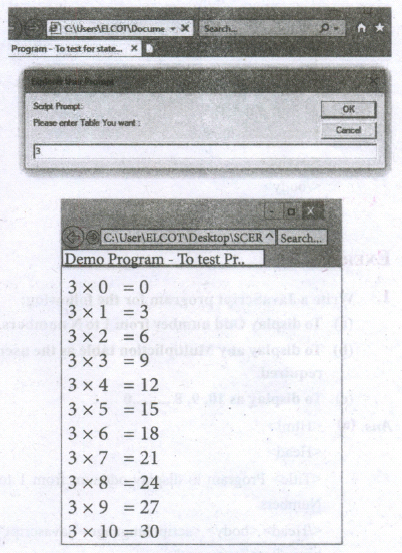
Write the output for the following program.
< Html >
< Head >
< Title > for statement< /title >
< Head >
< Body >
< script language= "java Script" type = "text / JavaScript")
var nol= prompt ("please enter table you want:", "0" );
document write ("< h2 > multiplication for your need < /h2 > ")
for (Var no2= 0; no2< =10; no2++)
{
document write (no1+ "x" + no2+ "=" + no1+no2+ "< br > );
}
< /script >
< /body >
< /Html >
4.
What is piracy? Mention the types of piracy? How can it be prevented?
5.
Explain switch case statement with example
6.
List and explain the Font and text element properties and values used in CSS.
7.
Write an HTML document to display the following paragraph as per the given description Using CSS:
1. Font Name: Cooper Black
2. Style: Bold Italics
3. Color: Blue
“The State Institute of Education (SIE) was established in 1965 to provide for systematic study of problems relating to School Education under the administration of Directorate of School Education.”
8.
Explain the types of list with suitable HTML code.
9.
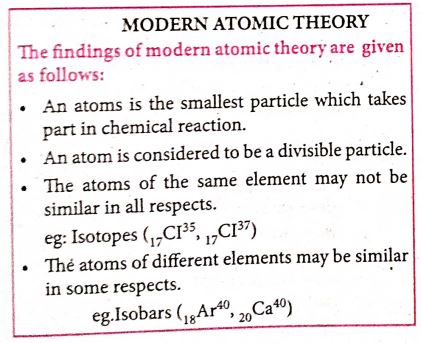
Write an HTML code the show the following text:
10.
Classify and explain any five e-commerce parties with suitable examples.
11.
Explain any five internet applications with suitable examples.
12.
Compare the different geographical types of Network
13.
Write the procedure to create, rename, delete and save a file in Ubuntu OS. Compare it with Windows OS.
14.
Complete the following matrix.
| Navigational method | Located on | Ideally suited for |
|---|---|---|
| Start button | Task bar | |
| Desktop | Exploring your disk drives and using system tools. | |
| Windows Explorer | Seeing hierarchy of all computer contents and resources in one window. | |
| Quick Launch |
15.
Draw and compare the icon equivalence in windows and Ubuntu.
16.
Explain the main purpose of an operating system
17.
Explain the types of ROM.
18.
How the read and write operations are performed by a processor? Explain.
19.
Discuss the various generations of computers.
20.
List some advantages of using template.
21.
Sivabalan created a presentation to be shown at his school's Annual Function. Just 5 minutes before the presentation, he noticed that he has misspelt the name of the school, which is appearing in all the 30 slides of the presentation. How can he rectify this mistake in all the slides in one-shot?
22.
Explain how a presentation can help a sales person to promote his/her products.
23.
Valarmathi's teacher asks her to create a presentation in Open Office Impress. As Valarmathi has never worked in Impress before, help her to perform the following tasks:
a. She wants that except for the first slide, all the slides should have the same design. For this, what does she need to do?
b. To easily communicate with her audience, she wants to provide them with a hard copy of the slides of the presentation. What should she create for it?
c. She wants to insert some pictures and movie files in some slides. How can she do that?
d. Suggest her the view that would be the most suitable for showing the presentation to the audience.
e. To make her presentation more attractive, she wants to add some effects in it. How can she do it? Suggest.
24.
25.
What is Header and Footer? How do you insert page numbers in footer area?
1.
OpenOffice Writer has a Find and Replace feature that helps to locate for a text inside a document and replace it with another word.
Click Edit Find & Replace (or) Ctrl + F
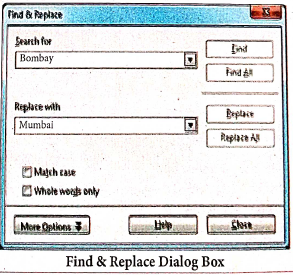
The Find & Replace dialog box appears as shown.
Steps to Find & Replace a text :
(i) Type the text you want to find in the Search forbox For Example : To search a word "Bombay" in a document and replace with "Mumbai", enter the word "Bombay" in the Search for box.
(ii) Enter the word " Mumbai" in the Replace with box and Click Find button, to start the search, the found word is highlighted and the first occurrence of "Bombay" is highlighted.
(iii) To replace text, click Replace button.
The highlighted word is replaced with the word given in the Replace with box.
(iv) Click Find All Writer selects all instances of the search text in the document.
All occurrences of Bombay are highlighted.
(v) Click Replace All button, Writer replaces all matches.
This will replace all occurrences of "Bombay" with "Mumbai".
(vi) Enable Match caseto perform the search case sensitively so that uppercase and lower cases are distinguished separately.
(vii) Enable Whole Words only to make the search more specific to words. For example, if you search for the word "Image", the command will only find Image" not "Imaging" "Images" etc.
2.
Javascript supports all the basic arithmetic operators like addition (+),subtraction (-) multiplication (*), division (/), and modulus (%, also known as the remainder operator)
Arithmetic operators :
| Arithmetic Operator | Meaning | Example | Result |
|---|---|---|---|
| + | Addition | var sum = 20 + 120 | Variable sum = 140 |
| - | Subtraction | var diff = 120 - 20 | Variable diff = 100 |
| * | Multiplication | var prod = 10*100 | Variable prod = 1000 |
| / | Division | var res = 100 / 522 | Variable res = 5.22 |
| % | Modulus operator | var rem = 100 % 522 | Variable rem = 22 (remainder) |
3.
Output :
4.
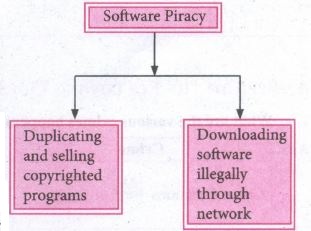
(i) Software Piracy is "unauthorized copying of software' The following show as a diayrammatical representation of software piracy.
(ii) Most of the commercial software is licensed for use at a single computer site or for use by only one user at any time, When a user buys any software, he becomes a licensed user for that software, He is allowed to make copies of the program for backup purposes but it is against the law to distribute duplicate copies to others such illegal copying and distribution of commercial software should not be practiced
(iii) An entirely different approach to software piracy is caled shareware, acknowledges the futility of trying to stop people from copying software and instead relies on people's honesty.
(iv) Shareware publishers encourage users to give copies of programs to friends and colleagues but ask everyone who uses that program regularly to pay a registration fee to the program's author directly. Commercial programs that are made available to the public illegally are often called warez.
5.
JavaScript offers the switch statement as an alternate to using if..else structure. The switch statement is especially useful when testing all the possible results of an expression. The syntax of a switch structure is as follow:
switch(expression)
{
case label 1:
statement 1;
break;
case label2:
statement2;
break;
case labeln;
statement - n;
break;
default:
statements;
}
Example :
<Html>
<Head>
<Title>Program - To test witch command in JavaScript </title>
</Head>
<Body>
<script language = "javascript" type ="text/javasccript">
var grade = 0;
var marks = prompt ("Please enter your marks/100:","0");
if(marks>90)
{grade=1;}
else if(marks>70)&&(marks<=90)
{grade=2;}
else if(marks>50)&&(marks<=70)
{grade=3;}
else if(marks>40)&&(marks<=50)
{grade=4;}
else
{grade=5;}
switch(grade)
{
case 1:
document.write("Your Grade is Outstanding..");
break;
case 2:
document.write("Your Grade is Excellent..");
break;
case 3:
document.write("Your Grade is Good..");
break;
case 4:
document.write("Your Grade is Satisfactory.");
break;
default:
document.write("Your Grade Poor and have to reappear Exam..");
}
</script>
</body>
</Html>
6.
| Formatting | Properties | Values | Example |
| Text Colour | Color | Predefined _Color_Name | P { color:pink; } H1 { color:MediumSeaGreen; } |
| Text Alignment | Text-align | Centre / Left / Right / Justify | P { Text-align: centre; } |
| Font type | Font-family | Font_name | P { Font-family: "Times New Roman" : } |
| Font Style | Font_Style | Normal/Italic | P { Font-family: "Times New Roman" Font-style: Italic; } |
| Font Style (Bold) |
Font-weight | Normal/Bold | P { Font-family: "Times New Roman"; Font-style: Italic; Font-weight: bold; } |
| Font size | Font_size | Size in pixels | P { Font-family: "Times New Roman" Font-style: Italic; Font-size: I4px; } |
| Background Colour | Background Colour | Predefined_Color_Name | Body { background-color: violet; } |
| Border Colour | Border | Borer thickness < space > border style < space > Predefined_borderColor_Name |
H2 { border: 2px solid red;} |
| HTML supports nearly 140 color names | |||
| Background Image | Background-image | URL("image name with extension") | Body { background-image: url ("Flower.gif"); } |
| Background-repeat | norepeat | Body { background-image: url ("Flower.gif"); background-repeat: norepeat; } |
|
| Background-position | Direction | Body { background-image; url ("Flower.gif"} ; background-repeat: norepeat; background-position: right top; } |
|
| Paragraph Margin | Margin-top Margin-bottom Margin-left Margin-right |
Margin size in pixels | P { Margin-top: 50px; Margin-left: 50px; } |
7.
< html >
< head > < title > CSS DOCUMENT < /title >
< style >
P
{
font-family : "Cooper Black"; Font-style: Bold: Font-weight: Italics; Color: Blue;
}
< /style >
< body >
< p >
The State Institute of Education (SIE) was established in 1965 to provide for systematic study of problems relating to School Education under the administration of Directorate of School Education.
< /p >
< /body >
< /html >
8.
HTML supports three types of lists viz. numbered, unnumbered and definition. These lists are called as Ordered List, Unordered List and Definition List respectively.
(1) Numbered List /Ordered List :Numbered listis created within the tag pair < OL > .........< OL > tag. The tag < LI > is used to present the list item in the list. Ordered list displays items in a numerical or alphabetical order. Both < OL > and < LI > tags are container tags. But the usual the practice, closing tag < /LI > is normally not used.
Program :
< html >
< head >
< title > Number List < /title >
< /head >
< body >
< OL >
< LI > Tamil
< LI > Telugu
< LI > English
< LI > Computer Application
< LI > Commerce
< LI > Accountancy
< LI > Economics
< /OL >
< /body >
< /html >
The output will be:
1. Tamil
2. Telugu
3. English
4. Computer Application
5. Commerce
6. Accountancy
7. Economics
(ii) Un-numbered List / Unordered List: Unordered lists are often referred as bulleted lists.Instead of numbers, each element in the list is prefixed with a special bullet symbol. Unordered list is surrounded within < UL > .........< /UL > tags. As discussed above, each list element is defined by < LI > tag.
Program:
< html >
< head >
< title > Unordered List < /title >
< /head >
< body >
< UL >
< LI > Chennai G Hr. Sec. School, Rotler Street, Chennai 600 112.
< LI > Karnakata Sanga Hr. Sec School, T. Nagar, Chennai 600 017.
< LI > S.M.B. Jain Hr. Sec. School, T. Nagar, Chennai 600 017.
< LI > Chennai G Hr. Sec. School, Nungambakkam, Chennai 600 034.
< LI > Chennai G Hr. Sec. School. Saidapet West,Chennai 600015
< LI > Santhome Hr. Sec. School, Mylapore, Chennai 600 004.
< /UL >
< /body >
< /html >
The output will be:
Chennai G Hr. Sec. School, Rotler Street, Chennai 600 112.
Karnakata Sanga Hr. Sec. School, T. Nagar, Chennai 600 017.
S.M.B. Jain Hr. Sec. School, T. Nagar, Chennai 600 017.
Chennai G Hr. Sec. School, Nungambakkam, Chennai 600 034.
Chennai G Hr. Sec. School, Saidapet West, Chennai 600 015.
Santhome Hr. Sec. School, Mylapore, Chennai 600 004.
(iii) Definition List :Definition list is different from other two types of list. No bullet or number is provided for the list items. In this list type, list the element has two parts.
1. A definition term
2. The definition description
Definiion list is surrounded within < DL > ............... < /DL > tags.
Definition term is presented in between < DT > ...............< /DT > tag and
Definition description should be surrounded within < DD > ..........< /DD > tag.
Program:
< html >
< head >
< title > Definition List < /title >
< /head >
< body >
< DL >
< DT > HTML< /DT >
< DD > Hyper Text Markup Language < /DD >
< DT > Webpage:< /DT >
< DD > A web page is a document that is suitable for the World Wide Web and web browsers, A web browser displays aweb page on a monitor or mobile device. < /DD >
< /DL >
< /body >
< html >
The output will be:
HTML:
Hyper Text Markup Language
Webpage :
A web page is a document that is suitable for the World Wide Web and web browsers. A web browser displays a web page on a monitor or mobile device.
9.
<html>
<body>
<h1><centre>modern atomic theory
</centre></h1><br>
<b>The findings of modern atomic theory are given as follows: </B><BR>
<ul>
<li> An atom is the smallest particle which takes part in chemical reaction.
<li> An atom is considered to be a divisible particle.
<li> The atoms of the same element may not be similar in all respects<BR>
eg: Isotopes (<sub>17</sub>(1<sup>35</sup>,<sub>17</sub>(1<sup>37<1sup>)
<li> The atoms of different element may be similary in some respects <BR>
eg: Isobars(<sub>18</sub>Ar<sup>40</sup>,<sub>20</sub>(a<sup>40</sup>)
</ul>
</body>
</html>
10.
Classifying e-commerce according to the parties involved:
1. Business to consumer (B2C) : Transactions happen between businesses and consumers. In B2C e-commerce, businesses are the ones selling products or services to end-users (i.e. consumers).
2. Business to business (B2B) : As its name states, B2B e-commerce pertains to transactions conducted between two businesses. Any company whose customers are other businesses operate on a B2B model.
3. Consumer to business (C2B) : Consumer to qusiness e-commerce happens when a consumer sells or contributes monetary value to a business. Many crowdsourcing campaigns fall under C2B e-commerce.
4. Consumer to consumer (C2C) : As you might have guessed, C2C e-commerce happens when something is bought and sold between two consumers. C2C commonly takes place on online marketplaces such as eBay, in which one individual sells a product or service to another
5. Government to business (G2B) : G2C transactions take place when a company pays for government goods, services, or fees online. Examples could be a business paying for taxes using the Internet.
6. Business to government (B2G) : When a government entity uses the Internet to purchases goods or services from a business, the transaction may fall under B2G e-commerce. Let's say a city or town hires a web design firm to update its website. This type of deal may be considered a form of B2G.
7. Consumer to government (G2C) : Consumers can also engage in B2C e-commerce. People paying for traffic tickets or paying for their car registration renewals Online may fall under this category
11.
(i) Internet telephony using VolP (Voice-over Internet Protocol) Example Skype
(ii) Job search : Nowadays, many people search for their jobs online using naukri.com, monster.com, recuritmentindia.com etc as it is quicker.
(iii) Online Shopping : The internet has also facilitated the introduction of a new market concept consisting of virtual shops. For example amazon.com
(iv) Stock market updates : Selling or buying shares sitting on computer through internet. Several websites like ndtvprofit.com, moneypore.com, provide information regarding investment.
(v) Travel : One can use internet to gather information about various tourist place .it can be used for booking Holiday tours. Some of the web sites providing this service are goibibo.com, makemytrip.com, olacabs.com.
(vi) Research: Research papers are present online which helps the researcher do a literature review.
(vii) Video conferencing : It enables direct face to-face communication across networks via web cameras, microphones, and other communication tools.
12.
Depending upon geographical area covered by a network, it is classified as:
(i) Local Area Network (LAN)
(ii) Metropolitan Area Network (MAN)
(iii) Wide Area Network (WAN)
(iv) Personal Area Network (PAN)
(v) Campus Area Network (CAN)
(iv) Wireless Local Area Network (W-LAN)
(i) Local Area Network (LAN)
.JPG)
| Range | Upto 10 km |
| Location | Refers to same office, same building, same company and in same school |
| Speed | Upto 10-100 Mbps |
| Advantage | Low Cost, Resource Sharing, Security |
| Disadvantage | Area Covered Limited When Number of nodes increases,Performance Decreases |
(ii) Metropolitan Area Network (MAN)
.JPG)
| Range | 10 to 15 Miles |
| Location | MAN is a network designed to extend over an entire city. |
| Speed | Upto 5 - 10 Mbps |
| Advantage | Wider than LAN. |
| Disadvantage | Data rate is slow compared toLAN Cost higher than LAN. |
(iii) Wide Area Network (WAN)
.JPG)
| Range | Above 1000 Kms |
| Location | It Span entire countries and continents. |
| Speed | Upto 256 Kbpsto 2 Mbps. |
| Advantage | Large geographical Areaz |
| Disadvantage | 1. Complicated and Complex. High Cost. 2. Requires high Performance. Devices. 3. Low security. Cost higher than LAN. |
(iv) Personal Area Network (PAN)
.JPG)
| Range | Upto 100 meters |
| Location | Used for shorter distance, controlled by a single person within a single building |
| Speed | Up to 250 Kbps. |
| Advantage | 1. Efficient, Cost effective and convenient. 2. Controlled by a single person Hotspot may connect upto 8 devices. |
| Disadvantage | 1. Shorter distance upto 10 meters only. 2. Data rate is low compared to other network. |
(v) Campus Area Network (CAN)
.JPG)
| Range | Upto 5 Kms |
| Location | Larger than LAN, but smaller than MAN. University, school or small business, enterprise |
| Speed | 40 KB/s TO 1 MB/s |
| Advantage | Cost effective, Wired or Wired Network, High Bandwith Multidepartmental Network access |
| Disadvantage | Difficult to manage |
(iv) Wireless Local Area Network (W-LAN)
.JPG)
| Range | Upto 50 Kms |
| Location | Ranges from a single room to an entire campus Uses Wifi or Bluetooth, Radio waves |
| Speed | 1 Mbps to 54 Mbps. |
| Advantage | Portable Installation is quick and easy |
| Disadvantage | Low Bandwith due to interference |
13.
In Ubuntu OS:
(i) Create a file: By right-clicking in the desktop' and also files be created by using the file menu.
(ii) Delete a file: By using right-click choosing a move to trash or by using the menu.
(iii) Rename a file: By using right-click and choosing rename option.
(iv) Save a file: Press ctrl + x or F2 to exit. You will. then be asked if you want to save. (or) Press ctrl+ 0 or F3 and ctrl + x or F2 for save and exit.
In Windows OS:
(i) Create file: Open an application and create it by using the file menu.
(ii) Delete a file: By right click on a file and choosing the delete option to delete a file.
(iii) Rename a file: By right-clicking on a file and choosing rename option to rename a file.
(iv) Save file: Press ctrl+S or file - save to save the file.
14.
| S.No | Navigational method | Located on | Ideally suited for |
|---|---|---|---|
| 1. | Start button | Taskbar | Quick acces common apps and settings |
| 2. | My computer | Desktop | Exploring your disk drives and using system tools. |
| 3. | Windows Explorer | Taskbar | Seeing hierarchy of all computer contents and resources in one window. |
| 4. | Quick Launch | Taskbar | To open the programs quickly |
15.
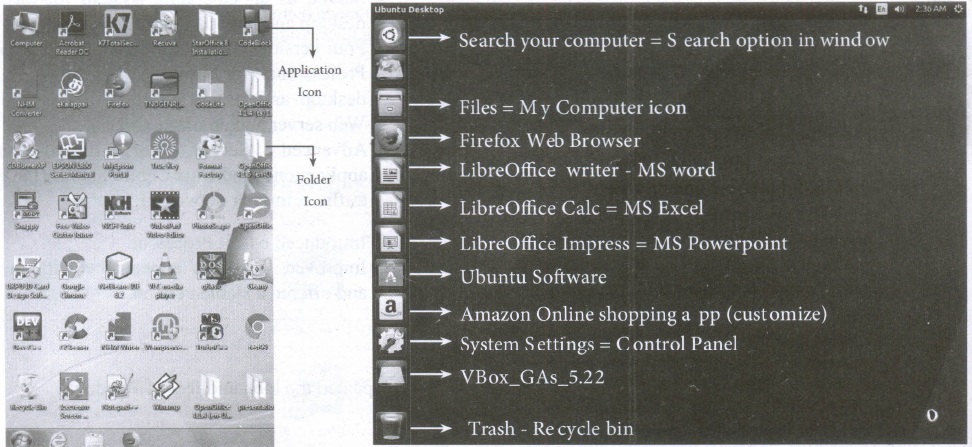
| S.No | Windows | Ubuntu |
| 1. | Recycle Bin | Trash |
| 2. | My computer | Files |
| 3. | Ms word | Libreoffice writer |
16.
The main purpose of using an operating system:
(i) It controls and coordinates all the activities of a computer system.
(ii) It provides an environment for a computer user to execute programs on computer hardware in a convenient and efficient manner.
(iii) It enables the user to design the application, and also it provides an interface to interact with the computer and controls the execution of all kinds .of programs without knowing the internals of the hardware.
(iv) It interprets the command and instructions to perform the specified tasks.
(v) It coordinates and assigns the compilers, assemblers, utility programs to the users.
(vi) It detects errors present in the hardware and software.
(vii) It maintains the internal time clock.
(viii) It protects itself from being destroyed by any users.
(ix) It serves two major functions
1. Supervision (Prevent errors)
2. Management (Operation and control of I/O devices)
(x) It loads the programs itself into memory so that user can interact with hardware and software.
17.
Read only memory (ROM):
(i) Read Only Memory refers to special memory in a computer with pre-recorded data at manufacturing time which cannot be modified. The stored programs that start the computer and perform diagnostics are available in ROMs.
(ii) ROM stores critical programs such as the program that boots the computer. Once the data has been written onto a ROM chip, it cannot be modified or removed and can only be read.
(iii) ROM retains its contents even when the computer is turned off. So, ROM is called as a non-volatile memory
Programmable Read only memory (PROM):
(i) Programmable read only memory is also a non-volatile memory on which data can be written only once. Once a program has been written onto a PROM, it remains there forever.
(ii) Unlike the main memory, PROMs retain their Contents even when the computer is turned off.
(iii) PROM is manufactured as a blank memory, whereas ROM is programmed during the manufacturing process itself. PROM programmer or a PROM burner is used to write data to a PROM chip. The process of programming a PROM is called burning the PROM.
Erasable Programmable Read-only memory (EPROM):
(i) Erasable Programmable Read-Only Memory is a special type of memory which serves as a PROM. The content can be erased using ultraviolet rays.
(ii) An EPROM differs from a PROM. PROM can be written only once and cannot be erased.
(iii) EPROMs are used widely in personal computer, because they enable the manufacturer to change the contents of the PROM to replace with updated versions or erase the contents before the computer is delivered.
Electrically Erasable Programmable Read-Only Memory (EEPROM)
(i) Electrically Erasable Programmable Read-Only Memory can be erased by exposing it to an electrical charge.
(ii) Like other types of PROM, EEPROM retains its contents even when the power is turned off. Comparing with all other types of ROM, EEPROM is slower in performance.
18.
(i) The Central Processing Unit(CPU) has a Memory Data Register (MDR) and a Memory Address Register (MAR).
(ii) The Memory Data Register (MDR) keeps the data which is transferred between the Memory and the CPU. The Program Counter (PC) is a special register in the CPU which always keeps the address of the next instruction to be executed.
(iii) A bus is a collection of wires used for communication between the internal components of a computer.
(iv) The address bus is used to point a memory location. A decoder, a digital circuit is used to point to the specific memory location where the word can be located.
(v) The read operation fetches data from memory and transfers to MDR. A single control line performs two operations like read write using 1 or 0.
(vi) Also, the write operation transfers data from the MDR to memory.
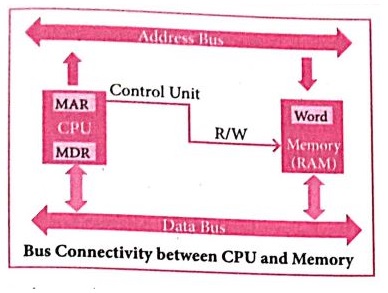
(vii) The word in the RAM has the same size (no. of bits) as the Memory Data Register (MDR).
(viii)The data bus has eight parallel wires to transfer data either from MDR to word or word to MDR based on the control(Read or write).
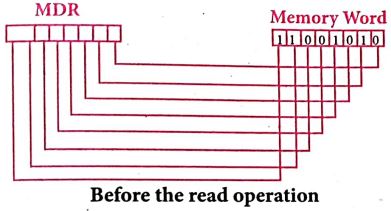
(ix) This control line is labeled as R/W, which becomes 1 means READ operation and 0 means WRITE operation. The content of MDR and the Word before the READ operation. Also figure shows the content of MDR and the Word after the READ operation.
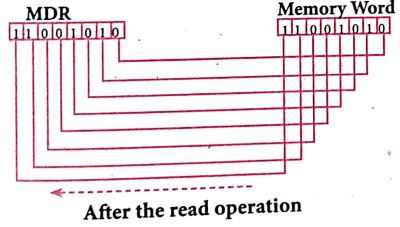
(x) The read operation transfers the data (bits) from memory word to data register. The write operation transfers the data (bits) from memory data registerto word.
19.
| S.No | Generation | Period | Main Component used | Merits/ Demerits |
| 1 | First Generation | 1940 - 1956 | Vaccum tubes | 1. Big in size 2. Consumed more power 3. Malfunction due to over heat 4. Machine Language was used |
| First Generation Computer - ENIAC, EDVAC, UNIVAC 1 ENIAC weighed about 27 tons, size 8 feet x 100 feet x 3 feet and consumed around 150 watts of power |
||||
| 2 | Second Generation | 1956-1964 | Transistors | 1. Smaller compared to First Generation 2. Generated Less Heat 3. Consumed less power compared to first generation 4. Punched cards were used 5. First operating system was developed - Batch Processing and Multiprogramming Operating System 6. Machine language as well as Assembly language was used. |
| Second Generation Computers - IBM 1401, IBM 1620, UNIVAC 1108 | ||||
| 3 | Third Generation | 1964-1971 | Integrated Circuits (IC) | 1. Computers were smaller, faster and more reliable 2. Consumed less power. 3. High-Level Languages were used |
| Third Generation Computers -IBM ·360 series, Honeywell 6000 series | ||||
| 4 | Fourth Generation | 1971-1980 | Microprocessor Very Large Scale Integrated Circuits (VLSI) |
1. Smaller and Faster 2. Microcomputer series such as IBM and APPLE were developed 3. portable Computers were introduced |
| 5 | Fifth Generation | 1980-till date | Ultra Large Scale Integration (ULSI) | 1. Parallel, Processing 2. Super conductors 3. Computers size was drastically reduced. 4. Can recognize Images and Graphics 5. Introduction of Artificial Intelligence and Expert Systems 6. Able to solve high complex problems including decision making and logical reasoning |
| 6 | Sixth Generation | In future |  |
1. Parallel and Distributed computing 2. Computers have become smarter faster and smaller 3. Development of robotics 4. Natural Language Processing 5. Development of Voice Recognition Software. |
20.
(i) Professional Graphic Design: Even the user don't have graphic design experience, they know how to make adjustments to existing graphics.
(ii) Branding: Templates can easily be modified by changing colors, fonts, graphics etc.
(iii) Speed: With a good starting point in each slide, the presentation is made in a snap.
(iv) Quick customization: It's much easier to edit the template in its original form, not as a copy of a copy.
(v) Consistency: A consistent design scheme will avoid Jarring transitions and sneaking suspicion that the presentation was pasted together as a ransom note.
21.
The slide master will be helpful in this situation. Select the Master slide,
(i) Choose Edit \(\rightarrow\)Find & Replace option from the menu bar. The Find & Replace Dialog box appears on the screen.
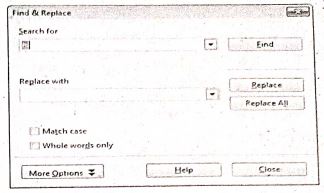
(ii) In the search for box type the misspelt word. |
(iii) Type the correct word in the Replace with box.
(iv) Click the Find option to find the misspelt word.
(v) Click the Replace All option to replace the correct word in all the slides. You can see the replacemnent in all the slides.
22.
Presentation is helpful for a sales person to promote his/her products effectively.
(i) Presentation will give visual video, pictures to understand a goodness of the product.
(ii) By using presentation, sales person can make audience to understand easier and he can get more response from the people.
(iii) Presentation help sales person to present prospect challenges easier.
(iv) Sales person can explain with physical demonstration by shocking animations. It helps to increase the sales.
23.
Create the presentation with same design for all slides using master page option, by clicking YES in Page Setting dialog box.
Click the Master slide and choose Format \(\rightarrow\) Page menu. The Page setup dialog box appears on the screen.
Click Background and choose any one of the Fill option (Colour, Gradient, Bitmap, Hatching) for changing the background of the master slide.
The Page Setting dialog box appears on the Screen.
Click NO in the Page Setting dialog box.
Now you can see the changes except for the first slide, all the slides will have the same design.
b. Handout view is used for setting up the layout of your slides for a printed handout.
c. Select the slide to insert the picture.
Choose Insert \(\rightarrow\) Picture \(\rightarrow\) From File option, and choose the required picture that has to be inserted into the slide.
d. Use Slide Show view to deliver your pesentation to your audience. Slide Show view occupies the full computer screen, exactly the way your presentation will look on a big screen when your audience sees it.
e. To make her presentation attractive, she needs to add animation and transition effects to the slides.
24.
25.
The header is a section of the document that appears in the top margin, which displays the title or chapter name, author name of a document.
(i) Select from the main menu Insert \(\rightarrow\)Header \(\rightarrow\) Default.
(ii) The header text area is separated from the normal text area.
(iii) In the header area, Enter the text that is to be repeated in all pages or Select Insert \(\rightarrow\) Fields \(\rightarrow\) Title.
The footer is a section of the document that appears in the bottom margin of the page which displays the page number, date, time etc. which gets displayed on all the pages automatically.
(i) Select from the main menu Insert \(\rightarrow\) Footer \(\rightarrow\) Default
(ii) Place the insertion pointer in the footer part of the page.
(iii) Select Insert \(\rightarrow\) Fields \(\rightarrow\) Date to insert date in all the pages.
Inserting and Formatting page numbers
The page numbers can be inserted by performing the following steps:
(i) Place the insertion pointer where you want to insert the page number
(ii) choose Insert \(\rightarrow\)Fields \(\rightarrow\)Page Number
(iii) The page number appears with gray background.
Normally, the page numbers appear as 1,2,3....., To change the numbering style, the following sequence of steps can be performed:
(i) Position the insertion pointer where the page number has to appear.
(ii) Select Format\(\rightarrow\) page, which will display the Page Style dialog box.
(iv) In the Layout settings, select the format drop down combobox
(v) Select the desired style and click OK button.

11th Standard Syllabus & Materials
11th Standard
TN 11th Tamil பீடு பெற நில் - செய்யுள் - காவடிச்சிந்து Important Questions And Answers Study Material - QB365 Set A
NEW11th Standard
TN 11th Tamil பீடு பெற நில் - உரைநடை - மலை இடப்பெயர்கள் : ஓர் ஆய்வு Important Questions And Answers Study Material - QB365 Set A
NEW11th Standard
TN 11th Tamil மாமழை போற்றுதும் - துணைப்பாடம் - யானை டாக்டர் Important Questions And Answers Study Material - QB365 Set A
NEW11th Standard
TN 11th Tamil மாமழை போற்றுதும் - செய்யுள் - ஐங்குறுநூறு Important Questions And Answers Study Material - QB365 Set A



Tamilnadu Stateboard 11th Standard Subjects

Maths

Commerce

Economics

Biology

Business Maths and Statistics

Accountancy

Computer Science

Physics

Chemistry
Maths
Biology
Economics
Physics
Chemistry

History
Business Maths and Statistics

Computer Science
Accountancy
Computer Applications
History
Computer Technology
Commerce
Computer Applications
Computer Technology

Tamil

English

French
Tamilnadu Stateboard Standards


