
 100% FREE ACCESS
11th Standard Syllabus & Materials
11th Standard
TN 11th Tamil இயற்கை வேளாண்மை,சுற்றுச்சூழல் -செய்யுள் - மனோன்மணீயம் Important Questions And Answers Study Material - QB365 Set A
NEW11th Standard
TN 11th Tamil என்னுயிர் என்பேன் -துணைப்பாடம் - இசைத்தமிழர் இருவர் Important Questions And Answers Study Material - QB365 Set A
NEW11th Standard
TN 11th Tamil மொழி கலை -செய்யுள் - ஒவ்வொரு புல்லையும் Important Questions And Answers Study Material - QB365 Set A
NEW11th Standard
TN 11th Tamil பீடு பெற நில் - இலக்கணம் - பகுபத உறுப்புகள் Important Questions And Answers Study Material - QB365 Set A
NEW11th Standard
TN 11th Tamil பீடு பெற நில் - துணைப்பாடம் - வாடிவாசல் Important Questions And Answers Study Material - QB365 Set A
NEW11th Standard
TN 11th Tamil பீடு பெற நில் - செய்யுள் - குறுந்தொகை Important Questions And Answers Study Material - QB365 Set A

Published on: 11/06/2021
QB365 provides detailed and simple solution for every book back questions in class 11 Computer Applications subject.It will helps to get more idea about question pattern in every book back questions with solution.
Download Tamil Nadu 11th Standard Computer Applications question papers, model tests, one-mark questions, important questions, and public exam papers in PDF format. Free study materials and answer keys for TN State Board students.
Questions + Answers key
Take MCQ Computer Applications Test
1.
Explain about the popup dialog boxes in JavaScript.
2.
Write the different types of cyber attacks.
3.
Write a Java Script program using while statement to display 10 numbers.
4.
Explain for loop with example.
5.
Write an HTML document to display the following paragraph as per the given description Using CSS:
1. Font Name: Cooper Black
2. Style: Bold Italics
3. Color: Blue
“The State Institute of Education (SIE) was established in 1965 to provide for systematic study of problems relating to School Education under the administration of Directorate of School Education.”
6.
What is Link and explain the types of links.
7.
Explain the attributes used with < table > tag in HTML.
8.
Explain the different types of interactions in e-governance.
9.
Write a note on any five Internet browsers other than that given in the book.an
10.
Explain any five types of internet services.
11.
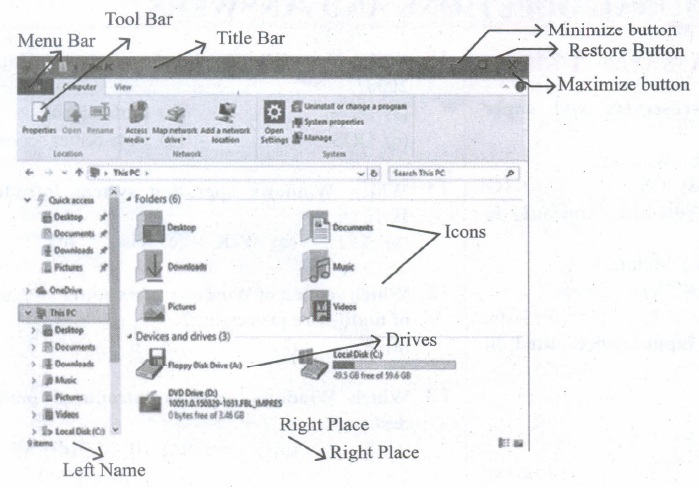
Observe the figure and mark all the window elements, Identify the version of the Windows Os.
12.
Explain the versions of Windows Operating System.
13.
Explain advantages and disadvantages of open source operating systems.
14.
Explain the concept of a Distributed Operating System along with its advantages.
15.
Arrange the memory devices in ascending order based on the access time.
16.
17.
Find 1’s Complement and 2’s Complement for the following Decimal number a) -98 b) -135
18.
Explain the following:
a. Inkjet Printer
b. Multimedia projector
c. Bar code / QR code Reader
19.
Explain the basic components of a computer with a neat diagram.
20.
List some advantages of using template.
21.
Explain how a presentation can help a sales person to promote his/her products.
22.
Read the following table
| A | B | C | D | E | |
| 1 | Year | Chennai | Madurai | Tiruchi | Coimbatore |
| 2 | 2012 | 1500 | 1250 | 1000 | 500 |
| 3 | 2013 | 1600 | 1000 | 950 | 350 |
| 4 | 2014 | 1900 | 1320 | 750 | 300 |
| 5 | 2015 | 1850 | 1415 | 820 | 200 |
| 6 | 2016 | 1950 | 1240 | 920 | 250 |
Above table shows the sales figures for “Air Cooler” sold in four major cities of Tamilnadu from the year 2012 to 2016. Based on this data, write the formula to calculate the following.
(1) Total sales in the year 2015.
(2) Total sales in Coimbatore from 2012 to 2016.
(3) Total sales in Madurai and Tiruchi during 2015 and 2016.
(4) Average sales in Chennai from 2012 to 2016
(5) In 2016, how many “Air Coolers” are sold in Chennai compared to Coimbatore?
23.
Explain about changing the column width in Calc.
24.
Explain Page formatting in Writer.
25.
What are the different methods to change margin in Writer?
1.
JavaScript supports three important types of dialog boxes. Dialog boxes are also called as Popup Boxes. These dialog boxes can be used to raise an alert, or to get confirmation on any input or to have a kind of input from the users.JavaScrípt supports three kind of popup boxes: Alert box, Confirm box, and Promnpt box.
Alert Dialog Box: An alert dialog box is mostly used to give a warning message to the users. For example, if one input field requires to enter some text but the user does not provide any input, then as a part of validation, you can use an alert box to give a warning message. Alert box gives only one button "OK" to select and proceed.
The syntax of alert box is
alert("Message");
(or) Window.alert ("Message");
Example:
alert("Name is compulsory entry);
(or) window.alert("Name is compulsory entry");
Confirm Dialog Box : A confirmation dialog box is mostly used to take user's consent on any option. It displays a dialog box with two buttons: OK and Cancel. If the user clicks on the OK button, the confirm() will return true. If the user clicks on the Cancel button, then confirm() returns false.
The syntax of confirm dialog box is
confirm("message");
(or)
window.confirm("message");
Example :
confirm("Hai Do you want to continue:");
(or)
window.confirm(“Hai Do you want to continue:");
Prompt Dialog Box: The prompt dialog box is very useful when the user want to pop-up a text box to get user input. Thus, it enables you to interact with the user. The user needs to fill in the text box field and then click OK.
The prompt dialog box is displayed using a method called prompt()which takes two parameters :
(i) a label which you want to display in the text box and (ii) a default string to display in the text box. This dialog box has two buttons: OK and Carncel. If the user clicks the OK button, the prompt() will return the entered value from the text box. If the user clicks the Cancel button, the prompt() returns null. The Sntax of prompt dialog box is,
Prompt("Message","default Value");
(or)
window.prompt("sometext","defaultText");
Example:
prompt("Enter Your Name:"Name");
(or)
window.prompt("Enter Your Name:"Name");
2.
Functions of Cyber Attacks
| Cyber Attack | Function |
| Virus | A virus is a small piece of computer code that can repeat itself and spreads from one computer to another by attaching itself to another computer file.One of the most common virus is Trojan Trojan : A Trojan virus is a program that appears to perform one function (for example, virus removal) but actually performs malicious activity when executed. |
| Worms | Worms are self- repeating and do not require a computer program to attach themselves. Worms continually look for vulnerabilities and report back to the author of the worm when weaknesses are discovered |
| Spyware | Spyware can be installed on the computer automatically when the attachments are open, by clicking on links or by downloading infected software. |
| Ransomware | Ransomware is a type of malicious program that demands payment after" launching a cyber-attack on a computer system. This type of malware has become increasingly popular among criminals and costs the organizations millions each year. |
3.
<Html>
<Head>
<Title> Program-To display 10 natural number
</Title>
</Head>
<body>
<script language = "Javascript" type="text / Javascript">
document.write("<h2> The First 10 natural Number</h2>");
var n=1;
while (n<=10)
{
document.write(n+"<br">
n = n = 1;
}
</script>
</body>
</Html>
4.
The for loop is a very rigid structure that loops for a pre-set number of times. In JavaScript for structure is very flexible and is very commonly used. The syntax of the for loop looks like the following:
for(initialization; condition; increment/decrement)
{
Body of the loop;
}
The for structure consist of parts each separated by semicolon. They are,
1. The first part of the loop initialize a variable which is also called as control variable. In most case the control variable is declared as well as initialized.
2. The second part is the conditional statement that determines how many times the loop will be iterated.
3. The third and final part determines how the value of control variable is changed (Incremented/ Decremented)
Using for loop:
< Html >
< Head >
< Title > Program - To test for statement in JavaScript < /Title >
< /Head >
< Body >
< script language="javascript" type="text/javascript" >
var nol = prompt("Please enter Table You want: ", "0");
document.write ("< h2 > Multiplication Table< /h2 > ");
for(var no2=0;no2< =10;no2++)
{
document.write(nol+"x"+no2+"="+nol*no2+"< br > ");
}
< /script >
< /body >
< /Html >
5.
< html >
< head > < title > CSS DOCUMENT < /title >
< style >
P
{
font-family : "Cooper Black"; Font-style: Bold: Font-weight: Italics; Color: Blue;
}
< /style >
< body >
< p >
The State Institute of Education (SIE) was established in 1965 to provide for systematic study of problems relating to School Education under the administration of Directorate of School Education.
< /p >
< /body >
< /html >
6.
Link isan important feature of HTML to connect web resources. Link in HTML is used to create hyperlinks to web content. Web content may be an HTML document or an external webpage or any multimedia content such as an image, video, audio, animation etc., or even a part of the current document.
There are two important things needed to create a link in HTML,
1. The name of the file or URL to Which you want to link
2. The text that will serve as the clickable link.
The anchor tag < A > is used to create links along with HREF attribute. HREF is abbreviated as "Hypertext Reference".
Internal Links: Creating a link to a particular section of the same document is known as Internal Link. To create an internal link, the attribute Name is used along with < A > tag. The Name attribute of < A > tag establish the link to the content within the document.
An HTML code to demonstrate Internal Linking:
< html >
< head >
< title > South India< /title >
< /head >
< body >
< A href = #TN > Tamil Nadu < /A >
< A Name =TN > < B > Tamilnadu < /B > < /A >
< p > Tamil Nadu literally 'The Land of Tamils' or 'Tamil Country' is one of the 29 states of India. Its capital and largest city is Chennai (formerly
known as Madras). < /p >
< /body >
< /html >
External Links : To Establish link with an external web page in known as external link. It is created by províding the URL of the external file in the HREF attribute of < A > tag of the current page.
An HTML code to demonstrate Internal Linking with an external websisite/webpage:
< html >
< head >
< title > Links< /title >
< /head >
< body >
< hI align=center >
Welcome to < br >
< A href= "http://www.tnscert.org" >
State Council of Educational Research and Training, Tamilnadu < /A >
< /h1 >
< /body >
< /html >
7.
The <table> is a container tag. There are several attributes to improve the layout of the table. They are listed below:
(i) Cellspacing : It is used to set the space between cells in a table.The value should be in pixels.
(ii) Cellpadding: It is used to set the space between the contents of a cell and its border the value should be in pixels.
(iii) Border : Border attribute with <table> tag is used to specify the thickness of the border lines around the table. The value of the border attribute should be non zero value in pixels. If its value is zero, HTML displays the table without border. The default value is Zero in most of the browsers.
(iv) Bordercolor : It is used to apply colour to the border lines.
(v) Align : It is used to set the position of the table within the browser window. Left is the default position. Right or centre may be the value of align attribute.
(vi) BGcolor : It is used to apply background colour to the table.
(vii) Height and Width : These two attributes are used to specify the height and width of a table in terms of pixels or percentage.
8.
Types of Interactions in e-Govemance :
1. G2G (Government to Government): When the exchange of information and services is within the periphery of the government, is termed as G2G interaction. This can be both horizontal, i.e. among various government entities and vertical, i.e. between national, state and local government entities and within different levels of the entity
2. G2C (Government to Citizen): The interaction amidst the government and general public isG2C interaction. Here an interface is set up between government and citizens, which enables citizens to get access to wide variety of public services. The citizens has the freedom to share their views and grievances on government policies anytime, anywhere.
3. G2B (Government to Business): In this case, the e-governance helps the business class to .interact with the government seamlessly, It aims at eliminating red-tapism, saving time, cost and establish transparency in the business environment, while interacting with government.
4. G2E (Government to Employees): The government of arty country is the biggest employer and so it also deals with employees on a regular basis, as other employers do. ICT helps in making the interaction between government, and employees fast and efficient, along with raising their level of satisfaction by providing perquisites and add-on benefits.
E-governance has a great role to play, that improves and supports all tasks performed by the government department andagencies, because it simplifies the task on the one hand and increases the quality of work on the other.
9.
Opera. Konqueror, Lynx, Dillo, Mosaic are the other Internet browesers.
(i) Lynx : Lynx is a customizable text based web browser for use on cursor- addressable character cell terminals. It is the oldest web browser still in active development and general use having started in1992.
(ii) Opera : Opera is a web browser for windows, mac. OS and linux operating system developed by a Norwegian company opera software OS.
(iii) Kongueror : Konqueror, a free and open source web browser and file manager, provides web access and file - viewer functionality for file systems. It forms a core part of the KDE software compilation.
(iv) Dillo : Dillo is a minimalistic web browser particularly intended for older or slower computers and embedded systems. If supports only plain HTML/ XHTML and images over HTTP.
(v) Mosaic : Mosaic is the web browser that popularized the www and the Internet. It was also a client for earlier Internet protocols such as FTP, NNTP and Gopher.
10.
(i) Wireless: Radio frequency bands are used in place of telephone or cable networks. One of the greatest advantages of wireless Internet connections is the "always-on" connection that can be accessed from any location that falls within network coverage. Wireless connections are made possible through the use of a modem, which picks up Internet signals and sends them to other devices.
(ii) Mobile : Many cell phone and smartphone providers offer voice plans with Internet access. Mobile Internet connections provide good speeds and allow you to access the Internet.
(iii) Cable : Cable Internet connection is a form of broadband access. Through use of a cable modem, users can access the Internet over cable TV lines. Cable modems can provide extremely fast access to the Internet.
(iv) Satellite : In certain areas where broadband connection is not yet offered, a satellite Internet option may be available, Similar to wireless access, satellite connection utilizes a modem.
(v) ISDN: ISDN (Integrated Services Digital Network) allows users to send data, voice and video content over digital telephone lines or standard telephone wires. The installation of an ISDN adapter is required at both ends of the transmission-on the part of the user as well as the Internet access provider.
11.
12.
| S.No | Versions | Year | Specific features |
| 1. | Windows 1.x | 1985 | 1. Introduction of GUI in 16 - bit. processor 2. Mouse was introduced as an input device |
| 2. | Windows 2.x | 1987 | 1. Supports to minimize or maximize windows. 2. Control panel feature was introduced with various system settings and customising options. |
| 3. | Windows 3.x | 1992 | 1. Introduced the concept of multitasking. 2. Supported 256 colours which brought a more modern, colourful look to the interface. |
| 4. | Windows 95 | 1995 | 1. Introduced Start button, the taskbar, Windows Explorer and Start menu. 2. Introduced 32 - bit processor and focused more on multitasking. |
| 5. | Windows 98 | 1998 | 1. Integration of the Web browser (Internet Explorer) with the Operating System. 2. DOS gaming began to disappear as Windows based games improved. 3. Plug and play feature was introduced. |
| 6. | Windows NT | Designed to act as servers in network. | |
| 7. | Windows Me | 2000 | It introduced automated system diagnostics and recovery tools. |
| 8. | Windows 2000 | 2000 | 1. Served as an Operating System for business desktop and laptop systems. 2. Four versions of Windows 2000 were released: Professional (for business desktop and laptop systems), Server (both a Web server and an office server), Advanced Server (for line-of-business applications) and Data Centre Server (for high traffic computer networks). |
| 9. | Windows XP | 2001 | 1. Introduced 64-bit Processor. 2. Improved Windows appearance with themes and offered a stable version |
| 10. | Windows Vista | 2006 | Updated the look and feel of Windows |
| 11. | Windows 7 | 2009 | Booting time was improved, introduced new user interfaces like Aero Peek, pinning programs to taskbar, handwriting recognition etc. and Internet Explorer 8. |
| 12. | Windows 8 | 2012 | 1. Windows 8 is faster than previous versions of Windows. 2. Start button was removed 3. Windows 8 takes better advantage of multi-core processing, solid state drives (SSD), touch screens and other alternate input methods. 4. Served as common platform for mobile and computer. |
| 13. | Windows 10 | 2015 | 1. Start Button was added again. 2. Multiple desktop. 3. Central Notification Center for App notification and quick actions. 4. Cortana voice activated personal assistant. |
13.
Advantages:
(i) It is generally free.
(ii) It is continually evolving in real time as developers add to it and modify it, which means it can be better quality and more secure and less prone to bugs.
(iii) Using open source software also means the user are not locked into using a particular vendor system that only work with their other system.
(iv) The user can modify and adapt open source software for own business requirements
(v) More reliable and flexible
Disadvantages:
(i) Open source software might not be as user friendly as commercial versions because less attention is paid to developing the user interface.
(ii) Open source software do not come with extensive support when things go wrong-pen source software tends to rely on its communicate of users to respond to and fix problems.
(iii)Open source software may still be involved collecting indirect costs for external support.
(iv) Vulnerable to malicious users.
14.
The Distributed Operating System is used to access shared data and files that reside in any machine around the world using internet / intranet. The users can access as if it is available on their own computer.
The advantages of distributed Operating System are as follows:
(i) A user at one location can make use of all the resources available at another location over the network.
(ii) Many computer resources can be added easily in the network
(iii) Improves the interaction with the customers and clients.
(iv) Reduces the load on the host computer.
15.
A memory is just like a human brain. It is used to store data and instructions. Computer memory is the storage space in the computer, where data and instructions are stored. There are two types pf accessing methods to access (read or write) the memory.
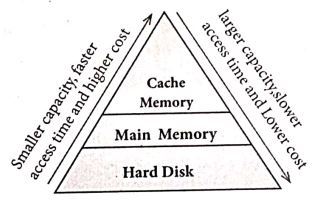
They are sequential access and random access. In sequential access, the memory is accessed in an orderly manner from starting to end. But, in random access, any byte of memory can be accessed directly without navigating through previous bytes. Different memory devices are arranged according to the capacity, speed and cost as shown in Figure.
16.
17.
a) -98
.png)
= 9810 = 1100010
8bit format of 9810 = 0 1 1 0 0 0 1 0
1's complement = 1 0 0 1 1 1 0 1
Add 1 Bit = +1
_____________
2's complement 1 0 0 1 1 1 1 0
_____________
b) -135
.png)
= 13510 = 10000111
1's complement = 0 1 1 1 1 0 0 0
Add 1 bit = + 1
______________
2's complement = 0 1 1 1 1 0 01
_______________
18.
(a) Inkjet Printers:
(i) Inkjet Printers use colour cartridges which combined Magenta, Yellow and Cyan inks to create color tones. A black cartridge is also used for monochrome output. Inkjet printers work by spraying jonised ink at a sheet of paper.
(ii) They use the technology of firing ink by heating it so that it explodes towards the paper in bubbles or by using piezoelectricity in which tiny electric currents controlled by electronic circuits are used inside the printer to spread ink in jet speed.
(iii) An Inkjet printer can spread millions of dots of ink at the paper every single second.
(b) Multimedia Projectors:
(i) Multimedia projectors are used to produce computer output on a big screen.
(i) These are used to display presentations in meeting halls or in classrooms.
(c) Bar Code / QR Code Reader:
(i) A Bar code is a pattern printed in lines of different thickness. The Bar code reader scans the information on the bar codes transmits to the Computer for further processing.
(ii) The system gives fast and error free entry of information into the computer.
QR (Quick response) Code:
The QR code is the two dimension bar code which can be read by a camera and processed to interpret the image.
19.
Components of a Computer :
The computer is the combination of hardware and software. Hardware is the physical component of a computer like motherboard, memory devices, monitor, keyboard etc., while software is the set of programs or instructions. Both hardware and software together make the computer system to function. Every task given to a computer follows an Input-process - output cycle (IPO cycle).
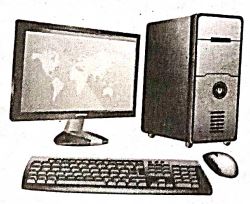
(i) Input unit: Input unit is used to feed any form of data to the computer, which can be stored in the memory unit for further processing.
Example : keyboard, mouse etc.
(i) Central Processing Unit : CPU is the major component which interprets and executes software instructions. It also control the operation of all other components such as memory, input and output units.
(iii) Arithmetic and Logic Unit : The ALU is a part of the CPU where various computing functions are performed on data. The ALU performs arithmetic operations such as addition, subtraction, multiplication, division and logical operations.
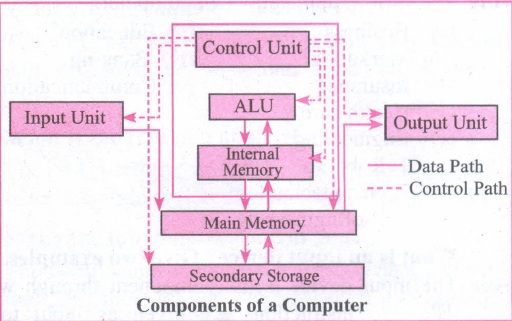
(iv) Control Unit : The control unit controls the flow of data between the CPU memory and I/o devices. It also controls the entire operation of a computer.
(v) Output Unit: An output unit is any hardware component that convey information to users in an understandable form. Example : Monitor, Printer etc.
(vi) Memory Unit: The Memory Unit is of two types which are primary memory and secondary memory. The primary memory is used to temporarily store the programs and data when the instructions are ready to execute. The secondary memory is used to store the data permanently. The Primary Memory is volatile, that is,the content is lost when the power supply is switched off. The Random Access Memory (RAM) is an example of a main memory. The Secondary memory is non volatile, that is, the content is available even after the power supply is switched off. Hard disk, CD-ROM and DVD ROM are examples of secondary memory.
20.
(i) Professional Graphic Design: Even the user don't have graphic design experience, they know how to make adjustments to existing graphics.
(ii) Branding: Templates can easily be modified by changing colors, fonts, graphics etc.
(iii) Speed: With a good starting point in each slide, the presentation is made in a snap.
(iv) Quick customization: It's much easier to edit the template in its original form, not as a copy of a copy.
(v) Consistency: A consistent design scheme will avoid Jarring transitions and sneaking suspicion that the presentation was pasted together as a ransom note.
21.
Presentation is helpful for a sales person to promote his/her products effectively.
(i) Presentation will give visual video, pictures to understand a goodness of the product.
(ii) By using presentation, sales person can make audience to understand easier and he can get more response from the people.
(iii) Presentation help sales person to present prospect challenges easier.
(iv) Sales person can explain with physical demonstration by shocking animations. It helps to increase the sales.
22.
1. = Sum (B5 : E5) = 4285
2. = Sum (E2 : E6) = 1600
3. = Sum (C5 : D6) = 4395
4. = Average (B2 : B6) = 1760
5. = Average (B2 : B6) = 1760
5. = (B6 - E6) = 1700
23.
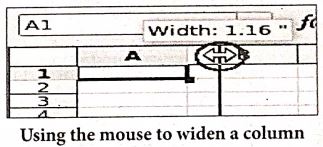
Resize the width of a column using the mouse :
Use the right hand border to increase or decrease the width of a column.
(i) Position the cursor on the right hand border of the column letter box, until you see a double headed arrow.
(ii) Hold down the left hand mouse button and drag the border to the left or right to make the column narrower or wider as required.
As you carry out this action, the width of the column displays.
Resize one or more columns using Format :
(i) Select the column(s) whose width you wish to change
(ii) Select Format \(\rightarrow\) Column \(\rightarrow\) Width
(ii) The Column Width dialog displays
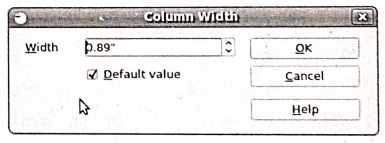
(iv) Enter a value in the Width window or check the Default value check box to select the default column width.
(v) Click OK.
The selected columns display with the new width.
24.
(i) Page formatting: The most important thing in a word processor is how to format the page with elements such as margins, numbering, page layout, headers and footers. Formatting your pages makes it look more attractive and make it easier to read.
(ii) Changing page size : The default page size in writer is 8.5 \(\times\) 11'', the same as that of a standard A4 printing paper. However, for different types of documents, you may need to change the page size. To change the paper size:
Select the page to be resized.
Select Format \(\rightarrow\) Page, the page style dialog box
Select Page Tab
In the paper format group, select the format like A4, legal etc.
Or the width and height option can be used to set the page size.
(iii) Changing page margins :Changing or setting page margins in OpenOffice Writer can be done in two ways :
Using the Rulers - quick and easy, but does not have precise values.
Using the Page Style dialog box - can specify precise values for the margins.
1. Changing page margins - using Ruler.
The shaded sections of the rulers are the margins.
Hold the mouse pointer over the line between the gray and white sections.
The mouse pointer turns into a double-headed arrow.
Hold down the left mouse button and drag the mouse to move the margin and release it at the required point.
The new margin is set.
2. Using the Page Style dialog box.
To change margins using the Page Style dialog box
1. Right-click anywhere on the page and select Page from the popup menu and select page tab of Page Style dialog box as shown.
2. In the Margins group, specify the values for left, right, top and bottom margins.
3. Click ok button.
Orientation : Page orientation refers to how the document will be displayed On screen and printed. There are two different orientations:
Landscape - The width of the document is more than the height. This is best suited for displaying professional photos, invitations, albums, tables etc.
Portrait - This is the most common and default orientation.Here, the height of the document is more than the width. Normally books, newspapers will be displayed in this format.

To change the orientation :
Select the page whose orientation is to be changed
In the Page Style dialog box, under the Orientation group,
Select Portrait or Landscape button.
Click ok button.
Page colour and borders: Changing the page color is not quite common. To do so, in the Page Style dialog box,select Background tab, In As option click on color and select the color" from the color palette or select "graphic" to apply an image as a page background.
25.
Page margins are the white space around the top, bottom, left and right of your document.
Changing or setting page margins in openoffice writer can be done in two ways:
(i) Using the Rulers - quick and easy, but does not have precise values.
(ii) Using the Page Style dialog box - can specify precise values for the margins.
Changing Page Margins using Ruler:
(i) The shaded sections of the rulers are the margins.
(ii) Hold the mouse pointer over the line between the gray and white sections.
(iii) The mouse pointer turns into a double-headed arrow.
(iv) Hold down the left mouse button and drag the mouse to move the margin and release it at the required point.
(v) The new margin is set.
Using the Page Style Dialog Box:
To change margins using the Page Style dialog box
(i) Right-click anywhere on the page and select Page from the popup menu or select page tab of page style dialog box.
(ii) In the Margins boxes, specify the values for left, right, top and bottom margins.
(iii) Click on OK button.

11th Standard Syllabus & Materials
11th Standard
TN 11th Tamil பீடு பெற நில் - செய்யுள் - காவடிச்சிந்து Important Questions And Answers Study Material - QB365 Set A
NEW11th Standard
TN 11th Tamil பீடு பெற நில் - உரைநடை - மலை இடப்பெயர்கள் : ஓர் ஆய்வு Important Questions And Answers Study Material - QB365 Set A
NEW11th Standard
TN 11th Tamil மாமழை போற்றுதும் - துணைப்பாடம் - யானை டாக்டர் Important Questions And Answers Study Material - QB365 Set A
NEW11th Standard
TN 11th Tamil மாமழை போற்றுதும் - செய்யுள் - ஐங்குறுநூறு Important Questions And Answers Study Material - QB365 Set A



Tamilnadu Stateboard 11th Standard Subjects

Maths

Commerce

Economics

Biology

Business Maths and Statistics

Accountancy

Computer Science

Physics

Chemistry
Maths
Biology
Economics
Physics
Chemistry

History
Business Maths and Statistics

Computer Science
Accountancy
Computer Applications
History
Computer Technology
Commerce
Computer Applications
Computer Technology

Tamil

English

French
Tamilnadu Stateboard Standards


