
 100% FREE ACCESS
11th Standard Syllabus & Materials
11th Standard
TN 11th Tamil இயற்கை வேளாண்மை,சுற்றுச்சூழல் -செய்யுள் - மனோன்மணீயம் Important Questions And Answers Study Material - QB365 Set A
NEW11th Standard
TN 11th Tamil என்னுயிர் என்பேன் -துணைப்பாடம் - இசைத்தமிழர் இருவர் Important Questions And Answers Study Material - QB365 Set A
NEW11th Standard
TN 11th Tamil மொழி கலை -செய்யுள் - ஒவ்வொரு புல்லையும் Important Questions And Answers Study Material - QB365 Set A
NEW11th Standard
TN 11th Tamil பீடு பெற நில் - இலக்கணம் - பகுபத உறுப்புகள் Important Questions And Answers Study Material - QB365 Set A
NEW11th Standard
TN 11th Tamil பீடு பெற நில் - துணைப்பாடம் - வாடிவாசல் Important Questions And Answers Study Material - QB365 Set A
NEW11th Standard
TN 11th Tamil பீடு பெற நில் - செய்யுள் - குறுந்தொகை Important Questions And Answers Study Material - QB365 Set A

Published on: 13/05/2022
QB365 provides detailed and simple solution for every Creative Questions in class 11 Computer Applications Subject. It will helps to get more idea about question pattern in every Creative questions with solution.
latest Creative QuestionsDownload Tamil Nadu 11th Standard Computer Applications question papers, model tests, one-mark questions, important questions, and public exam papers in PDF format. Free study materials and answer keys for TN State Board students.
Questions + Answers key
Take MCQ Computer Applications Test
1.
Explain the advantages of email.
2.
Explain the different methods of moving files and folders in windows.
3.
Explain the different ways of finding a file or Folder.
4.
Explain the elements of Windows.
5.
Write the action and reaction of using mouse.
6.
Write the important functions of an operating system?
7.
Explain the classification of Opensource OS
8.
Explain memory management techniques.
9.
Explain RAM in detail.
10.
Explain the classification of Microprocessor based on Instruction set?
11.
Convert the following Octal numbers into Binary numbers. - 62478
12.
Identify the number system for the following numbers.
13.
Convert the Following - (3674)8 \(\rightarrow \) (?2) = (?)10
14.
Write the steps for converting Decimal to Binary numbers.
15.
Explain the following terms in detail. (1) ASCII (2) BCD (3) EBCDIC
16.
Suppose a number system has been designed with radix 10 with symbols (ordered from small to large) A, B, C, D, G, H, I, L, M, N. Convert the following number to equivalent hexadecimal number; (lNDIAN)1O
17.
Explain the purposes served by outline view in Impress.
18.
Explain the steps to create a presentation by selecting on empty presentation.
19.
Explain how will you insert a function using Direct Insert method.
20.
Explain how will you cut, copy and Paste data in a worksheet.
21.
Explain the steps to insert a special character in a writer.
22.
Explain the steps to find and replace the text in writer.
23.
Explain the types of indenting the text.
24.
Explain how move and copy the text in the document.
25.
Explain the cursor movement keys used in Openoffice Writer document.
1.
The main advantages of email are listed below:
Free delivery:
Sending an e-mail is virtually free, outside the cost of Internet service. There is no need to buy a postage stamp to send a letter.
Global delivery:
E-mail can be sent to nearly anywhere around the world, to any country.
Instant delivery:
An e-mail can be instantly sent and received by the recipient over the Internet.
File attachment:
An e-mail can include one or more file attachments, allowing a person to send documents, pictures, or other files with an e-mail.
Long-term storage:
E-mails are stored electronically, which allows for storage and archival over long periods of time.
Environmentally friendly:
Sending an e-mail does not require paper (Paperless), cardboard, or packing tape, conserving paper resources.
2.
To move a file(s) or folder(s), first select the file(s) or folder(s) and then choose one of the following.
(i) Click on the EDIT menu, select the CUT function.
(ii) Keyboard shortcut, CTRL + X.
(iii) Or else click on the selected item with the RIGHT mouse button and select "CUT" from the shortcut Menu.
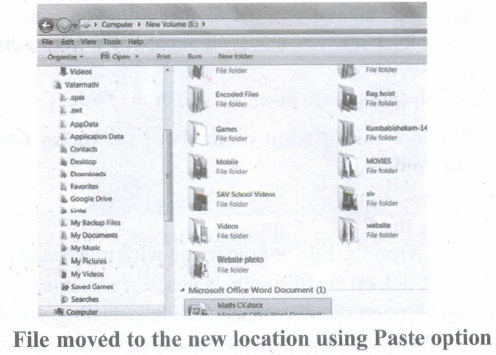
(iv) To bring back the file(s) or folder(s) in the new location, navigate to the new location then paste using one of the following:
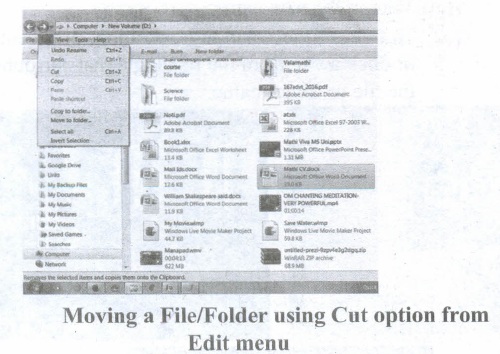
(v) Click on the EDIT menu, select the PASTE function.
(vi) Keyboard shortcut is, CTRL + V.
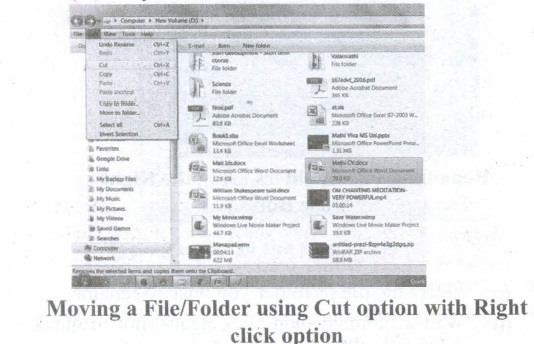
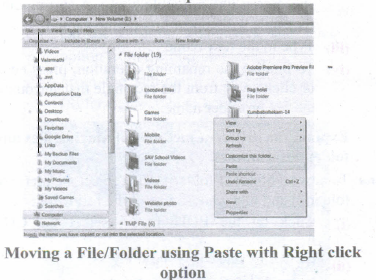
(vii) In the position where you want the item to be pasted, click with the Right mouse button and select "Paste" from the shortcut menu. The file will be pasted in the new location.
Method 2 - Dragging and Dropping
(i) In the right pane, select the file(s) or folder(s) you want to move.
(ii) Manipulate the Folder List on the left side of the Windows Explorer so that it shows the new location.
(iii) Make sure you use the scroll bars and the + and (collapse and expand buttons) to navigate.
(iv) Click and drag the selected file(s) or folder(s) from the RIGHT pane, over to the Folder List A on the left.
(v) Release the mouse button when the target folder is highlighted (active).
(vi) The file(s) or folder(s) will now appear in the new area.
3.
Finding Files and Folders : You can use the search box on the Start menu to quickly search a particular folder or file in the computer or in a specific drive.
To find a file or folder:
(i) Click the Start button, the search box appears at the bottom of the start menu.
(ii) Type the name of the file or the folder you want to search. Even if you give the part of the file or folder name, it will display the list of files or folders starting with the specified name.
(iii) The files or the folders with the specified names will appear, if you click that file, it will directly open that file or the folder.
(iv) There is another option called "See more results" which appears above the search box.
(v) If you click it, it will lead you to a Search Results dialog box where you can click and open that file or the folder.
Searching Files or folders using Computer icon :
(i) Click Computer lcon from desktop or from Start menu.
(ii) The Computer disk drive screen will appear and at the top right corner of that screen, there is a search box option.
(iii) Type the name of the file or the folder you want to search. Even if you give the part of the file or folder name, it will display the list of files or folders starting with the specified name.
(iv) Just click and open that file or the folder.
4.
(i) The Title Bar and control buttons - The title bar will display the name of the program and the name of the document that has been currently opened and also contains control buttons like Minimize, MaximizelRestore and Close buttons.
(ii) The Menu bar - The menu bar is seen under the title bar. Menus in the menu bar can be accessed through shortcuts involving the Alt key and the mnemonic letter that appears underlined in the menu title. Additionally, pressing Alt or F 10 brings the focus on the first menu of the menu bar.
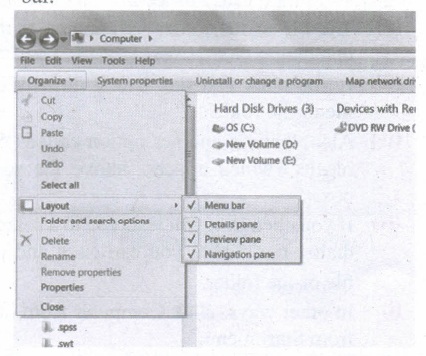
(iii) In Windows 7, in the absence of the menu bar, you have to click organize and in the sub menu list, click the layout option from it and then select the desired item from that list.
(iv) The Workspace: The Workspace is the area in the document window where you enter or type the text of document. It is the point of insertion for typing within the document.
(v) The Scroll bars: A scrollbar is an interaction technique in which continuous text, pictures, or any other content can be scrolled in a predetermined direction (up, down, left, or right) on a computer display so that all contents can be viewed, even if only a fraction of the content can be seen on a device's screen at a time. Refer figure 5.10 to view the Scroll bars.
(vi) Corners and borders: The corners and borders of the windows help to drag and hence help to resize the Windows. The mouse cursor changes to a double arrow when positioned over a border or a corner. Drag the border or corner in the direction indicated by the double arrow to the desired shape.
(a) The corners can be resized diagonally by dragging it across any of the corners. It will resize the window on all the sides simultaneously.
(b) On the other hand, the borders will let you to resize the window by either dragging it in left side, right side, from the top or from the bottom of the window.
(c) It will change the size of the window at one side only depending on the side in which the dragging is made.
5.
| Action | Reaction |
| Point to an item | Move the mouse to place the pointer on the item. |
| Click an item | Point to the item on your screen and quickly press and release the left mouse button. |
| Right click an item | Point to the item on your screen and then quickly press and release the right mouse button. Clicking the right mouse button displays a short cut menu from which you can choose among a list of commands that apply to that item. |
| Double-click an item | Point to the item on your screen and then quickly press and release the left mouse button twice. |
| Drag an item | Point to an item and then hold down the left mouse button as you move the pointer |
| Drag and drop | Point to an item and then hold down the left mouse button as you move the pointer and when you have reached the desired position, release the mouse button. |
6.
The important functions of an operating System.
(i) Memory Management
(ii) Processor Management
(iii) Device Management
(iv) File Management
(v) Security
(vi) Control over system performance
(vii) Job accounting
(viii) Error detecting aids
(ix) Coordination between other software and users
7.
(i) Android is a mobile operating system developed by Google, based on the Linux and designed primarily for touchscreen mobile devices such as smartphones and tablets.
(ii) Google has further developed Android TV for televisions, Android Auto for cars and Android Wear for wrist watches, each with a specialized user interface.
(iii) Variants of Android are also used on game consoles, digital cameras, PCs and other electronic gadgets.

UNIX :
UNIX is a family of multitasking, multi-user operating systems that derive originally from AT&T Bell Labs, where the development began in the 1970s by Ken Thompson and Dennis Ritchie.
Linux
(i) Linux is a family of open-source operating systems. It can be modified and distributed by anyone around the world.
(ii) This is different from proprietary software like Windows, which can only be modified by the company that owns it.
(iii) The main advantage of Linux operating system is that it is open source. There are many versions and their updates
(iv) Most of the servers run on Linux because it is easy to customize.
8.
Memory Management:
(i) Memory Management is the process of controlling and coordinating computer's main memory and assigning memory block (space) to various running programs to optimize overall computer performance.
(ii) The Memory management involves the allocation of specific memory blocks to individual programs based on user demands. At the application level, memory management ensures the availability of adequate memory for each running program at all times.
(iii) The objective of Memory Management process is to improve both the utilization of the CPU and the speed of the computer's response to its users via main memory. For these reasons, the computers must keep several programs in main memory that associates with many different Memory Management schemes.
(iv) The Operating System is responsible for the following activities in connection with memory management.
(v) Keeping track of which portion of memory are currently being used and who is using them.
(vi) Determining which processes (or parts of processes) and data to move in and out of memory.
(vii) Allocation and de-allocation of memory blocks as needed by the program in main memory. (Garbage Collection).
9.
(i) The main memory is otherwise called as Random Access Memory. This is available in computers in the form of Integrated Circuits ( lCs ). It is the place in a computer where the Operating System, Application Programs and the data in current use are kept temporarily so that they can be accessed by the computer's processor.
(ii) The smallest unit of information that can be stored in the memory is called as a bit. The memory can be accessed by a collection of 8 bits which is called as a byte.
(iii) The bytes are referred by 'B'. If a computer has 1 megabyte of memory, then it can store 10,48,576 bytes.(or characters) of information. [Hence 1MB is 1024KB and 1 KB is 1024 Bytes, So 1024 x 1024 =10,48,576 Bytes].
(iv) RAM is a volatile memory, which means that the information stored init is not permanent. As soon as the power is turned off, whatever data resides in RAM is lost. It allows both read and write operations.
(v) There are two basic types of RAM Dynamic RAM (DRAM), Static RAM (SRAM)
(vi) These two types differ in the technology they use to hold data. Dynamic RAM being a common type needs to be refreshed frequently. Static RAM needs to be refreshed less often, which makes it faster.
(vii) Hence, Static RAM is more expensive than Dynamic RAM.
10.
(i) The size of the instruction set is another important consideration while categorizing microprocessors.
(ii) Initially, microprocessors had very small instruction sets because complex hardware was expensive as well as difficult to build.
(iii) As technology had developed to overcome these issues, more and more complex instructions were added to increase the functionality of the microprocessor,
(iv) Let us learn more about the two types of microprocessors which are based on their instruction sets.
(v) RISC stands for Reduced Instruction Set Computers. They have a small set of highly optimized instructions.
(vi) Complex instructions are also implemented using simpler instructions, thus reducing the size of the instruction set.
(vii) Examples of RISC processors are Intel P6, Pentium IV, AMD K6 and K7.
(viii) CISC stands for Complex Instruction Set Computers. They support hundreds of instructions. Computers supporting CISC can accomplish a wide variety of tasks, making them ideal for personal computers.
(ix) Examples of CISC processors are Intel 386 & 486, Pentium, Pentium II and III, and Motorola 68000.
11.
62478
\(\overset { 6 }{ \underset { 110 }{ \downarrow } } \) \(\overset { 2 }{ \underset { 010 }{ \downarrow } } \) \(\overset { 4 }{ \underset { 100 }{ \downarrow } } \) \(\overset { 7 }{ \underset { 111 }{ \downarrow } } \)
62478 = 1100101001112
12.
| S.No | Number | Number System |
| 1 | (1010)10 | Decimal Number System |
| 2 | (1010)2 | Binary Number System |
| 3 | (986)16 | hexadecimal Number System |
| 4 | (750)8 | Octal Number System |
| 5 | (926)10 | Decimal Number System |
13.
(3674)8 in binary From
3 6 7 4
011 110 111 100
(3674)8 = (011110111100)2
(3674)8 in decimal Form
(3674)8 = 3 x 83 + x 82 + 7 x 81 + 4 x 80
= 1536 + 384 + 56 + 4 = (1980)10
Thus (3674)8 \(\rightarrow \) (0111110111100)2 = (1980)10
14.
Steps for Decimal to Binary Conversion.
Step 1: Divide the decimal number which is to be converted by two which is the base of the binary number.
Step 2: The remainder which is obtained from step 1 is the least significant bit of the new binary number.
Step 3: Divide. the quotient which is obtained from step 2 and the remainder obtained from this is the second least significant bit of the binary number
Step 4: Repeat the process until the quotient becomes zero.
Step 5: The last remainder obtained from the division is the most significant bit of the binary number. Hence, arrange the number from the most significant bit to the least significant bit (i.e., from bottom to top).
15.
(i) ASCII: American Standard Code for Information Interchange (ASCII).
(ii) BCD : Binary Coded Decimal (BCD)
(iii) EBCDIC: Extended Binary Coded Decimal Interchange Code (EBCDIC)
(i) ASCll: American Standard Code for Information Interchange (ASCII) is a 7-bit code, which means that only 128 (27) characters can be represented. However, manufacturers have added an eighth bit to this coding scheme with which it is possible to represent 256 characters. This 8-bit coding scheme is referred to as anS-bit American standard code for information interchange. The symbolic representation of letter A using this scheme is 10000012(651O). It is a character encoding standard developed several decades ago to provide a standard way for digital machines to encode characters. The ASCII code provides a mechanism for encoding alphabetic characters, numeric digits, and punctuation marks.
(ii) BCD: Binary Coded Decimal is a 4-bit code used to represent the numeric data alone. For example, a number like 9 can be represented using Binary Coded Decimal as 10012 . Binary Coded Decimal is mostly used in simple electronic devices like calculators and microwaves. This is because it makes it easier to process and display individual numbers on their Liquid Crystal Display (LCD) screens. A Standard Binary Coded Decimal, an enhanced format of Binary Coded Decimal, is a 6-bit representation scheme which can represent non-numeric characters. This allows 64 characters to be represented.
(iii) EBCDIC: Extended Binary Coded Decimal Interchange Code (EBCDIC) is an 8-bit character-coding .scheme used primarily on IBM computers. A total of 256 (28) characters can"be coded using this scheme.
16.
A, B, C, D, G, H, I, L, M, N are presents 0,1,2,3,4, 5, 6, 7, 8, 9 respectively of decimal number system (base 10) so, (INDIAN)IO = (693609)10
To find its hexadecimal equivalent
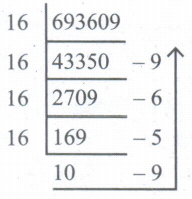
Thus (INDIAN)10 = (693609)10 = (A9569)16
17.
Outline view serves for two purposes.
Making changes in the text of a slide:
(i) Add or delete text in a slide just as in the Normal View.
(ii) Move the paragraphs of text in the selected slide up or down by using the up and down arrow buttons (Move Up or Move Down) on the Text Formatting toolbar.
(iii) Change the outline level for any of the paragraphs in a slide using the left and right arrow buttons (Promote or Demote).
(iv) Both move a paragraph and change its outline level using a combination of these four arrow buttons.
(v) Comparing the slides with outline that another slide is needed, create it directly in the Outline view then return to review all the slides against your outline in the Outline view.
18.
Using Empty presentation
(i) Select Empty presentation under Type. It creates a presentation from scratch.
(ii) Click Next. The Presentation Wizard step 2 appears.
(iii) Choose a design under Select a slide design. The slide design section gives you two main choices: Presentation Backgrounds and Presentations.
(iv) Each one has a list of choices for slide designs. If you want to use one of these other than the < Original >
(v) < Original >
(vi) Click an item to see a preview of the slide design in the Preview window.
(vii) Select how the presentation will be used under Select an output medium. Generally, presentations are created for computer screen display, so select Screen option.
(viii) Click Next. The Presentation Wizard step 3 appears. In this step, you can choose the desired slide transition from the Effect drop-down menu. Select the desired speed for the transition between the different slides in the presentation from the Speed drop-down menu. Medium is a good choice. Click Create. A new presentation is created.
19.
Direct Insert method:
If you know the function name and its syntax known, it can be directly typed in any cell of the worksheet.
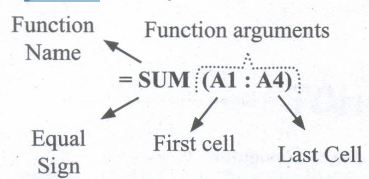
For example, SUM is the most frequently using function to add a set of values. The syntax of the SUM () is
= SUM (range 1; range 2; range 3 range n)
** (Remember that the meaning of Range explained previously in this chapter)
To find the sum of the values on A1, A2, A3, A4, A4 in AS, Place your cell pointer in AS and directly type the formulae as follows.
= SUM (A1: A4)
While directly typing a function the following points should be kept in mind.
(i) A function should begins with a equal sign.
(ii) Use proper name of the function to be used.
(iii) Within brackets, arguments should be given as per the syntax. Each function has unique argument list.
(iv) After typed a function, "Enter" key must be pressed.
20.
Copy and Paste Data:
(i) Select the cell or cells you want to copy
(ii) Select Edit ➝ Copy or Click "Copy" icon from the standard toolbar or Press Ctrl + C
(iii) Move the cell pointer to the cell in which you want to paste.
(iv) Select Edit ➝ Paste or Click "Paste" icon or Press Ctrl + V
Cut and Paste Data:
(i) Select the cell or cells you want to cut
(ii) Select Edit ➝ Cut or Click "Cut" icon from the standard toolbar or Press Ctrl + X
(iii) Move the cell pointer to the cell in which you want to paste.
(iv) Select Edit ➝ Paste or Click "Paste" icon or Press Ctrl +V
21.
Many symbols which are used in a mathematical equation like alpha(α), beta(β), pi(π) etc., are not available on the standard keyboard. However, representing these characters are very much essential in mathematical equations.
To insert such characters, the procedure given below is followed:
(i) Place the cursor in your document where you want the character to appear
(ii) Click on the Insert ➝ Special character
(iii) The Special character dialog box appears from which the desired symbol can be selected by clicking on the character.
(iv) As you select each character, it is shown on the lower right, along with the numerical code for that character
(v) If you do not find a particular special character you want, try changing the font selection.
(vi) Click the ok button and the character is inserted at the current location.
22.
(i) Click Edit ➝ Find & Replace (or) Ctrl + F
(ii) The Find & Replace dialog box appears.
Steps to find and replace a text:
(i) Type the text you want to find in the Search for box
(ii) To replace the text with different text, type the new text in the Replace with box
(iii) Click Find button, to start the search, the found word is highlighted and
(iv) To replace text, click Replace button
(v) Click Find All, Writer selects all instances of the search text in the document
(vi) Click Replace All button, Writer replaces all matches.
(vii) Enable Match case to perform the search case sensitively so that uppercase and lower cases are distinguished separately.
(viii) Enable Whole Words only to make the search more specific to words used separately alone.
23.
(i) Indent is the distance from the left and right margin of a paragraph. It is used to improve the efficiency and readability of the paragraph and makes the paragraph look more attractive.
(ii) There are four types of indents:
1. Left Indent
2. Right Indent
3. First Line Indent and
4. Hanging Indent.
(iii) Left indent:
1. The Left indent controls the space between the paragraph and the left, margin. This is the default indent.
2. Each click on the increase indent icon moves the paragraph 1/2 inch away from the left margin
(iv) Right indent:
1. The Right indent controls the space between the paragraph and the right margin.
2. Each click on the decrease indent icon removes the indent applied by the increase indent that is the earlier indent is removed.
(v) First line indent:
1. A first-line indentation indents the first line of the paragraph. It is the most, common way to start a new paragraph.
2. This indent can be applied by Format ➝ Paragraph➝ indents and paragraph tab, select first line option in the indent group, enter a positive value which results in first line indent.
24.
Moving:
To move a text from one location to another
(i) select the text to be moved
(ii) Click Ctrl + X or Cut Icon or Edit➝Cut
(iii) The text is removed from the source location and placed in the clipboard
(iv) Take the insertion pointer to the new location to be moved and Click Ctrl + V or Paste Icon or Edit ➝Paste
The required text is moved to the required location
Copying:
To copy a text from one location to another
(i) select the text to be copied
(ii) Click Ctrl + C or Copy Icon or Edit ➝Copy
(iii) A duplicate copy of the text is made and send to the clipboard
(iv) Take the insertion pointer to the new location to be copied and Click Ctrl + V or Paste Icon or Edit ➝Paste
The required text is copied to the required location.
25.
| Key | Action |
| ➝ | To move a character right |
| \(\leftarrow\) | To move a character left |
| ↑ | To move one line up |
| ↓ | To move one line down |
| Ctrl + ➝ | One word right |
| Ctrl + \(\leftarrow\) | One word left |
| Ctrl + ↑ | One paragraph up |
| Ctrl + ↓ | One paragraph down |
| Home | To the beginning of line |
| End | To the end of the line |
| Ctrl + Home | To the beginning of the document |
| Ctrl + End | To the end of the document |
| Tab | To move one cell to the right |
| Shift + Tab | To move one cell to left |
| Pg up (Page up) | To scroll one screen up |
| Pg Down (Page Down) |
To scroll one screen down |

11th Standard Syllabus & Materials
11th Standard
TN 11th Tamil பீடு பெற நில் - செய்யுள் - காவடிச்சிந்து Important Questions And Answers Study Material - QB365 Set A
NEW11th Standard
TN 11th Tamil பீடு பெற நில் - உரைநடை - மலை இடப்பெயர்கள் : ஓர் ஆய்வு Important Questions And Answers Study Material - QB365 Set A
NEW11th Standard
TN 11th Tamil மாமழை போற்றுதும் - துணைப்பாடம் - யானை டாக்டர் Important Questions And Answers Study Material - QB365 Set A
NEW11th Standard
TN 11th Tamil மாமழை போற்றுதும் - செய்யுள் - ஐங்குறுநூறு Important Questions And Answers Study Material - QB365 Set A



Tamilnadu Stateboard 11th Standard Subjects

Maths

Commerce

Economics

Biology

Business Maths and Statistics

Accountancy

Computer Science

Physics

Chemistry
Maths
Biology
Economics
Physics
Chemistry

History
Business Maths and Statistics

Computer Science
Accountancy
Computer Applications
History
Computer Technology
Commerce
Computer Applications
Computer Technology

Tamil

English

French
Tamilnadu Stateboard Standards


