
 100% FREE ACCESS
11th Standard Syllabus & Materials
11th Standard
TN 11th Tamil இயற்கை வேளாண்மை,சுற்றுச்சூழல் -செய்யுள் - மனோன்மணீயம் Important Questions And Answers Study Material - QB365 Set A
NEW11th Standard
TN 11th Tamil என்னுயிர் என்பேன் -துணைப்பாடம் - இசைத்தமிழர் இருவர் Important Questions And Answers Study Material - QB365 Set A
NEW11th Standard
TN 11th Tamil மொழி கலை -செய்யுள் - ஒவ்வொரு புல்லையும் Important Questions And Answers Study Material - QB365 Set A
NEW11th Standard
TN 11th Tamil பீடு பெற நில் - இலக்கணம் - பகுபத உறுப்புகள் Important Questions And Answers Study Material - QB365 Set A
NEW11th Standard
TN 11th Tamil பீடு பெற நில் - துணைப்பாடம் - வாடிவாசல் Important Questions And Answers Study Material - QB365 Set A
NEW11th Standard
TN 11th Tamil பீடு பெற நில் - செய்யுள் - குறுந்தொகை Important Questions And Answers Study Material - QB365 Set A

Published on: 03/07/2021
QB365 provides detailed and simple solution for every Creative Questions in class 11 Computer Applications Subject. It will helps to get more idea about question pattern in every Creative questions with solution.
Download Tamil Nadu 11th Standard Computer Applications question papers, model tests, one-mark questions, important questions, and public exam papers in PDF format. Free study materials and answer keys for TN State Board students.
Questions + Answers key
Take MCQ Computer Applications Test
1.
Explain Heading tag with its attributes.
2.
Explain the four structural tags used in webpage.
3.
Explain the do’s and don’t of safe surfing on internet.
4.
Explain any five Internet threat to be common people.
5.
Explain the procedure of shutting down or logging of computer.
6.
Explain how will you copy files and folders in windows.
7.
Explain the different methods of renaming files and folders.
8.
Explain different ways of creating a new folder.
9.
Answer the following:
(a) Which Class of software the OS belongs?
(b) What is the need of OS?
(c) Why OS is important?
(d) Name any three types of Operating systems.
(e) Name any three functions of OS.
10.
Explain the classification of proprietary licensed OS.
11.
Explain File Management.
12.
Explain any three secondary storage devices.
13.
Define the following. (a) Bus (b) Data bus (c) Address bus (d) Control Bus
14.
Convert the following Decimal numbers to its equivalent Binary, Octal, Hexadecimal. - 255
15.
Write the 1's complement number and 2's complement number for the following decimal numbers: (A) 22 (B) -13 (C) 65 (D) - 46 (E) 255
16.
Convert the Following (101011001)2 \(\rightarrow \) (?16) = (?)8
17.
What is number system? Describe different number systems in detail.
18.
Explain Unicode.
19.
How AND and OR can be realized using NAND and NOR gate
20.
What the Sixth generation computers could be defined as the era of intelligent computers?
21.
Explain booting of computer and its types.
22.
Explain Impact Printers with an Example.
23.
Explain Reference operator with an example.
24.
Explain the features of OpenOffice Calc.
25.
Explain the steps to assign auto text to same text in writer.
1.
Headings are used to include titles to sections of a web page. HTML has six levels of headings viz. < hi > to < h6 >. The number with h indicates the level of heading. Header tags are display the body text as bolder and larger in size according to its level.
The syntax of heading tags:
< h ... > Heading text < /h ... >
Attribute of Headings tag :
Align is an attribute to set right, center and justify alignment to headings. Left if the default alignment, so that it is not supported in latest version of HTML. Justify alignment is not supported by older browsers.
The tag is to specify the alignment to headings:
< h# align = value >
Where # is the level number, value may be Right, Center or Justify. Justify alignment only used for paragraphs.
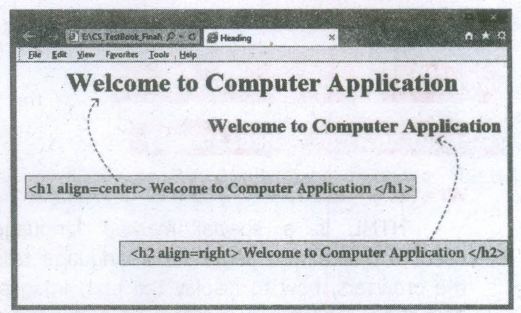
HTML code with Heading and align attributes:
< html >
< head >
< title > Heading < /title >
< /head >
< body >
< hi align=center > Welcome to Computer Application < /hi >
< hi align=right > Welcome to Computer
Application < /h2 >
< /body >
< /html >
2.
| Opening Tag | Closing Tag | Description |
|---|---|---|
| < html > | < /htrnl > | The < html > tag identified the document as an HTML document. All HTML documents should begins with < htrnl > and end with < /htrnl >. |
| < head > | < /head > | The < head > tag contains information about the document, including its title, scripts used, style definition and document descriptions |
| < title > | < /title > | The < title > tag contains the title of the document. The title specified between opening and closing tags appears in the title bar / page tab of the browser. < title > tag should be placed within < head > tag. |
| < body > | < /body > | The < body > tag encloses all the tags, attributes and information to be displayed in the web page. < body > tag should be entered below the < /head > tag. |
3.
Following is the do's and don't of safe surfing on Internet:
1. Don't give out your personal information - Don't put personal details such as your home address, telephone numbers or parent's work address online as cybercriminals can use this information to create a fake profile, with your details.
2. What goes online, stays online - Use privacy settings to make sure only your friends and family can see photos you post. Avoid posting holiday plans as criminals may track your movements
3. Check your security and privacy settings - Make sure your social network privacy settings are secured so only your friends can see your personal information and use your privacy settings to restrict who can see your posts, videos and photos
4. Password safety - Sharing your password with your parents is a sensible idea, but avoid sharing your password with your friends, even if they promise they won't tell anyone! Also, when setting your password, make sure it isn't something people may guess such as your pet's name. Use a mixture of letters, numbers and upper and lower case characters
5. Always protect your mobile device - Make sure your mobile phone is pin-protected so all your personal information stored on it is safe. Download a security app which allows you to remotely wipe any personal data, should your mobile be lost or stolen
6. Don't talk to strangers online or offline - Don't meet up with strangers and let your parents know if a stranger has tried to get in contact with you online
7. Listen to the adults who are known to you - Adults will always be worried about you. Help set their mind at rest and avoid chatting online with strangers
8. Be wary of unsecured or unknown websites - When shopping online, use reputable and known retailers.
9. Be careful what links you click on - Avoid clicking links in an email, Instant Message or on your social network unless you are sure the message is from someone you know.
4.
Computer worm:
A computer worm is a software .program that can copy itself from one computer to another, without human interaction. Worms can replicate in great volume and with great speed. For example, a worm can send copies of itself to every contact in your email. address book and then send itself to all the contacts in your contacts' address books.
Botnet:
A botnet is a group of computers connected to the Internet that have been compromised by a hacker using a computer virus or Trojan horse. An individual computer in the group is known as a "zombie" computer
Spam:
Spam in the security Context is primarily used to describe email spam. Unwanted messages in your email inbox, Spam, or electronic junk mail, is a nuisance as it can clutter your mailbox as well as potentially take up space on your mail server. However, spam messages' can contain links that when clicked on could go to a website that installs malicious software onto your computer.
Phishing:
Phishing scams are fraudulent attempts by cybercriminals to obtain private information. Phishing scams often appear in the guise of email messages designed to appear as though they are from legitimate sources. For example, the message would try to lure you into giving your personal infomiation by pretending that your bank or email service provider is updating its website and that you must click on the link in the email to verify your account information and password details.
Rootkit:
A rootkit is a collection of tools that are used to obtain administrator-level access to a computer or a network of computers. A rootkit could be installed on your computer by a cyber criminal exploiting a Vulnerability or security hole in a legitimate application on your PC and may contain spyware that monitors and records keystrokes.
5.
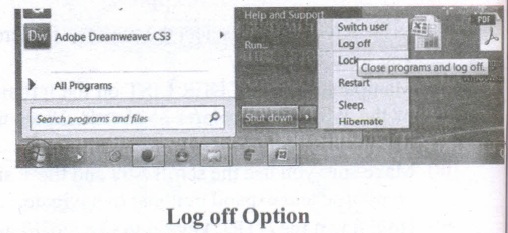
Log Off:
To log off from our computer:
(i) Click on the start button.
(ii) Select log off.
(iii) If any open programs asked to be closed then Windows force them to shut down. Any unsaved information will be last.
Shut Down:
To shut down our computer:
(i) Click on the start button.
(ii) Select shut down.
(iii) Then see the shut down windows dialog box opens.
(iv) If any open programs asked to be closed then Windows, force them to shut down. Any unsaved information will be lost.
6.
To copy file(s) or folder(s), first select the file(s) or folder(s) and then choose one of the following:
(i) Click on the EDIT menu, select the COPY function.
(ii) Keyboard shortcut, CTRL + C.
(iii) Or else click on the selected item with the RIGHT mouse button and select "COPY" from the shortcut menu.
To place a copy of the file( s) or folder( s) in the new location, navigate to the new location then paste using one of the following:
(i) Click on the EDIT menu, select the PASTE function.
(ii) Keyboard shortcut, CTRL + V.
(iii) In the position where you want the item to be pasted, click with the Right mouse button and select "Paste" from the shortcut menu.
Method Dragging and Dropping:
(i) In the RIGHT pane, select the file( s) or folder( s) you want to copy.
(ii) Manipulate the FOLDER LIST on the left side of the Windows Explorer so that it shows the new location.
(iii) Make sure you use the scroll bars and the + and ( collapse and expand buttons) to navigate.
(iv) Hold down the CTRL key on the keyboard and at the same time, click and drag the selected file(s) and/or folder(s) over to the FOLDER LIST on the left, and drop it where you want to copy the file(s) and/or folder(s) to.
(v) Before dropping, make sure the target folder is highlighted (active). Also make sure you release the mouse before you release the CTRL key when dropping.
(vi) The file(s) and folder(s) will now appear in the new area.
7.
Method 1
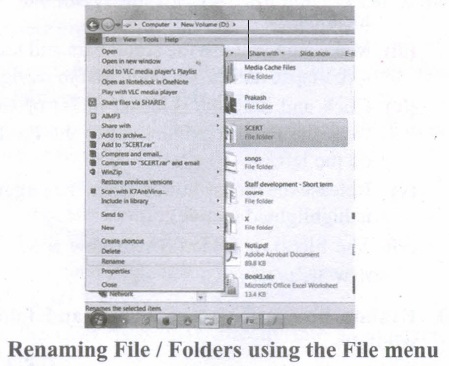
Using the FILE Menu:
(i) Select the File or Folder you wish to Rename.
(ii) Click on the File menu and select Rename.
(iii) Type in the new name. While renaming a file keep the same file extension (e.g. ".doc") as it earlier had, otherwise, the file will no longer be associated with the program that created it.
(iv) To finalise the renaming operation, press Enter the file or folder name.
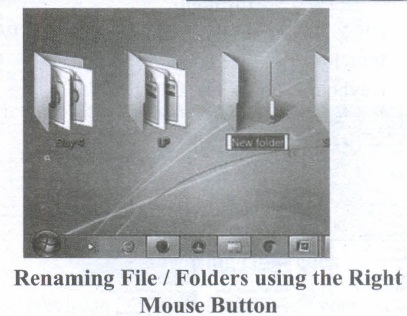
Method 2
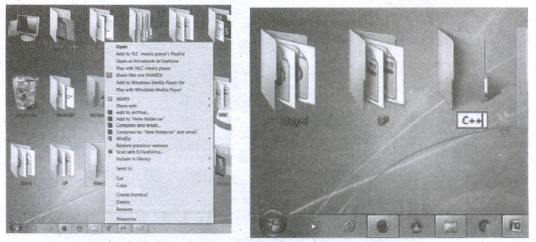
Using the Right Mouse Button:
(i) Select the file or folder you wish to rename.
(ii) Click the right mouse button while still pointing to the file.
(iii) Select Rename from the shortcut menu.
(iv) Type in the new name.
(v) To finalise the renaming operation, press enter or click away from the rectangle that surrounds the file or folder name.
Method 3
Using the Left Mouse Button
(i) Select the file or folder you wish to rename.
(ii) Wait a moment then click again (not in quick succession like a double click). A surrounding rectangle will appear around the name;
(iii) Type in the new name.
(iv) To finalise the renaming operation, press enter or click away from the rectangle that surrounds the file or folder-name.
8.
There are two ways in which a new folder is created:
Way I:
(i) Locate and select the folder on the drive where you want to create a new folder. The folder must be selected before continuing. In figure (selecting a folder to create a folder under it) the folder Mathi is selected to create a New Folder under it.
(ii) Click on File menu, select New, then select Folder.
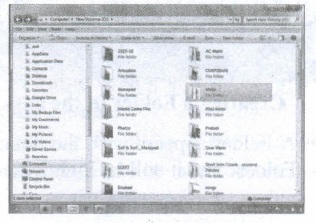
Selecting a folder to create a folder under it.
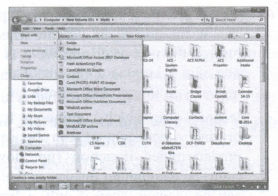
Creating a Folder using, File Menu
(i) Type in the folder name and press Enter to finalize (you can also click away from the new folder, outside its surrounding rectangle to finalize).
jpg.jpg)
Typing name to the newly created Folder
(ii) In this case, the folder name is given as "Test Folder".
Way II: In order to create a folder in the desktop:
(i) On the Desktop, right click and select New option from the pop-up menu.
(ii) From the sub-menu, select Folder option. (Refer figure 5.23 to know the procedure)
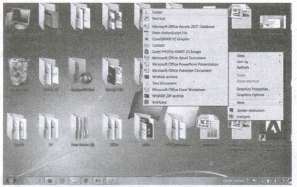
(iii) A Folder appears with the default name "New Folder" and it will be highlighted.
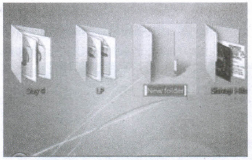
(iv) Type the name you want.
(v) Click anywhere else in the window or else press Enter key.
(vi) The name of the folder changes to what you have typed.
9.
(a) System Software
(b) Provide a platform to run application programs and activate the basic level hardware.
(c) Act as an interface between user, software and hardware.
(d) 1. Real-Time OS
2. BOSS
3. Interactive OS
(e) 1. Process Management
2. Storage Management
3. Device Management.
10.
Microsoft Windows is a family of proprietary operating systems designed by Microsoft Corporation and primarily targeted to Intel architecture-based computers. Windows comes as pre-loaded on most of the new personal computers and laptops.
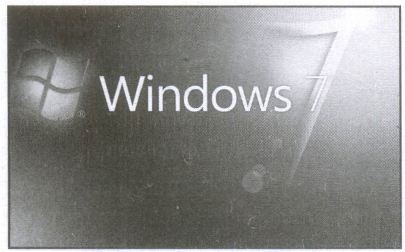
Microsoft Windows Home Screen
iOS - iPhone OS
iOS (formerly iPhone OS) is a mobile operating system created and developed by Apple Inc. exclusively for its hardware. It is the operating system that presently powers many of the company's mobile devices, including the iPhone, iPad and iPod Touch. It is the second most popular mobile operating system globally after Android.
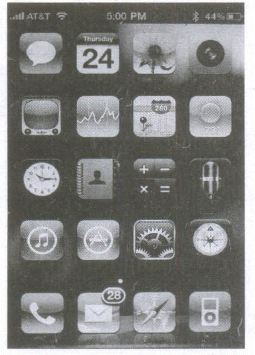
iPhone Home Screen
11.
(i) File management is an important function of OS which handles the data storage techniques. The operating System manages the files, folders and directory systems on a computer.
(ii) Any type of data in a computer is stored in the form of files and directories/folders through File Allocation Table (FAT).
(iii) The FAT stores general information about files like filename, type (text or binary), size, starting address and access mode (sequential/indexed / indexed-sequential/direct/relative).
(iv) The file manager of the operating system helps to create, edit, copy, allocate memory to the files and also. updates the FAT.
(v) The OS also takes care of the files that are opened with proper access rights to read or edit them. There are few other file management techniques available like Next Generation File System (NTFS) and ext2(Linux).
12.
Hard disk :
(i) Hard disk is a magnetic disk on which you can store data. The hard disk has the stacked arrangement of disks accessed by a pair of heads for each of the disks.
(ii) The hard disks come with a single or double-sided disk.
Compact Disk (CD) :
.png)
(i) A CD or CD-ROM is made from 1.2 millimetres thick, polycarbonate plastic material. A thin layer of aluminium or gold is applied to the surface.
(ii) CD data is represented as tiny indentations known as "pits", encoded in a spiral track moulded into the top of the polycarbonate layer. The areas between pits are known as "lands".
(iii) A motor within the CD player rotates the disk. The capacity of an ordinary CD- ROM is 700MB.
Digital Versatile Disc (DVD):
.png)
(i) A DVD (Digital Versatile Disc or Digital Video Disc) is an optical disc capable of storing up to 4.7 GB of data, more than six times what a CD can hold.
(ii) DVDs are often used to store movies at a better quality. Like CDs, DVDs are read with a laser. The disc can have one or two sides, and one or two layers of data per side; the number of sides and layers determines how much it can hold.
(iii) A 12 em diameter disc with a single-sided, single layer has 4.7 GB capacity, whereas the single-sided, double layer has 8.5 GB capacity.
(iv) The 8 em DVD has 1.5 GB capacity. The capacity of a DVD-ROM can be visually determined by noting the number of data sides of the disc. Double-layered sides- are usually gold-coloured, while single-layered sides are usually silver-coloured, like a CD.
13.
(a) Bus:
A bus is a collection of wires used for communication between the internal components of a computer.
(b) Data bus:
(i) Data busis a collection of wires to carry data in bits.
(ii) A data bus is used to transfer data between the memory and the CPU.
(iii) The data bus is bidirectional.
(c) Address bus:
(i) Address bus is a collection of wires to carry data in bits.
(ii) The address bus is used to point a memory location.
(iii) The address bus is unidirectional.
(d) Control bus:
(i) Control bus is a control line/collection of wires to control the operation/functions.
(ii) The control bus controls both read and write operations.
14.
25510
.png)
= 111111112
= 111111112 = ?8
= \(\overline { \underset { \overset { \downarrow }{ 3 } }{ 11 } } \) \(\overline { \underset { \overset { \downarrow }{ 7 } }{ 111 } } \) \(\overline { \underset { \overset { \downarrow }{ 7 } }{ 111 } } \)
=3778
= 111111112 =?16
= \(\overline { \underset { \overset { \downarrow }{ \overset { 15 }{ \overset { \downarrow }{ f } } } }{ 1111 } } \) \(\overline { \underset { \overset { \downarrow }{ \overset { 15 }{ \overset { \downarrow }{ f } } } }{ 1111 } } \)
= ff16
= 25510 = 111111112 = 3778 = ff16
15.
(A) - 22
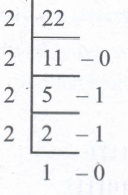
Binary equivalent of + 22 =10110
8 bit format =00010110
1's complement =11101001
Add 1 to LSB = +1
2's complement of -22 =\(\_ \_ \_ \_ \_ \_ \_ \_ \_ \_ \\ 11101010\\ \_ \_ \_ \_ \_ \_ \_ \_ \_ \_ \)
(B) -13
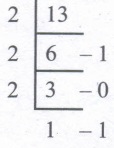
Binary equivalent of + 13 =1101
8 bit format =00001101
1's complement =11110010
Add 1 to LSB = +1
2's complement of-13 \(\_ \_ \_ \_ \_ \_ \_ \_ \_ \\ 11110011\\ \_ \_ \_ \_ \_ \_ \_ \_ \_ \)
(C)-65
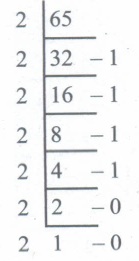
Binary equivalent of + 65 =1000001
8 bit fomiat =01000001
1's complement =10111111
Add 1 to LSB = +1
2's complement of -65 =\(\_ \_ \_ \_ \_ \_ \_ \_ \_ \_ \\ 11000000\\ \_ \_ \_ \_ \_ \_ \_ \_ \_ \_ \_ \)
(D)-46
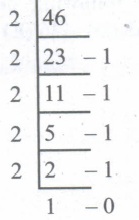
Binary equivalent of + 46 =101111
8 bit format =00101111
1's complement =11010000
Add 1 to LSB = +1
2's complement of-46 \(\_ \_ \_ \_ \_ \_ \_ \_ \_ \\ 11010001\\ \_ \_ \_ \_ \_ \_ \_ \_ \_ \_ \)
(E)-255
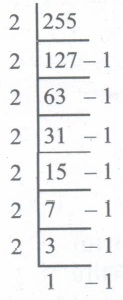
Binary equivalent of + 255 =11111111
1's complement =00000000
Add 1 to LSB = +1
2's complement of - 255 = \(\_ \_ \_ \_ \_ \_ \_ \_ \\ 00000001\\ \_ \_ \_ \_ \_ \_ \_ \_ \_ \)
16.
(101011001)2 in hexadecimal Form
= 1 \(\overline { 0101 } \) \(\overline { 1001 } \)
(101011001)2 = (159)16
(101011001)2 = (159)16
(101011001)2 octal form
\(\overset { 101 }{ \underset { 5 }{ \downarrow } } \) \(\overset { 011 }{ \underset { 3 }{ \downarrow } } \) \(\overset { 001 }{ \underset { 1 }{ \downarrow } } \)
(101011001)2 = (531)8
Thus(101011001)2 \(\rightarrow \) = (531)8
17.
A number system is a set of digits used to represent the values derived from a common base or radix.
Decimal Number System:
(i) The term Decimal is derived from a Latin prefix deci, which means ten.
(ii) The Decimal number system has ten digits ranging from 0-9. Because this system has ten digits.
(iii) It is also called as a base ten number system or denary number system.
(iv) Decimal number should always be written with a subscript 10.
Binary umber System:
(i) The decimal number system is not convenient to implement in digital system.
(ii) For instance, it is very difficult to design electronic equipment so that it can work with 10 different voltage levels (each one representing one decimal character, 0 through 9).
(iii) On other hand, it is very easy to design simple, accurate electronic circuits that operate with only 2 voltage levels.
(iv) For this reason, almost every digital system utilizes the binary number system (base 2) as the basic number system of its operation;
(v) In a binary system, there are only two symbols or possible digit values, 0 and 1.
Octal Number System:
(i) The octal number system is playing a vital role in digital computer work.
(ii) The octal number system has a base of 8.
(iii) It means that it has eight unique symbols such as 0,1,2,3,4,5,6 and 7.
(iv) Thus, each digit of an octal number can have any value from 0 to 7.
(v) The places to the left of the octal point are positive powers of 8 and places to the right are negative powers of 8.
Hexademical Number System:
(i) The hexadecimal system uses base 16 in digital systems.
(ii) It has 16 possible symbols.
(iii) It uses the digits 0 through 9 plus the letters A, B, C, D, E and F as the 16 different symbols.
(iv) Hexadecimal System is a positional value system, wherein each hexadecimal digit has its own value or weight expressed as a power of 16.
18.
(i) Unicode is the newest concept in digital coding. In Unicode, every number has a unique character.
(ii) Unicode is the universal character encoding standard used for the representation of text for computer processing
(iii) It can be used to store and process all significant current and past languages. Unicode provides a unique hex encoded number for every character
(iv) Unicode is a 16-bit code, which allows for about 65,000 different representations. This is enough to encode the popular Asian languages (Chinese, Korean, Japanese, etc.)
(v) It also turns out that ASCII codes are preserved. Therefore, conversion between ASCII and Unicode is a simple method (take all one byte ASCII codes and zero-extend them to 16 bits).
(vi) This will be the Unicode version of the ASCII characters. The C, C++ programs use the ASCII Code, and Java programs have already used Unicode. The Unicode Standard has been adopted by industry leaders such as Apple, HP, IBM, Microsoft, Oracle, SAP, Sun, Sybase, and Unisys. Unicode is required by web users and modem standards.
19.
AND and OR operation from NAND gates are shown below
.png)
A.B = (A NAND B) NAND ( A NAND B)
OR operation
.png)
A+B (ANAND A)NAND (B NANDY Y)
b) AND AND OR operation from NOR gates are shown below.
.png)
A - B = (A NORA A) NOR (B NOR B)
.png)
A+ B = (A NOR B) NOR (A NOR B)
20.
(i) The Sixth Generation, computers could be defined as the era of intelligent computers, based on Artificial Neural Networks. This generation gave a start to parallel computing.
(ii) One of the most dramatic changes in the sixth generation will be the explosive growth of wide is a component of artificial intelligence.
(iii) Robotics is a branch of engineering that involves the conception, design, manufacture, and operation of robots.
(iv) This field overlaps with electronics, computer science, artificial intelligence, mechatronics, nanotechnology and bioengineering.
(v) Artificial neural networks (ANNs) are computing systems inspired by the biological neural networks that constitute animal brains.
(vi) Such systems learn (progressively improve performance on) tasks by considering examples, generally without task-specific programming.
(vii) An ANN is based on a collection of connected units or nodes called Artificial Neurons (analogous to biological neurons in an animal brain).
(viii) Each connection (synapse) between neurons can transmit a signal from one to another. The receiving neuron can process the signal(s) and then signal neurons connected to it.
(ix) Parallel computing is a type of computation in which many calculations or the execution of processes are carried out simultaneously.
(x) Large problems can often be divided into smaller ones, which can then be solved at the same time. There are several different forms of parallel computing bit-level, instruction-level, data, and task parallelism.
(xi) Parallelism has been employed for many years, mainly in high-performance computing, but interest in it has grown lately due to the physical constraints preventing frequency scaling.
(xii) As power consumption by computers has become a concern in recent years, parallel computing has become the dominant paradigm in computer architecture, mainly in the form of multi-core processors.
21.
Booting of computer:
(i) An Operating system (OS) is a basic software that makes the computer to work. When a computer is switched on, there is no information in its RAM.
(ii) At the same time, in ROM, the pre-written program called POST (Power on Self Test) will be executed first. This program checks if the devices like RAM, keyboard, etc., are connected properly and ready to operate. If these devices are ready, then the BIOS (Basic Input Output System) gets executed. This process is called Booting.
(iii) There after, a program called "Bootstrap Loader" transfers OS from hard disk into main memory. Now the OS gets loaded (Windows/Linux, etc.,) and will get executed. Booting process is of two types.
1) Cold Booting
2) Warm Booting
(iv) Cold Booting:
When the system starts from initial state i.e. it is switched on, we call it cold booting or Hard Booting. When the user presses the Power button, the instructions are read from the ROM to initiate the booting process.
(v) Warm Booting:
When the system restarts or when Reset button is pressed, we call it Warm Booting or Soft Booting. The system does not start from initial state arid so all diagnostic tests need not be carried out in this case. There are chances of data loss and system damage as the data might not have been stored properly.
22.
Impact Printers:
(i) These printers print with striking of hammers or pins on ribbon. These printers can print on multi-part (using carbon papers) by using mechanical pressure.
(ii) For example, Dot Matrix printers and Line matrix printers are impact printers.
(iii) A Dot matrix printer that prints using a fixed number of pins or wires. Each dot is produced by a tiny metal rod, also called a "wire" or "pin", which works by the power of a tiny electromagnet or solenoid, either directly or through a set of small levers.
(iv) It generally prints one line of text at a time. The printing speed of these printers varies from 30 to 1550 CPS (Character Per Second).
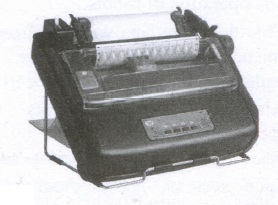
(v) It generally prints one line of text at a time. The printing speed of these printers varies from 30 to 1550 CPS (Character Per Second).
23.
Reference operators are used to refer cell ranges. A continuous group of sells is called as "Range". There are three types of reference operators that are used to refer cells in calc; They are
(i) Range Reference Operator,
(ii) Range Concatenation
(iii) Intersection Operator.
Range Reference Operator:
Colon (:) is the range reference operator. It is used to group a range of cells. An expression using a range operator has the following syntax:
reference left: reference right
Where reference left may be a starting cell address of a linear group of cells or upper left comer address of a rectangular group of cells. Reference right may be a last cell address of a linear group or lower right comer address of a rectangular group.
Example:
(i) Linear group of cells A1, A2, A3, A4, A5 will be referred as A1: A5
(ii) Rectangular group of cells A2, A3, A4, ..... B2, B3, B4.... D5, D6 will be referred as A2 : D6. Name box shows the reference A2 : C6 corresponding to the cells included in the drag operation with the mouse to highlight the range.
Reference concatenation operator:
Concatenation means joining together. Tilde (~) symbol is used as a concatenation operator in calc.
An expression using a concatenation' operator has the following syntax:
reference left ~ reference right
Example:
If you want to find the sum of the values from A1 to A6 and C3 to F3. The formula is =SUM(A1 : A6 ~ C3 : F3)
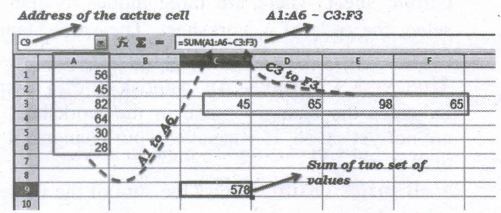
SUM is the function to find the sum of a group values. Later in this chapter you will learn more about functions. So, don't bother about SUM. Just learn the use of concatenation operator.
Intersection Operator:
Intersection operator is used to join two set of groups. It is very similar to Range concatenation operator. The intersection operator is represented by an exclamation mark (!). An expression using the intersection operator has the following syntax:
reference left ! reference right
If the references refer to a single range, the result" is a reference to a single range, containing all cells, which are both in the left reference and in the right reference.
If the references are reference lists, then each list item from the left is intersected with each one from the right and these results are concatenated to a reference list.
The order is to first intersect the first item from the left with all items from the right, then intersect the second item from the left with all items from the right, and so on.
Example: (A2:D3 ! B2:E4)
24.
1. Connecting with Excel: Ability to open, edit, and save Microsoft Excel spreadsheets
2. AutoSum: Helps you to add the contents of a cluster of adjacent cells.
3. List AutoFill: Automatically extends cell formatting when a new item is added to the end of a list.
4. AutoFill: Allows you to quickly fill cells with repetitive or sequential data such as chronological dates or numbers, and repeated text. AutoFill can also be used to copy functions. You can also alter text and numbers with this feature.
5. AutoShapes toolbar: Will allow you to draw a number of geometrical shapes, arrows, flowchart elements, stars and more. With these shapes, you can draw your own graphs.
6. Wizard: Guides you to work effectively while you work by displaying various helpful tips and techniques based on what you are doing.
7. Drag and Drop: It will help you to reposition the data and text by simply dragging the data with the help of a mouse.
8. Charts: It will help you in presenting a graphical representation of your data in the form of Pie, Bar, Line charts and more.
9. PivotTable: It flips and sums data in seconds and allows you to perform data analysis and generating reports like periodic financial statements, statistical reports, etc. You can also analyze complex data relationships graphically.
10. Shortcut Menus: The commands that are appropriate to the task that you are doing will appear by clicking the right mouse button.
11. Functions: which can be used to create formulas to perform complex calculations on data. Database functions, to arrange, store, and filter data
12. Import and export: of spreadsheets in multiple formats, including HTML, CSV, PDF, and PostScript.
25.
To assign AutoText shortcut to some text, the steps are as follows :
(i) Type the text into your document.
(ii) Select the text so that it is highlighted.
(iii) Select Edit ➝ AutoText (or press Ctrl+F3).
(iv) Enter a name for your shortcut. Writer will suggest a one-letter shortcut, which you can change.
(v) Click the Auto Text button on the right and select New (text only) from the menu.
(vi) Click Close to return to your document.
(vii) Once the entry is created, to insert the auto text into the document, place the cursor where the text is to be inserted and click Ctrl+F3,
(viii) Select the name from the list of entries and click Insert button.
(ix) The auto text is inserted into your text.

11th Standard Syllabus & Materials
11th Standard
TN 11th Tamil பீடு பெற நில் - செய்யுள் - காவடிச்சிந்து Important Questions And Answers Study Material - QB365 Set A
NEW11th Standard
TN 11th Tamil பீடு பெற நில் - உரைநடை - மலை இடப்பெயர்கள் : ஓர் ஆய்வு Important Questions And Answers Study Material - QB365 Set A
NEW11th Standard
TN 11th Tamil மாமழை போற்றுதும் - துணைப்பாடம் - யானை டாக்டர் Important Questions And Answers Study Material - QB365 Set A
NEW11th Standard
TN 11th Tamil மாமழை போற்றுதும் - செய்யுள் - ஐங்குறுநூறு Important Questions And Answers Study Material - QB365 Set A



Tamilnadu Stateboard 11th Standard Subjects

Maths

Commerce

Economics

Biology

Business Maths and Statistics

Accountancy

Computer Science

Physics

Chemistry
Maths
Biology
Economics
Physics
Chemistry

History
Business Maths and Statistics

Computer Science
Accountancy
Computer Applications
History
Computer Technology
Commerce
Computer Applications
Computer Technology

Tamil

English

French
Tamilnadu Stateboard Standards


