
 100% FREE ACCESS
11th Standard Syllabus & Materials
11th Standard
TN 11th Tamil இயற்கை வேளாண்மை,சுற்றுச்சூழல் -செய்யுள் - மனோன்மணீயம் Important Questions And Answers Study Material - QB365 Set A
NEW11th Standard
TN 11th Tamil என்னுயிர் என்பேன் -துணைப்பாடம் - இசைத்தமிழர் இருவர் Important Questions And Answers Study Material - QB365 Set A
NEW11th Standard
TN 11th Tamil மொழி கலை -செய்யுள் - ஒவ்வொரு புல்லையும் Important Questions And Answers Study Material - QB365 Set A
NEW11th Standard
TN 11th Tamil பீடு பெற நில் - இலக்கணம் - பகுபத உறுப்புகள் Important Questions And Answers Study Material - QB365 Set A
NEW11th Standard
TN 11th Tamil பீடு பெற நில் - துணைப்பாடம் - வாடிவாசல் Important Questions And Answers Study Material - QB365 Set A
NEW11th Standard
TN 11th Tamil பீடு பெற நில் - செய்யுள் - குறுந்தொகை Important Questions And Answers Study Material - QB365 Set A

Published on: 03/07/2021
QB365 provides detailed and simple solution for every Creative Questions in class 11 Computer Applications Subject. It will helps to get more idea about question pattern in every Creative questions with solution.
Download Tamil Nadu 11th Standard Computer Applications question papers, model tests, one-mark questions, important questions, and public exam papers in PDF format. Free study materials and answer keys for TN State Board students.
Questions + Answers key
Take MCQ Computer Applications Test
1.
Explain Line Breaks and Paragraphs in HTML document.
2.
Explain Heading tag with its attributes.
3.
Explain the four structural tags used in webpage.
4.
Explain how will you edit and reload the source file in a HTML document
5.
Explain the steps to create a webpage.
1.
Browser applications are having some special rules for displaying text. They do not recognize returns, tabs or even more than one space between words. If we create an HTML document with multiple lines of text, browser will display it as a single line.
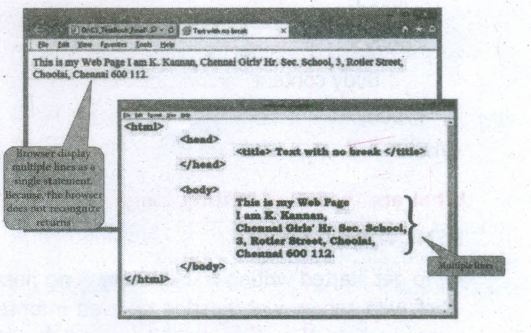
The
tag is used for line break. The < br > is an empty tag, does not have close tag and attribute. It should be placed at the end of a line.
.JPG)
In HTML, paragraphs are created using the < p > tag. The content what we type between < p > and < /p > is identified as a paragraph and display as a paragraph by the browser. Because, the browser does not recognize returns.
HlTML code to create a p ragraph:
< html >
< head >
< title > Paragraph < /title >
< /head >
< body >
< hi align=center > Business < /hi >
< p > Business may be defined as any activity in which a man is very much interested and these activities bring him profit, money, prestige and power. < /p > < p > In economic sense, the term business means works, efforts and acts of people, which are connected with the production of wealth and activities, which are directed with the object of making profit.< /p > < p > Production and distribution of goods to consumers for a profit constitute business. < /p >
< /body >
< /html >
.JPG)
Changing Paragraph alignment
In HTML documents there are four paragraph alignments viz. Left, Right, Center and Justify. The text that we type between < p > and < /p > is by default aligned to left. To change the alignment of a paragraph align attribute can be used with < p > tag.
The tag to specify the alignment to paragraphs:
Where alignment can either be Right, Center or Justify. Note that, left is the default alignment.
.JPG)
2.
Headings are used to include titles to sections of a web page. HTML has six levels of headings viz. < hi > to < h6 >. The number with h indicates the level of heading. Header tags are display the body text as bolder and larger in size according to its level.
The syntax of heading tags:
< h ... > Heading text < /h ... >
Attribute of Headings tag :
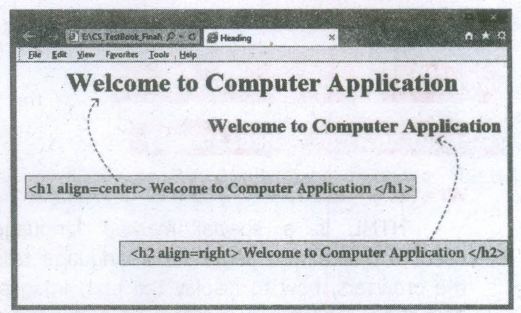
Align is an attribute to set right, center and justify alignment to headings. Left if the default alignment, so that it is not supported in latest version of HTML. Justify alignment is not supported by older browsers.
The tag is to specify the alignment to headings:
< h# align = value >
Where # is the level number, value may be Right, Center or Justify. Justify alignment only used for paragraphs.
HTML code with Heading and align attributes:
< html >
< head >
< title > Heading < /title >
< /head >
< body >
< hi align=center > Welcome to Computer Application < /hi >
< hi align=right > Welcome to Computer
Application < /h2 >
< /body >
< /html >
3.
| Opening Tag | Closing Tag | Description |
|---|---|---|
| < html > | < /htrnl > | The < html > tag identified the document as an HTML document. All HTML documents should begins with < htrnl > and end with < /htrnl >. |
| < head > | < /head > | The < head > tag contains information about the document, including its title, scripts used, style definition and document descriptions |
| < title > | < /title > | The < title > tag contains the title of the document. The title specified between opening and closing tags appears in the title bar / page tab of the browser. < title > tag should be placed within < head > tag. |
| < body > | < /body > | The < body > tag encloses all the tags, attributes and information to be displayed in the web page. < body > tag should be entered below the < /head > tag. |
4.
Source file can be edit only through the text editor. So, to edit the source file, open the source file with a text editor. When you edit a source file, no need to close browser in which displaying the HTML document. The following steps are to be followed to open a source file
(i) Go to the folder in which yonr source files are located.
(ii) According to you default browser, your source file icon is displayed.
(iii) Right click on the source file that you want to edit.
(iv) From the pop-up menu, select Open With ⟶ Notepad.
(v) Source file will be opened in text editor.
(vi) Make the changes and save the file using File ⟶ Save or Ctrl + S.
Reload / Refresh the changes:
(i) After modify and save the source file, minimize your source file.
(ii) Go to the browser.
(iii) Click Refresh (Internet Explorer) / Reload Current Page (Firefox) / Reload this page (Chrome) icons on the address bar.
(iv) Press Ctrl + R or F5 will be used to refresh / reload the modifications
5.
Creating a Webpage :
Step 1: Open a text editor Windows7:
Start ⟶ All Programs Accessories ⟶ Notepad⟶Linux: Applications ⟶ Accessories ⟶ Text Editor.
Step 2: In the appearing Note pad / Text Editor, type the HTML document.
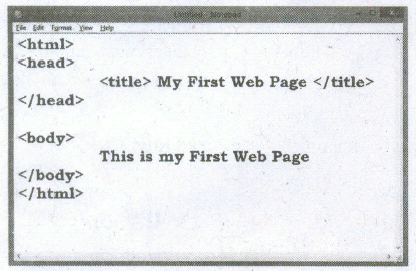
Step 3: Save the file as HTML
(i) Click File ⟶ Save (or) Press Ctrl + S
(ii) Save as dialog box appears.
(iii) In "File Name" text box, type a file name with .htm or .htmlextension.
(iv) Select "All Files" from "Save as type" list box. Click "Save" button.

11th Standard Syllabus & Materials
11th Standard
TN 11th Tamil பீடு பெற நில் - செய்யுள் - காவடிச்சிந்து Important Questions And Answers Study Material - QB365 Set A
NEW11th Standard
TN 11th Tamil பீடு பெற நில் - உரைநடை - மலை இடப்பெயர்கள் : ஓர் ஆய்வு Important Questions And Answers Study Material - QB365 Set A
NEW11th Standard
TN 11th Tamil மாமழை போற்றுதும் - துணைப்பாடம் - யானை டாக்டர் Important Questions And Answers Study Material - QB365 Set A
NEW11th Standard
TN 11th Tamil மாமழை போற்றுதும் - செய்யுள் - ஐங்குறுநூறு Important Questions And Answers Study Material - QB365 Set A



Tamilnadu Stateboard 11th Standard Subjects

Maths

Commerce

Economics

Biology

Business Maths and Statistics

Accountancy

Computer Science

Physics

Chemistry
Maths
Biology
Economics
Physics
Chemistry

History
Business Maths and Statistics

Computer Science
Accountancy
Computer Applications
History
Computer Technology
Commerce
Computer Applications
Computer Technology

Tamil

English

French
Tamilnadu Stateboard Standards


