
 100% FREE ACCESS
11th Standard Syllabus & Materials
11th Standard
TN 11th Tamil இயற்கை வேளாண்மை,சுற்றுச்சூழல் -செய்யுள் - மனோன்மணீயம் Important Questions And Answers Study Material - QB365 Set A
NEW11th Standard
TN 11th Tamil என்னுயிர் என்பேன் -துணைப்பாடம் - இசைத்தமிழர் இருவர் Important Questions And Answers Study Material - QB365 Set A
NEW11th Standard
TN 11th Tamil மொழி கலை -செய்யுள் - ஒவ்வொரு புல்லையும் Important Questions And Answers Study Material - QB365 Set A
NEW11th Standard
TN 11th Tamil பீடு பெற நில் - இலக்கணம் - பகுபத உறுப்புகள் Important Questions And Answers Study Material - QB365 Set A
NEW11th Standard
TN 11th Tamil பீடு பெற நில் - துணைப்பாடம் - வாடிவாசல் Important Questions And Answers Study Material - QB365 Set A
NEW11th Standard
TN 11th Tamil பீடு பெற நில் - செய்யுள் - குறுந்தொகை Important Questions And Answers Study Material - QB365 Set A

Published on: 13/05/2022
QB365 provides detailed and simple solution for every Creative Questions in class 11 Computer Applications Subject. It will helps to get more idea about question pattern in every Creative questions with solution.
latest Creative QuestionsDownload Tamil Nadu 11th Standard Computer Applications question papers, model tests, one-mark questions, important questions, and public exam papers in PDF format. Free study materials and answer keys for TN State Board students.
Questions + Answers key
Take MCQ Computer Applications Test
1.
Write the steps to do multiple sorting data.
2.
Explain how will you insert a function using Direct Insert method.
3.
Explain how will you cut, copy and Paste data in a worksheet.
4.
Explain the parts of OpenOffice Calc Status bar.
5.
Write down the parts of the OpenOffice Calc window.
1.
Multi-sorting data:
Step 1: Select Data ➝ Sort. Name are arranged in Ascending order According to names, other data also rearranged
Step 2: Sort dialog box appears.
Step 3: Select the field name (Student name) in which you want to sort from the "sort by" dropdown list box and then choose order of sorting i.e. Ascending or Descending. Ascending is the default selection.
Step 4: Select another field name (Group Code) from the "Then by" dropdown list box and choose the order of sorting to this column.
Step 5: Click "OK" button. In OpenOffice Calc, multi-sort can be done only for three fields.
2.
Direct Insert method:
If you know the function name and its syntax known, it can be directly typed in any cell of the worksheet.
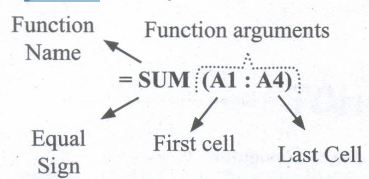
For example, SUM is the most frequently using function to add a set of values. The syntax of the SUM () is
= SUM (range 1; range 2; range 3 range n)
** (Remember that the meaning of Range explained previously in this chapter)
To find the sum of the values on A1, A2, A3, A4, A4 in AS, Place your cell pointer in AS and directly type the formulae as follows.
= SUM (A1: A4)
While directly typing a function the following points should be kept in mind.
(i) A function should begins with a equal sign.
(ii) Use proper name of the function to be used.
(iii) Within brackets, arguments should be given as per the syntax. Each function has unique argument list.
(iv) After typed a function, "Enter" key must be pressed.
3.
Copy and Paste Data:
(i) Select the cell or cells you want to copy
(ii) Select Edit ➝ Copy or Click "Copy" icon from the standard toolbar or Press Ctrl + C
(iii) Move the cell pointer to the cell in which you want to paste.
(iv) Select Edit ➝ Paste or Click "Paste" icon or Press Ctrl + V
Cut and Paste Data:
(i) Select the cell or cells you want to cut
(ii) Select Edit ➝ Cut or Click "Cut" icon from the standard toolbar or Press Ctrl + X
(iii) Move the cell pointer to the cell in which you want to paste.
(iv) Select Edit ➝ Paste or Click "Paste" icon or Press Ctrl +V
4.
Sheets count: Shows current serial number of the sheet / total number of sheets available.
Page Style: Shows the page style of the current sheet. To make changes, just double-click on "Default" and it will show you the "Page Style" dialog box, which is used to change the margin, orientation, paper size, inserting header, footer, border style etc.,
Selection Mode: Shows the selection mode of the current sheet. There are three modes available to select the cells of a worksheet. They are, Standard (STD), Extend (EXT) and Add (ADD).
Unsaved Changes: An asterisk ( * ) symbol indicates the changes made in the worksheet that are not yet saved. If you saved your changes, it will disappear.
Cell information: Shows the sum of the values of selected cells.
Zoom slider: used to increase or decrease the view scale (zoom). The default zooming scale is 100%.
5.
(i) Title Bar
(ii) Control Buttons
(iii) Menu Bar
(iv) Tools Bar
(v) Name Box / Address Box
(vi) Quick Function Wizard
(vii) Formula Bar / Input Line
(viii) Formatting Properties
(ix) Zoom
(x) Scroll bar
(xi) Status Bar

11th Standard Syllabus & Materials
11th Standard
TN 11th Tamil பீடு பெற நில் - செய்யுள் - காவடிச்சிந்து Important Questions And Answers Study Material - QB365 Set A
NEW11th Standard
TN 11th Tamil பீடு பெற நில் - உரைநடை - மலை இடப்பெயர்கள் : ஓர் ஆய்வு Important Questions And Answers Study Material - QB365 Set A
NEW11th Standard
TN 11th Tamil மாமழை போற்றுதும் - துணைப்பாடம் - யானை டாக்டர் Important Questions And Answers Study Material - QB365 Set A
NEW11th Standard
TN 11th Tamil மாமழை போற்றுதும் - செய்யுள் - ஐங்குறுநூறு Important Questions And Answers Study Material - QB365 Set A



Tamilnadu Stateboard 11th Standard Subjects

Maths

Commerce

Economics

Biology

Business Maths and Statistics

Accountancy

Computer Science

Physics

Chemistry
Maths
Biology
Economics
Physics
Chemistry

History
Business Maths and Statistics

Computer Science
Accountancy
Computer Applications
History
Computer Technology
Commerce
Computer Applications
Computer Technology

Tamil

English

French
Tamilnadu Stateboard Standards


