
 100% FREE ACCESS
11th Standard Syllabus & Materials
11th Standard
TN 11th Tamil இயற்கை வேளாண்மை,சுற்றுச்சூழல் -செய்யுள் - மனோன்மணீயம் Important Questions And Answers Study Material - QB365 Set A
NEW11th Standard
TN 11th Tamil என்னுயிர் என்பேன் -துணைப்பாடம் - இசைத்தமிழர் இருவர் Important Questions And Answers Study Material - QB365 Set A
NEW11th Standard
TN 11th Tamil மொழி கலை -செய்யுள் - ஒவ்வொரு புல்லையும் Important Questions And Answers Study Material - QB365 Set A
NEW11th Standard
TN 11th Tamil பீடு பெற நில் - இலக்கணம் - பகுபத உறுப்புகள் Important Questions And Answers Study Material - QB365 Set A
NEW11th Standard
TN 11th Tamil பீடு பெற நில் - துணைப்பாடம் - வாடிவாசல் Important Questions And Answers Study Material - QB365 Set A
NEW11th Standard
TN 11th Tamil பீடு பெற நில் - செய்யுள் - குறுந்தொகை Important Questions And Answers Study Material - QB365 Set A

Published on: 02/07/2021
QB365 provides detailed and simple solution for every Creative Questions in class 11 Computer Applications Subject. It will helps to get more idea about question pattern in every Creative questions with solution.
Download Tamil Nadu 11th Standard Computer Applications question papers, model tests, one-mark questions, important questions, and public exam papers in PDF format. Free study materials and answer keys for TN State Board students.
Questions + Answers key
Take MCQ Computer Applications Test
1.
Write the steps to apply standard filter?
2.
Explain how will you insert a function wizard.
3.
Explain how will you generate whole number series.
4.
Explain Reference operator with an example.
5.
Explain the three types of default toolbars in OpenOffice Calc.
1.
Step 1:
(i) Select Data ➝ Filter ➝ Standard Filter.
(ii) Now, the entire data is selected and "Standard Filter" dialog box displays.
Step 2:
(i) Select the column heading from the "Filed name" list box for first criteria.
(ii) Select conditional operator such as > , < , = etc., from "Condition" list box.
(iii) Type or select the value of criteria in the "Value" box.
Step 3:
(i) Select the one of the logical operator (And / Or) from "Operator" list box to fix second criteria.
(ii) Follow the step 2, for the next criteria.
Step 4:
Click "OK" to finish.
2.
Step 1: Click fx icon from Formula bar (or) choose Insert ➝ Functions (or) Press Ctrl +F2.
Step 2: Pull down category list box, Choose the type of functions "Mathematics"; All function under Mathematics category displayed in "Functions" list box.
Step 3: Scroll the "Functions" list box and select the type of function. The selected function and wizard shows description about the selected function on the right comer of the dialog box.
Step 4: Click ''Next'' command button.
Step 5: Type cell address according to the function selected or click Select cell button., Now, Function Wizard will be shrinked, and displayed as a floating toolbar as with the selected function.
Step 6: Click on the cell which is contains the value according the function selected. Now, Minimized wizard shows the cell address selected.
Step 7: Click "Maximize" button to display full wizard. Now, Function wizard appears.
Step 8: Directly type the cell address according to the selected function.
Step 9: Result Function box at the top right comer is also shown the result of the function. If you agreed the result, click "OK" button. If you click "Back" button, it will display the previous page of this wizard.
3.
Generating whole number series:
Step 1: In cell A1, type as 1 (one) and press enter
Step 2: click A1 to place the cell pointer
Step 3: Click "Drag Fill Handle" of cell pointer; now the mouse pointer becomes a small +
Step 4: Drag over the cells; While dragging, the generated values will be displayed as tooltip.
Step 5: Leave the mouse pointer. Selected cells will be filled with series of values
4.
Reference operators are used to refer cell ranges. A continuous group of sells is called as "Range". There are three types of reference operators that are used to refer cells in calc; They are
(i) Range Reference Operator,
(ii) Range Concatenation
(iii) Intersection Operator.
Range Reference Operator:
Colon (:) is the range reference operator. It is used to group a range of cells. An expression using a range operator has the following syntax:
reference left: reference right
Where reference left may be a starting cell address of a linear group of cells or upper left comer address of a rectangular group of cells. Reference right may be a last cell address of a linear group or lower right comer address of a rectangular group.
Example:
(i) Linear group of cells A1, A2, A3, A4, A5 will be referred as A1: A5
(ii) Rectangular group of cells A2, A3, A4, ..... B2, B3, B4.... D5, D6 will be referred as A2 : D6. Name box shows the reference A2 : C6 corresponding to the cells included in the drag operation with the mouse to highlight the range.
Reference concatenation operator:
Concatenation means joining together. Tilde (~) symbol is used as a concatenation operator in calc.
An expression using a concatenation' operator has the following syntax:
reference left ~ reference right
Example:
If you want to find the sum of the values from A1 to A6 and C3 to F3. The formula is =SUM(A1 : A6 ~ C3 : F3)
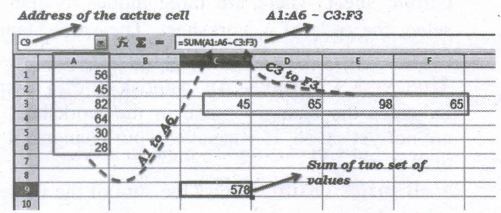
SUM is the function to find the sum of a group values. Later in this chapter you will learn more about functions. So, don't bother about SUM. Just learn the use of concatenation operator.
Intersection Operator:
Intersection operator is used to join two set of groups. It is very similar to Range concatenation operator. The intersection operator is represented by an exclamation mark (!). An expression using the intersection operator has the following syntax:
reference left ! reference right
If the references refer to a single range, the result" is a reference to a single range, containing all cells, which are both in the left reference and in the right reference.
If the references are reference lists, then each list item from the left is intersected with each one from the right and these results are concatenated to a reference list.
The order is to first intersect the first item from the left with all items from the right, then intersect the second item from the left with all items from the right, and so on.
Example: (A2:D3 ! B2:E4)
5.
There are three toolbars available by default. They are:
(i) Standard Toolbar
(ii) Formatting Toolbar
(iii) Formula bar
Standard Toolbar: contains frequently using File, Edit and Data menu commands as buttons (icons) such as New spreadsheet, Open an existing spreadsheet, Save, Send, print, print preview, Cut, Copy, Paste, Sorting, inserting chart etc.,
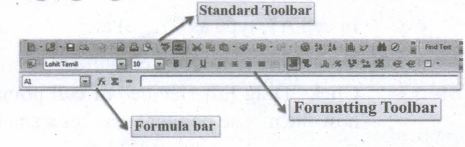
Formatting Toolbar - contains frequently using text and cell formatting commands as buttons such as changing font style, font size, font colour, alignments, cell formatting etc.,
Formula bar - This is a very important element in a spreadsheet. It contains Name box, Function Wizard, Sum button, Function button and Input line.
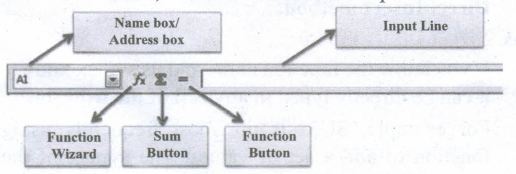
Name box: It shows the current cell address
Function Wizard: Used to insert function.
Sum button: Used to - quickly insert sum function.
Function button: Used to input formula or function
Input Line: This is used to show the contents of the current cell. It always, shows actually what you typed in a cell. It is also used to edit the contents.

11th Standard Syllabus & Materials
11th Standard
TN 11th Tamil பீடு பெற நில் - செய்யுள் - காவடிச்சிந்து Important Questions And Answers Study Material - QB365 Set A
NEW11th Standard
TN 11th Tamil பீடு பெற நில் - உரைநடை - மலை இடப்பெயர்கள் : ஓர் ஆய்வு Important Questions And Answers Study Material - QB365 Set A
NEW11th Standard
TN 11th Tamil மாமழை போற்றுதும் - துணைப்பாடம் - யானை டாக்டர் Important Questions And Answers Study Material - QB365 Set A
NEW11th Standard
TN 11th Tamil மாமழை போற்றுதும் - செய்யுள் - ஐங்குறுநூறு Important Questions And Answers Study Material - QB365 Set A



Tamilnadu Stateboard 11th Standard Subjects

Maths

Commerce

Economics

Biology

Business Maths and Statistics

Accountancy

Computer Science

Physics

Chemistry
Maths
Biology
Economics
Physics
Chemistry

History
Business Maths and Statistics

Computer Science
Accountancy
Computer Applications
History
Computer Technology
Commerce
Computer Applications
Computer Technology

Tamil

English

French
Tamilnadu Stateboard Standards


