
 100% FREE ACCESS
11th Standard Syllabus & Materials
11th Standard
TN 11th Tamil இயற்கை வேளாண்மை,சுற்றுச்சூழல் -செய்யுள் - மனோன்மணீயம் Important Questions And Answers Study Material - QB365 Set A
NEW11th Standard
TN 11th Tamil என்னுயிர் என்பேன் -துணைப்பாடம் - இசைத்தமிழர் இருவர் Important Questions And Answers Study Material - QB365 Set A
NEW11th Standard
TN 11th Tamil மொழி கலை -செய்யுள் - ஒவ்வொரு புல்லையும் Important Questions And Answers Study Material - QB365 Set A
NEW11th Standard
TN 11th Tamil பீடு பெற நில் - இலக்கணம் - பகுபத உறுப்புகள் Important Questions And Answers Study Material - QB365 Set A
NEW11th Standard
TN 11th Tamil பீடு பெற நில் - துணைப்பாடம் - வாடிவாசல் Important Questions And Answers Study Material - QB365 Set A
NEW11th Standard
TN 11th Tamil பீடு பெற நில் - செய்யுள் - குறுந்தொகை Important Questions And Answers Study Material - QB365 Set A

Published on: 02/07/2021
QB365 provides detailed and simple solution for every Creative Questions in class 11 Computer Applications Subject. It will helps to get more idea about question pattern in every Creative questions with solution.
Download Tamil Nadu 11th Standard Computer Applications question papers, model tests, one-mark questions, important questions, and public exam papers in PDF format. Free study materials and answer keys for TN State Board students.
Questions + Answers key
Take MCQ Computer Applications Test
1.
How will you check the spelling mistakes after the document typed.
2.
Explain how will you create and remove bullets and numbering in writer.
3.
Explain the four types of paragraph alignment
4.
Explain the steps followed to save the document.
5.
Explain any five menus in the Openoffice Writer Menu bar.
1.
To perform a separate spelling check on the document (or a text selection) click the Spelling and Grammar button. This checks the document or selection and opens the Spelling dialog box if any misspelled words are found. This can be achieved by clicking the icon.
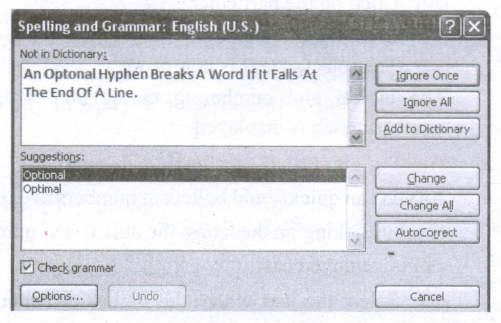
Here are some more features of the spelling tool:
(i) Right-click on a word with a wavy underline, to open a powerful context menu. Correct words can be selected from the suggested words on the menu. The selection will replace the misspelled word with correct word. Other menu options are discussed below.
(ii) The dictionary language can be changed (for example, Spanish, French, or German) from the Spelling dialog box.
(iii) The new words can be added to a dictionary. Click Add in the Spelling dialog box and pick the dictionary to add it to.
(iv) The Options dialog box of the Spelling toolbar a number of different options such as whether to check uppercase words or words with numbers. Words can be added or deleted through this option. Dictionaries also can be added or deleted through custom directories.
2.
Bullets:
(i) This is a paragraph level attribute that applies a bullet character to the start of the paragraph.In bulleted lists, each paragraph begins with a bullet character.
(ii) This is suitable when the text has to be presented as a list of items preceded by a bullet symbol and no sequence has to be followed.
(iii) Bullets are quickly created by clicking on the bullet icon
Numbering:
(i) This attribute applies a numeral to the start of the paragraph. Numbering is more suitable when the text has to be presented as a sequence.
(ii) In numbered list, each paragraph begins with an expression that includes a number or letter 'and a separator such as a period or parenthesis.
(iii) The numbers in a numbered list are updated automatically when you add or remove paragraphs in the list. Numbering is quickly created by clicking on the numbering icon.
Style of Bullets and Numbering:
The default type of bullet is ( . ) and the default  type of numbering is (1, 2, 3 ). The style of bullets and numbering can be changed by applying the following steps:
(i) Select the text to be bulleted
(ii) Format ➝ Bullets and Numbering ➝ Bullets
(iii) The bullets dialog box where different styles of bullets are displayed
(iv) Click on the particular style
(v) Click Ok button
To apply Numbering:
(i) Select the text to be numbered
(ii) Format ➝ Bullets and Numbering ➝ Numbering
(iii) The numbering dialog box where different styles of numbering are displayed
(iv) Click on the particular style
(v) Click Ok button
(vi) The selected text is numbered.
The bullets and numbering dialog box with the numbering tab is displayed
Turning off Bullets and Numbering-
As you can quickly add bullets or numbers to existing text by clicking on the icons, the bullets and numbers can be removed easily.
(i) Select the text where the bullets and numbers are to be removed.
(ii) Click on the bullets icon  again to remove bullets.
(iii) Click on the numbering icon  again to remove numbering.
3.
Paragraph Alignment or justification refers to the way in which the lines of a paragraph are aligned. Paragraph alignment lets you control the appearance of individual paragraphs. There are four types of alignment available in Open office Writer - left alignment, Right-alignment, Center-alignment, and Justify-alignment.
Left-alignment: A paragraph's text is Left aligned when it is aligned evenly along the left margin. This is the default alignment which occurs by default when a paragraph is typed.
Right-alignment: A Paragraph's text is Right aligned when it is aligned evenly along the right margin.
Center-alignment: All the lines in the paragraph are aligned along the same imaginary vertical line at the center of the text area between the margins.
Justify-alignment: All the lines in the paragraph, except the last line, are extended so that the lefthand end of each line is aligned along the left-hand margin of the text area, the right-hand end of each line is aligned along the right-hand margin of the text area, and the lines are all of the same length. This is achieved by inserting additional space between words.
4.
To save a document for a first time,the following steps are used:
(i) Click File➝ Save ➝ (or) File ➝ Save As(Or) Ctrl + S
(ii) "Save As" dialog box appears
(iii) Select location to store your document.
(iv) The default location to store all documents is "Documents" folder in Windows.
(v) Type your document name in the File Name box.
(vi) All documents in OpenOffice will be stored with odt extension.
(vii) You can store your OpenOffice document as Microsoft Word document or PDF.
(viii) To do so, select file type from Save as type list box. This list box shows variety of formats to be saved.
(ix) Finally, Click "Save" button.
(x) Once the file is saved, your document name will be displayed on the title bar.
5.
File :
The File menu contains the commands of all file management tasks like, Create a new file, Open an existing file, Close the current file, Save a file, Save As another file, print file, Export file etc.
Edit :
The Edit menu contains the editing commands like, cut, copy, paste, Undo, Redo etc.
View :
The View menu contains the commands which are used to modify the environment of write like display of toolbars, web layout, print layout, navigator etc.
Insert :
The Insert menu contains commands for inserting various elements such as pictures, tables, charts, comments, headers, footers, special characters, cross reference etc.
Format :
The Format menu contains the commands of various text and page formatting features like page size, layout, font characteristics, bullets and numbering etc.

11th Standard Syllabus & Materials
11th Standard
TN 11th Tamil பீடு பெற நில் - செய்யுள் - காவடிச்சிந்து Important Questions And Answers Study Material - QB365 Set A
NEW11th Standard
TN 11th Tamil பீடு பெற நில் - உரைநடை - மலை இடப்பெயர்கள் : ஓர் ஆய்வு Important Questions And Answers Study Material - QB365 Set A
NEW11th Standard
TN 11th Tamil மாமழை போற்றுதும் - துணைப்பாடம் - யானை டாக்டர் Important Questions And Answers Study Material - QB365 Set A
NEW11th Standard
TN 11th Tamil மாமழை போற்றுதும் - செய்யுள் - ஐங்குறுநூறு Important Questions And Answers Study Material - QB365 Set A



Tamilnadu Stateboard 11th Standard Subjects

Maths

Commerce

Economics

Biology

Business Maths and Statistics

Accountancy

Computer Science

Physics

Chemistry
Maths
Biology
Economics
Physics
Chemistry

History
Business Maths and Statistics

Computer Science
Accountancy
Computer Applications
History
Computer Technology
Commerce
Computer Applications
Computer Technology

Tamil

English

French
Tamilnadu Stateboard Standards


