
 100% FREE ACCESS
11th Standard Syllabus & Materials
11th Standard
TN 11th Tamil இயற்கை வேளாண்மை,சுற்றுச்சூழல் -செய்யுள் - மனோன்மணீயம் Important Questions And Answers Study Material - QB365 Set A
NEW11th Standard
TN 11th Tamil என்னுயிர் என்பேன் -துணைப்பாடம் - இசைத்தமிழர் இருவர் Important Questions And Answers Study Material - QB365 Set A
NEW11th Standard
TN 11th Tamil மொழி கலை -செய்யுள் - ஒவ்வொரு புல்லையும் Important Questions And Answers Study Material - QB365 Set A
NEW11th Standard
TN 11th Tamil பீடு பெற நில் - இலக்கணம் - பகுபத உறுப்புகள் Important Questions And Answers Study Material - QB365 Set A
NEW11th Standard
TN 11th Tamil பீடு பெற நில் - துணைப்பாடம் - வாடிவாசல் Important Questions And Answers Study Material - QB365 Set A
NEW11th Standard
TN 11th Tamil பீடு பெற நில் - செய்யுள் - குறுந்தொகை Important Questions And Answers Study Material - QB365 Set A

Published on: 13/05/2022
QB365 provides detailed and simple solution for every Creative Questions in class 11 Computer Applications Subject. It will helps to get more idea about question pattern in every Creative questions with solution.
latest Creative QuestionsDownload Tamil Nadu 11th Standard Computer Applications question papers, model tests, one-mark questions, important questions, and public exam papers in PDF format. Free study materials and answer keys for TN State Board students.
Questions + Answers key
Take MCQ Computer Applications Test
1.
Explain the methods followed while copying files and folders to removable disk.
2.
Explain the different methods of moving files and folders in windows.
3.
Explain the different ways of finding a file or Folder.
4.
Explain the elements of Windows.
5.
Write the action and reaction of using mouse.
1.
There are several methods of transferring files to or from a removable disk.
(i) Copy and Paste
(ii) Drag and Drop
(iii) Send To
(iv) Copy and Paste using keyboard shortcuts
METHOD 1: Plug the USB flash drive directly into an available USB port.
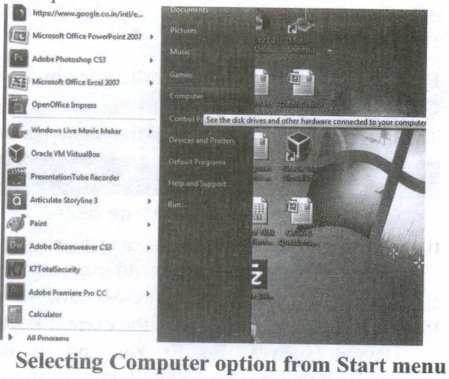
(i) Click Start ⟶ Computer.
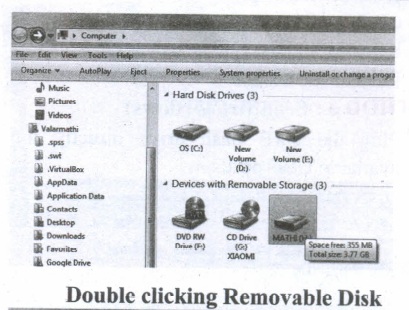
(ii) Double-click on the Removable Disk associated with the USB flash drive.
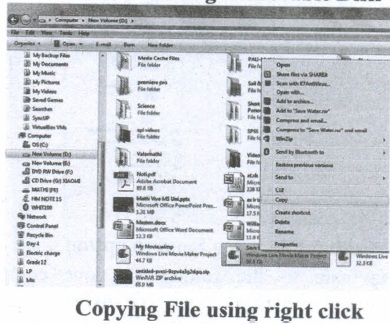
(i) Navigate to the folders in your computer containing files you want to transfer Right click on the file you want to copy, then select Copy.
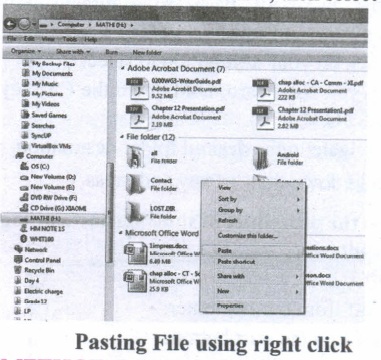
(ii) Return to Removable Disk window, right click within the window, then select Paste.
METHOD 2: Drag and Drop
(i) Plug the USB flash drive directly into an available USB port.
(ii) Allow the computer to recognize the drive, then click Start ⟶ Computer.
(iii) Navigate to 'the folders in your computer containing files you want to transfer.
(iv) Click and drag the files you want to the Removable Disk.
(v) Release the mouse.
METHOD 3: Send To (Windows)
(i) Plug the USB flash drive directly into an available USB port.
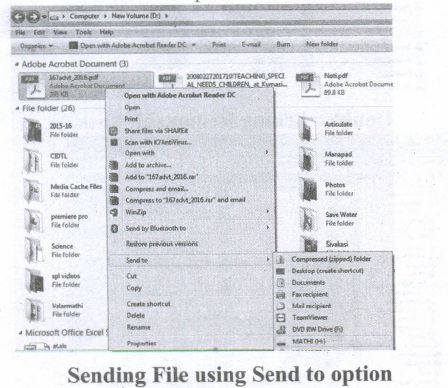
(ii) Navigate to the folders in your computer containing files you want to transfer.
(iii) Right-click on the file you want to transfer to your removable disk.
(iv) Click Send To and select the Removable Disk associated with the USB flash drive.
METHOD 4: Copy and Paste using keyboard shortcuts (Windows)
(i) Plug the USB flash drive directly into an available USB port.
(ii) Click on your desired file to select it.
(iii) On your keyboard, hold down the Ctrl key and press C.
(iv) Navigate to the desired folder destination.
(v) Hold down the Ctrl key and press V.
2.
To move a file(s) or folder(s), first select the file(s) or folder(s) and then choose one of the following.
(i) Click on the EDIT menu, select the CUT function.
(ii) Keyboard shortcut, CTRL + X.
(iii) Or else click on the selected item with the RIGHT mouse button and select "CUT" from the shortcut Menu.
(iv) To bring back the file(s) or folder(s) in the new location, navigate to the new location then paste using one of the following:
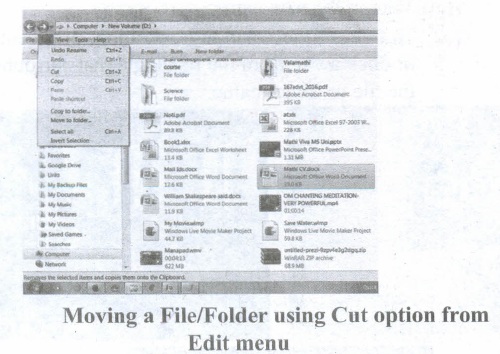
(v) Click on the EDIT menu, select the PASTE function.
(vi) Keyboard shortcut is, CTRL + V.
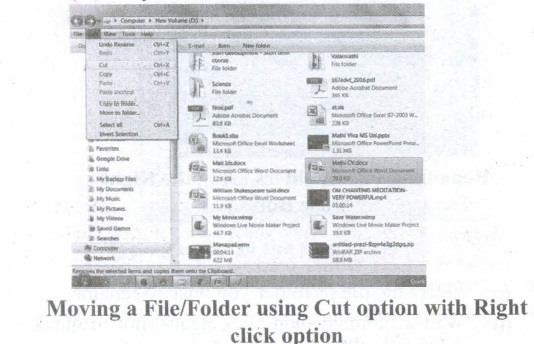
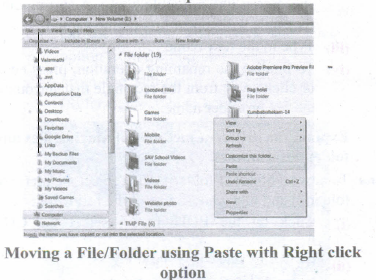
(vii) In the position where you want the item to be pasted, click with the Right mouse button and select "Paste" from the shortcut menu. The file will be pasted in the new location.
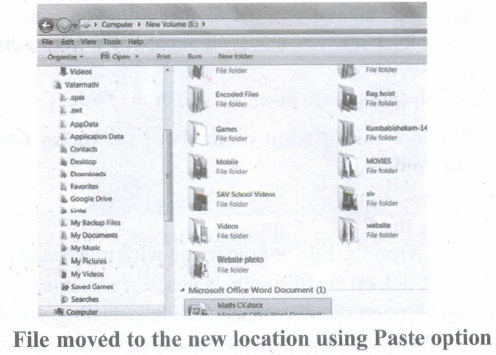
Method 2 - Dragging and Dropping
(i) In the right pane, select the file(s) or folder(s) you want to move.
(ii) Manipulate the Folder List on the left side of the Windows Explorer so that it shows the new location.
(iii) Make sure you use the scroll bars and the + and (collapse and expand buttons) to navigate.
(iv) Click and drag the selected file(s) or folder(s) from the RIGHT pane, over to the Folder List A on the left.
(v) Release the mouse button when the target folder is highlighted (active).
(vi) The file(s) or folder(s) will now appear in the new area.
3.
Finding Files and Folders : You can use the search box on the Start menu to quickly search a particular folder or file in the computer or in a specific drive.
To find a file or folder:
(i) Click the Start button, the search box appears at the bottom of the start menu.
(ii) Type the name of the file or the folder you want to search. Even if you give the part of the file or folder name, it will display the list of files or folders starting with the specified name.
(iii) The files or the folders with the specified names will appear, if you click that file, it will directly open that file or the folder.
(iv) There is another option called "See more results" which appears above the search box.
(v) If you click it, it will lead you to a Search Results dialog box where you can click and open that file or the folder.
Searching Files or folders using Computer icon :
(i) Click Computer lcon from desktop or from Start menu.
(ii) The Computer disk drive screen will appear and at the top right corner of that screen, there is a search box option.
(iii) Type the name of the file or the folder you want to search. Even if you give the part of the file or folder name, it will display the list of files or folders starting with the specified name.
(iv) Just click and open that file or the folder.
4.
(i) The Title Bar and control buttons - The title bar will display the name of the program and the name of the document that has been currently opened and also contains control buttons like Minimize, MaximizelRestore and Close buttons.
(ii) The Menu bar - The menu bar is seen under the title bar. Menus in the menu bar can be accessed through shortcuts involving the Alt key and the mnemonic letter that appears underlined in the menu title. Additionally, pressing Alt or F 10 brings the focus on the first menu of the menu bar.
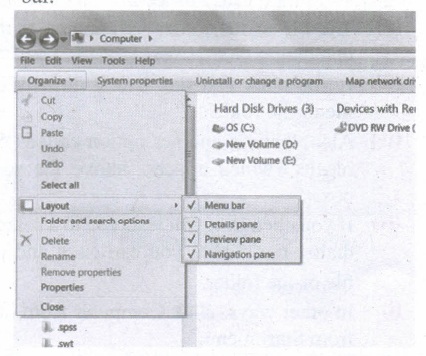
(iii) In Windows 7, in the absence of the menu bar, you have to click organize and in the sub menu list, click the layout option from it and then select the desired item from that list.
(iv) The Workspace: The Workspace is the area in the document window where you enter or type the text of document. It is the point of insertion for typing within the document.
(v) The Scroll bars: A scrollbar is an interaction technique in which continuous text, pictures, or any other content can be scrolled in a predetermined direction (up, down, left, or right) on a computer display so that all contents can be viewed, even if only a fraction of the content can be seen on a device's screen at a time. Refer figure 5.10 to view the Scroll bars.
(vi) Corners and borders: The corners and borders of the windows help to drag and hence help to resize the Windows. The mouse cursor changes to a double arrow when positioned over a border or a corner. Drag the border or corner in the direction indicated by the double arrow to the desired shape.
(a) The corners can be resized diagonally by dragging it across any of the corners. It will resize the window on all the sides simultaneously.
(b) On the other hand, the borders will let you to resize the window by either dragging it in left side, right side, from the top or from the bottom of the window.
(c) It will change the size of the window at one side only depending on the side in which the dragging is made.
5.
| Action | Reaction |
| Point to an item | Move the mouse to place the pointer on the item. |
| Click an item | Point to the item on your screen and quickly press and release the left mouse button. |
| Right click an item | Point to the item on your screen and then quickly press and release the right mouse button. Clicking the right mouse button displays a short cut menu from which you can choose among a list of commands that apply to that item. |
| Double-click an item | Point to the item on your screen and then quickly press and release the left mouse button twice. |
| Drag an item | Point to an item and then hold down the left mouse button as you move the pointer |
| Drag and drop | Point to an item and then hold down the left mouse button as you move the pointer and when you have reached the desired position, release the mouse button. |

11th Standard Syllabus & Materials
11th Standard
TN 11th Tamil பீடு பெற நில் - செய்யுள் - காவடிச்சிந்து Important Questions And Answers Study Material - QB365 Set A
NEW11th Standard
TN 11th Tamil பீடு பெற நில் - உரைநடை - மலை இடப்பெயர்கள் : ஓர் ஆய்வு Important Questions And Answers Study Material - QB365 Set A
NEW11th Standard
TN 11th Tamil மாமழை போற்றுதும் - துணைப்பாடம் - யானை டாக்டர் Important Questions And Answers Study Material - QB365 Set A
NEW11th Standard
TN 11th Tamil மாமழை போற்றுதும் - செய்யுள் - ஐங்குறுநூறு Important Questions And Answers Study Material - QB365 Set A



Tamilnadu Stateboard 11th Standard Subjects

Maths

Commerce

Economics

Biology

Business Maths and Statistics

Accountancy

Computer Science

Physics

Chemistry
Maths
Biology
Economics
Physics
Chemistry

History
Business Maths and Statistics

Computer Science
Accountancy
Computer Applications
History
Computer Technology
Commerce
Computer Applications
Computer Technology

Tamil

English

French
Tamilnadu Stateboard Standards


