
 100% FREE ACCESS
11th Standard Syllabus & Materials
11th Standard
TN 11th Tamil இயற்கை வேளாண்மை,சுற்றுச்சூழல் -செய்யுள் - மனோன்மணீயம் Important Questions And Answers Study Material - QB365 Set A
NEW11th Standard
TN 11th Tamil என்னுயிர் என்பேன் -துணைப்பாடம் - இசைத்தமிழர் இருவர் Important Questions And Answers Study Material - QB365 Set A
NEW11th Standard
TN 11th Tamil மொழி கலை -செய்யுள் - ஒவ்வொரு புல்லையும் Important Questions And Answers Study Material - QB365 Set A
NEW11th Standard
TN 11th Tamil பீடு பெற நில் - இலக்கணம் - பகுபத உறுப்புகள் Important Questions And Answers Study Material - QB365 Set A
NEW11th Standard
TN 11th Tamil பீடு பெற நில் - துணைப்பாடம் - வாடிவாசல் Important Questions And Answers Study Material - QB365 Set A
NEW11th Standard
TN 11th Tamil பீடு பெற நில் - செய்யுள் - குறுந்தொகை Important Questions And Answers Study Material - QB365 Set A

Published on: 13/05/2022
QB365 provides detailed and simple solution for every book back questions in class 11 Computer Science subject.It will helps to get more idea about question pattern in every book back questions with solution.
latest Book back QuestionsDownload Tamil Nadu 11th Standard Computer Science question papers, model tests, one-mark questions, important questions, and public exam papers in PDF format. Free study materials and answer keys for TN State Board students.
Questions + Answers key
Take MCQ Computer Science Test
1.
Write the procedure to create, rename, delete and save a file in Ubuntu OS. Compare it with Windows OS.
2.
Observe the figure and mark all the window elements, Identify the version of the Windows OS.
3.
Complete the following matrix.
| Navigational method | Located on | Ideally suited for |
|---|---|---|
| Start button | Task bar | |
| Desktop | Exploring your disk drives and using system tools. | |
| Windows Explorer | Seeing the hierarchy of all computer contents and resources in one window. | |
| Quick Launch |
4.
5.
Draw and compare the icon equivalence in windows and Ubuntu.
1.
In Ubuntu OS:
(i) Create a file: By right clicking in the desktop and also files be created by using file menu.
(ii) Delete a file: By using right-click and choosing Move to Trash or by using the menu.
(iii) Rename a file: By using right-click and choosing rename option.
(iv) Save a file: Press Ctrl+X or F2 to exit. You will then be asked if you want to save. (or) Press Ctrl+O or F3 and Ctrl+X or F2 for save and exit.
In Windows OS:
(i) Create file: Open an application and create by using file menu.
(ii) Delete a file: By right click on a file and choosing the delete option to delete a file.
(iii) Rename a file: By right click on a file and choosing rename option to rename a file.
(iv) Save file: Press ctrl+S or file - save to save the file.
2.
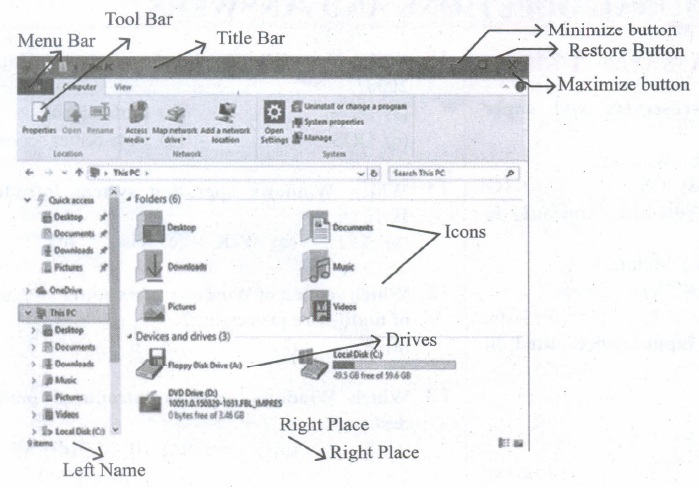
3.
| S.No | Navigational method | Located on | Ideally suited for |
|---|---|---|---|
| 1. | Start button | Task bar | Quick access common apps and settings |
| 2. | My computer | Desktop | Exploring your disk drives and using system tools. |
| 3. | Windows Explorer | Task bar | Seeing hierarchy of all computer contents and resources in one window. |
| 4. | Quick Launch | Task bar | To open the programs quickly. |
4.
 1985 1. Introduction of GUI in 16-bit processor
 1987 1. Supports to minimize or maximize windows.
 1992 1. Introduced the concept of multitasking.
 1995 1. Introduced Start button, the taskbar, Windows Explorer and Start menu.
 1998 1. Integration of the Web browser (Internet Explorer) with the Operating System.
 Designed to act as servers in network. 7. Windows Me
  2000 It introduced automated system diagnostics and recovery tools. 8. Windows 2000
  2000 1. Served as an Operating System for business
 2001 1. Introduced 64-bit Processor.
 2006 Updated the look and feel of Windows 11. Windows 7
  2009 Booting time was improved, introduced new user interfaces like Aero Peek, pinning programs to the taskbar, handwriting recognition etc, and Internet Explorer 8. 12. Windows 8
  2012 1. Windows 8 was faster than previous versions of Windows.
 2015 1. Start Button was added again.
5.
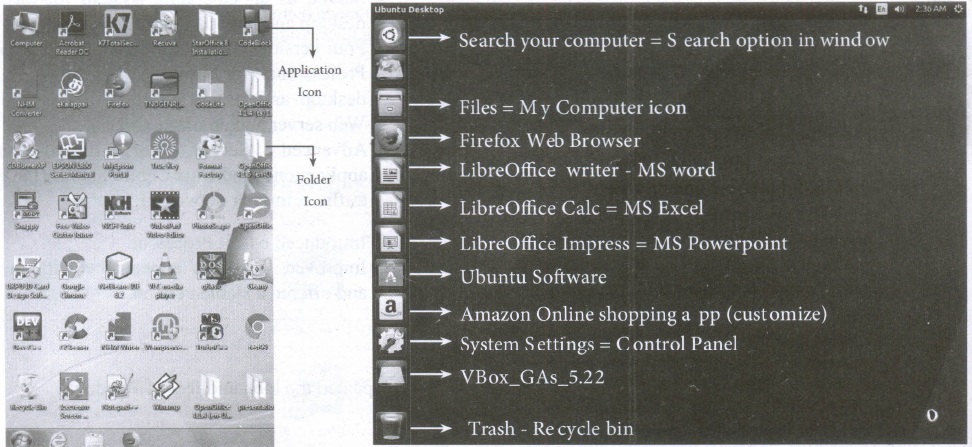
Elements of Ubuntu:
Search your Computer Icon:
This icon is equal to search button in Windows OS. Here, you have to give the name of the File or Folder for searching them.
Files:
This icon is equivalent to My Computer icon. From here, you can directly go to Desktop, Documents and so on.
Firefox Web Browser:
By clicking this icon, you can directly browse the internet. This is equivalent to clicking the Web Browser in Task bar in Windows.
LibreOffice Writer:
This icon will directly take you to document preparation application like MS Word in Windows,
LibreOffice Calc:
This icon will open LibreOffice Calc application. It is similar to MS Excel in Windows.
LibreOffice Impress:
By clicking this icon, you can open LibreOffice Impress to prepare any presentations in Ubuntu like MS PowerPoint.
Ubuntu Software Icon:
This icon will let you add any additional applications you want. This can be done by clicking the Update option at the top right corner of that screen.
Online Shopping icon:
Using this icon user can buy and sell any products online.
System Settings Icons:
This icon is similar to the Control panel in the Windows Operating System. But here, you need to authenticate the changes by giving your password. You cannot simply change as you do in Windows.
Trash:
This icon is the equivalent of Recycle bin of windows OS. All the deleted Files and Folders are moved here.

11th Standard Syllabus & Materials
11th Standard
TN 11th Tamil பீடு பெற நில் - செய்யுள் - காவடிச்சிந்து Important Questions And Answers Study Material - QB365 Set A
NEW11th Standard
TN 11th Tamil பீடு பெற நில் - உரைநடை - மலை இடப்பெயர்கள் : ஓர் ஆய்வு Important Questions And Answers Study Material - QB365 Set A
NEW11th Standard
TN 11th Tamil மாமழை போற்றுதும் - துணைப்பாடம் - யானை டாக்டர் Important Questions And Answers Study Material - QB365 Set A
NEW11th Standard
TN 11th Tamil மாமழை போற்றுதும் - செய்யுள் - ஐங்குறுநூறு Important Questions And Answers Study Material - QB365 Set A



Tamilnadu Stateboard 11th Standard Subjects

Maths

Commerce

Economics

Biology

Business Maths and Statistics

Accountancy
Computer Science

Physics

Chemistry
Maths
Biology
Economics
Physics
Chemistry

History
Business Maths and Statistics

Computer Science
Accountancy

Computer Applications
History
Computer Technology
Commerce
Computer Applications
Computer Technology

Tamil

English

French
Tamilnadu Stateboard Standards


