
 100% FREE ACCESS
11th Standard Syllabus & Materials
11th Standard
TN 11th Tamil இயற்கை வேளாண்மை,சுற்றுச்சூழல் -செய்யுள் - மனோன்மணீயம் Important Questions And Answers Study Material - QB365 Set A
NEW11th Standard
TN 11th Tamil என்னுயிர் என்பேன் -துணைப்பாடம் - இசைத்தமிழர் இருவர் Important Questions And Answers Study Material - QB365 Set A
NEW11th Standard
TN 11th Tamil மொழி கலை -செய்யுள் - ஒவ்வொரு புல்லையும் Important Questions And Answers Study Material - QB365 Set A
NEW11th Standard
TN 11th Tamil பீடு பெற நில் - இலக்கணம் - பகுபத உறுப்புகள் Important Questions And Answers Study Material - QB365 Set A
NEW11th Standard
TN 11th Tamil பீடு பெற நில் - துணைப்பாடம் - வாடிவாசல் Important Questions And Answers Study Material - QB365 Set A
NEW11th Standard
TN 11th Tamil பீடு பெற நில் - செய்யுள் - குறுந்தொகை Important Questions And Answers Study Material - QB365 Set A

Published on: 28/06/2021
QB365 provides detailed and simple solution for every Creative Questions in class 11 Computer Science Subject. It will helps to get more idea about question pattern in every Creative questions with solution.
Download Tamil Nadu 11th Standard Computer Science question papers, model tests, one-mark questions, important questions, and public exam papers in PDF format. Free study materials and answer keys for TN State Board students.
Questions + Answers key
Take MCQ Computer Science Test
1.
How will you move the file or folder from one place to another?
2.
Explain various methods of creating Files and Folders.
3.
Explain the different methods of renaming files and folders.
4.
Explain different ways of creating a new folder.
5.
Explain the different types of icons of windows desktop
1.
Moving/Copying Files and Folders:
You can move your files or folders to other areas using variety of methods.
Moving Files and Folders:
Method I-CUT and PASTE
To move a file or folder, first select the file or folder and then choose one of the following:
1. Click on the Edit \(\rightarrow\) Cut or Ctrl + X Or right click \(\rightarrow\) cut from the pop-up menu.
2. To move the file(s) or folder(s) in the new location, navigate to the new location and paste it using Click Edit \(\rightarrow\) Paste from edit menu or Ctrl + V using keyboard.
3. Or Right click \(\rightarrow\) Paste from the popup menu. The file will be pasted in the new location.
Method II - Drag and Drop
In the disk drive window, we have two panes called left and right panes. In the left pane, the files or folders are displayed like a tree structure. In the right pane, the files inside the specific folders in the left pane are displayed with various options.
1. In the right pane of the Disk drive window, select the file or folder you want to move.
2. Click and drag the selected file or folder from the right pane, to the folder list on the left pane.
3. Release the mouse button when the target folder is highlighted (active).
4. Your file or folder will now appear in the new area.
2.
Creating files and Folders:
Creating Folders:
You can store your files in many locations - on the hard disk or in other devices. To better organise your files, you can store them in folders. There are two ways in which you can create a new folder:
Step 1: Open Computer Icon.
Step 2: Open any drive where you want to create a new folder. (For example select D:)
Step 3: Click on File \(\rightarrow\) New \(\rightarrow\) Folder.
Step 4: A new folder is created with the default name "New folder".
Step 5: Type in the folder name and press Enter key.
Method II:
In order to create a folder in the desktop:
Step 1: In the Desktop, right click \(\rightarrow\) New \(\rightarrow\) Folder.
Step 2: A Folder appears with the default name "New folder" and it will be highlighted.
Step 3: Type the name you want and press Enter Key.
Step 4: The name of the folder will change.
3.
Method 1
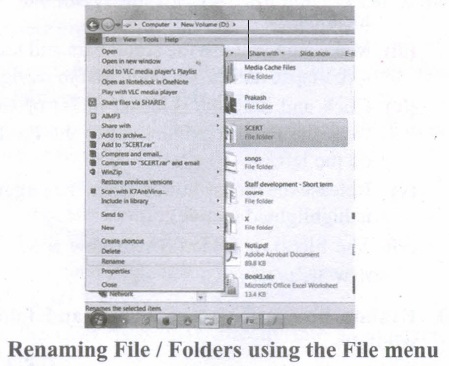
Using the FILE Menu:
(i) Select the File or Folder you wish to Rename.
(ii) Click on the File menu and select Rename.
(iii) Type in the new name. While renaming a file keep the same file extension (e.g. ".doc") as it earlier had, otherwise, the file will no longer be associated with the program that created it.
(iv) To finalise the renaming operation, press Enter the file or folder name.
Method 2
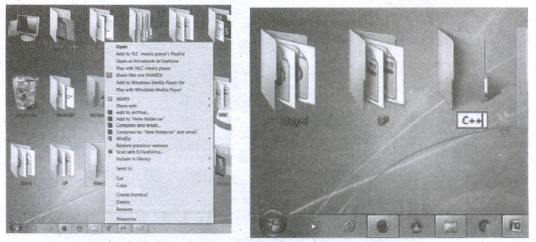
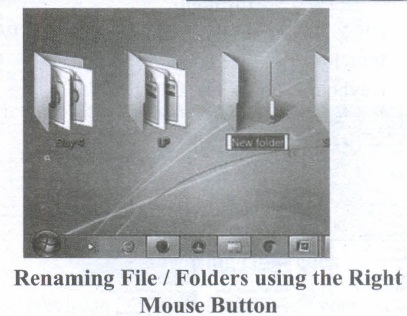
Using the Right Mouse Button:
(i) Select the file or folder you wish to rename.
(ii) Click the right mouse button while still pointing to the file.
(iii) Select Rename from the shortcut menu.
(iv) Type in the new name.
(v) To finalise the renaming operation, press enter or click away from the rectangle that surrounds the file or folder name.
Method 3
Using the Left Mouse Button
(i) Select the file or folder you wish to rename.
(ii) Wait a moment then click again (not in quick succession like a double click). A surrounding rectangle will appear around the name;
(iii) Type in the new name.
(iv) To finalise the renaming operation, press enter or click away from the rectangle that surrounds the file or folder name.
4.
There are two ways in which a new folder is created:
Way I:
(i) Locate and select the folder on the drive where you want to create a new folder. The folder must be selected before continuing. In figure (selecting a folder to create a folder under it) the folder Mathi is selected to create a New Folder under it.
(ii) Click on File menu, select New, then select Folder.
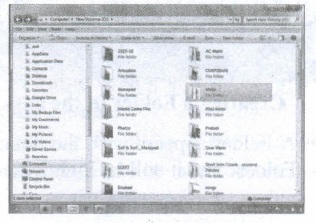
Selecting a folder to create a folder under it.
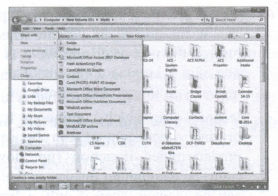
Creating a Folder using, File Menu
(i) Type in the folder name and press Enter to finalize (you can also click away from the new folder, outside its surrounding rectangle to finalize).
jpg.jpg)
Typing name to the newly created Folder
(ii) In this case, the folder name is given as "Test Folder".
Way II: In order to create a folder in the desktop:
(i) On the Desktop, right click and select New option from the pop-up menu.
(ii) From the sub-menu, select Folder option. (Refer figure 5.23 to know the procedure)
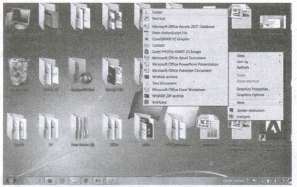
(iii) A Folder appears with the default name "New Folder" and it will be highlighted.
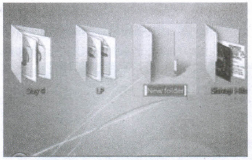
(iv) Type the name you want.
(v) Click anywhere else in the window or else press Enter key.
(vi) The name of the folder changes to what you have typed.
5.
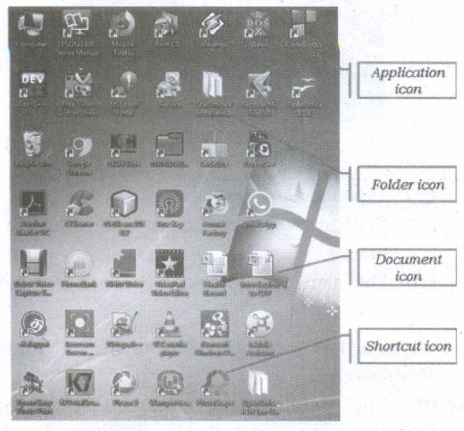
Application Icons:
(i) These icons are representing Software package's logo. Double-click over this icon, the related application gets invoked.
(ii) Shortcut Icons: These icons point to a particular application or file or folder. By double clicking over them the related application or file or folder will open. This represents the shortcut form to open a particular application.
(iii) Document Icons: Active document window which is a window within an application window is called as the document icon.

11th Standard Syllabus & Materials
11th Standard
TN 11th Tamil பீடு பெற நில் - செய்யுள் - காவடிச்சிந்து Important Questions And Answers Study Material - QB365 Set A
NEW11th Standard
TN 11th Tamil பீடு பெற நில் - உரைநடை - மலை இடப்பெயர்கள் : ஓர் ஆய்வு Important Questions And Answers Study Material - QB365 Set A
NEW11th Standard
TN 11th Tamil மாமழை போற்றுதும் - துணைப்பாடம் - யானை டாக்டர் Important Questions And Answers Study Material - QB365 Set A
NEW11th Standard
TN 11th Tamil மாமழை போற்றுதும் - செய்யுள் - ஐங்குறுநூறு Important Questions And Answers Study Material - QB365 Set A



Tamilnadu Stateboard 11th Standard Subjects

Maths

Commerce

Economics

Biology

Business Maths and Statistics

Accountancy
Computer Science

Physics

Chemistry
Maths
Biology
Economics
Physics
Chemistry

History
Business Maths and Statistics

Computer Science
Accountancy

Computer Applications
History
Computer Technology
Commerce
Computer Applications
Computer Technology

Tamil

English

French
Tamilnadu Stateboard Standards


