
 100% FREE ACCESS
11th Standard Syllabus & Materials
11th Standard
TN 11th Tamil இயற்கை வேளாண்மை,சுற்றுச்சூழல் -செய்யுள் - மனோன்மணீயம் Important Questions And Answers Study Material - QB365 Set A
NEW11th Standard
TN 11th Tamil என்னுயிர் என்பேன் -துணைப்பாடம் - இசைத்தமிழர் இருவர் Important Questions And Answers Study Material - QB365 Set A
NEW11th Standard
TN 11th Tamil மொழி கலை -செய்யுள் - ஒவ்வொரு புல்லையும் Important Questions And Answers Study Material - QB365 Set A
NEW11th Standard
TN 11th Tamil பீடு பெற நில் - இலக்கணம் - பகுபத உறுப்புகள் Important Questions And Answers Study Material - QB365 Set A
NEW11th Standard
TN 11th Tamil பீடு பெற நில் - துணைப்பாடம் - வாடிவாசல் Important Questions And Answers Study Material - QB365 Set A
NEW11th Standard
TN 11th Tamil பீடு பெற நில் - செய்யுள் - குறுந்தொகை Important Questions And Answers Study Material - QB365 Set A

Published on: 11/06/2021
QB365 provides detailed and simple solution for every Book back Questions in class 11 Computer Technology Subject. It will helps to get more idea about question pattern in every book back questions with solution.
Download Tamil Nadu 11th Standard Computer Technology question papers, model tests, one-mark questions, important questions, and public exam papers in PDF format. Free study materials and answer keys for TN State Board students.
Questions + Answers key
Take MCQ Computer Technology Test
1.
Explain the do’s and don’t of safe surfing on internet.
2.
Define wired technology. Explain the common types of bounded media in the data transmission.
3.
List out and explain advantages of Master slides in presentation.
4.
Sivabalan created a presentation to be shown at his school’s Annual Function. Just 5 minutes before the presentation, he noticed that he has misspelt the name of the school, which is appearing in all the 30 slides of the presentation. How can he rectify this mistake in all the slides in one-shot?
5.
Explain the applications of Header and Footer with example.
6.
Discuss in detail the steps to create chart in OpenOffice calc.
7.
Write the steps to generate the following series. 5, 10, 20 ….. 2560.
8.
Explain the versions of Windows Operating System.
9.
List out the points to be noted while creating a user interface for an Operating system.
10.
Arrange the memory devices in ascending order based on the access time.
11.
Add 11010102 + 1011012
12.
Explain the following:
a. Inkjet Printer
b. Multimedia projector
c. Bar code / QR code Reader
13.
Explain Address book feature.
14.
Write the steps to preview before printing and steps in printing a document.
15.
Write the steps to find and replace a word with another in Open Office writer.
1.
Do's and don'ts of Safe internet:
1. Don't give out your personal information - Don't put personal details such as your home address, telephone numbers or parent's work address online as cybercriminals can use this information to create a fake profile with your details.
2. What goes online, stays online - Use privacy settings to make sure only your friends and family can see photos you post. Avoid posting holiday plans as criminals have been known to track your movements.
3. Check your security and privacy settings - Make sure your social network privacy settings are secured so only your friends can see your personal information and use your privacy settings to restrict who can see your posts, videos and photos.
4. Password safety - Sharing your password with your parents is a sensible idea, but avoid sharing your password with your friends, even if they promise they won't tell anyone! Also, when setting your password, make sure it isn't something people may guess such as your pet's name. Use a mixture of letters, numbers and upper and lower cases characters.
5. Always protect your mobile device - Make sure your mobile phone is pin-protected so all your personal information stored on it is safe. Download a security app which allows you to remotely wipe any personal data, should your mobile be lost or stolen.
6. Don't talk to strangers online or offline - Don't meet up with strangers and let your parents know if a stranger has tried to get in contact with you online.
7. Listen to the adults who know - Adults will always be worried about you. Help set their mind at rest and avoid chatting online with strangers.
2.
Wired Technology: Wired technology is more associated with wired communication. Wired technology refers to the transmission of data over a wired based communication technology.
Types of bounded media in the data transmission:
1. Twisted pair Cable:
(i) A twisted pair consists of two conductors (normally copper), each with its own plastic insulation, twisted together.
(ii) One of these wires is used to carry signals to the receiver, and the other is used only as ground reference. In addition to the signal sent by the sender on one of the wires, interference (noise) and crosstalk may affect both wires and create unwanted signals.
(iii) Twisted Pair is of two types:
(a) Unshielded Twisted Pair (UTP)
(b) Shielded Twisted Pair (STP)
2. Fibre Optical Cable:
(i) A fibre-optical cable is made of glass or plastic and transmits signals in the form of light.
(ii) In fibre optical cable, light moves only in one direction.
(iii) For two-way communication to take place a second communication must be made between the two devices.
(iv) Optical fibres use reflection to guide light through a channel. A glass or plastic core is surrounded by a cladding of less dense glass or plastic.
(v) The difference in density of the two materials must be such that a beam of light moving through the core is reflected off the cladding instead of being refracted into it.
3. Coaxial Cable:
(i) Coaxial is called by this name because it contains two conductors that are parallel to each other.
(ii) Copper is used in this as a central conductor. It is surrounded by PVCinstallation.
(iii) Outer metallic wrapping is used as a shield against noise and as a second conductor which completes the circuit.
(iv) The outer conductor is also encased inan insulating sheath.
(v) The outermost partis the plastic cover which protects the whole cable.
(vi) Anything and everything you see around yourself having wires and uses electricity to operate belongs to wired technology.
3.
1. Slide Master can save slide designs, including the foundation, shading, text styles, impacts, situating, and so on One advantage to utilizing Slide Master is that you can roll out widespread improvements to each current and future slide inside your show by just changing the Slide Master.
2. It can likewise insert pictures and different designs you don't need contacted into slides related with a Slide Master.
3. This keeps them behind the scenes and far removed when you are altering slide content.
4. Each form of PowerPoint is marginally extraordinary, yet admittance to the Slide Master can for the most part be found similarly.
5. In this specific form (PowerPoint 2011), Slide Master can be gotten to by exploring to View > Master > Slide Master. Once in Slide Master, you can make and alter slide designs similarly as you would alter some other PowerPoint slide.
6. Keep in mind, this goes about as a format, so you just need to place content into the slide that will be general for each slide.
7. You can make however many Slide Masters as you might want, with every one going about as its own template.
8. Now, you can apply these experts to your genuine show. Go to your Home tab and snap Layout to see a menu of the entirety of the designs related with the Slide Masters you have made.
9. Snap the one you need to apply to the slide - and the rest is simple.
10. Any time you need to change your slide design, simply return to Home > Layout to see the menu of every one of your lords and select another one.
11. Not with standing, as in many viewpoints throughout everyday life, while certain highlights can be gainful, they can likewise be unfavorable relying upon the circumstance. The Master Slides work in PowerPoint is an extraordinary illustration of this.
4.
Open the presentation and then follow the below given steps:
1. On the 'Home' Tab → Editing → Choose → Replace option. Top left of the screen, then click Find → Replace option.
2. New window pops-out. Find what box.
3. In the find what box, you can enter the word 'Miss-pelt school name'.
4. Then in the replace with box enter the correct 'school name word' and then click 'Replace All' option.
5. Now, the correct school Name will be changed in all slides.
6. After following the above steps correctly, one can rectify the mistake.
5.
Header is the top margin of the page and Footer is the bottom margin of the page.
Application of Header and Footer:
(i) Header and Footer are some titles (such as Document Title, Author Name) or references (such as page no, number of pages, date) or remarks to be printed in the top (called as Header) and bottom of the page (called as Footer).
(ii) If we wish to get some information on every page, either on top or bottom of the page, we need to use header or footer as per the requirement.
6.
Creating and formatting charts :
(i) Select the cells that contain the data that you want to present in your chart.
(ii) Click the Insert → Chart option or click Insert Chart icon  on the Standard toolbar.
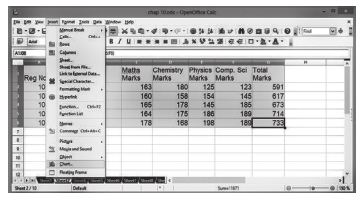
(iii) The Chart Wizard has three main part:
1. List of steps involved in setting up the chart, List of chart types, and The options for each chart type.
2. At any time you can go back to a previous step and change selections.
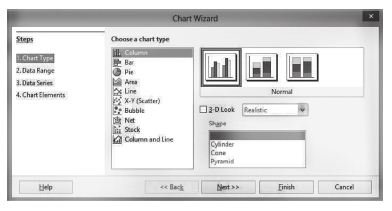
(iv) Choose a Chart type and its option type. Then click Next button.
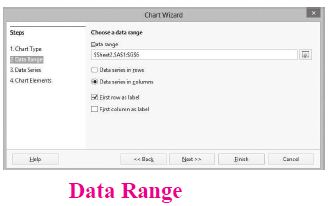
(v) In step 2, Data Range, manually correct any mistakes made in selecting the data. Click one of the options for data series in rows or in columns. Check whether the data range has labels in the first row or in the first column or both. Then click the finish button, or click Next to change some more details of the chart.
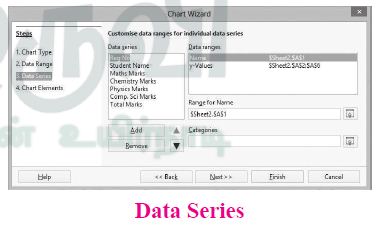
(vi) In the Data Series list box contains a list of all data series in the current chart.
1. To organize the data series, select an entry in the list
2. Click Add to add another data series below the selected entry. The new data series has the same type as the selected entry.
3. Click Remove to remove the selected entry from the Data Series list.
4. Use the Up and Down arrow buttons to move the selected entry in the list up or down. This does not change the order in the data source table, but changes only the arrangement in the chart.
5. Then click Next button.
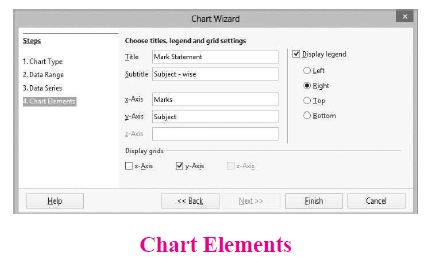
(vii) On the Chart Elements page, chart a title and, if desired, a subtitle. Use a title that draws the viewer's attention to the purpose of the chart: Then click Finish to create chart.
7.
The steps to generate the series 5,10,20.......2560.
Step 1 : Select Edit → fill → Series Command. The fill series dialog log opens. In the dialog box.
Step 2 : Select Direction (Down / Right / Up / Left) in which the series to be displayed.
Step 3 : Select Growth to generate the series
Step 4 : Initial value of the series 5 should be typed in start value box.
Step 5 : End value of the series 2560 should be typed in End value text box.
Step 6 : Growth value of the series 2 should be typed in Increment text box.
Step 7 : Click OK to generate the series.
8.
| S.No | Versions | Logo | Year | Prominent feature |
| 1. | Windows 1.x |  |
1985 | 1. Introduction of GUI in 16 - bit. processor 2. Mouse was introduced as an input device |
| 2. | Windows 2.x |  |
1987 | 1. Supports to minimize or maximize windows. 2. Control panel feature was introduced with various system settings and customising options. |
| 3. | Windows 3.x |  |
1992 | 1. Introduced the concept of multitasking. 2. Supported 256 colours which brought a more modem, colourful look to the interface. |
| 4. | Windows 95 |  |
1995 | 1. Introduced Start button, the taskbar, Windows Explorer and Start menu. 2. Introduced 32 - bit processor and focused more on multitasking. |
| 5. | Windows 98 |  |
1998 | 1. Integration of the Web browser (Internet Explorer) with the Operating System. 2. DOS gaming began to disappear as Windows based games improved. 3. Plug and play feature was introduced. |
| 6. | Windows NT |  |
Designed to act as servers in network. | |
| 7. | Windows Me |  |
2000 | IIt introduced automated system diagnostics and recovery tools. |
| 8. | Windows 2000 |  |
2000 | 1. Served as an Operating System for business desktop and laptop systems. 2. Four versions of Windows 2000 were released: Professional (for business) 3. desktop and laptop systems), Server (both a Web server and an office server), 4. Advanced Server (for line-of-business applications) and Data Centre Server (for high traffic computer networks). |
| 9 | Windows XP |  |
2001 | 1. Introduced 64-bit Processor. 2. Improved Windows appearance with themes and offered a stable version |
| 10. | Windows Vista |  |
2006 | Updated the look and feel of Windows |
| 11. | Windows 7 |  |
2009 | Booting time was improved, introduced new user interfaces like Aero Peek, pinning programs to taskbar, handwriting recognition etc. and Internet Explorer 8. |
| 12. | Windows 8 |  |
2012 | 1. Windows 8 was faster than previous versions of Windows. 2. Start button was removed 3. Windows 8 takes better advantage of multicore processing, solid state drives (SSD), touch screens and other alternate input methods. 4. Served as common platform for mobile and computer. |
| 13. | Windows 10 |  |
2015 | 1. Start Button was added again. 2. Multiple desktop. 3. Central Notification Center for App notification and quick actions. 4. Cortana voice activated personal assistant. |
9.
(i) The user interface determines how command are given to the computer and how data is displayed on the screen.
(ii) User interface allows user to interact with computer effectively.
(iii) User interface is the first impression of a software where the user interacts with computer.
(iv) The user interface is mostly of two types:
1. Command line interface
2. Graphical user interface
(v) Command line interface: It indicates user must know machine language and program language.
(vi) Graphical user interface: In this user gives command by clicking or selecting the icons displayed on the screen.
The following points should be noted while creating a user interface for an Operating system:
(i) The user interface should satisfy the customers based on their needs.
(ii) The user interface should reduce number of errors committed by the user.
(iii) The user interface should save user time.
(iv) The user interface should make simple, common task easy.
(v) The user interface should be flexible and tolerant.
10.
(i) CD/DVD/Blu-Ray
(ii) Hard Disk
(iii) Main Memory
(iv) Cache Memory
11.
11010102 + 1011012
1101010
+101101
________
10010111
________
= 100101112
12.
(a) Inkjet Printers:
(i) Inkjet Printers use colour cartridges which combined Magenta, Yellow and Cyan inks to create color tones. A black cartridge is also used for monochrome output. Inkjet printers work by spraying ionised ink at a sheet of paper.
(ii) They use the technology of firing ink by heating it so that it explodes towards the paper in bubbles or by using piezoelectricity in which tiny electric currents controlled by electronic circuits are used inside the printer to spread ink in jet speed.
(iii) An Inkjet printer can spread millions of dots of ink at the paper every single second.
(b) Multimedia Projectors:
(i) Multimedia projectors are used to produce computer output on a big screen.
(ii) These are used to display presentations in meeting halls or in classrooms.
(c) Bar Code / QR Code Reader:
(i) A Barcode is a pattern printed in lines of different thickness. The Barcode reader scans the information on the barcodes transmits to the Computer for further processing.
(ii) The system gives fast and error free entry of information into the computer.
QR (Quick Response) Code:
The QR code is the two dimension bar code which can be read by a camera and processed to interpret the image.
13.
(i) An a address book is a database that stores names, address and other contact information for a computer user.
(ii) Address books allow easy access to the user's friend, family business associates and others by maintaining their email and other contact details on their computer.
(iii) Address books can be software based, or accessed online or through a network.
(iv) User may also be able to export contacts from their address books to mobile phone, PDAs and other portable electronic devices.
14.
to preview the document before taking the print out.
The steps to be followed to preview the document:
(i) Click File ⟶ Page Preview, or click the Page Preview button. The Writer displays the Page Preview toolbar displayed.
(ii) In the page preview toolbar click Multiple pages icon to display multiple pages.
(iii) To close the preview click on Close Preview button.
The following are some steps to change the printer setting:
(i) Click File ⟶ Print or Ctrl+P or' Print File icon which opens the Print dialog box that appears
(ii) Click General tab.
(iii) Select the required printer from the list of printers
(iv) Under Range and copies section: select All pages option to print all pages, select Pages option to specify the particular page or page range.
(v) Specify Number of copies using spin arrows.
(vi) Click Print button.
15.
Steps to find and replace a text
(i) Type the text you want to find in the Search for box.
For Example: To search for a word "Bombay" in a document and replace with "Mumbai", enter the word "Bombay" in the Search for box
(ii) To replace the word with different text, type the new text in the Replace with box
Click Find button, to start the search, the found word is highlighted
(iii) To replace text, click Replace button.
The highlighted word is replaced with the word given in the Replace with box.
(iv) Click Find All, Writer selects all instances of the search text in the document
(v) Click Replace All button, Writer replaces all matches.
(vi) Enable Match case to perform the search case sensitively so that uppercase and lower cases are distinguished separately.
(vii) Enable Whole Words only to make the search more specific to words used separately alone.

11th Standard Syllabus & Materials
11th Standard
TN 11th Tamil பீடு பெற நில் - செய்யுள் - காவடிச்சிந்து Important Questions And Answers Study Material - QB365 Set A
NEW11th Standard
TN 11th Tamil பீடு பெற நில் - உரைநடை - மலை இடப்பெயர்கள் : ஓர் ஆய்வு Important Questions And Answers Study Material - QB365 Set A
NEW11th Standard
TN 11th Tamil மாமழை போற்றுதும் - துணைப்பாடம் - யானை டாக்டர் Important Questions And Answers Study Material - QB365 Set A
NEW11th Standard
TN 11th Tamil மாமழை போற்றுதும் - செய்யுள் - ஐங்குறுநூறு Important Questions And Answers Study Material - QB365 Set A



Tamilnadu Stateboard 11th Standard Subjects

Maths

Commerce

Economics

Biology

Business Maths and Statistics

Accountancy

Computer Science

Physics

Chemistry
Maths
Biology
Economics
Physics
Chemistry

History
Business Maths and Statistics

Computer Science
Accountancy
Computer Applications
History
Computer Technology
Commerce
Computer Applications
Computer Technology

Tamil

English

French
Tamilnadu Stateboard Standards


