
 100% FREE ACCESS
11th Standard Syllabus & Materials
11th Standard
TN 11th Tamil இயற்கை வேளாண்மை,சுற்றுச்சூழல் -செய்யுள் - மனோன்மணீயம் Important Questions And Answers Study Material - QB365 Set A
NEW11th Standard
TN 11th Tamil என்னுயிர் என்பேன் -துணைப்பாடம் - இசைத்தமிழர் இருவர் Important Questions And Answers Study Material - QB365 Set A
NEW11th Standard
TN 11th Tamil மொழி கலை -செய்யுள் - ஒவ்வொரு புல்லையும் Important Questions And Answers Study Material - QB365 Set A
NEW11th Standard
TN 11th Tamil பீடு பெற நில் - இலக்கணம் - பகுபத உறுப்புகள் Important Questions And Answers Study Material - QB365 Set A
NEW11th Standard
TN 11th Tamil பீடு பெற நில் - துணைப்பாடம் - வாடிவாசல் Important Questions And Answers Study Material - QB365 Set A
NEW11th Standard
TN 11th Tamil பீடு பெற நில் - செய்யுள் - குறுந்தொகை Important Questions And Answers Study Material - QB365 Set A

Published on: 13/05/2022
QB365 provides detailed and simple solution for every
Creative Questions in class 11 Computer Technology Subject. It will helps to get more idea about question pattern in every Creative questions with solution.
Download Tamil Nadu 11th Standard Computer Technology question papers, model tests, one-mark questions, important questions, and public exam papers in PDF format. Free study materials and answer keys for TN State Board students.
Questions + Answers key
Take MCQ Computer Technology Test
1.
Write the steps to correct the word "Comupter" into "Computer" automatically.
2.
How will you insert mathematical equation in a document? Explain.
3.
Explain How will you select the text using Mouse and Keyboard.
4.
Explain the methods followed while copying files and folders to removable disk.
5.
Explain the elements of Windows.
6.
Explain the classification of proprietary licensed OS.
7.
Explain RAM in detail.
8.
Convert the following Hexadecimal numbers to Binary numbers (A). A6 (B). BE (C). 9BC8 (D). BC9
9.
Explain Unicode.
10.
Explain booting of computer and its types.
1.
The necessary steps to correct the word "comupter" into "computer" automatically
(i) Goto Tools ⟶ Autocorrect option
(ii) Click the replace tab and type "computer" in Replace text box and "computer" in with textbox.
(iii) Then Click OK.
(iv) The word "Comupter" is replaced with "Computer" and displayed in the list.
(v) After entering this, when you type "comupter" in the document, it will be automatically changed to the correct spelling "computer".
2.
These equations can be inserted by following the steps below:
(i) Click on the Insert ⟶ Object ⟶ Formula
(ii) The equation editor opens at the bottom of the screen.
(iii) Click in the equation editor and type the equation.
(iv) To include symbols in the equation Right-click in the equation editor and select the symbol from the pop-up menu.
(v) Click inside the document to include the equation in the document and this will automatically exit the control from equation editor.
(vi) Double-click on a formula to edit the equation
3.
Selection using Mouse:
To select the text using mouse:
(i) Take the insertion pointer to the start of the text
(ii) Hold down the Left mouse button and drag it across the text
(iii) Release the mouse button when the required portion of text is selected
(iv) The selected text will be highlighted.
Selection using Keyboard:
To select the text using keyboard:
(i) Take the insertion pointer to the start of the text
(ii) Hold the SHIFT key and use the movement keys to drag across the required portion.
(iii) When the required portion is selected release the SHIFT key
(iv) The selected text will be highlighted.
4.
There are several methods of transferring files to or from a removable disk.
(i) Copy and Paste
(ii) Drag and Drop
(iii) Send To
(iv) Copy and Paste using keyboard shortcuts
METHOD 1:
Plug the USB flash drive directly into an available USB port.
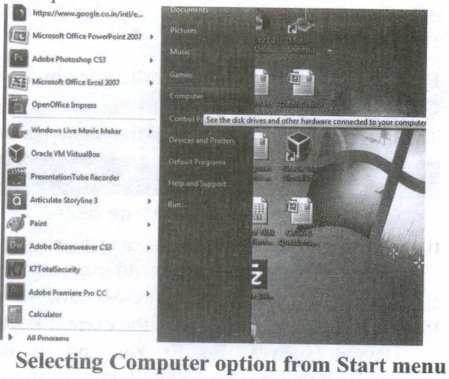
(i) Click Start ⟶ Computer.
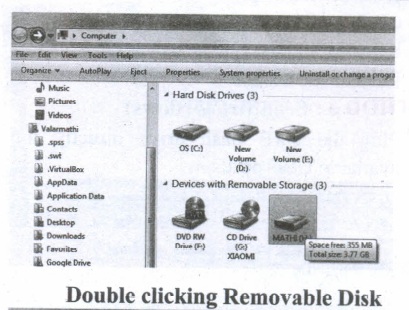
(ii) Double-click on the Removable Disk associated with the USB flash drive.
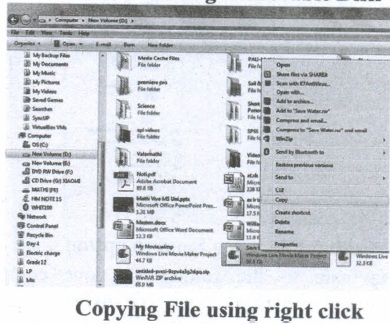
(i) Navigate to the folders in your computer containing files you want to transfer Right click on the file you want to copy, then select Copy.
(ii) Return to Removable Disk window, right click within the window, then select Paste.
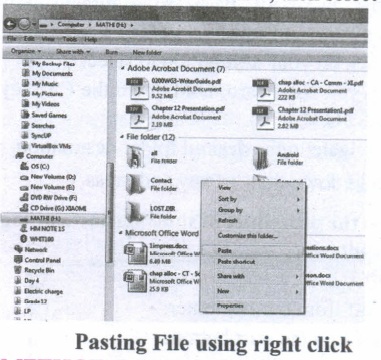
METHOD 2: Drag and Drop
(i) Plug the USB flash drive directly into an available USB port.
(ii) Allow the computer to recognize the drive, then click Start ⟶ Computer.
(iii) Navigate to 'the folders in your computer containing files you want to transfer.
(iv) Click and drag the files you want to the Removable Disk.
(v) Release the mouse.
METHOD 3: Send To (Windows)
(i) Plug the USB flash drive directly into an available USB port.
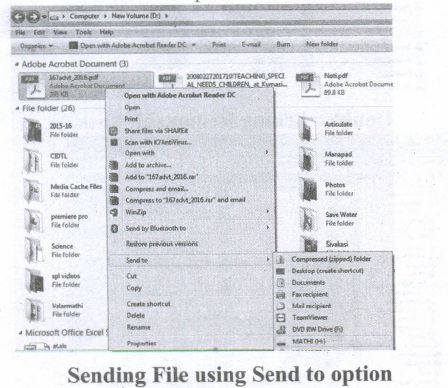
(ii) Navigate to the folders in your computer containing files you want to transfer.
(iii) Right-click on the file you want to transfer to your removable disk.
(iv) Click Send To and select the Removable Disk associated with the USB flash drive.
METHOD 4: Copy and Paste using keyboard shortcuts (Windows)
(i) Plug the USB flash drive directly into an available USB port.
(ii) Click on your desired file to select it.
(iii) On your keyboard, hold down the Ctrl key and press C.
(iv) Navigate to the desired folder destination.
(v) Hold down the Ctrl key and press V.
5.
(i) The Title Bar and control buttons - The title bar will display the name of the program and the name of the document that has been currently opened and also contains control buttons like Minimize, MaximizelRestore and Close buttons.
(ii) The Menu bar - The menu bar is seen under the title bar. Menus in the menu bar can be accessed through shortcuts involving the Alt key and the mnemonic letter that appears underlined in the menu title. Additionally, pressing Alt or F 10 brings the focus on the first menu of the menu bar.
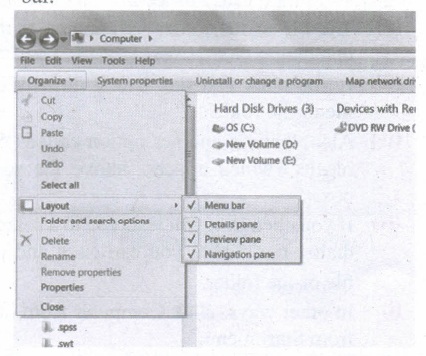
(iii) In Windows 7, in the absence of the menu bar, you have to click organize and in the sub menu list, click the layout option from it and then select the desired item from that list.
(iv) The Workspace: The Workspace is the area in the document window where you enter or type the text of document. It is the point of insertion for typing within the document.
(v) The Scroll bars: A scrollbar is an interaction technique in which continuous text, pictures, or any other content can be scrolled in a predetermined direction (up, down, left, or right) on a computer display so that all contents can be viewed, even if only a fraction of the content can be seen on a device's screen at a time. Refer figure 5.10 to view the Scroll bars.
(vi) Corners and borders: The corners and borders of the windows help to drag and hence help to resize the Windows. The mouse cursor changes to a double arrow when positioned over a border or a corner. Drag the border or corner in the direction indicated by the double arrow to the desired shape.
(a) The corners can be resized diagonally by dragging it across any of the corners. It will resize the window on all the sides simultaneously.
(b) On the other hand, the borders will let you to resize the window by either dragging it in left side, right side, from the top or from the bottom of the window.
(c) It will change the size of the window at one side only depending on the side in which the dragging is made.
6.
Microsoft Windows is a family of proprietary operating systems designed by Microsoft Corporation and primarily targeted to Intel architecture based computers. Windows comes as pre-loaded on most of the new personal Computers and laptops.
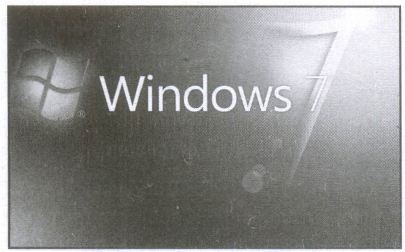
Microsoft Windows Home Screen
iOS - iPhone OS
iOS (formerly iPhone OS) is a mobile operating system created and developed by Apple Inc. exclusively for its hardware. It is the operating system that presently powers many of the company's mobile devices, including the iPhone, iPad and iPod Touch. It is the second most popular mobile operating system globally after Android.
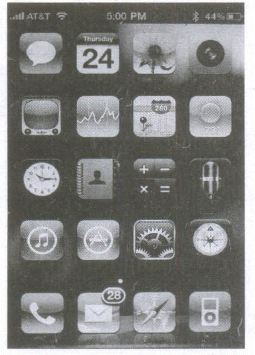
iPhone Home Screen
7.
(i) The main memory is otherwise called as Random Access Memory. This is available in computers in the form of Integrated Circuits (lCs). It is the place in a computer where the Operating System, Application Programs and the data in current use are kept temporarily so that they can be accessed by the computer's processor.
(ii) The smallest unit of information that can be stored in the memory is called as a bit. The memory can be accessed by a collection of 8 bits which is called as a byte.
(iii) The bytes are referred by 'B'. If a computer has 1 megabyte of memory, then it can store 10,48,576 bytes. (or characters) of information. [Hence 1MB is 1024KB and 1 KB is 1024 Bytes, So 1024X1024 =10,48,576 Bytes].
(iv) RAM is a volatile memory, which means that the information stored init is not permanent. As soon as the power is turned off, whatever data that resides in RAM is lost. It allows both read and write operations.
(v) There are two basic types of RAM Dynamic RAM (DRAM), Static RAM (SRAM).
(vi) These two types differ in the technology they use to hold data. Dynamic RAM being a common type needs to be refreshed frequently. Static RAM needs to be refreshed less often, which makes it faster.
(vii) Hence, Static RAM is more expensive than Dynamic RAM.
8.
(A) A616
\(\begin{matrix} A & 6 \\ \downarrow & \downarrow \\ \begin{matrix} 10 \\ \begin{matrix} \downarrow \\ 1010 \end{matrix} \end{matrix} & \begin{matrix} 6 \\ \begin{matrix} \downarrow \\ 0110 \end{matrix} \end{matrix} \end{matrix}\)
A616=101001102
(B) BE16
\(\begin{matrix} B & E \\ \downarrow & \downarrow \\ \begin{matrix} 11 \\ \begin{matrix} \downarrow \\ 1010 \end{matrix} \end{matrix} & \begin{matrix} 14 \\ \begin{matrix} \downarrow \\ 1110 \end{matrix} \end{matrix} \end{matrix}\)
BE16=101111102
(C) 9BC816
\(\begin{matrix} 9 & B \\ \downarrow & \downarrow \\ \begin{matrix} 9 \\ \begin{matrix} \downarrow \\ 1001 \end{matrix} \end{matrix} & \begin{matrix} 11 \\ \begin{matrix} \downarrow \\ 1011 \end{matrix} \end{matrix} \end{matrix}\begin{matrix} C & 8 \\ \downarrow & \downarrow \\ \begin{matrix} 12 \\ \begin{matrix} \downarrow \\ 1100 \end{matrix} \end{matrix} & \begin{matrix} 8 \\ \begin{matrix} \downarrow \\ 1000 \end{matrix} \end{matrix} \end{matrix}\)
9BC816=100011011110010002
(D) BC916
\(\begin{matrix} B & C & 9 \\ \downarrow & \downarrow & \downarrow \\ \begin{matrix} 11 \\ \downarrow \\ 1011 \end{matrix} & \begin{matrix} 12 \\ \downarrow \\ 1100 \end{matrix} & \begin{matrix} 9 \\ \downarrow \\ 1001 \end{matrix} \end{matrix}\)
BC916=1011110010012
9.
(i) Unicode is the newest concept in digital coding. In Unicode, every number has a unique character.
(ii) Unicode is the universal character encoding standard used for the representation of text for computer processing
(iii) It can be used to store and process all significant current and past languages. Unicode provides a unique hex encoded number for every character.
(iv) Unicode is a 16-bit code, which allows for about 65,000 different representations. This is enough to encode the popular Asian languages (Chinese, Korean, Japanese, etc.)
(v) It also turns out that ASCII codes are preserved. Therefore, conversion between ASCII and Unicode is a simple method (take all one byte ASCII codes and zero-extend them to 16 bits).
(vi) This will be the Unicode version of the ASCII characters. The C, C++ programs use the ASCII Code, and Java programs have already used Unicode. The Unicode Standard has been adopted by industry leaders such as Apple, HP, IBM, Microsoft, Oracle, SAP, Sun, Sybase, and Unisys. Unicode is required by web users and
modem standards.
10.
Booting of computer:
(i) An Operating system (OS) is a basic software that makes the computer to work. When a computer is switched on, there is no information in its RAM.
(ii) At the same time, in ROM, the pre-written program called POST (Power on Self Test) will be executed first. This program checks if the devices like RAM, keyboard, etc., are connected properly and ready to operate. If these devices are ready, then the BIOS (Basic Input Output System) gets executed. This process is called Booting.
(iii) Thereafter, a program called "Bootstrap Loader" transfers OS from hard disk into main memory. Now the OS gets loaded (Windows/Linux, etc.,) and will get executed. Booting process is of two types.
1) Cold Booting
2) Warm Booting
(iv) Cold Booting:
When the system starts from initial state i.e. it is switched on, we call it cold booting or Hard Booting. When the user presses the Power button, the instructions are read from the ROM to initiate the booting process.
(v) Warm Booting:
When the system restarts or when Reset button is pressed, we call it Warm Booting or Soft Booting. The system does not start from initial state arid so all diagnostic tests need not be carried out in this case. There are chances of data loss and system damage as the data might not have been stored properly.

11th Standard Syllabus & Materials
11th Standard
TN 11th Tamil பீடு பெற நில் - செய்யுள் - காவடிச்சிந்து Important Questions And Answers Study Material - QB365 Set A
NEW11th Standard
TN 11th Tamil பீடு பெற நில் - உரைநடை - மலை இடப்பெயர்கள் : ஓர் ஆய்வு Important Questions And Answers Study Material - QB365 Set A
NEW11th Standard
TN 11th Tamil மாமழை போற்றுதும் - துணைப்பாடம் - யானை டாக்டர் Important Questions And Answers Study Material - QB365 Set A
NEW11th Standard
TN 11th Tamil மாமழை போற்றுதும் - செய்யுள் - ஐங்குறுநூறு Important Questions And Answers Study Material - QB365 Set A



Tamilnadu Stateboard 11th Standard Subjects

Maths

Commerce

Economics

Biology

Business Maths and Statistics

Accountancy

Computer Science

Physics

Chemistry
Maths
Biology
Economics
Physics
Chemistry

History
Business Maths and Statistics

Computer Science
Accountancy
Computer Applications
History
Computer Technology
Commerce
Computer Applications
Computer Technology

Tamil

English

French
Tamilnadu Stateboard Standards


