
 100% FREE ACCESS
11th Standard Syllabus & Materials
11th Standard
TN 11th Tamil இயற்கை வேளாண்மை,சுற்றுச்சூழல் -செய்யுள் - மனோன்மணீயம் Important Questions And Answers Study Material - QB365 Set A
NEW11th Standard
TN 11th Tamil என்னுயிர் என்பேன் -துணைப்பாடம் - இசைத்தமிழர் இருவர் Important Questions And Answers Study Material - QB365 Set A
NEW11th Standard
TN 11th Tamil மொழி கலை -செய்யுள் - ஒவ்வொரு புல்லையும் Important Questions And Answers Study Material - QB365 Set A
NEW11th Standard
TN 11th Tamil பீடு பெற நில் - இலக்கணம் - பகுபத உறுப்புகள் Important Questions And Answers Study Material - QB365 Set A
NEW11th Standard
TN 11th Tamil பீடு பெற நில் - துணைப்பாடம் - வாடிவாசல் Important Questions And Answers Study Material - QB365 Set A
NEW11th Standard
TN 11th Tamil பீடு பெற நில் - செய்யுள் - குறுந்தொகை Important Questions And Answers Study Material - QB365 Set A

Published on: 12/03/2019
11th Public Exam March 2019 Important 5 Marks Questions
Download Tamil Nadu 11th Standard Computer Technology question papers, model tests, one-mark questions, important questions, and public exam papers in PDF format. Free study materials and answer keys for TN State Board students.
Questions + Answers key
Take MCQ Computer Technology Test
1.
Explain Auto correct option.
2.
Explain How will you insert a table using Insert table dialog box.
3.
Explain How will you move the text in word processor.
4.
Write the advantages of using Tamil Interface. While typing in Tamil.
5.
What are the Guidliness for working of Internet?
6.
Explain any five internet applications with suitable examples.
7.
Mention the types of wireless technologies we are using. Write in brief on each of them.
8.
Define Topology. Explain different topologies using schematic diagram.
9.
Discuss in detail about Graphic Objects feature in Presentation.
10.
List some advantages of using templates.
11.
Explain the applications of Header and Footer with example.
12.
Discuss in detail the steps to create chart in OpenOffice calc.
13.
Explain about changing the column width in Calc.
14.
Explain the different methods of moving files and folders in windows.
15.
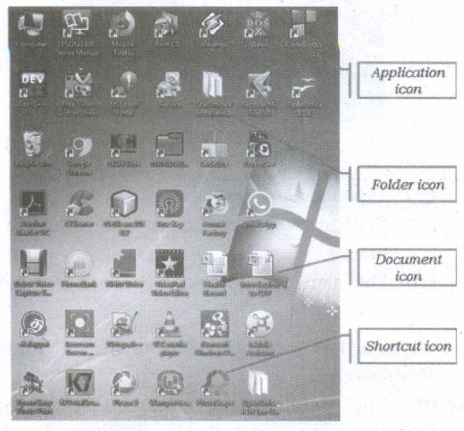
Explain the different types of icons of windows desktop.
16.
Write the important functions of an operating system?
17.
Write the procedure to create, rename, delete and save a file in Ubuntu OS. Compare it with Windows OS.
18.
Explain the versions of Windows Operating System.
19.
Explain the classification of Open source OS.
20.
Explain memory management techniques.
21.
List out the points to be noted while creating a user interface for an Operating system.
22.
Explain the concept of a Distributed Operating System along with its advantages.
23.
Define the following. (a) Bus (b) Data bus (c) Address bus (d) Control Bus
24.
Explain the classification of Microprocessor based on Instruction set?
25.
Explain the types of ROM.
26.
How the read and write operations are performed by a processor? Explain.
27.
Convert the Following - (3674)8 \(\rightarrow \) (?2) = (?)10
28.
Explain the following terms in detail. (1) ASCII (2) BCD (3) EBCDIC
29.
How AND and OR can be realized using NAND and NOR gate.
30.
What are Registers? Explain the five Registers that are essential for instruction execution.
31.
Explain Non-Impact printers with an example.
32.
Explain in detail the different types of Mouse.
33.
Discuss the various generations of computers
34.
Explain the basic components of a computer with a neat diagram.
35.
Explain Mail Merge feature.
36.
How do you resize the position of a table?
37.
Write the steps to create autotext for a word.
38.
Write the steps to find and replace a word with another in Open Office writer.
39.
What are the different types of paragraph alignment?
40.
1.
AutoCorrect function has the facility to correct the common misspellings and typing errors, automatically. For example, "hte" will be changed to "the" which can be done through, Tools ⟶ AutoCorrect to open the AutoCorrect dialog box which provides the chance. to change the misspelled word with the correct word. To make an auto correct entry
(i) Select Tools ⟶ AutoCorrect AutoCorrect dialog box appears
(ii) Click Replace Tab In replace box, type the misspelt word
(iii) In with box, type the correct word Click New.
(iv) AutoCorrect is automatically turned on. To turn it off, uncheck Format ⟶ Autocorrect ⟶ While Typing. AutoCorrect can be used as a quick way to insert special characters
(v) For example, (c) will be autocorrected to ©. You can add your own special characters.
2.
Using The Insert Table Dialog Box:
(i) To insert a table with more control over the settings and properties, use the Insert Table dialog box. To open the dialog box, click Table ⟶ Insert ⟶ Table or Ctrl + F12. The Insert table dialog box appears.
(ii) In the Name text box give a suitable name to the table.
(iii) Specify the number of columns and rows either using spin arrows or enter the value directly.
(iv) Click the Heading check box to make the first row of the table as heading, automatically the Repeat heading check box will be enabled to repeat the heading row when the table spans more than one page.
(v) Select the Border check box to display table with grid.
(vi) Click OK button to create a table.
3.
Moving text:
To move a text from one location to another
(I) select the text to be moved
(ii) Click Ctrl + X or Cut Icon or Edit ⟶ Cut
(iii) The text is removed from the source location and placed in the clipboard
(iv) Take the insertion pointer to the new location to be moved and
(v) Click Ctrl + V or Paste Icon or Edit ⟶ Paste
(vi) The required text is moved to the required location.
4.
The interface method provides the following advantages:
(i) It follows Unicode technique. Hence knowledge of Tamil typing is not necessary.
(ii) It is easy to type documents in Tamil in any word processor
(iii) Some of the Unicode fonts like "Arial Unicode" supports all Indian languages including Tamil and English using respective language interface
5.
6.
There are many applications of internet such as:
1. Communication: Computer users around the world extensively use the email service on internet to communicate with each other. Pictures, documents and other files are sent as email attachments. VolP stands for Voice over Internet Protocol, referring to the protocol that underlies all internet communication.
2. Job search:
Nowadays many people search for their jobs online as it is quicker and there is a larger variety of jobs vacancies present. People can publish resume online for prospective job. Popular examples are Naukri.com, Linkedln, etc
3. Video conferencing: It enables direct face to face communication across networks via web cameras, microphones and other communication tools. Video conferencing can enable individuals in distant locations to participate in meetings on short notice, with time and money saving. Video conferencing is very interactive in education to communicate between teacher to teacher, teacher to classroom and classroom to classroom with students at different places.
4. E-commerce: E-commerce or electronic commerce is the buying and selling of goods and services, or transmitting of funds or data, over an electronic network. These transactions occur either business-to-business, business to consumer, consumer to consumer or consumer to business. Flipkart, Snapdeal, Paytm, etc are example of e-commerce.
5 Travel: One can use internet to gather information about various tourist place. It can be used for booking Holiday tours. Some of the websites providing this service are goibibo.com, makemytrip.com, olacabs.com.
6. Nowadays internet is almost use in every fields. Due to increase in technology, use of internet has benefitted the users in many ways. Internet enables millions of computers from different organization and people to communicate and share resource globally.
7.
Different types of wireless technologies are:
1. Bluetooth:
(i) It is named after a Danish king named Harald Bluetooth.
(ii) Bluetooth is used to connect different electronic devices wirelessly to a system for transferring and sharing data.
(iii) Cell phones are connected to hands-free earpieces, wireless keyboard, mice and mike to laptops with the help of Bluetooth as it transmits information from one device to other device.
2. Infrared:
(i) Infrared technology is a type of wireless communication technology to transfer data between two infrared enabled devices through infrared radiation.
(ii) This technology plays a very important role in wireless data communication
(iii) Infrared is used in devices such as the mouse, wireless keyboard and printers.
3. Wi-Fi:
(i) Wi-Fi is a low-cost wireless communication technology.
(ii) A Wi-Fi setup consists of a wireless router which serves a communication hub, linking portable device with an internet connection.
(iii) This network facilitates connection of many devices depending on the router configuration.
4. Radio link:
(i) A radio link is a wireless connection(also called wireless Point-to-Point connection) between two nodes, or radio units, in a data network.
(ii) Each radio unit consists of a transceiver(a device that can both send and receive communication) and a highly directive antenna.
(iii) The antenna only emits or receives power in the direction it is pointing.
5. Microwave Link:
(i) Microwave is a line-of-sight wireless communication technology that uses high frequency beams of radio waves to provide high speed wireless connections that can send and receive voice, video and data information.
(ii) One of the reasons microwave links are so adaptable is that they are broadband.
(iii) They require no equipment or facilities between the two terminal points, so installing a microwave link is often faster and less costly than a cable connection.
5. Microwave Link:
(i) Microwave is a line-of-sight wireless communication technology that uses high frequency beams of radio waves to provide high speed wireless connections that can send and receive voice, video and data information.
(ii) One of the reasons microwave links are so adaptable is that they are broadband.
(iii) They require no equipment or facilities between the two terminal points, so installing a microwave link is often faster and less costly than a cable connection.
6. Satellite Link:
(i) Satellite communication is one of the wireless technologies, used to transfer the signals from the transmitter to a receiver with the help of satellites.
(ii) It is widely spread all over the world allowing users to stay connected virtually anywhere on the Earth.
(iii) The Satellites used in this mode of communication, communicate directly with the orbiting satellites via radio signals.
8.
Topology describes the physical cabling layout and the logical way of moving data between components. Network topology is the schematic description of a network arrangement, connecting various nodes (sender and receiver) through lines of connection. The following are different types of network topology:
1. BUS topology: Bus topology is a network type in which every computer and network device is connected to a single cable.
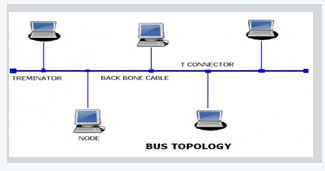
A single cable is used without additional electronics to amplify the signal or pass it along from computer to computer. Therefore, the bus is a passive topology.
Bus topology transmits data only in one direction.
2. STAR topology: In a star topology all the components are connected via a cable to a central location where they are all connected by a device called a hub. There is no direct connection among the computers. All the connections are made via the central hub.
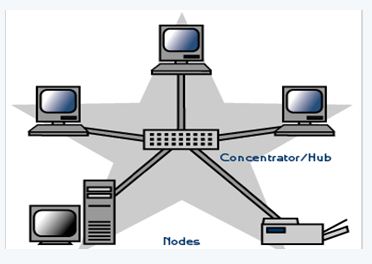
TREE topology: This type of topology is arranged in the form of a tree like structure in which top level contains parent node (root node), which is connected with the child nodes in the second level of hierarchy. The second level nodes are connected to the third level nodes, which in turn are connected to the fourth level nodes and so on. Except thetop-level nodes, each level node has a parent node.
Devices or nodes in a network get connected to each other via communication links and all these links are related to each other in one way or other. The geometric representation of such relationship of links and nodes is known as the topology of that network.
9.
1. Plans objects go about as compartments for various articles or as depictions of data. Compartments - Figures show all plans objects.
2. Graphics routinely unite text, blueprint, and concealing. Visual computerization may include the intentional decision, creation, or course of action of typography alone, as in a handout, flyer, standard, site, or book with no other segment.
3. Clarity or reasonable correspondence may be the unprejudiced, relationship with other social segments may be searched for, or basically, the creation of an unquestionable style.
4. Outlines can be helpful or imaginative. The last can be a recorded variation, similar to a photograph, or comprehension by a specialist to include crucial features, or a skilled worker, where case the capability with whimsical delineations may get clouded.
5. It can similarly be used for designing.
6. At the point when an application makes a DC, the framework consequently stores a bunch of default objects in it (there is no default bitmap or way).
7. An application can analyze the characteristics of the default objects by calling the GetCurrentObject and GetObject capacities.
8. The application can change these defaults by making another item and choosing it into the DC.
9. An article is chosen into a DC by calling the SelectObject function.
10. An application can set the current brush tone to a predetermined shading esteem with SetDCBrushColor.
11. The GetDCBrushColor work returns the DC brush tone. The SetDCPenColor work sets the pen tone to a predefined shading esteem. The GetDCPenColor work returns the DC pen tone.
10.
Advantages of using templates:
1. On using the standard templates, it is easy to create colour, attractive designs for slides.
2. Easily one can modify the templates, even we can download from Internet.
3. Attractive designs of templates are available; it will be the audience to look up of the presentation.
4. It creates attentive of audience.
5. Quick customization of templates, text, fonts, pictures were available. -
6. It have professional computer design.
7. A template is a design scheme and pre-defined layout for a specific purpose to be used for making presentations.
11.
Header is the top margin of the page and Footer is the bottom margin of the page.
Application of Header and Footer:
(i) Header and Footer are some titles (such as Document Title, Author Name) or references (such as page no, number of pages, date) or remarks to be printed in the top (called as Header) and bottom of the page (called as Footer).
(ii) If we wish to get some information on every page, either on top or bottom of the page, we need to use header or footer as per the requirement.
12.
Creating and formatting charts :
(i) Select the cells that contain the data that you want to present in your chart.
(ii) Click the Insert → Chart option or click Insert Chart icon  on the Standard toolbar.
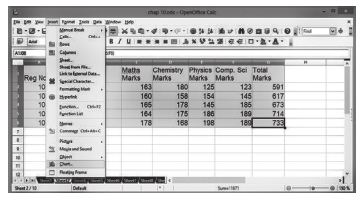
(iii) The Chart Wizard has three main part:
1. List of steps involved in setting up the chart, List of chart types, and The options for each chart type.
2. At any time you can go back to a previous step and change selections.
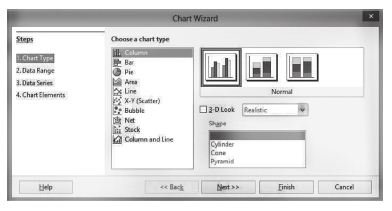
(iv) Choose a Chart type and its option type. Then click Next button.
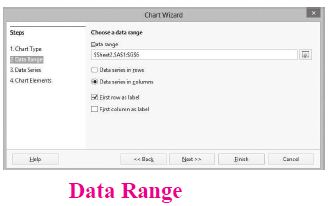
(v) In step 2, Data Range, manually correct any mistakes made in selecting the data. Click one of the options for data series in rows or in columns. Check whether the data range has labels in the first row or in the first column or both. Then click the finish button, or click Next to change some more details of the chart.
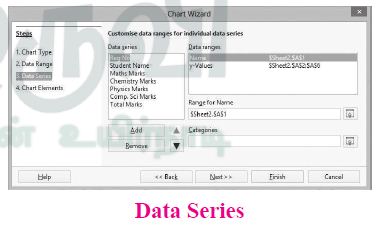
(vi) In the Data Series list box contains a list of all data series in the current chart.
1. To organize the data series, select an entry in the list
2. Click Add to add another data series below the selected entry. The new data series has the same type as the selected entry.
3. Click Remove to remove the selected entry from the Data Series list.
4. Use the Up and Down arrow buttons to move the selected entry in the list up or down. This does not change the order in the data source table, but changes only the arrangement in the chart.
5. Then click Next button.
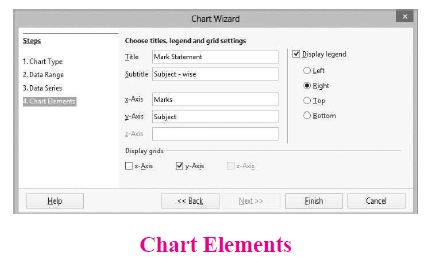
(vii) On the Chart Elements page, chart a title and, if desired, a subtitle. Use a title that draws the viewer's attention to the purpose of the chart: Then click Finish to create chart.
13.
Changing Column Width and Row Height :
(i) Often while entering data into a worksheet you will realize that the width of the column is not enough.
(ii) StarOffice Calc. allows you to change the width of a column and the height of a row. To change the column width, select the column whose width you want to change.
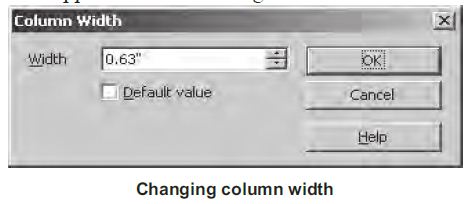
(iii) Click on Format → Column → Width and type the new column width in the dialog box, which appears as shown in figure Click on OK.
(iv) You can also change the column width in another way. Point to the line separating the column whose width you want to change from the next column.
(v) The mouse pointer becomes a double – headed arrow. Click and drag this pointer to the left to decrease the width and to the right to increase the width.
14.
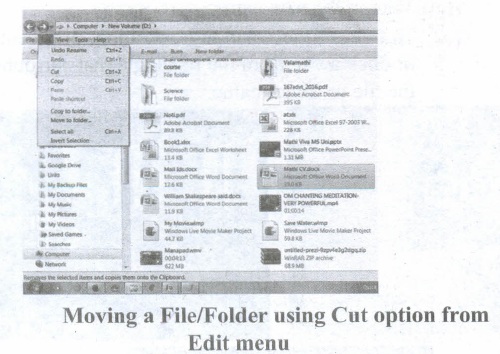
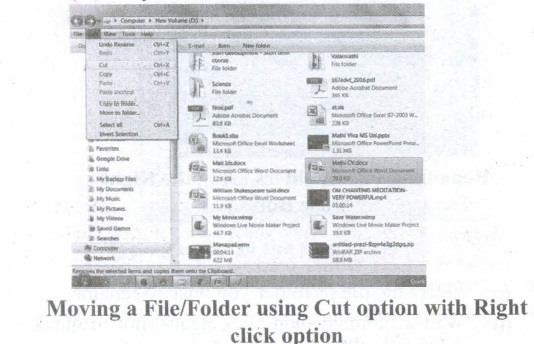
To move a file(s) or folder(s), first select the file(s) or folder(s) and then choose one of the following.
(i) Click on the EDIT menu, select the CUT function.
(ii) Keyboard shortcut, CTRL + X.
(iii) Or else click on the selected item with the RIGHT mouse button and select "CUT" from the shortcut Menu.
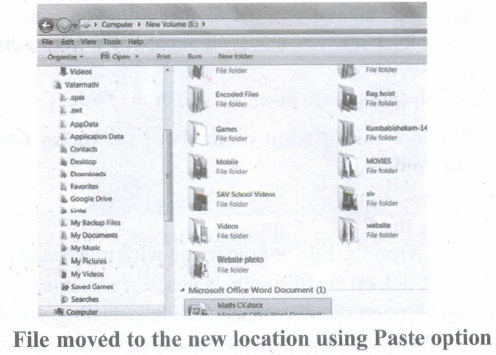
(iv) To bring back the file(s) or folder(s) in the new location, navigate to the new location then paste using one of the following:
(v) Click on the EDIT menu, select the PASTE function.
(vi) Keyboard shortcut is, CTRL + V.
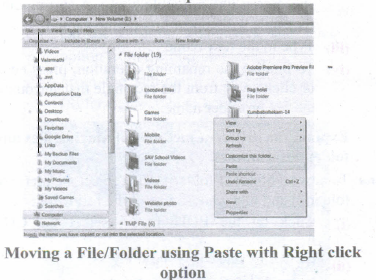
(vii) In the position where you want the item to be pasted, click with the Right mouse button and select "Paste" from the shortcut menu. The file will be pasted in the new location.
Method 2 - Dragging and Dropping
(i) In the right pane, select the file(s) or folder(s) you want to move.
(ii) Manipulate the Folder List on the left side of the Windows Explorer so that it shows the new location.
(iii) Make sure you use the scroll bars and the + and (collapse and expand buttons) to navigate.
(iv) Click and drag the selected file(s) or folder(s) from the RIGHT pane, over to the Folder List A on the left.
(v) Release the mouse button when the target folder is highlighted (active).
(vi) The file(s) or folder(s) will now appear in the new area.
15.
Application Icons:
(i) These icons are representing Software package's logo. Double-click over this icon, the related application gets invoked.
(ii) Shortcut Icons: These icons point to a particular application or file or folder. By double clicking over them the related application or file or folder will open. This represents the shortcut form to open a particular application.
(iii) Document Icons: Active document window which is a window within an application window is called as the document icon.
16.
The important functions of an operating System.
(i) Memory Management
(ii) Processor Management
(iii) Device Management
(iv) File Management
(v) Security
(vi) Control over system performance
(vii) Job accounting
(viii) Error detecting aids
(ix) Coordination between other software and users
17.
In Ubuntu OS:
(i) Create a file: By right clicking in the desktop' and also files be created by using file menu.
(ii) Delete a file: By using right click choosing move to trash or by using menu.
(iii) Rename a file: By using right click and choosing rename option.
(iv) Save a file: Press ctrl + x or F2 to exit. You will. then be asked if you want to save. (or) Press ctrl+ O or F3 and ctrl + x or F2 for save and exit.
In windows OS:
(i) Create file: Open an application and created by using file menu.
(ii) Delete a file: By right click on a file and choose delete option to delete a file.
(iii) Rename a file: By right click on a file and choose rename option to rename a file.
(iv) Save file: Press ctrl+S or file-save to save the file.
18.
| S.No | Versions | Logo | Year | Prominent feature |
| 1. | Windows 1.x |  |
1985 | 1. Introduction of GUI in 16 - bit. processor 2. Mouse was introduced as an input device |
| 2. | Windows 2.x |  |
1987 | 1. Supports to minimize or maximize windows. 2. Control panel feature was introduced with various system settings and customising options. |
| 3. | Windows 3.x |  |
1992 | 1. Introduced the concept of multitasking. 2. Supported 256 colours which brought a more modem, colourful look to the interface. |
| 4. | Windows 95 |  |
1995 | 1. Introduced Start button, the taskbar, Windows Explorer and Start menu. 2. Introduced 32 - bit processor and focused more on multitasking. |
| 5. | Windows 98 |  |
1998 | 1. Integration of the Web browser (Internet Explorer) with the Operating System. 2. DOS gaming began to disappear as Windows based games improved. 3. Plug and play feature was introduced. |
| 6. | Windows NT |  |
Designed to act as servers in network. | |
| 7. | Windows Me |  |
2000 | IIt introduced automated system diagnostics and recovery tools. |
| 8. | Windows 2000 |  |
2000 | 1. Served as an Operating System for business desktop and laptop systems. 2. Four versions of Windows 2000 were released: Professional (for business) 3. desktop and laptop systems), Server (both a Web server and an office server), 4. Advanced Server (for line-of-business applications) and Data Centre Server (for high traffic computer networks). |
| 9 | Windows XP |  |
2001 | 1. Introduced 64-bit Processor. 2. Improved Windows appearance with themes and offered a stable version |
| 10. | Windows Vista |  |
2006 | Updated the look and feel of Windows |
| 11. | Windows 7 |  |
2009 | Booting time was improved, introduced new user interfaces like Aero Peek, pinning programs to taskbar, handwriting recognition etc. and Internet Explorer 8. |
| 12. | Windows 8 |  |
2012 | 1. Windows 8 was faster than previous versions of Windows. 2. Start button was removed 3. Windows 8 takes better advantage of multicore processing, solid state drives (SSD), touch screens and other alternate input methods. 4. Served as common platform for mobile and computer. |
| 13. | Windows 10 |  |
2015 | 1. Start Button was added again. 2. Multiple desktop. 3. Central Notification Center for App notification and quick actions. 4. Cortana voice activated personal assistant. |
19.
(i) Android is a mobile operating system developed by Google, based on the Linux and designed primarily for touchscreen mobile devices such as smartphones and tablets.
(ii) Google has further developed Android TV for televisions, Android Auto for cars and Android Wear for wrist watches, each with a specialized user interface.
(iii) Variants of Android are also used on game consoles, digital cameras, PCs and other electronic gadgets.
UNIX:
UNIX is a family of multitasking, multi-user operating systems that derive originally from AT&T Bell Labs, where the development began in the 1970s by Ken Thompson and Dennis Ritchie.
Linux:
(i) Linux is a family of open-source operating systems. It can be modified and distributed by anyone around the world.
(ii) This is different from proprietary software like Windows, which can only be modified by the company that owns it.
(iii) The main advantage of Linux operating system is that it is open source. There are many versions and their updates
(iv) Most of the servers run on Linux because it is easy to customize.
20.
Memory Management:
(i) Memory Management is the process of controlling and coordinating computer's main memory and assigning memory block (space) to various running programs to optimize overall computer performance.
(ii) The Memory management involves the allocation of specific memory blocks to individual programs based on user demands. At the application level, memory management ensures the availability of adequate memory for each running program at all times.
(iii) The objective of Memory Management process is to improve both the utilization of the CPU and the speed of the computer's response to its users via main memory. For these reasons, the computers must keep several programs in main memory that associates with many different Memory Management schemes.
(iv) The Operating System is responsible for the following activities in connection with memory management.
(v) Keeping track of which portion of memory are currently being used and who is using them.
(vi) Determining which processes (or parts of processes) and data to move in and out of memory.
(vii) Allocation and de-allocation of memory blocks as needed by the program in main memory. (Garbage Collection).
21.
(i) The user interface determines how command are given to the computer and how data is displayed on the screen.
(ii) User interface allows user to interact with computer effectively.
(iii) User interface is the first impression of a software where the user interacts with computer.
(iv) The user interface is mostly of two types:
1. Command line interface
2. Graphical user interface
(v) Command line interface: It indicates user must know machine language and program language.
(vi) Graphical user interface: In this user gives command by clicking or selecting the icons displayed on the screen.
The following points should be noted while creating a user interface for an Operating system:
(i) The user interface should satisfy the customers based on their needs.
(ii) The user interface should reduce number of errors committed by the user.
(iii) The user interface should save user time.
(iv) The user interface should make simple, common task easy.
(v) The user interface should be flexible and tolerant.
22.
The Distributed Operating System is used to access shared data and files that reside in any machine around the world. The user can handle the data from different locations. The users can access as if it is available on their own computer.
The advantages of distributed Operating System are as follows:
(i) A user at one location can make use of all the resources available at another location over the network.
(ii) Many computer resources can be added easily in the network
(iii) Improves the interaction with the customers and clients.
(iv) Reduces the load on the host computer.
23.
(a) Bus: A bus is a collection of wires used for communication between the internal components of a computer.
(b) Data bus:
(i) Data busis a collection of wires to carry data in bits.
(ii) A data bus is used to transfer data between the memory and the CPU.
(iii) The data bus is bidirectional.
(c) Address bus:
(i) Address bus is a collection of wires to carry data in bits.
(ii) The address bus is used to point a memory location.
(iii) The address bus is unidirectional.
(d) Control bus:
(i) Control bus is a control line/collection of wires to control the operation/functions.
(ii) The control bus controls both read and write operations.
24.
(i) The size of the instruction set is another important consideration while categorizing microprocessors.
(ii) Initially, microprocessors had very small instruction sets because complex hardware was expensive as well as difficult to build.
(iii) As technology had developed to overcome these issues, more and more complex instructions were added to increase the functionality of the microprocessor,
(iv) Let us learn more about the two types of microprocessors which are based on their instruction sets.
(v) RISC stands for Reduced Instruction Set Computers. They have a small set of highly optimized instructions.
(vi) Complex instructions are also implemented using simpler instructions, thus reducing the size of the instruction set.
(vii) Examples of RISC processors are Intel P6, Pentium IV, AMD K6 and K7.
(viii) CISC stands for Complex Instruction Set Computers. They support hundreds of instructions. Computers supporting CISC can accomplish a wide variety of tasks, making them ideal for personal computers.
(ix) Examples of CISC processors are Intel 386 & 486, Pentium, Pentium II and III, and Motorola 68000.
25.
Read-only memory (ROM):
(i) Read only memory refers to special memory in a computer with pre-recorded data at manufacturing time which cannot be modified. The stored programs that start the computer and perform diagnostics are available in ROMs. ROM stores critical programs such as the program that boots the computer. Once the data has been written onto a ROM chip, it cannot be modified or removed and can only be read. ROM retains its contents even when the computer is. turned off. So, ROM is called as a non-volatile memory.
(ii) Once the data has been written onto a ROM chip, it cannot be modified or removed and can only be read. ROM retains its contents even when the computer is turned off. So, ROM is called as a non-volatile memory.
Programmable Read-Only Memory (PROM) :
(i) Programmable read-only memory is also a nonvolatile memory on which data can be written only once. Once a program has been written onto a PROM, it remains there forever.
(ii) Unlike the main memory, PROMs retain their contents even when the computer is turned off.
(iii) The PROM differs from ROM. PROM is manufactured as a blank memory, whereas a ROM is programmed during the manufacturing process itself. PROM programmer or a PROM burner is used to write data to a PROM chip. The process of programming a PROM is called burning the PROM.
Erasable Programmable Read-Only Memory (EPROM):
(i) Erasable Programmable Read-Only Memory is a special type of memory which serves as a PROM, but the content can be erased using ultraviolet rays.
(ii) EPROM retains its contents until it is exposed to ultraviolet light. The ultraviolet light clears its contents, making it possible to reprogram the memory.
(iii) An EPROM differs from a PROM. PROM can be written only once and cannot be erased.
(vi) EPROMs are used widely in personal computers because they enable the manufacturer to change the contents of the PROM to replace with updated versions or erase the contents before the computer is delivered. Electrically
Electrically Erasable Programmable Read-Only Memory (EEPROM):
(i) Electrically Erasable Programmable Read-Only Memory is a special type of PROM that can be erased by exposing it to an electrical charge.
(ii) Like other types of PROM, EEPROM retains its contents even when the power is turned off. Comparing with all other types of ROM,. EEPROM is slower in performance.
26.
(i) The Central Processing Unit(CPU) has a Memory Data Register (MDR) and a Memory Address Register (MAR).
(ii) The Memory Data Register (MDR) keeps the data which is transferred between the Memory and the CPU. The Program Counter (PC) is a special register in the CPU which always keeps the address of the next instruction to be executed.
(iii) The Arithmetic and Logic unit of CPU places the address of the memory to be fetched, into the Memory Address Register.
(iv) A bus is a collection of wires used for communication between the internal components of a computer.
(v) The address bus is used to point a memory location. A decoder, a digital circuit is used to point to the specific memory location where the word can be located.
(VI) The address register is connected with the address bus, which provides the address of the instruction. A data bus is used to transfer data between the memory and the CPU.
(vii) The data bus is bidirectional and the address bus is unidirectional. The control bus controls the operations of both read or write operations.
(viii) The read operation fetches data from memory and transfers to MDR. control line performs two operations like read write using 1 or O.
(ix ) Also, the write operation transfers data from the MDR to memory. This organization is as shown in figure.
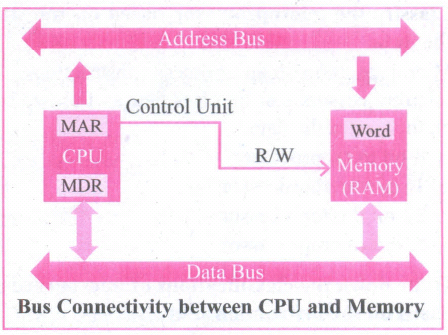
(i) The word in the RAM has the same size (no.of bits) as the Memory Data Register (MDR). If the processor is an 8-bit RAM processor like Intel 8085, its MDR and the word in the both have 8 bits.
(ii) If the size of the MDR is eight bits, which can be connected with a word in the memory which is also eight bits size. The data bus has eight parallel wires to transfer data either from MDR to word or word to MDR based on the control(Read or write).
.png)
(iii) This control line is labeled as which becomes 1 means READ operation and 0 means WRITE operation. shows content of M'DR and the Word before the READ operation. Also shows the content of MDR and the Word after the READ operation.
.png)
(iv) The read operation transfers the data (bits) from memory word to data register. The write operation transfers the data (bits) from memory data register to word.
27.
(3674)8 in binary From
3 6 7 4
011 110 111 100
(3674)8 = (011110111100)2
(3674)8 in decimal Form
(3674)8 = 3 x 83 + x 82 + 7 x 81 + 4 x 80
= 1536 + 384 + 56 + 4 = (1980)10
Thus (3674)8 \(\rightarrow \) (0111110111100)2 = (1980)10
28.
(i) ASCII: American Standard Code for Information Interchange (ASCII).
(ii) BCD: Binary Coded Decimal (BCD)
(iii) EBCDIC: Extended Binary Coded Decimal Interchange Code (EBCDIC)
(i) ASCll: American Standard Code for Information Interchange (ASCII) is a 7-bit code, which means that only 128 (27) characters can be represented. However, manufacturers have added an eighth bit to this coding scheme with which it is possible to represent 256 characters. This 8-bit coding scheme is referred to as ans-bit American standard code for information interchange. The symbolic representation of letter A using this scheme is 10000012(651O).
It is a character encoding standard developed several decades ago to provide a standard way for digital machines to encode characters. The ASCII code provides a mechanism for encoding alphabetic characters, numeric digits, and punctuation marks.
(ii) BCD: Binary Coded Decimal is a 4-bit code used to represent the numeric data alone. For example, a number like 9 can be represented using Binary Coded Decimal as 10012. Binary Coded Decimal is mostly used in simple electronic devices like calculators and microwaves. This is because it makes it easier to process and display individual numbers on their Liquid Crystal Display (LCD) screens.
A Standard Binary Coded Decimal, an enhanced format of Binary Coded Decimal, is a 6-bit representation scheme which can represent non-numeric characters. This allows 64 characters to be represented.
(iii) EBCDIC: Extended Binary Coded Decimal Interchange Code (EBCDIC) is an 8-bit character-coding .scheme used primarily on IBM computers. A total of 256 (28) characters can"be coded using this scheme.
29.
AND and OR operation from NAND gates are shown below
.png)
A.B = (A NAND B) NAND ( A NAND B)
OR operation
.png)
A+B (ANAND A)NAND (B NANDY Y)
b) AND AND OR operation from NOR gates are shown below.
.png)
A - B = (A NORA A) NOR (B NOR B)
.png)
A+ B = (A NOR B) NOR (A NOR B)
30.
Registers:
(i) Registers are the high-speed temporary storage locations in the CPU. Hence, their contents can be handled much faster than the contents of memory.
(ii) Although the number of registers varies from computer to computer, there are some registers which are common to all computers. Five registers that are essential for instruction execution are:
(iii) Program Counter (PC): Contains the address of the next instruction to be fetched.
(iv) Instruction Register (IR): Contains the instruction most recently fetched.
(v) Memory Address Registers (MAR): Contain the address of a location in memory for read and write operations.
(vi) Memory Buffer Register (MBR): It contains the value to be stored in memory or the last value read from memory.
(vii) Accumulator (ACC): An accumulator is a general purpose register used for storing temporary result produced by the arithmetic logic unit.
31.
Non-Impact Printers:
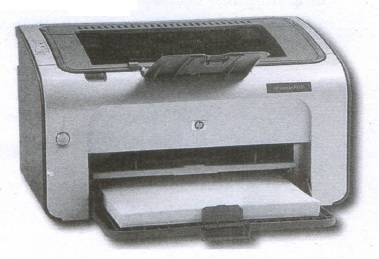
(i) These printers do not use striking mechanism for printing. They use electrostatic or laser technology.
(ii) Quality and speed of these printers are better than Impact printers. For example, Laser printers and Inkjet printers are non-impact printers.
Laser Printers:
(i) Laser printers mostly work with similar technology used by photocopiers.
(ii) It makes a laser beam scan back and forth across a drum inside the printer, building up a pattern. It can produce very good quality of graphic images.
(iii) One of the chief characteristics of laser printer is their resolution - how many Dots per inch(DPI). The available resolution range around 1200 dpi. Approximately it can print 100 pages per minute(PPM).
Inkjet Printers:
(i) Inkjet Printers use colour cartridges which combined Magenta, Yellow and Cyan inks to create color tones.
(ii) A black cartridge is also used for monochrome output. Inkjet printers work by spraying ionised ink at a sheet of paper.
(iii) The speed of Inkjet printers generally ranges from 1-20 PPM (Page Per Minute).
(iv) They use the technology offering ink by heating it so that it explodes towards the paper in bubbles or by using piezoelectricity in which tiny electric currents controlled by electronic circuits are used inside the printer to spread ink in jet speed.
(v) An Inkjet printer can spread millions of dots of ink at the paper every single second.
32.
| S.N | Type of Mouse | Mechanism | Developed and Introduced |
| 1 | 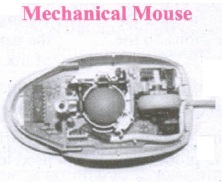 |
(i) A small ball is kept inside and touches the pad through a hole at the bottom of the mouse.
|
Telefunken, German Company, 0211011968 |
| 2 | 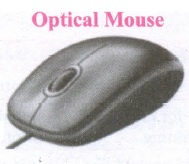 |
(i) Measures the motion and acceleration of pointer. |
In 1988, Richard Lyon, Steve Krish independently invented different versions of Optical Mouse. |
| 3 | 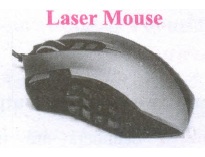 |
(i) Measures the motion and acceleration of pointer.
|
33.
| S.N | Generation | Period | Main Component used | Merits/ Demerits |
| 1 | First Generation | 1942-1955 | Vaccum tubes | 1. Big in size 2. Consumed more power 3. Malfunction due to overheat 4. Machine Language was used |
| First Generation Computer - ENIAC, EDVAC, UNIVAC 1 ENIAC weighed about 27 tons, size 8 feet x 100 feet x 3 feet and consumed around 150 watts of power | ||||
| 2 | Second Generation | 1955-1964 | Transistors | 1. Smaller compared to First Generation 2. Generated Less Heat 3. Consumed less power compared to first generation 4. Punched cards were used 5. First operating system was developed - Batch Processing and Multiprogramming Operating System 6. Machine language as well as Assembly language was used. |
| Second Generation Computers IBM 1404, IBM 1620, UNIVAC 1108 | ||||
| 3 | Third Generation | 1964-1975 | Integrated Circuits(IC) | 1. Computers were smaller, faster and more reliable 2. Consumed less power. 3. High-Level Languages were used |
| Third Generation Computers -IBM ·360 series, Honeywell 6000 series | ||||
| 4 | Fourth Generation | 1975-1980 | Microprocessor Very Large Scale Integrated Circuits (VLSI) |
1. Smaller and Faster 2. Microcomputer series such as IBM and APPLE were developed 3. Portable Computers were introduced |
| 5 | Fifth Generation | 1980-till date | Ultra Large Scale Integration (ULSI) |
1. Parallel, Processing 2. Superconductors 3. Computers size was drastically reduced. 4. Can recognize Images and Graphics 5. Introduction of Artificial Intelligence and Expert Systems 6. Able to solve high complex problems including decision making and logical reasoning |
| 6 | Sixth Generation | In future | 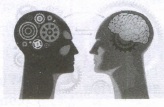 |
1. Parallel and Distributed computing 2. Computers have become smarter faster and smaller 3. Development of robotics 4. Natural Language Processing 5. Development of Voice Recognition Software |
34.
Components of a Computer:
The computer is the combination of hardware and software. Hardware is the physical component of a computer like motherboard, memory devices, monitor, keyboard etc., while software is the set of programs or instructions. Both hardware and software together make the computer system to function. Every task given to a computer follows an Inputprocess - output cycle (IPO cycle).
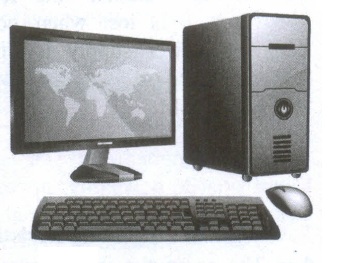
(i) Input unit: Input unit is used to feed any form of data to the computer, which can be stored in the memory unit for further processing.
Example: keyboard, mouse etc.
(ii) Central Processing Unit: CPU is the major component which interprets and executes software instructions. It also control the operation of all other components such as memory, input and output units.
(iii) Arithmetic and Logic Unit: The ALU is a part of the CPU where various computing functions are performed on data. The ALU performs arithmetic operations such as addition, subtraction, multiplication, division and logical operations.
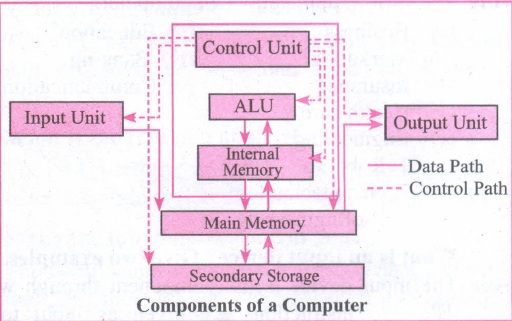
(iv) Control Unit: The control unit controls the flow of data between the CPU memory and I/o devices. It also controls the entire operation of a computer.
(v) Output Unit: An output unit is any hardware component that convey information to users in an understandable form. Example : Monitor, Printer etc.
(vi) Memory Unit: The Memory Unit is of two types which are primary memory and secondary memory. The primary memory is used to temporarily store the programs and data when the instructions are ready to execute. The secondary memory is used to store the data permanently. The Primary Memory is volatile, that is, the content is lost when the power supply is switched off. The Random Access Memory (RAM) is an example of a main memory. The Secondary memory is non volatile, that is, the content is available even after the power supply is switched off. Hard disk, CD-ROM and DVD ROM are examples of secondary memory.
35.
(i) Mail merge is a process to create personalized letters and pre-addressed enveloped or mailing labels forms mailings form a form letter
(ii) The feature is usually employed in a word processing document which contains fixed text and variables (which act as place holders that are replaced by text from the data source.)
(iii) It is used to create multiple documents at once. These documents have identical layout, formatting, text and graphics.
(iv) The documents can create will mail merge include bulk labels, letters, envelops and emails and more using information stored in a list, database or spreadsheet
36.
Resize the position of Table:
A newly created table will occupy the entire width of the page area by default. The table can be resized as per our requirement:
(i) To resize a table quickly, move the mouse over the table edge until the cursor becomes a double headed arrow, and drag the border to its new desired position.
(ii) To resize a row height/column width using Mouse:
(iii) To resize row height
(iv) Move the insertion point over the horizontal border for the row height now the insertion point will change into double headed arrow, click and drag to resize the row height.
37.
To assign AutoText shortcut to some text, the steps are as follows:
(i) Select the text and it is highlighted.
(ii) Select Edit ⟶ Auto Text (or press Ctrl+F3).
(iii) In the Name text box, type the shortcut. Writer will automatically show one letter shortcut In the Shortcut text box.
(iv) Click the of the Auto Text button on the right and select New (text only) from the menu.
(v) Click Close to return to your document.
(vi) Once the entry is created, to insert the auto text into the document, place the insertion point where the text is to be inserted and click Ctrl+F3.
(vii) Select the name from the list of entries and click Insert button or type the shortcut and press F3.
(viii) The auto text is inserted into your text.
38.
Steps to find and replace a text
(i) Type the text you want to find in the Search for box.
For Example: To search for a word "Bombay" in a document and replace with "Mumbai", enter the word "Bombay" in the Search for box
(ii) To replace the word with different text, type the new text in the Replace with box
Click Find button, to start the search, the found word is highlighted
(iii) To replace text, click Replace button.
The highlighted word is replaced with the word given in the Replace with box.
(iv) Click Find All, Writer selects all instances of the search text in the document
(v) Click Replace All button, Writer replaces all matches.
(vi) Enable Match case to perform the search case sensitively so that uppercase and lower cases are distinguished separately.
(vii) Enable Whole Words only to make the search more specific to words used separately alone.
39.
| Alignment | Action | Icon | Shortcut Key |
| Left | Aligns the paragraph with respect to the left margin | .JPG) |
Ctrl + L |
| Right | Aligns the paragraph with respect to the right margin | .JPG) |
Ctrl + R |
| Center | Aligns the paragraph with respect to the center of the page | .JPG) |
Ctrl + E |
| Justify | Aligns the paragraph with respect to both the left and right margin | .JPG) |
Ctrl + J |
40.

11th Standard Syllabus & Materials
11th Standard
TN 11th Tamil பீடு பெற நில் - செய்யுள் - காவடிச்சிந்து Important Questions And Answers Study Material - QB365 Set A
NEW11th Standard
TN 11th Tamil பீடு பெற நில் - உரைநடை - மலை இடப்பெயர்கள் : ஓர் ஆய்வு Important Questions And Answers Study Material - QB365 Set A
NEW11th Standard
TN 11th Tamil மாமழை போற்றுதும் - துணைப்பாடம் - யானை டாக்டர் Important Questions And Answers Study Material - QB365 Set A
NEW11th Standard
TN 11th Tamil மாமழை போற்றுதும் - செய்யுள் - ஐங்குறுநூறு Important Questions And Answers Study Material - QB365 Set A



Tamilnadu Stateboard 11th Standard Subjects

Maths

Commerce

Economics

Biology

Business Maths and Statistics

Accountancy

Computer Science

Physics

Chemistry
Maths
Biology
Economics
Physics
Chemistry

History
Business Maths and Statistics

Computer Science
Accountancy
Computer Applications
History
Computer Technology
Commerce
Computer Applications
Computer Technology

Tamil

English

French
Tamilnadu Stateboard Standards
