
 100% FREE ACCESS
11th Standard Syllabus & Materials
11th Standard
TN 11th Tamil இயற்கை வேளாண்மை,சுற்றுச்சூழல் -செய்யுள் - மனோன்மணீயம் Important Questions And Answers Study Material - QB365 Set A
NEW11th Standard
TN 11th Tamil என்னுயிர் என்பேன் -துணைப்பாடம் - இசைத்தமிழர் இருவர் Important Questions And Answers Study Material - QB365 Set A
NEW11th Standard
TN 11th Tamil மொழி கலை -செய்யுள் - ஒவ்வொரு புல்லையும் Important Questions And Answers Study Material - QB365 Set A
NEW11th Standard
TN 11th Tamil பீடு பெற நில் - இலக்கணம் - பகுபத உறுப்புகள் Important Questions And Answers Study Material - QB365 Set A
NEW11th Standard
TN 11th Tamil பீடு பெற நில் - துணைப்பாடம் - வாடிவாசல் Important Questions And Answers Study Material - QB365 Set A
NEW11th Standard
TN 11th Tamil பீடு பெற நில் - செய்யுள் - குறுந்தொகை Important Questions And Answers Study Material - QB365 Set A

Published on: 13/03/2019
11th Public Exam March 2019 Important 5 Marks Questions
Download Tamil Nadu 11th Standard Computer Applications question papers, model tests, one-mark questions, important questions, and public exam papers in PDF format. Free study materials and answer keys for TN State Board students.
Questions + Answers key
Take MCQ Computer Applications Test
1.
Explain while loop with suitable example.
2.
Write about Tamil Office Automation Applications.
3.
Explain the working of Firewall server.
4.
Write a program in JavaScript to test isNan( ) Function
5.
Explain the lexical structure of a Javascript program.
6.
Define the following terms
(i) link
(ii) Hyperlink
(iii) Internal link
(iv) Local link
(v) External link
7.
Explain How will you create drop-down list box with an example.
8.
Explain scrolling text using < Marquee >.
9.
Explain about the popup dialog boxes in JavaScript.
10.
Explain the four structural tags used in webpage.
11.
Explain the steps to create a webpage.
12.
Explain the function of digital signature.
13.
Explain social engineering with an example.
14.
Explain the followingfunctions with an example.
(i) touppercase ( )
(ii) tolowercase ( )
(iii) length()
(iv) parselnt()
(v) parseFloat()
15.
Write a Javascript to find whether the given number is positive or negative?
16.
What is piracy? Mention the types of piracy? How can it be prevented?
17.
18.
Write a Java Script program using while statement to display 10 numbers.
19.
Explain for loop with example.
20.
List and explain the Font and text element properties and values used in CSS.
21.
Explain the different types of interactions in e-governance.
22.
Explain any five internet applications with suitable examples.
23.
Compare the different geographical types of Network
24.
Explain the most common indicators in Ubuntu OS menu bar.
25.
Explain the elements of Windows.
26.
Write the important functions of an operating system?
27.
Write the procedure to create, rename, delete and save a file in Ubuntu OS. Compare it with Windows OS.
28.
Explain the classification of Opensource OS
29.
Explain memory management techniques.
30.
Explain the main purpose of an operating system
31.
Explain the concept of a Distributed Operating System along with its advantages.
32.
Explain the classification of Microprocessor based on Instruction set?
33.
How the read and write operations are performed by a processor? Explain.
34.
35.
Convert the Following - (101.10)16 \(\rightarrow \) (?2) = (?)10
36.
What is number system? Describe different number systems in detail.
37.
How AND and OR can be realized using NAND and NOR gate
38.
39.
What are Registers? Explain the five Registers that are essential for instruction execution.
40.
Explain in detail the different types of Mouse.
41.
Discuss the various generations of computers.
42.
Explain how a presentation can help a sales person to promote his/her products.
43.
Read the following table
| A | B | C | D | E | |
| 1 | Year | Chennai | Madurai | Tiruchi | Coimbatore |
| 2 | 2012 | 1500 | 1250 | 1000 | 500 |
| 3 | 2013 | 1600 | 1000 | 950 | 350 |
| 4 | 2014 | 1900 | 1320 | 750 | 300 |
| 5 | 2015 | 1850 | 1415 | 820 | 200 |
| 6 | 2016 | 1950 | 1240 | 920 | 250 |
Above table shows the sales figures for “Air Cooler” sold in four major cities of Tamilnadu from the year 2012 to 2016. Based on this data, write the formula to calculate the following.
(1) Total sales in the year 2015.
(2) Total sales in Coimbatore from 2012 to 2016.
(3) Total sales in Madurai and Tiruchi during 2015 and 2016.
(4) Average sales in Chennai from 2012 to 2016
(5) In 2016, how many “Air Coolers” are sold in Chennai compared to Coimbatore?
44.
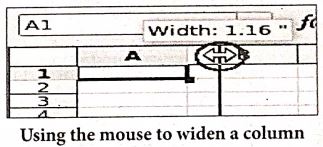
Explain about changing the column width in Calc.
45.
Explain the different techniques to insert tables in a writer.
46.
Explain the steps to find and replace the text in writer.
47.
Explain the four types of paragraph alignment
48.
Explain the important features of Openoffice Writer.
49.
What is Header and Footer? How do you insert page numbers in footer area?
50.
What are the different methods to change margin in Writer?
1.
while loop
In JavaScript while loop is most basic loop. The purpose of a while loop is to execute a statement / block of statement repeatedly as long as an expression is true.
The while statement creates a loop that executes a specified statement as long as the test condition evaluates to true. The condition is evaluated before executing the statement.
The syntax is:
while (condition)
{
body of the loop
}
Example:
< Html >
< Head >
< Title >P rogram - To test while
statement in JavaScript < /Title >
< /Head >
< Body >
< script language="javascript" type="text/
javascript" >
document.write("< h2 > Using while
Statement < /h2 >'');
var no2=0;
whlle(no2 <=5)
{
document. write( no2+" ");
no2=no2+1;
}
< /script >
< /Body >
< /Html >
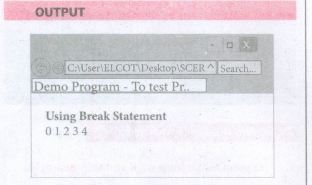
To execute a while statement, the interpreter first evaluates expression. If the value of the expression is true the interpreter executes the statement and repeats, jumping back to the top of the loop and evaluating expression again. In the above example let us see how the while command is executed,
1. Initial value of the variable no2 is set to 0.
2. The expression in the while statement is executed.
3. If the condition is true then body of the loop will be executed once otherwise body of the loop will be skipped and control will jump to next statement to end of the loop.
4. Then the. value of the control variable is executed and control jumps to condition again go to step 3.
2.
Famous Office automation software like Microsoft Office, Open Office etc., provides complete Tamil interface facility. These softwares are downloadable and installed in your computer After installation, our office automation software environment will completely changed to Tamil. Menu bars, names of icons, dialog boxes will be shown in Tamil. Moreover, you can save files With Tamil names and create folders with Tamil names.
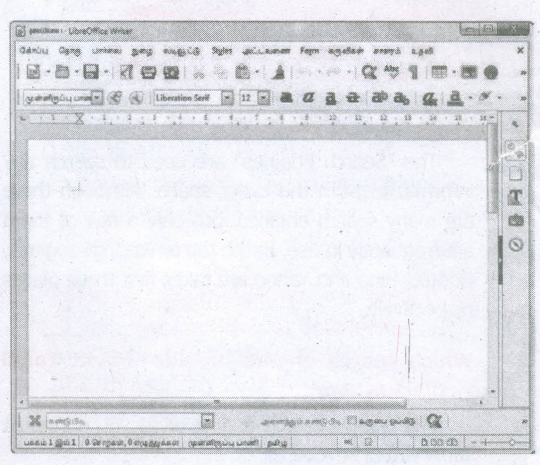
Apart from that Tamil Libra Office, Tamil Open Office, Azhagi Unicode Editor, Ponmozhi, Menthamiz, Kamban, Vani are office automation software working exclusively for Tamil. These applications are designed to work completely in Tamil.
3.
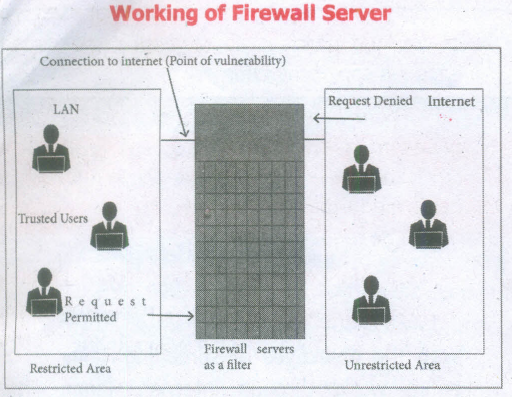
Firewall Server:
A firewall is a computer network security-based system that monitors and controls the incoming and outgoing network traffic based on predefined security rules. A firewall commonly establishes a block between a trusted internal computer network and entrusted computer outside the network.
They are generally categorized as network-based or host-based.
1. Network-based firewalls are positioned on the gateway computers of LANs [local area Network], WANs [Wide Area Network], and intranets,
2. Host-based firewalls are positioned on the network node itself. The host-based firewall may be a service as a part of the operating system or an agent application such as endpoint security or protection.
4.
HTMLCODE
< html>
< title > Example Program to test isNan() Function < title >
< head>
< body.>
< h4 >< u >Example Program to test isNan() Function< /u >< /h4 >
< script language="JavaScript" >
function checknum()
{
var n=documentform1.text1.value;
if(isNaN(n)==true)
{
documentform1.text2.value="Not a
Number: "+n;
}
else
{
documentJorm1.text2.value='1t is
Number: "+n;
}
}
< /scrip t>
< form name="form1" >
Enter a Number 1:
< input type="text" name="text1" size=3 >
< br >< br >
< input type="button" value="Click to Check" onClick= "checknum()" >
< input type="text" name="text2" size=30 >
< br >
< /form >
< /body >
< /html >
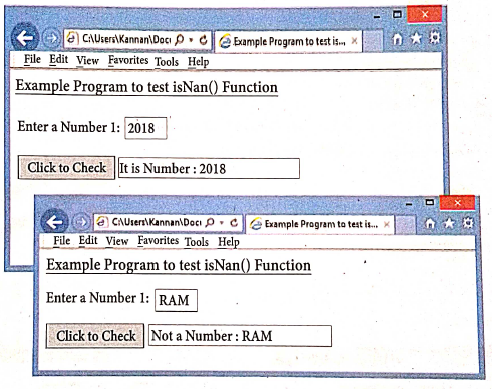
5.
The lexical structure of a programming language is the set of elementary rules that specifies how to write programs in that language. It is the lowest - level syntax of a language. The Lexical structure specifies variable names, the delimiter characters for comments, and how 'one program statement is separated from the next.
(i) Though JavaScript is a case-sensitive language. It is good programming practice to type the command in lowercase.
(ii) JavaScript ignores spaces that appear between tokens (identifiers, operators, punctuator, constants and keywords) in programs.
(iii) JavaScript supports two styles of comments. Any text follow a " // " and the end of a line is treated as a single line comment and is ignored by JavaScript. Any text between the characters " /* *I " is also treated as a multiline comment.
(iv) JavaScript uses the semicolon (;) to separate statements. Many JavaScript programmers use semicolons to explicitly mark the ends of statements
(v) A literal is a data value for variable that appears directly in a program.
(vi) An identifier is simply a name. In JavaScript, identifiers are used to name variables, functions and to provide labels for certain loops in JavaScript code.
(vii) In JavaScript certain keywords are used as reserved words, These words cannot used as identifiers in the programs
6.
(i) Link : Make connection with a part of the content of same document or an external document.
(ii) Hyperlink : A link from a' hypertext document.
(iii) Internal Link : Connecting with another part of the same document.
(iv) Local Link : Internal Link.
(v) External Link : Connection with another hypertext document.
7.
The < select > tag is used to create dropdown list box in HTML.
It provides a list of various options as a dropdown list.
This element is more helpful when a number of options are to be displayed in a limited space. The < option > tag.is used to specify list items
Attributes of < Select > tag:
Name - Provide the name to the control, which is sent to the server.
Size - Determine the style of dropdown list box.
Size = 1 dropdown list box
Size = 2 List box
Multiple -Allows user to select multiple values.
Attributes of < Option > tag:
Selected - Indicate default selection
Value - Value to be submitted to server
< Select name = area size= 2 >
< option value = CHN > Chennai < /option >
< option value = MDR selected > Madurai < /option >
< option value = CBO > Coimbatore < /option >
< option value = KKM > Kanyakumari < /option >
< /Select > < /p >
8.
In HTML, a piece of text or image can be moved horizontally or vertically by using < marquee > tag. This feature makes a web page as more attractive.
(i) General format: < marquee > Text or image to be scroll < /marquee >
Attributes of < marquee >
(ii) Height and Width: These attributes are used to set height and width of the marquee. The values should be either in pixels or in percentage of browser window.
(iii) Direction: This is used to specify the direction of the movement of text or image. The text or image will move towards right to left by default. So, the default direction is left. The Possible values are up', 'down', 'left' or 'right'
(iv) Behaviour: This attribute is used to specify the type of scrolling. The values are scroll', 'slide' and 'alternate'.
(v) Scroll delay: This attribute is used to define the time delay between each jump. The time unit should be in seconds
(vi) Scrollamount: This is used to define the speed of the scroll.
(vii) Loop: This is for defining how many times the marquee element should repeat on the screen. The default value is 'infinite', which means the marquee element scrolls endlessly.
(viii) Bgcolor: This is used to specify the background color to the marquee elements.
(ix) Hspace and Vspace: This is for defining the horizontal and vertical space around the marquee. The value can be in pixels or percentage.
An HTML code to demonstrate marquee:
< html >
< head >
< title > Marquee < /title >
< /head >
< body >
< marquee > < b > The Government of
Tamilnadu < /b >, Directorate of School
Education < /marquee >
< marquee direction=right > Welcome
to < b > The State Council of Educational
Research and Training < /b >, Tamilnadu
< /marquee >
< /body >
< /html >
9.
JavaScript supports three important types of dialog boxes. Dialog boxes are also called as Popup Boxes. These dialog boxes can be used to raise an alert, or to get confirmation on any input or to have a kind of input from the users.JavaScrípt supports three kind of popup boxes: Alert box, Confirm box, and Promnpt box.
Alert Dialog Box: An alert dialog box is mostly used to give a warning message to the users. For example, if one input field requires to enter some text but the user does not provide any input, then as a part of validation, you can use an alert box to give a warning message. Alert box gives only one button "OK" to select and proceed.
The syntax of alert box is
alert("Message");
(or) Window.alert ("Message");
Example:
alert("Name is compulsory entry);
(or) window.alert("Name is compulsory entry");
Confirm Dialog Box : A confirmation dialog box is mostly used to take user's consent on any option. It displays a dialog box with two buttons: OK and Cancel. If the user clicks on the OK button, the confirm() will return true. If the user clicks on the Cancel button, then confirm() returns false.
The syntax of confirm dialog box is
confirm("message");
(or)
window.confirm("message");
Example :
confirm("Hai Do you want to continue:");
(or)
window.confirm(“Hai Do you want to continue:");
Prompt Dialog Box: The prompt dialog box is very useful when the user want to pop-up a text box to get user input. Thus, it enables you to interact with the user. The user needs to fill in the text box field and then click OK.
The prompt dialog box is displayed using a method called prompt()which takes two parameters :
(i) a label which you want to display in the text box and (ii) a default string to display in the text box. This dialog box has two buttons: OK and Carncel. If the user clicks the OK button, the prompt() will return the entered value from the text box. If the user clicks the Cancel button, the prompt() returns null. The Sntax of prompt dialog box is,
Prompt("Message","default Value");
(or)
window.prompt("sometext","defaultText");
Example:
prompt("Enter Your Name:"Name");
(or)
window.prompt("Enter Your Name:"Name");
10.
| Opening Tag | Closing Tag | Description |
|---|---|---|
| < html > | < /htrnl > | The < html > tag identified the document as an HTML document. All HTML documents should begins with < htrnl > and end with < /htrnl >. |
| < head > | < /head > | The < head > tag contains information about the document, including its title, scripts used, style definition and document descriptions |
| < title > | < /title > | The < title > tag contains the title of the document. The title specified between opening and closing tags appears in the title bar / page tab of the browser. < title > tag should be placed within < head > tag. |
| < body > | < /body > | The < body > tag encloses all the tags, attributes and information to be displayed in the web page. < body > tag should be entered below the < /head > tag. |
11.
Creating a Webpage :
Step 1: Open a text editor Windows7:
Start ⟶ All Programs Accessories ⟶ Notepad⟶Linux: Applications ⟶ Accessories ⟶ Text Editor.
Step 2: In the appearing Note pad / Text Editor, type the HTML document.
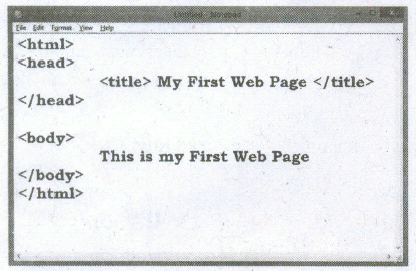
Step 3: Save the file as HTML
(i) Click File ⟶ Save (or) Press Ctrl + S
(ii) Save as dialog box appears.
(iii) In "File Name" text box, type a file name with .htm or .htmlextension.
(iv) Select "All Files" from "Save as type" list box. Click "Save" button.
12.
Digital signature :
(i) Digital signatures are based on asymmetric cryptography and can provide -assurances of evidence to origin, identity and status of an electronic document, transaction or message, as well as acknowledging informed by the signer.
(ii) To create a digital signature, signing software (email) creates a one-way hash of the electronic data to be signed.
(iii) The user's private key to encrypt the hash, returning a value that is unique to the hashed data. The encrypted hash, along with other information such as the hashing algorithm, forms the digital signature. Any change in the data, even to a single bit, results in a different hasp value.
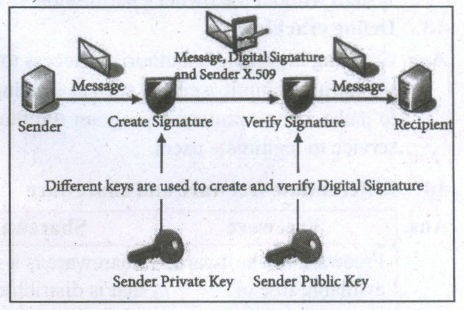
(iv) This attribute enables others to validate the integrity of the data by using the signer's public key to decrypt the hash. If the decrypted hash matches a second computed hash of the same data, it proves that the data hasn't changed since it was signed.
(v) If the two hashes don't match, the data has either been tampered with in some way (indicating a failure of integrity) or the signature was created with a private key that doesn't correspond to the public key presented by the signer (indicating a failure of authentication).
13.
(i) Social engineering:
A misuse of an individual's weakness, achieved by making them to click malicious links, or by physically accessing the computer through tricks. Phishing and pharming are examples of social engineering.
(ii) Phishing:
Phishing is a type of computer crime used to attack, steal user data, including login name, password and credit card numbers. It occurs when an attacker targets a victim into opening an e-mail or an instant text message. The attacker uses phishing to distribute malicious links or attachments that can perform a variety of functions. including the extraction of sensitive login credentials from victims.
(iii) Pharming:
Pharming is a scamming practice in which malicious code is installed on a personal computer or server, misdirecting users to fraudulent web sites without their knowledge or permission.Pharming has been called "phishing without a trap" It is another way hackers attempt to manipulate users on the Internet. It is a cyber attack intended to redirect a website's traffic to a fake site.
14.
| Function | Description | Example | Result |
| toUpperCase() | Used to convert given string into uppercase | x="java" x.toUpperCase(); |
JAVA |
| toLowerCase() | Used to convert given string into lowercase | x="JAVA" x.toLowerCase(); |
java |
| length | Used to find length of the given string | x="JAVA" x.length(); |
4 |
| parselnt() | Used to convert the given float value into an integer | parselnt(34.234); | 34 |
| parseFloat() | Used to convert the given string into a integer | parseInt("34.23"); | 34.23 |
15.
< Html >
< Body >
< script . 'language="javascript" type="text/ javascript" >
var N=0;
var N = promt ("Enter the number","0");
if(N > 0)
{
alert ("The Number is Positive ")
}
else {
alert ("The Number is Negative")
}
< /script >
< /body >
< /Html >
16.
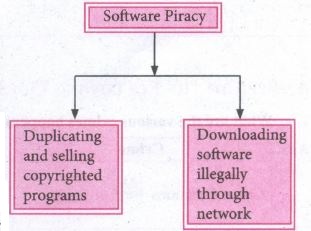
(i) Software Piracy is "unauthorized copying of software' The following show as a diayrammatical representation of software piracy.
(ii) Most of the commercial software is licensed for use at a single computer site or for use by only one user at any time, When a user buys any software, he becomes a licensed user for that software, He is allowed to make copies of the program for backup purposes but it is against the law to distribute duplicate copies to others such illegal copying and distribution of commercial software should not be practiced
(iii) An entirely different approach to software piracy is caled shareware, acknowledges the futility of trying to stop people from copying software and instead relies on people's honesty.
(iv) Shareware publishers encourage users to give copies of programs to friends and colleagues but ask everyone who uses that program regularly to pay a registration fee to the program's author directly. Commercial programs that are made available to the public illegally are often called warez.
17.
18.
<Html>
<Head>
<Title> Program-To display 10 natural number
</Title>
</Head>
<body>
<script language = "Javascript" type="text / Javascript">
document.write("<h2> The First 10 natural Number</h2>");
var n=1;
while (n<=10)
{
document.write(n+"<br">
n = n = 1;
}
</script>
</body>
</Html>
19.
The for loop is a very rigid structure that loops for a pre-set number of times. In JavaScript for structure is very flexible and is very commonly used. The syntax of the for loop looks like the following:
for(initialization; condition; increment/decrement)
{
Body of the loop;
}
The for structure consist of parts each separated by semicolon. They are,
1. The first part of the loop initialize a variable which is also called as control variable. In most case the control variable is declared as well as initialized.
2. The second part is the conditional statement that determines how many times the loop will be iterated.
3. The third and final part determines how the value of control variable is changed (Incremented/ Decremented)
Using for loop:
< Html >
< Head >
< Title > Program - To test for statement in JavaScript < /Title >
< /Head >
< Body >
< script language="javascript" type="text/javascript" >
var nol = prompt("Please enter Table You want: ", "0");
document.write ("< h2 > Multiplication Table< /h2 > ");
for(var no2=0;no2< =10;no2++)
{
document.write(nol+"x"+no2+"="+nol*no2+"< br > ");
}
< /script >
< /body >
< /Html >
20.
| Formatting | Properties | Values | Example |
| Text Colour | Color | Predefined _Color_Name | P { color:pink; } H1 { color:MediumSeaGreen; } |
| Text Alignment | Text-align | Centre / Left / Right / Justify | P { Text-align: centre; } |
| Font type | Font-family | Font_name | P { Font-family: "Times New Roman" : } |
| Font Style | Font_Style | Normal/Italic | P { Font-family: "Times New Roman" Font-style: Italic; } |
| Font Style (Bold) |
Font-weight | Normal/Bold | P { Font-family: "Times New Roman"; Font-style: Italic; Font-weight: bold; } |
| Font size | Font_size | Size in pixels | P { Font-family: "Times New Roman" Font-style: Italic; Font-size: I4px; } |
| Background Colour | Background Colour | Predefined_Color_Name | Body { background-color: violet; } |
| Border Colour | Border | Borer thickness < space > border style < space > Predefined_borderColor_Name |
H2 { border: 2px solid red;} |
| HTML supports nearly 140 color names | |||
| Background Image | Background-image | URL("image name with extension") | Body { background-image: url ("Flower.gif"); } |
| Background-repeat | norepeat | Body { background-image: url ("Flower.gif"); background-repeat: norepeat; } |
|
| Background-position | Direction | Body { background-image; url ("Flower.gif"} ; background-repeat: norepeat; background-position: right top; } |
|
| Paragraph Margin | Margin-top Margin-bottom Margin-left Margin-right |
Margin size in pixels | P { Margin-top: 50px; Margin-left: 50px; } |
21.
Types of Interactions in e-Govemance :
1. G2G (Government to Government): When the exchange of information and services is within the periphery of the government, is termed as G2G interaction. This can be both horizontal, i.e. among various government entities and vertical, i.e. between national, state and local government entities and within different levels of the entity
2. G2C (Government to Citizen): The interaction amidst the government and general public isG2C interaction. Here an interface is set up between government and citizens, which enables citizens to get access to wide variety of public services. The citizens has the freedom to share their views and grievances on government policies anytime, anywhere.
3. G2B (Government to Business): In this case, the e-governance helps the business class to .interact with the government seamlessly, It aims at eliminating red-tapism, saving time, cost and establish transparency in the business environment, while interacting with government.
4. G2E (Government to Employees): The government of arty country is the biggest employer and so it also deals with employees on a regular basis, as other employers do. ICT helps in making the interaction between government, and employees fast and efficient, along with raising their level of satisfaction by providing perquisites and add-on benefits.
E-governance has a great role to play, that improves and supports all tasks performed by the government department andagencies, because it simplifies the task on the one hand and increases the quality of work on the other.
22.
(i) Internet telephony using VolP (Voice-over Internet Protocol) Example Skype
(ii) Job search : Nowadays, many people search for their jobs online using naukri.com, monster.com, recuritmentindia.com etc as it is quicker.
(iii) Online Shopping : The internet has also facilitated the introduction of a new market concept consisting of virtual shops. For example amazon.com
(iv) Stock market updates : Selling or buying shares sitting on computer through internet. Several websites like ndtvprofit.com, moneypore.com, provide information regarding investment.
(v) Travel : One can use internet to gather information about various tourist place .it can be used for booking Holiday tours. Some of the web sites providing this service are goibibo.com, makemytrip.com, olacabs.com.
(vi) Research: Research papers are present online which helps the researcher do a literature review.
(vii) Video conferencing : It enables direct face to-face communication across networks via web cameras, microphones, and other communication tools.
23.
Depending upon geographical area covered by a network, it is classified as:
(i) Local Area Network (LAN)
(ii) Metropolitan Area Network (MAN)
(iii) Wide Area Network (WAN)
(iv) Personal Area Network (PAN)
(v) Campus Area Network (CAN)
(iv) Wireless Local Area Network (W-LAN)
(i) Local Area Network (LAN)
.JPG)
| Range | Upto 10 km |
| Location | Refers to same office, same building, same company and in same school |
| Speed | Upto 10-100 Mbps |
| Advantage | Low Cost, Resource Sharing, Security |
| Disadvantage | Area Covered Limited When Number of nodes increases,Performance Decreases |
(ii) Metropolitan Area Network (MAN)
.JPG)
| Range | 10 to 15 Miles |
| Location | MAN is a network designed to extend over an entire city. |
| Speed | Upto 5 - 10 Mbps |
| Advantage | Wider than LAN. |
| Disadvantage | Data rate is slow compared toLAN Cost higher than LAN. |
(iii) Wide Area Network (WAN)
.JPG)
| Range | Above 1000 Kms |
| Location | It Span entire countries and continents. |
| Speed | Upto 256 Kbpsto 2 Mbps. |
| Advantage | Large geographical Areaz |
| Disadvantage | 1. Complicated and Complex. High Cost. 2. Requires high Performance. Devices. 3. Low security. Cost higher than LAN. |
(iv) Personal Area Network (PAN)
.JPG)
| Range | Upto 100 meters |
| Location | Used for shorter distance, controlled by a single person within a single building |
| Speed | Up to 250 Kbps. |
| Advantage | 1. Efficient, Cost effective and convenient. 2. Controlled by a single person Hotspot may connect upto 8 devices. |
| Disadvantage | 1. Shorter distance upto 10 meters only. 2. Data rate is low compared to other network. |
(v) Campus Area Network (CAN)
.JPG)
| Range | Upto 5 Kms |
| Location | Larger than LAN, but smaller than MAN. University, school or small business, enterprise |
| Speed | 40 KB/s TO 1 MB/s |
| Advantage | Cost effective, Wired or Wired Network, High Bandwith Multidepartmental Network access |
| Disadvantage | Difficult to manage |
(iv) Wireless Local Area Network (W-LAN)
.JPG)
| Range | Upto 50 Kms |
| Location | Ranges from a single room to an entire campus Uses Wifi or Bluetooth, Radio waves |
| Speed | 1 Mbps to 54 Mbps. |
| Advantage | Portable Installation is quick and easy |
| Disadvantage | Low Bandwith due to interference |
24.
The most common indicators in the Menu bar are:

(i) Network indicator (or) manages network connections, allowing you to connect quicly and easily to a wired or wireless network.
(ii) Text entry settings shows the current keyboard layout (such as En, Fr, Ku, and so on). If more than one keyboard layout is shown, it allows you to select a keyboard layout out of those choices. The keyboard indicator menu contains the following menu items: Character Map, Keyboard Layout Chart, and Text Entry Settings.
(iii) Messaging indicator incorporates your social application,s. From here, among others, you can access instant messenger and email clients.
(iv) Sound indicator provides an easy way to adjust the sound volume as well as access your music player and sound settings.
(v) Clock displays the current time and provides a link to your calendar and time and date settings.
(vi) Session indicator is a link to the system settings, Ubuntu Help, and session options (like locking your computer, user/guest session, logging out of a session, restarting the computer, or shutting down completely).
25.
(i) The Title Bar and control buttons - The title bar will display the name of the program and the name of the document that has been currently opened and also contains control buttons like Minimize, MaximizelRestore and Close buttons.
(ii) The Menu bar - The menu bar is seen under the title bar. Menus in the menu bar can be accessed through shortcuts involving the Alt key and the mnemonic letter that appears underlined in the menu title. Additionally, pressing Alt or F 10 brings the focus on the first menu of the menu bar.
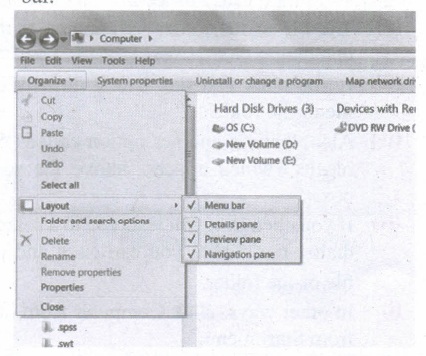
(iii) In Windows 7, in the absence of the menu bar, you have to click organize and in the sub menu list, click the layout option from it and then select the desired item from that list.
(iv) The Workspace: The Workspace is the area in the document window where you enter or type the text of document. It is the point of insertion for typing within the document.
(v) The Scroll bars: A scrollbar is an interaction technique in which continuous text, pictures, or any other content can be scrolled in a predetermined direction (up, down, left, or right) on a computer display so that all contents can be viewed, even if only a fraction of the content can be seen on a device's screen at a time. Refer figure 5.10 to view the Scroll bars.
(vi) Corners and borders: The corners and borders of the windows help to drag and hence help to resize the Windows. The mouse cursor changes to a double arrow when positioned over a border or a corner. Drag the border or corner in the direction indicated by the double arrow to the desired shape.
(a) The corners can be resized diagonally by dragging it across any of the corners. It will resize the window on all the sides simultaneously.
(b) On the other hand, the borders will let you to resize the window by either dragging it in left side, right side, from the top or from the bottom of the window.
(c) It will change the size of the window at one side only depending on the side in which the dragging is made.
26.
The important functions of an operating System.
(i) Memory Management
(ii) Processor Management
(iii) Device Management
(iv) File Management
(v) Security
(vi) Control over system performance
(vii) Job accounting
(viii) Error detecting aids
(ix) Coordination between other software and users
27.
In Ubuntu OS:
(i) Create a file: By right-clicking in the desktop' and also files be created by using the file menu.
(ii) Delete a file: By using right-click choosing a move to trash or by using the menu.
(iii) Rename a file: By using right-click and choosing rename option.
(iv) Save a file: Press ctrl + x or F2 to exit. You will. then be asked if you want to save. (or) Press ctrl+ 0 or F3 and ctrl + x or F2 for save and exit.
In Windows OS:
(i) Create file: Open an application and create it by using the file menu.
(ii) Delete a file: By right click on a file and choosing the delete option to delete a file.
(iii) Rename a file: By right-clicking on a file and choosing rename option to rename a file.
(iv) Save file: Press ctrl+S or file - save to save the file.
28.
(i) Android is a mobile operating system developed by Google, based on the Linux and designed primarily for touchscreen mobile devices such as smartphones and tablets.
(ii) Google has further developed Android TV for televisions, Android Auto for cars and Android Wear for wrist watches, each with a specialized user interface.
(iii) Variants of Android are also used on game consoles, digital cameras, PCs and other electronic gadgets.
UNIX :
UNIX is a family of multitasking, multi-user operating systems that derive originally from AT&T Bell Labs, where the development began in the 1970s by Ken Thompson and Dennis Ritchie.
Linux
(i) Linux is a family of open-source operating systems. It can be modified and distributed by anyone around the world.
(ii) This is different from proprietary software like Windows, which can only be modified by the company that owns it.
(iii) The main advantage of Linux operating system is that it is open source. There are many versions and their updates
(iv) Most of the servers run on Linux because it is easy to customize.
29.
Memory Management:
(i) Memory Management is the process of controlling and coordinating computer's main memory and assigning memory block (space) to various running programs to optimize overall computer performance.
(ii) The Memory management involves the allocation of specific memory blocks to individual programs based on user demands. At the application level, memory management ensures the availability of adequate memory for each running program at all times.
(iii) The objective of Memory Management process is to improve both the utilization of the CPU and the speed of the computer's response to its users via main memory. For these reasons, the computers must keep several programs in main memory that associates with many different Memory Management schemes.
(iv) The Operating System is responsible for the following activities in connection with memory management.
(v) Keeping track of which portion of memory are currently being used and who is using them.
(vi) Determining which processes (or parts of processes) and data to move in and out of memory.
(vii) Allocation and de-allocation of memory blocks as needed by the program in main memory. (Garbage Collection).
30.
The main purpose of using an operating system:
(i) It controls and coordinates all the activities of a computer system.
(ii) It provides an environment for a computer user to execute programs on computer hardware in a convenient and efficient manner.
(iii) It enables the user to design the application, and also it provides an interface to interact with the computer and controls the execution of all kinds .of programs without knowing the internals of the hardware.
(iv) It interprets the command and instructions to perform the specified tasks.
(v) It coordinates and assigns the compilers, assemblers, utility programs to the users.
(vi) It detects errors present in the hardware and software.
(vii) It maintains the internal time clock.
(viii) It protects itself from being destroyed by any users.
(ix) It serves two major functions
1. Supervision (Prevent errors)
2. Management (Operation and control of I/O devices)
(x) It loads the programs itself into memory so that user can interact with hardware and software.
31.
The Distributed Operating System is used to access shared data and files that reside in any machine around the world using internet / intranet. The users can access as if it is available on their own computer.
The advantages of distributed Operating System are as follows:
(i) A user at one location can make use of all the resources available at another location over the network.
(ii) Many computer resources can be added easily in the network
(iii) Improves the interaction with the customers and clients.
(iv) Reduces the load on the host computer.
32.
(i) The size of the instruction set is another important consideration while categorizing microprocessors.
(ii) Initially, microprocessors had very small instruction sets because complex hardware was expensive as well as difficult to build.
(iii) As technology had developed to overcome these issues, more and more complex instructions were added to increase the functionality of the microprocessor,
(iv) Let us learn more about the two types of microprocessors which are based on their instruction sets.
(v) RISC stands for Reduced Instruction Set Computers. They have a small set of highly optimized instructions.
(vi) Complex instructions are also implemented using simpler instructions, thus reducing the size of the instruction set.
(vii) Examples of RISC processors are Intel P6, Pentium IV, AMD K6 and K7.
(viii) CISC stands for Complex Instruction Set Computers. They support hundreds of instructions. Computers supporting CISC can accomplish a wide variety of tasks, making them ideal for personal computers.
(ix) Examples of CISC processors are Intel 386 & 486, Pentium, Pentium II and III, and Motorola 68000.
33.
(i) The Central Processing Unit(CPU) has a Memory Data Register (MDR) and a Memory Address Register (MAR).
(ii) The Memory Data Register (MDR) keeps the data which is transferred between the Memory and the CPU. The Program Counter (PC) is a special register in the CPU which always keeps the address of the next instruction to be executed.
(iii) A bus is a collection of wires used for communication between the internal components of a computer.
(iv) The address bus is used to point a memory location. A decoder, a digital circuit is used to point to the specific memory location where the word can be located.
(v) The read operation fetches data from memory and transfers to MDR. A single control line performs two operations like read write using 1 or 0.
(vi) Also, the write operation transfers data from the MDR to memory.
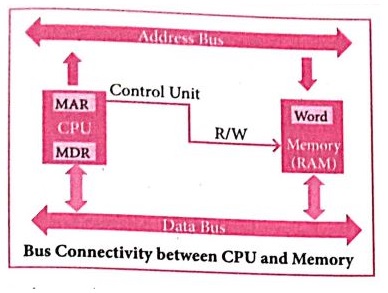
(vii) The word in the RAM has the same size (no. of bits) as the Memory Data Register (MDR).
(viii)The data bus has eight parallel wires to transfer data either from MDR to word or word to MDR based on the control(Read or write).
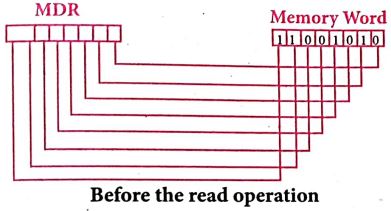
(ix) This control line is labeled as R/W, which becomes 1 means READ operation and 0 means WRITE operation. The content of MDR and the Word before the READ operation. Also figure shows the content of MDR and the Word after the READ operation.
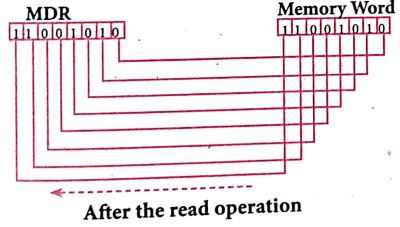
(x) The read operation transfers the data (bits) from memory word to data register. The write operation transfers the data (bits) from memory data registerto word.
34.
35.
(101.10)16 in binary From
= 1 0 1 1 0
0001 0000 0001 0001 0000
(101.10)2 = (000100000001.00010000)2
(101.10)16 in Decimal Form
(101.10)2 = 1 x 162 + x 161 + 1 x 160 + 1 x 16-1 + 0 x 16-2
= 256 + 0 + 1 + 0.0625 + 0 =(275.0625)10
36.
A number system is a set of digits used to represent the values derived from a common base or radix.
Decimal Number System:
(i) The term Decimal is derived from a Latin prefix deci, which means ten.
(ii) The Decimal number system has ten digits ranging from 0-9. Because this system has ten digits.
(iii) It is also called as a base ten number system or denary number system.
(iv) Decimal number should always be written with a subscript 10.
Binary umber System:
(i) The decimal number system is not convenient to implement in digital system.
(ii) For instance, it is very difficult to design electronic equipment so that it can work with 10 different voltage levels (each one representing one decimal character, 0 through 9).
(iii) On other hand, it is very easy to design simple, accurate electronic circuits that operate with only 2 voltage levels.
(iv) For this reason, almost every digital system utilizes the binary number system (base 2) as the basic number system of its operation;
(v) In a binary system, there are only two symbols or possible digit values, 0 and 1.
Octal Number System:
(i) The octal number system is playing a vital role in digital computer work.
(ii) The octal number system has a base of 8.
(iii) It means that it has eight unique symbols such as 0,1,2,3,4,5,6 and 7.
(iv) Thus, each digit of an octal number can have any value from 0 to 7.
(v) The places to the left of the octal point are positive powers of 8 and places to the right are negative powers of 8.
Hexademical Number System:
(i) The hexadecimal system uses base 16 in digital systems.
(ii) It has 16 possible symbols.
(iii) It uses the digits 0 through 9 plus the letters A, B, C, D, E and F as the 16 different symbols.
(iv) Hexadecimal System is a positional value system, wherein each hexadecimal digit has its own value or weight expressed as a power of 16.
37.
AND and OR operation from NAND gates are shown below
.png)
A.B = (A NAND B) NAND ( A NAND B)
OR operation
.png)
A+B (ANAND A)NAND (B NANDY Y)
b) AND AND OR operation from NOR gates are shown below.
.png)
A - B = (A NORA A) NOR (B NOR B)
.png)
A+ B = (A NOR B) NOR (A NOR B)
38.
39.
Registers:
(i) Registers are the high-speed temporary storage locations in the CPU. Hence, their contents can be handled much faster than the contents of memory.
(ii) Although the number of registers varies from computer to computer, there are some registers which are common to all computers. Five registers that are essential for instruction execution are:
(iii) Program Counter (PC): Contains the address of the next instruction to be fetched.
(iv) Instruction Register (IR): Contains the instruction most recently fetched.
(v) Memory Address Registers (MAR): Contain the address of a location in memory for read and write operations.
(vi) Memory Buffer Register (MBR): It contains the value to be stored in memory or the last value read from memory.
(vii) Accumulator (ACC): An accumulator is a general purpose register used for storing temporary result produced by the arithmetic logic unit.
40.
| S.N | Type of Mouse | Mechanism | Developed and Introduced |
| 1 | 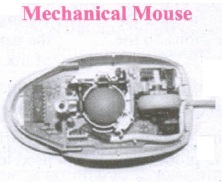 |
|
Telefunken, German Company, 0211011968 |
| 2 | 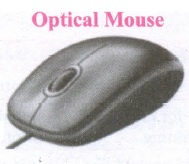 |
|
In 1988, Richard Lyon, Steve Krish independently invented different versions of Optical Mouse. |
| 3 | 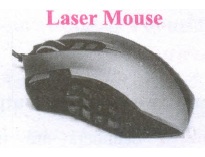 |
|
41.
| S.No | Generation | Period | Main Component used | Merits/ Demerits |
| 1 | First Generation | 1940 - 1956 | Vaccum tubes | 1. Big in size 2. Consumed more power 3. Malfunction due to over heat 4. Machine Language was used |
| First Generation Computer - ENIAC, EDVAC, UNIVAC 1 ENIAC weighed about 27 tons, size 8 feet x 100 feet x 3 feet and consumed around 150 watts of power |
||||
| 2 | Second Generation | 1956-1964 | Transistors | 1. Smaller compared to First Generation 2. Generated Less Heat 3. Consumed less power compared to first generation 4. Punched cards were used 5. First operating system was developed - Batch Processing and Multiprogramming Operating System 6. Machine language as well as Assembly language was used. |
| Second Generation Computers - IBM 1401, IBM 1620, UNIVAC 1108 | ||||
| 3 | Third Generation | 1964-1971 | Integrated Circuits (IC) | 1. Computers were smaller, faster and more reliable 2. Consumed less power. 3. High-Level Languages were used |
| Third Generation Computers -IBM ·360 series, Honeywell 6000 series | ||||
| 4 | Fourth Generation | 1971-1980 | Microprocessor Very Large Scale Integrated Circuits (VLSI) |
1. Smaller and Faster 2. Microcomputer series such as IBM and APPLE were developed 3. portable Computers were introduced |
| 5 | Fifth Generation | 1980-till date | Ultra Large Scale Integration (ULSI) | 1. Parallel, Processing 2. Super conductors 3. Computers size was drastically reduced. 4. Can recognize Images and Graphics 5. Introduction of Artificial Intelligence and Expert Systems 6. Able to solve high complex problems including decision making and logical reasoning |
| 6 | Sixth Generation | In future | 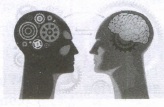 |
1. Parallel and Distributed computing 2. Computers have become smarter faster and smaller 3. Development of robotics 4. Natural Language Processing 5. Development of Voice Recognition Software. |
42.
Presentation is helpful for a sales person to promote his/her products effectively.
(i) Presentation will give visual video, pictures to understand a goodness of the product.
(ii) By using presentation, sales person can make audience to understand easier and he can get more response from the people.
(iii) Presentation help sales person to present prospect challenges easier.
(iv) Sales person can explain with physical demonstration by shocking animations. It helps to increase the sales.
43.
1. = Sum (B5 : E5) = 4285
2. = Sum (E2 : E6) = 1600
3. = Sum (C5 : D6) = 4395
4. = Average (B2 : B6) = 1760
5. = Average (B2 : B6) = 1760
5. =(B6 - E6) = 1700
44.
Resize the width of a column using the mouse :
Use the right hand border to increase or decrease the width of a column.
(i) Position the cursor on the right hand border of the column letter box, until you see a double headed arrow.
(ii) Hold down the left hand mouse button and drag the border to the left or right to make the column narrower or wider as required.
As you carry out this action, the width of the column displays.
Resize one or more columns using Format :
(i) Select the column(s) whose width you wish to change
(ii) Select Format \(\rightarrow\) Column \(\rightarrow\) Width
(ii) The Column Width dialog displays
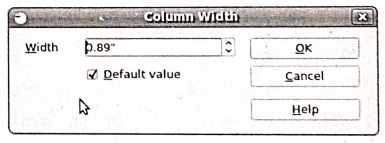
(iv) Enter a value in the Width window or check the Default value check box to select the default column width.
(v) Click OK.
The selected columns display with the new width.
45.
To insert a new table, position the cursor where you want the table to appear, then use any of the following methods to open the Insert Table dialog box:
There are two methods to create a table:
Using Table Icon:
To insert a table quickly from the standard tool bar:
(i) Place the cur
(ii) sor where you want the table to appear.
(iii) Click the arrow to the right side of the Table icon.
(iv) In the drop down grid, select the number of rows and columns for the table.
(v) The table will appear at the location of your cursor.
Using the Insert Table Dialog Box:
To insert a table with more control over the settings and properties, use the Insert Table dialog box.
To open the dialog box, select Table ➝ Insert ➝ Table , or Ctrl +F12 or left-click the Table icon. From this dialog box, you can:
(i) Select the number of rows and columns of the table
(ii) Give a Name to the table to later distinguish it in the Navigator
(iii) Select the Heading option to define the first row in the table as the heading
(iv) Select the Repeat heading option to repeat the heading row if the table spans more than one page.
(v) Select the Don't split table option to prevent the table from spanning more than one page
(vi) Select the Border option to surround each cell of the table with a border.
46.
(i) Click Edit ➝ Find & Replace (or) Ctrl + F
(ii) The Find & Replace dialog box appears.
Steps to find and replace a text:
(i) Type the text you want to find in the Search for box
(ii) To replace the text with different text, type the new text in the Replace with box
(iii) Click Find button, to start the search, the found word is highlighted and
(iv) To replace text, click Replace button
(v) Click Find All, Writer selects all instances of the search text in the document
(vi) Click Replace All button, Writer replaces all matches.
(vii) Enable Match case to perform the search case sensitively so that uppercase and lower cases are distinguished separately.
(viii) Enable Whole Words only to make the search more specific to words used separately alone.
47.
Paragraph Alignment or justification refers to the way in which the lines of a paragraph are aligned. Paragraph alignment lets you control the appearance of individual paragraphs. There are four types of alignment available in Open office Writer - left alignment, Right-alignment, Center-alignment, and Justify-alignment.
Left-alignment: A paragraph's text is Left aligned when it is aligned evenly along the left margin. This is the default alignment which occurs by default when a paragraph is typed.
Right-alignment: A Paragraph's text is Right aligned when it is aligned evenly along the right margin.
Center-alignment: All the lines in the paragraph are aligned along the same imaginary vertical line at the center of the text area between the margins.
Justify-alignment: All the lines in the paragraph, except the last line, are extended so that the lefthand end of each line is aligned along the left-hand margin of the text area, the right-hand end of each line is aligned along the right-hand margin of the text area, and the lines are all of the same length. This is achieved by inserting additional space between words.
48.
Writer provides these important features:
(i) Templates and styles.
(ii) Page layout methods, including frames, columns, and tables.
(iii) Embedding or linking of graphics, spreadsheets, and other objects.
(iv) Built-in drawing tools.
(v) Master documents-to group a collection of documents into a single document.
(vi) Change tracking during revisions.
(vii) Database integration, including a bibliography database.
(viii) Export to PDF, including bookmarks.
49.
The header is a section of the document that appears in the top margin, which displays the title or chapter name, author name of a document.
(i) Select from the main menu Insert \(\rightarrow\)Header \(\rightarrow\) Default.
(ii) The header text area is separated from the normal text area.
(iii) In the header area, Enter the text that is to be repeated in all pages or Select Insert \(\rightarrow\) Fields \(\rightarrow\) Title.
The footer is a section of the document that appears in the bottom margin of the page which displays the page number, date, time etc. which gets displayed on all the pages automatically.
(i) Select from the main menu Insert \(\rightarrow\) Footer \(\rightarrow\) Default
(ii) Place the insertion pointer in the footer part of the page.
(iii) Select Insert \(\rightarrow\) Fields \(\rightarrow\) Date to insert date in all the pages.
Inserting and Formatting page numbers
The page numbers can be inserted by performing the following steps:
(i) Place the insertion pointer where you want to insert the page number
(ii) choose Insert \(\rightarrow\)Fields \(\rightarrow\)Page Number
(iii) The page number appears with gray background.
Normally, the page numbers appear as 1,2,3....., To change the numbering style, the following sequence of steps can be performed:
(i) Position the insertion pointer where the page number has to appear.
(ii) Select Format\(\rightarrow\) page, which will display the Page Style dialog box.
(iv) In the Layout settings, select the format drop down combobox
(v) Select the desired style and click OK button.
50.
Page margins are the white space around the top, bottom, left and right of your document.
Changing or setting page margins in openoffice writer can be done in two ways:
(i) Using the Rulers - quick and easy, but does not have precise values.
(ii) Using the Page Style dialog box - can specify precise values for the margins.
Changing Page Margins using Ruler:
(i) The shaded sections of the rulers are the margins.
(ii) Hold the mouse pointer over the line between the gray and white sections.
(iii) The mouse pointer turns into a double-headed arrow.
(iv) Hold down the left mouse button and drag the mouse to move the margin and release it at the required point.
(v) The new margin is set.
Using the Page Style Dialog Box:
To change margins using the Page Style dialog box
(i) Right-click anywhere on the page and select Page from the popup menu or select page tab of page style dialog box.
(ii) In the Margins boxes, specify the values for left, right, top and bottom margins.
(iii) Click on OK button.

11th Standard Syllabus & Materials
11th Standard
TN 11th Tamil பீடு பெற நில் - செய்யுள் - காவடிச்சிந்து Important Questions And Answers Study Material - QB365 Set A
NEW11th Standard
TN 11th Tamil பீடு பெற நில் - உரைநடை - மலை இடப்பெயர்கள் : ஓர் ஆய்வு Important Questions And Answers Study Material - QB365 Set A
NEW11th Standard
TN 11th Tamil மாமழை போற்றுதும் - துணைப்பாடம் - யானை டாக்டர் Important Questions And Answers Study Material - QB365 Set A
NEW11th Standard
TN 11th Tamil மாமழை போற்றுதும் - செய்யுள் - ஐங்குறுநூறு Important Questions And Answers Study Material - QB365 Set A



Tamilnadu Stateboard 11th Standard Subjects

Maths

Commerce

Economics

Biology

Business Maths and Statistics

Accountancy

Computer Science

Physics

Chemistry
Maths
Biology
Economics
Physics
Chemistry

History
Business Maths and Statistics

Computer Science
Accountancy
Computer Applications
History
Computer Technology
Commerce
Computer Applications
Computer Technology

Tamil

English

French
Tamilnadu Stateboard Standards
